

cURL is one of the most useful command-line tools available on Linux. It allows you to transfer data and download files from URLs using protocols such as HTTP, HTTPS, FTP, and SFTP, all without opening a web browser.
In this tutorial, you’ll learn how to download files using cURL, save files with custom names, follow redirects, resume interrupted downloads, limit download speeds, authenticate with protected servers, and more.
Prerequisites
Before getting started, make sure:
- You have cURL installed on your Linux system.
- You have access to a terminal.
- You have a valid URL for the file you want to download.
Note: If you run curl without any file-saving options, the downloaded content is displayed directly in the terminal (stdout) instead of being saved to disk.
Save a File to Disk
cURL provides two commonly used options for saving downloaded files:
- -O (uppercase O) saves the file using its original filename from the URL.
- -o (lowercase o) lets you choose your own filename.
Use -O to Keep the Original Filename
If you want cURL to save the file using the filename already present in the URL, use the -O option.
curl -O https://httpbin.org/robots.txt
This command downloads the file and saves it as:
robots.txtWhat this does:
- Downloads the file from the specified URL.
- Automatically uses the filename found in the URL path.
Use -o to Specify Your Own Filename
Use the lowercase -o option when you want to save the file with a custom name.
curl -o my-robots.txt https://httpbin.org/robots.txt
This saves the downloaded file as:
my-robots.txtWhy use this option?
- Helpful when URLs contain long query strings.
- Makes filenames easier to identify.
- Useful for organizing downloaded files.
Follow Redirects with -L
Some URLs redirect visitors to another location using HTTP status codes such as 301 or 302. By default, cURL does not automatically follow these redirects.
To instruct cURL to follow redirect chains and download the final file, use the -L option.
curl -L -o latest.tar.gz https://tinyurl.com/example-release
What this does:
- Follows one or more redirects automatically.
- Downloads the final destination file.
- Saves it as latest.tar.gz.
This is particularly useful when working with shortened URLs, download mirrors, or content delivery networks (CDNs).
Important: Without -L, you may download the redirect response instead of the intended file.
Resume an Interrupted Download with -C –
Large downloads can fail because of network interruptions. Instead of starting over, cURL can continue downloading from the point where the transfer stopped.
curl -C - -o big-file.zip https://example.com/big-file.zip
What this does:
- Checks the size of the partially downloaded file.
- Resumes downloading from the last downloaded byte.
- Prevents wasting bandwidth and time.
The second dash (-) tells cURL to automatically determine where the previous download ended.
Display a Simple Progress Bar with -#
By default, cURL displays transfer statistics while downloading. If you prefer a cleaner progress indicator, use the -# option.
curl -# -o release.zip https://example.com/release.zip
What this does:
- Replaces the standard statistics output.
- Displays a visual progress bar.
- Makes download progress easier to monitor.
This option is useful when downloading large files interactively.
Run Silently While Still Showing Errors with -sS
When using cURL inside shell scripts, excessive output can clutter logs. The -s flag suppresses progress information, while -S ensures error messages are still displayed.
curl -sS -o config.yml https://example.com/config.yml
What this does:
- Hides the progress meter.
- Displays errors if the download fails.
- Produces cleaner script output.
This combination is commonly used in automation scripts and CI/CD workflows.
Tip: Using only -s may hide useful error information during troubleshooting.
Download Multiple Files at Once
You can download multiple files in a single command by pairing each URL with its own -O option.
curl -O https://example.com/readme.md -O https://example.com/license.txt
What this does:
- Downloads both files sequentially.
- Saves each file using its original filename.
- Reduces the need to run multiple commands.
Useful Notes
- Each -O applies to the URL immediately following it.
- Original filenames are preserved.
- You can also use -K to read download instructions from a configuration file.
Limit Download Speed with –limit-rate
Sometimes a large download can consume all available bandwidth. To prevent that, cURL allows you to set a speed limit.
curl --limit-rate 2m -o iso-image.iso https://example.com/ubuntu-24.04.iso
What this does:
- Limits the download speed to 2 MB/s.
- Helps keep the network responsive for other applications.
- Reduces bandwidth usage during large transfers.
Common Rate Suffixes
- k = Kilobytes per second
- m = Megabytes per second
Example: 500k limits downloads to approximately 500 KB/s.
Authenticate with a Username and Password Using -u
Some FTP servers and protected web endpoints require authentication before allowing downloads. Use the -u option to provide credentials.
curl -u user:pass -O ftp://example.com/private-file.zip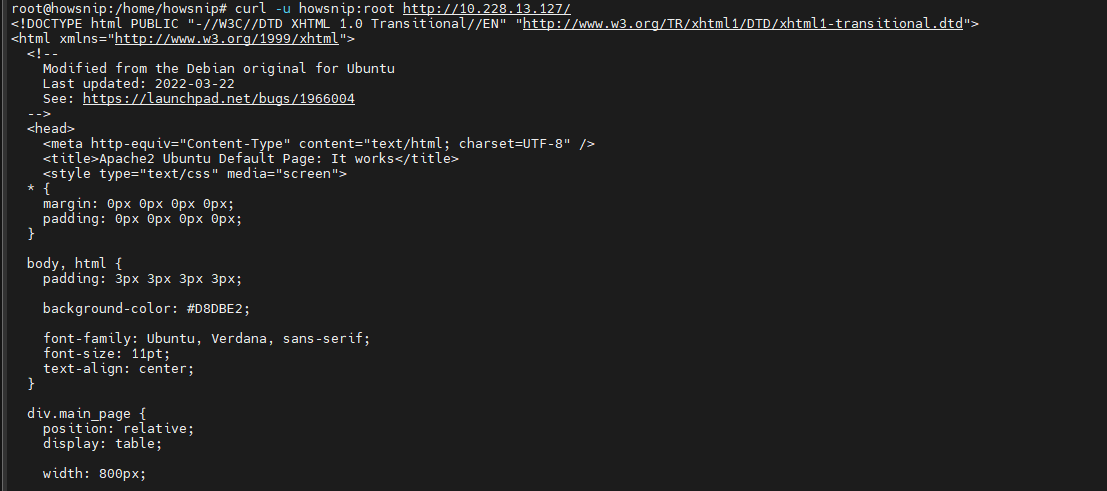
What this does:
- Sends the username and password to the server.
- Allows access to protected resources.
- Works with supported protocols such as FTP and HTTP authentication.
More Secure Approach
On shared systems, avoid putting passwords directly into commands. Instead, provide only the username:
curl -u username -O ftp://example.com/private-file.zip
cURL will prompt you to enter the password securely.
Warning: Passwords entered directly on the command line may be stored in shell history.
Quick Reference: Common cURL Download Options
- -O – Save the file using the original filename from the URL.
- -o filename – Save the file with a custom filename.
- -L – Follow HTTP redirects automatically.
- -C – – Resume an interrupted download.
- -# – Display a progress bar.
- -sS – Run silently while still showing errors.
- –limit-rate – Limit the download speed.
- -u user:pass – Authenticate with a username and password.
Conclusion
cURL is a powerful and flexible tool for downloading files directly from the Linux command line. By learning a few essential options such as -O, -o, -L, and -C -, you can handle common download tasks efficiently. Additional features like download resumption, authentication, speed limits, and silent execution make cURL especially useful for automation, scripting, and server administration.
For more advanced capabilities such as proxy support, cookies, TLS settings, and API requests, refer to the cURL manual:
man curlThis provides access to the complete list of available options and configurations.