
PowerShell is Microsoft’s powerful command-line shell and scripting language designed for system administration, automation, and configuration management. In this guide, we’ll explore 13 essential PowerShell commands that every administrator should know, along with practical examples and real-world use cases.
- Get-Help
- Get-Command
- Get-Member
- Out-File
- Export-Csv
- Get-ChildItem
- Get-Process
- Get-Service
- Restart-Service
- Where-Object
- Select-Object
- Out-GridView
- Invoke-Item
1. Get-Help
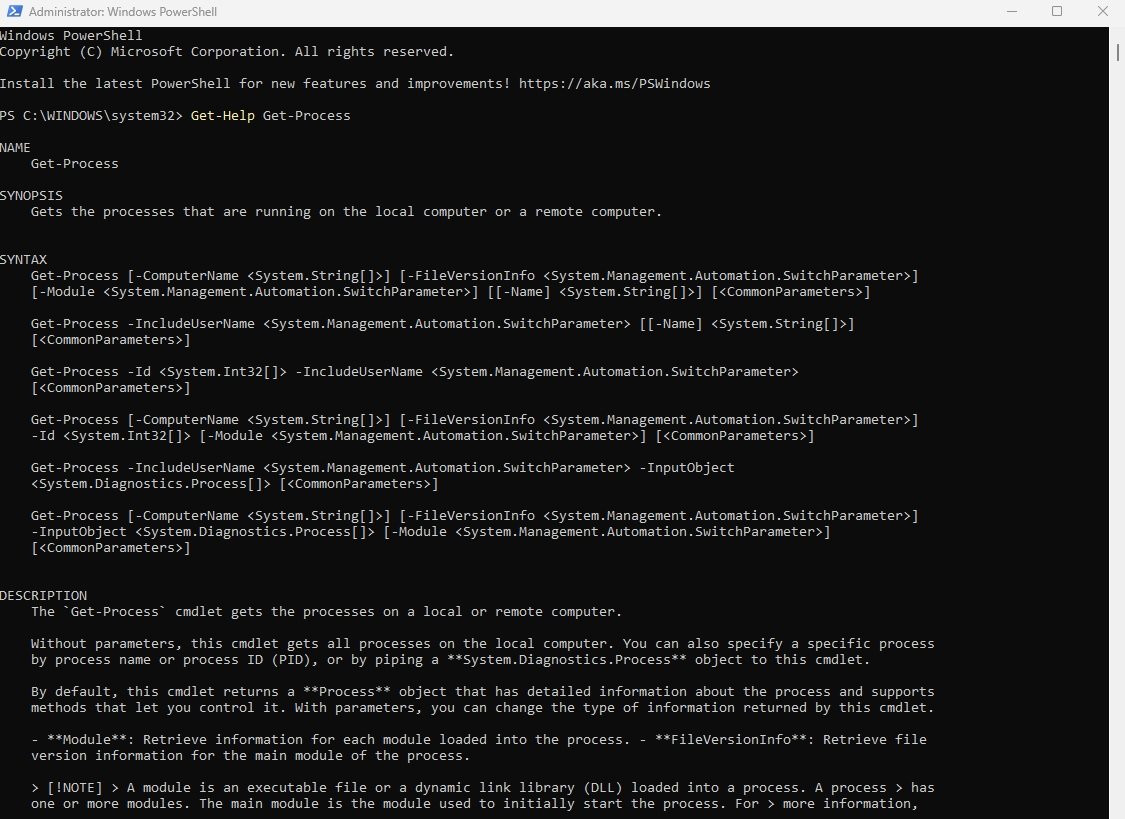
Command: Get-Help Get-ProcessThe Get-Help cmdlet is often the first command administrators use when learning PowerShell. Almost every PowerShell cmdlet comes with built-in documentation that can be accessed using Get-Help. Suppose you’re unfamiliar with a new cmdlet such as Get-WinEvent. Instead of searching online, you can immediately access its documentation using Get-Help.
2. Get-Command
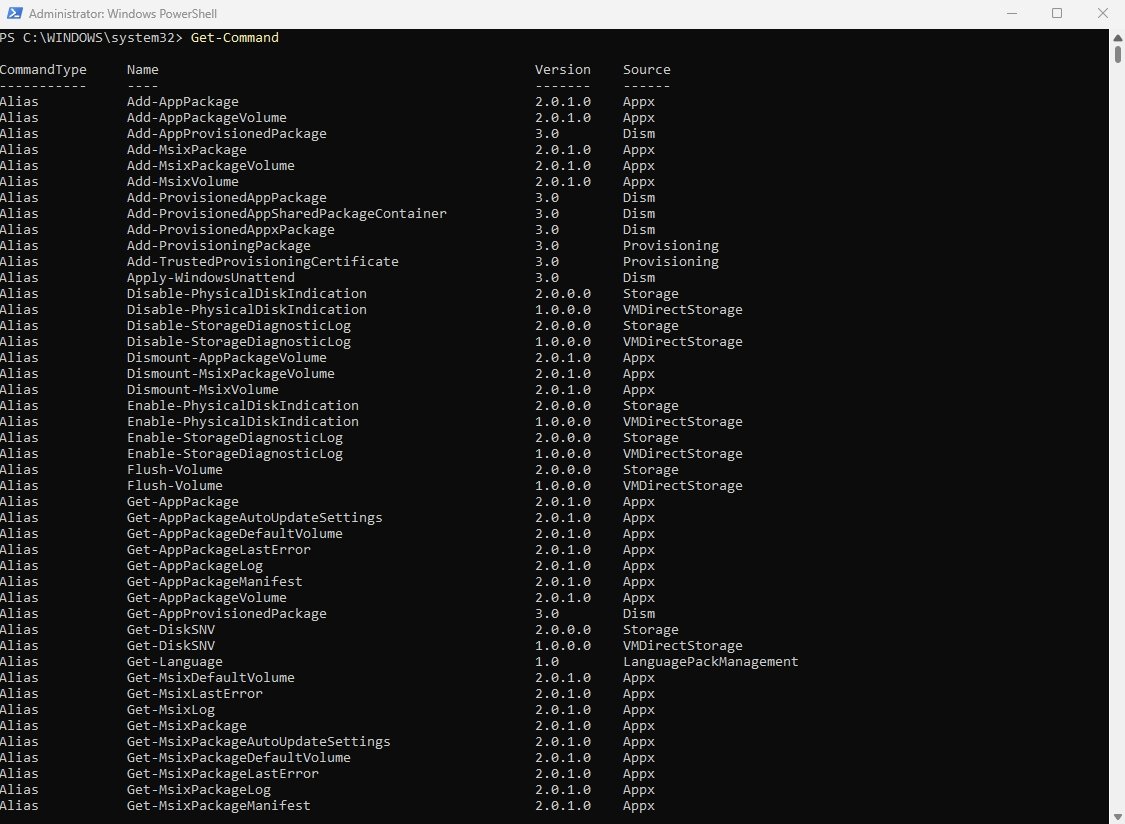
Command: Get-CommandGet-Command helps administrators discover PowerShell functionality without memorizing hundreds of cmdlets. PowerShell follows a Verb-Noun naming convention. Learning Get-Command helps you quickly find the correct cmdlet for any task.
Need to work with certificates but don’t know the exact command?
The wildcard search feature helps locate commands related to specific tasks. The following command lists all PowerShell commands related to certificates.
Command: Get-Command -Name *certificate*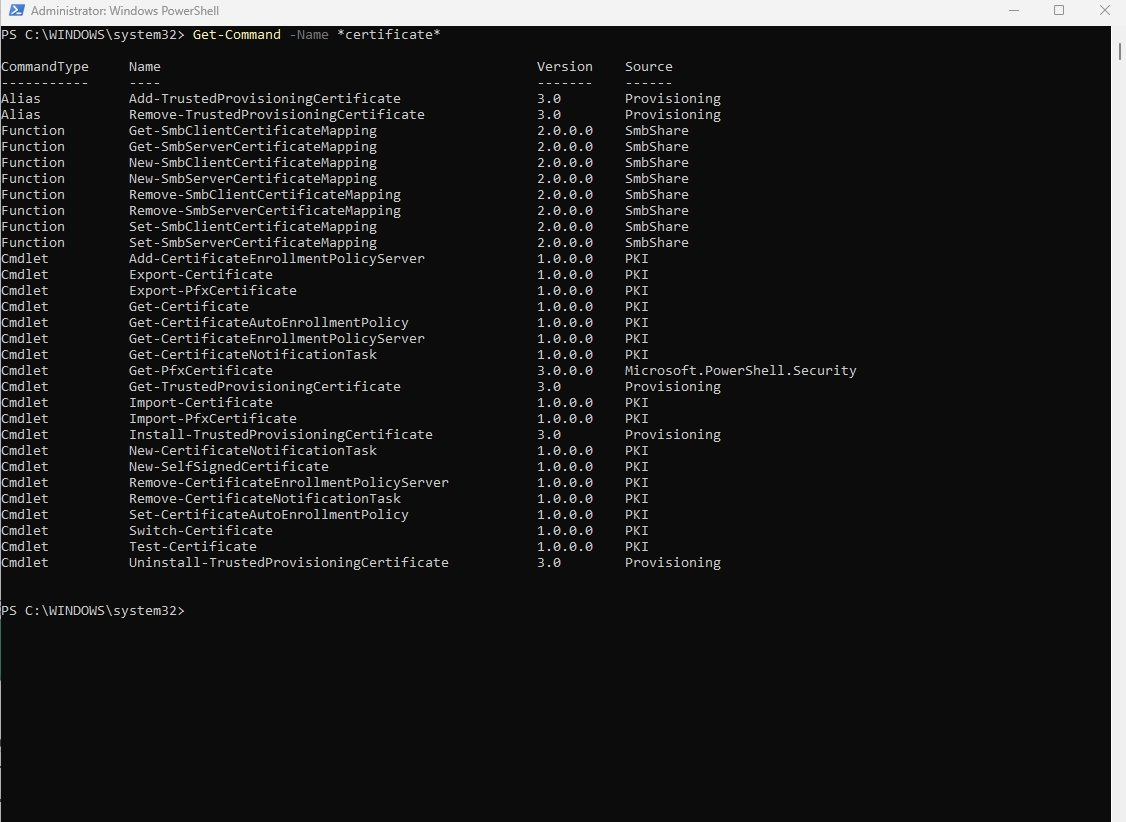
3. Get-Member
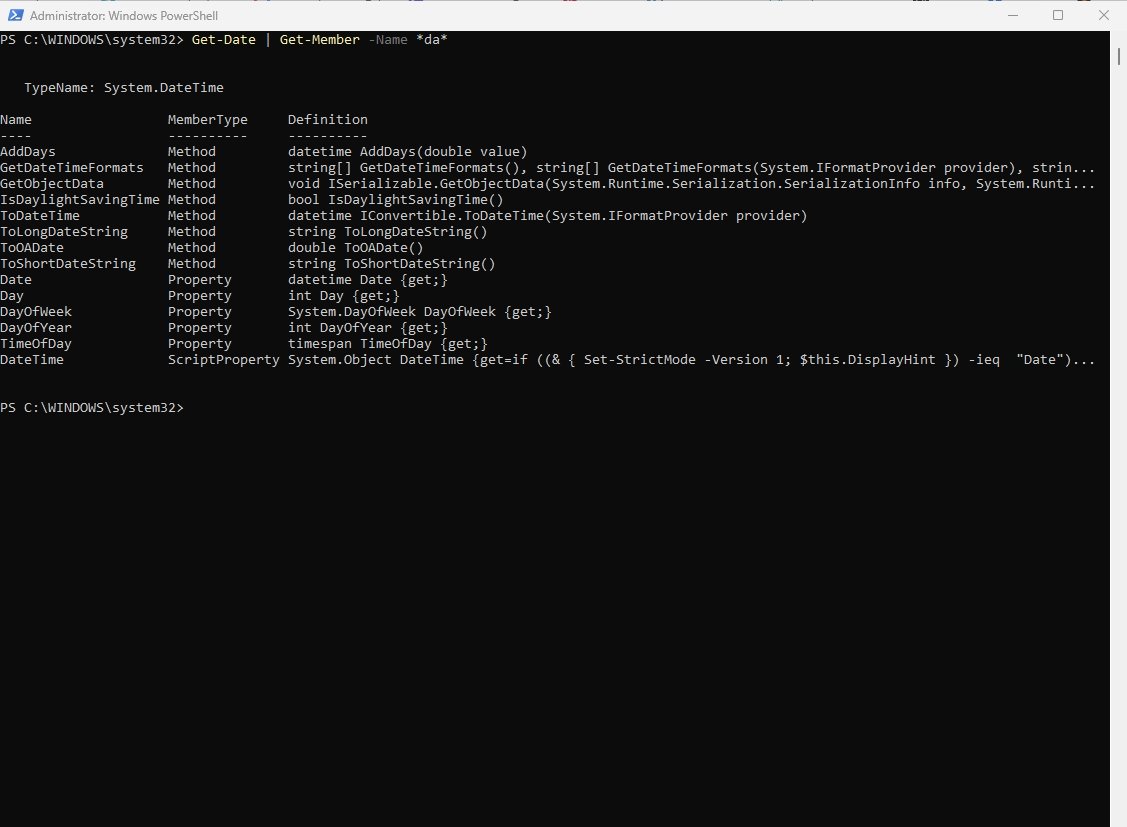
Command: Get-Date | Get-Member -Name *da*One of the biggest differences between PowerShell and traditional command-line tools is that PowerShell works with objects. Get-Member allows you to inspect those objects and discover: Properties, Methods, Events and Aliases.
Before writing reports or scripts, administrators often use Get-Member to determine which fields are available for filtering and exporting.
4. Out-File
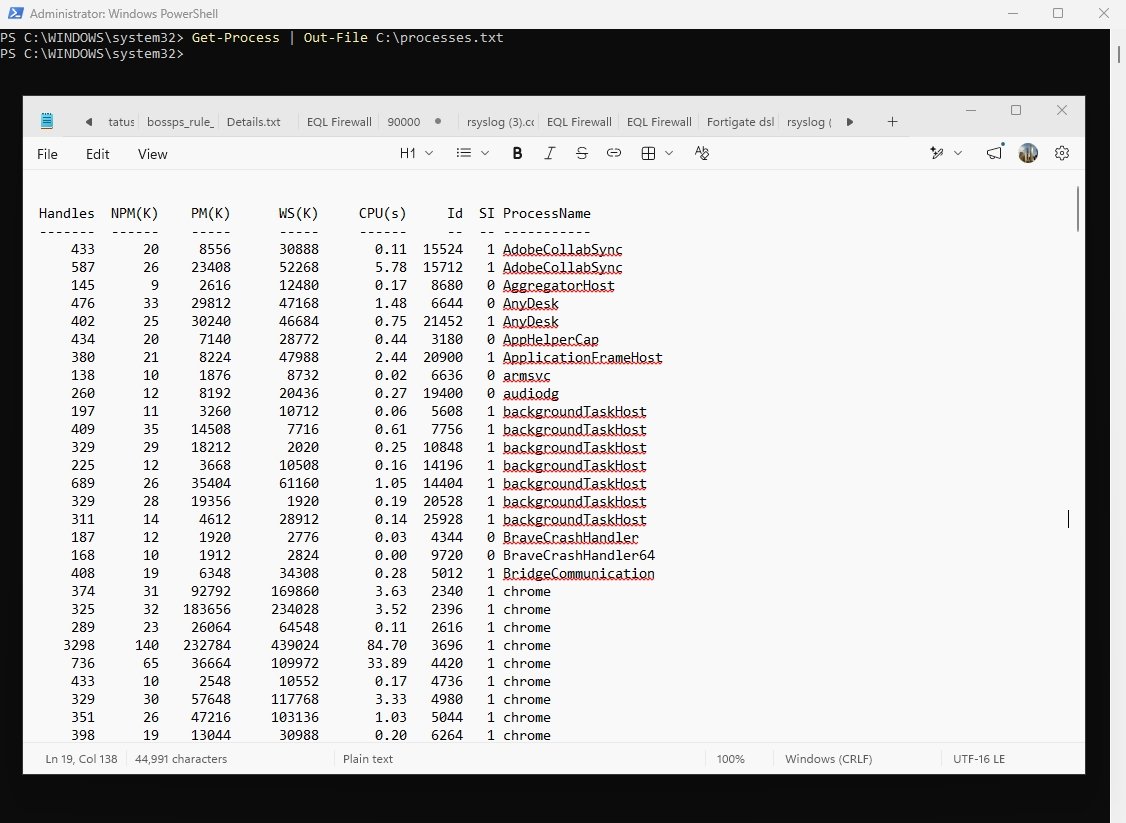
Command: Get-Process | Out-File C:\processes.txtOut-File is commonly used to save command output for future reference. System administrators often generate daily server reports and save them automatically using Out-File.
5. Export-Csv
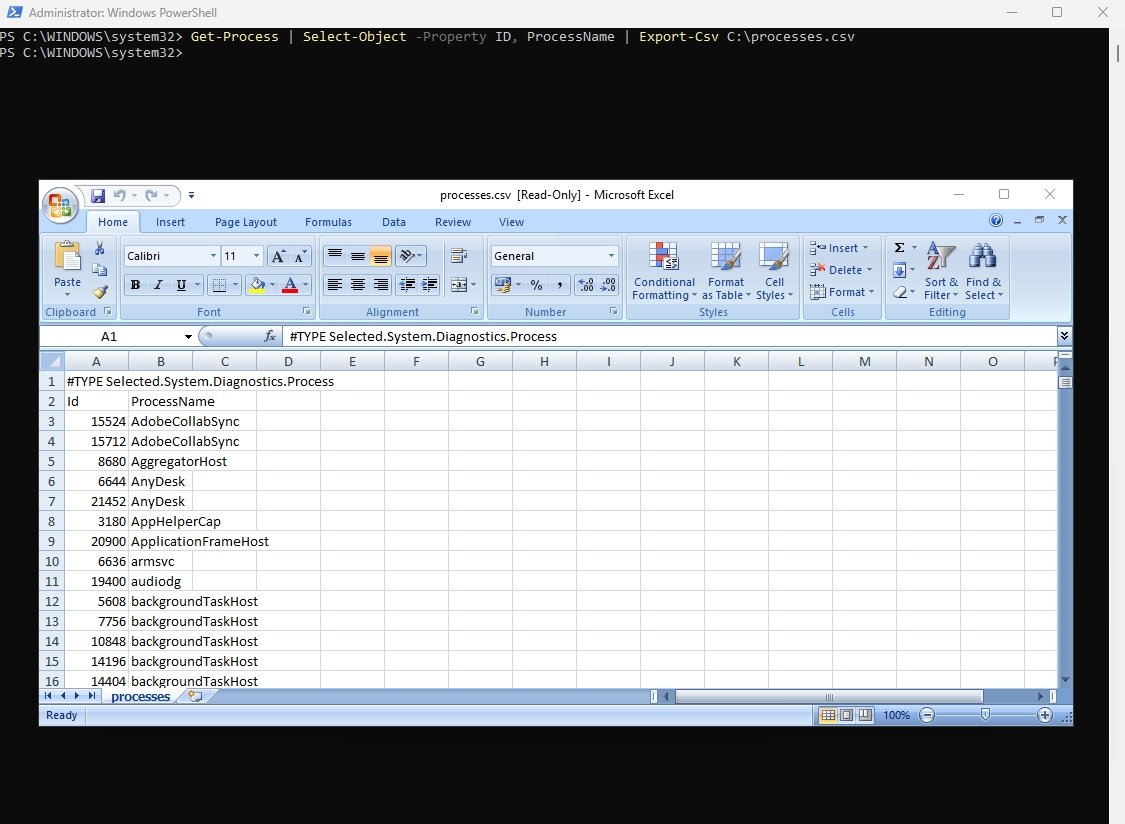
Command: Get-Process | Select-Object -Property ID, ProcessName | Export-Csv C:\processes.csvUnlike Out-File, which creates plain text files, Export-Csv preserves structured data. CSV files can easily be opened in Microsoft Excel for analysis and reporting.
Also Read: Top 35 Most Commonly Used PowerShell Commands With Examples
6. Get-ChildItem
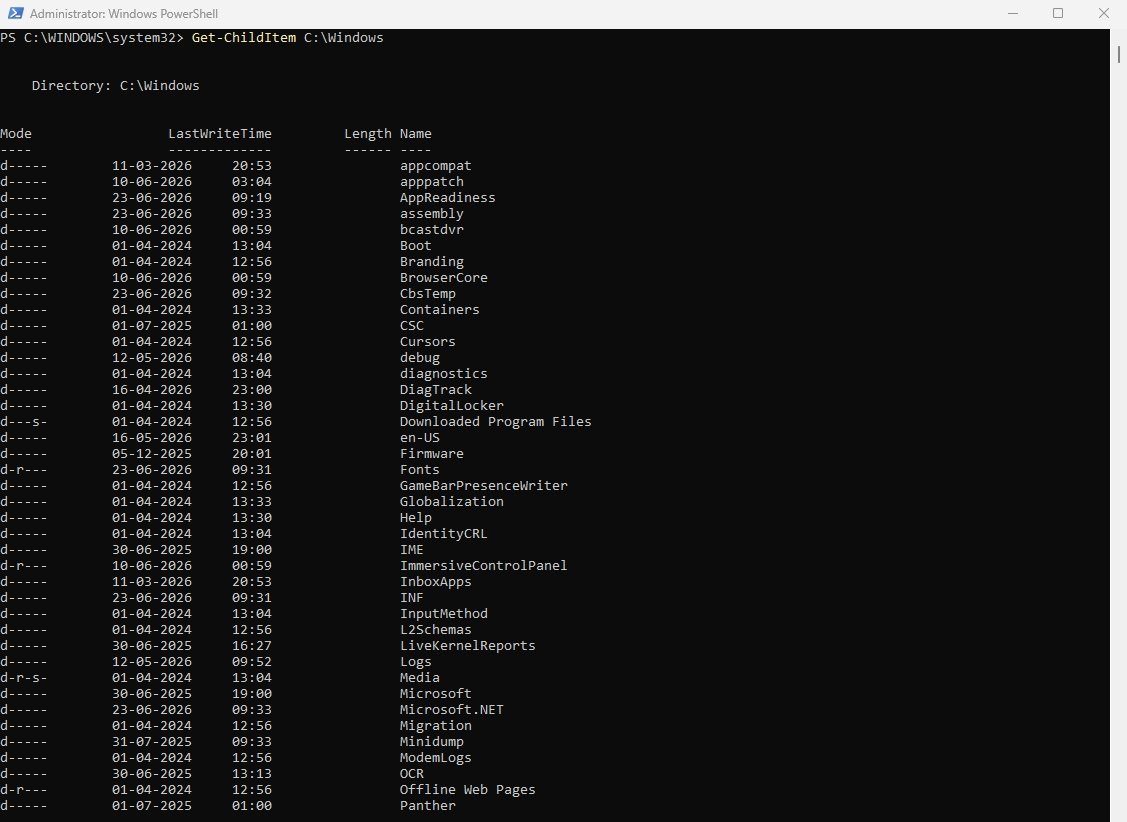
Command: Get-ChildItem C:\WindowsGet-ChildItem is one of the most frequently used file-system commands in PowerShell. This command lists files and folders within a directory.
For text files searches containing “log” in their names, the command is:
Command: Get-ChildItem D:\* -Recurse -Include *log*.txt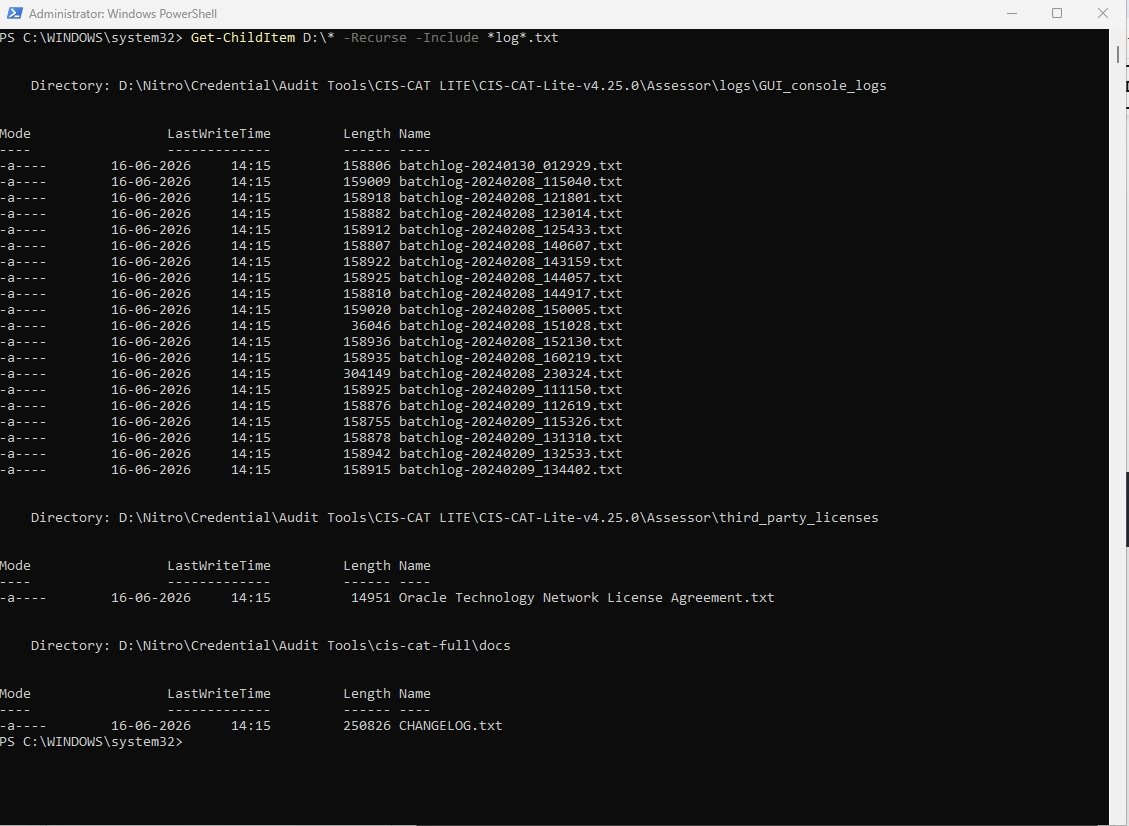
7. Get-Process
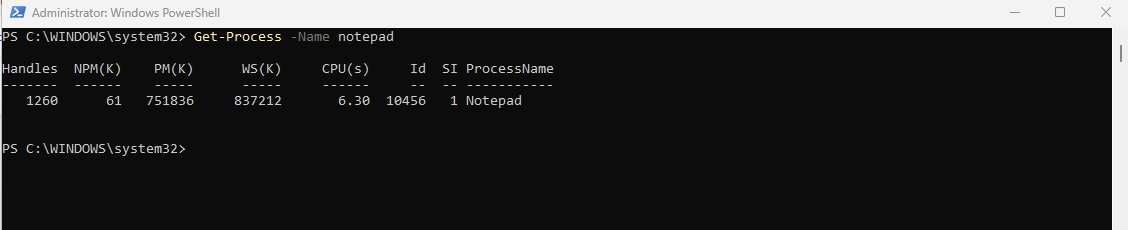
Command: Get-Process -Name notepadProcesses are programs currently running in memory. Get-Process allows administrators to monitor application performance and resource consumption.
If you want to show only ten processes using the most CPU resources, then the command is:
Command: Get-Process | Sort-Object CPU -Descending | Select-Object -First 10 Name, Id, CPU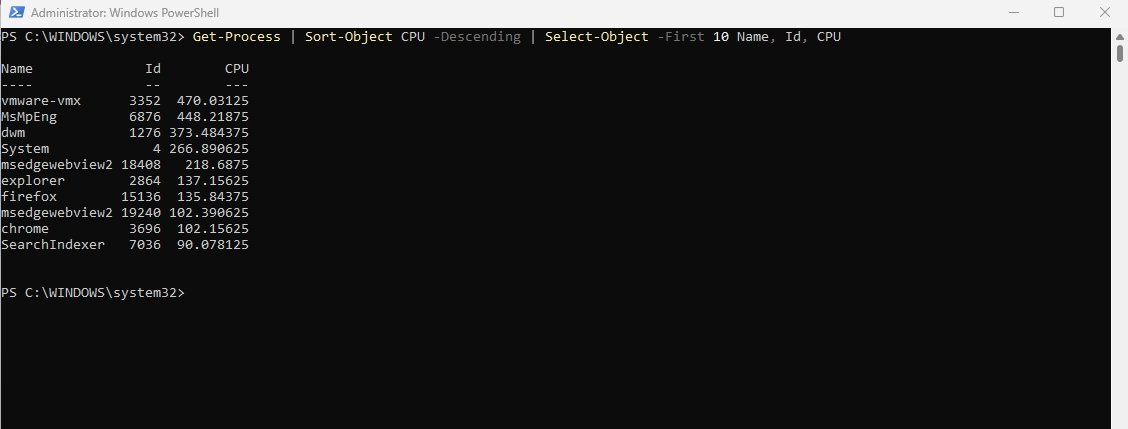
You can even generates a CSV report containing process information by using the following command:
Command: Get-Process | Select-Object Name, Id, CPU, WorkingSet | Export-Csv C:\process-report.csv -NoTypeInformation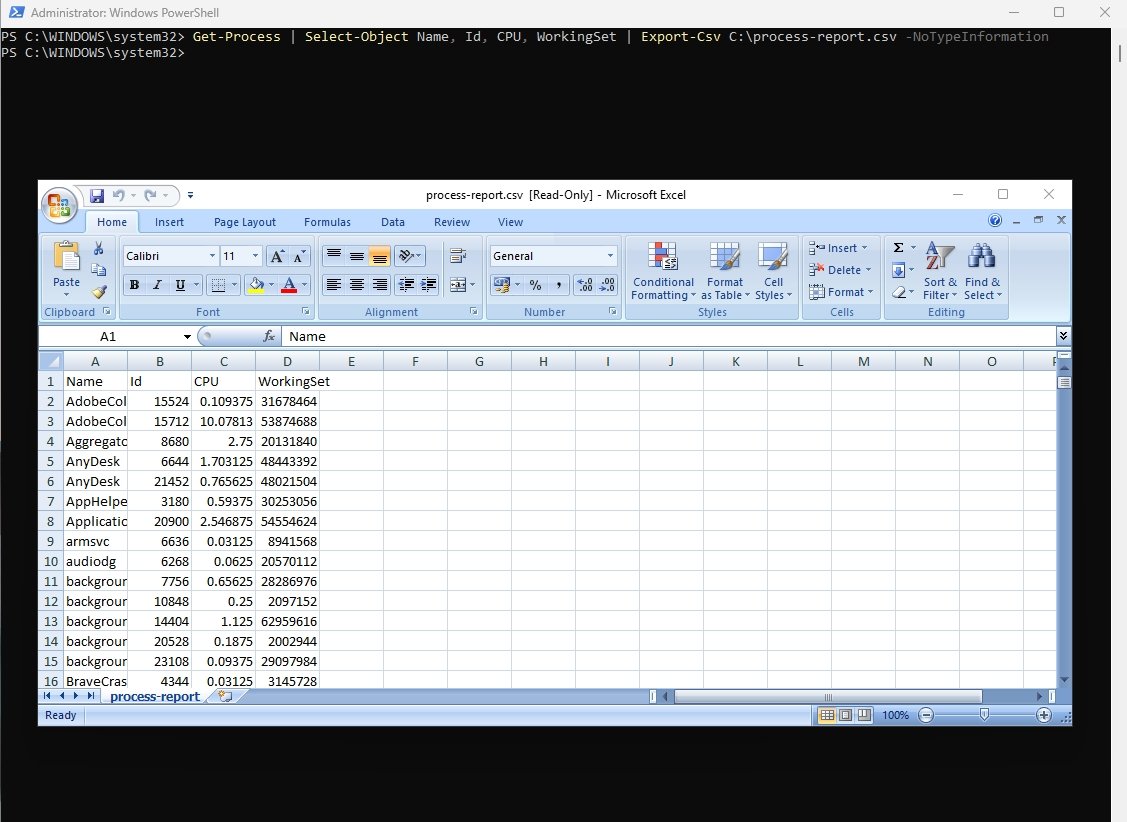
8. Get-Service
Command: Get-Service -Name SpoolerWindows services are background processes that run without user interaction. `Get-Service` retrieves information about Windows services.
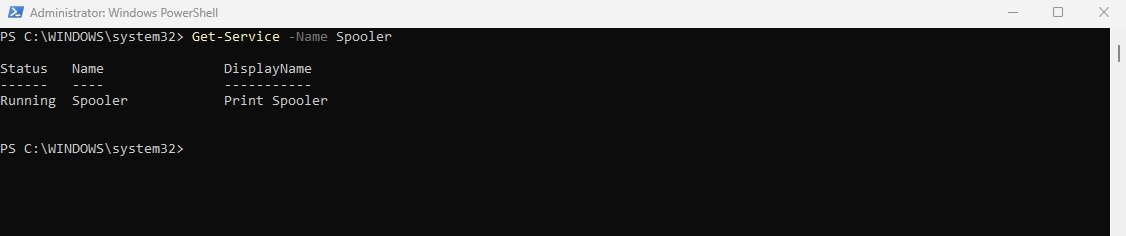
Finds services containing “update”, the command is:
Command: Get-Service -Name *update*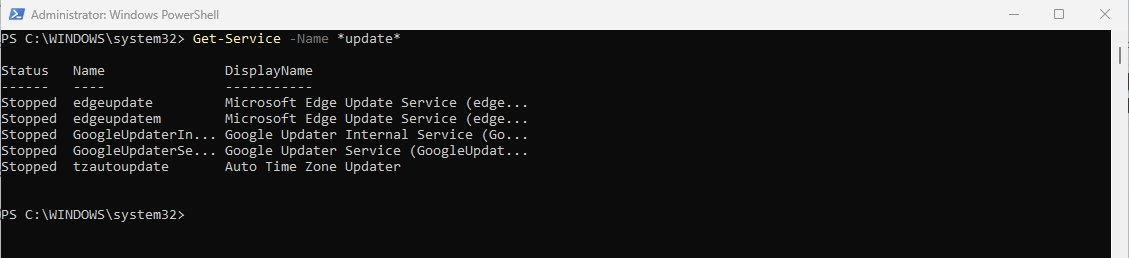
To list stopped services, the command is:
Command: Get-Service | Where-Object Status -eq "Stopped"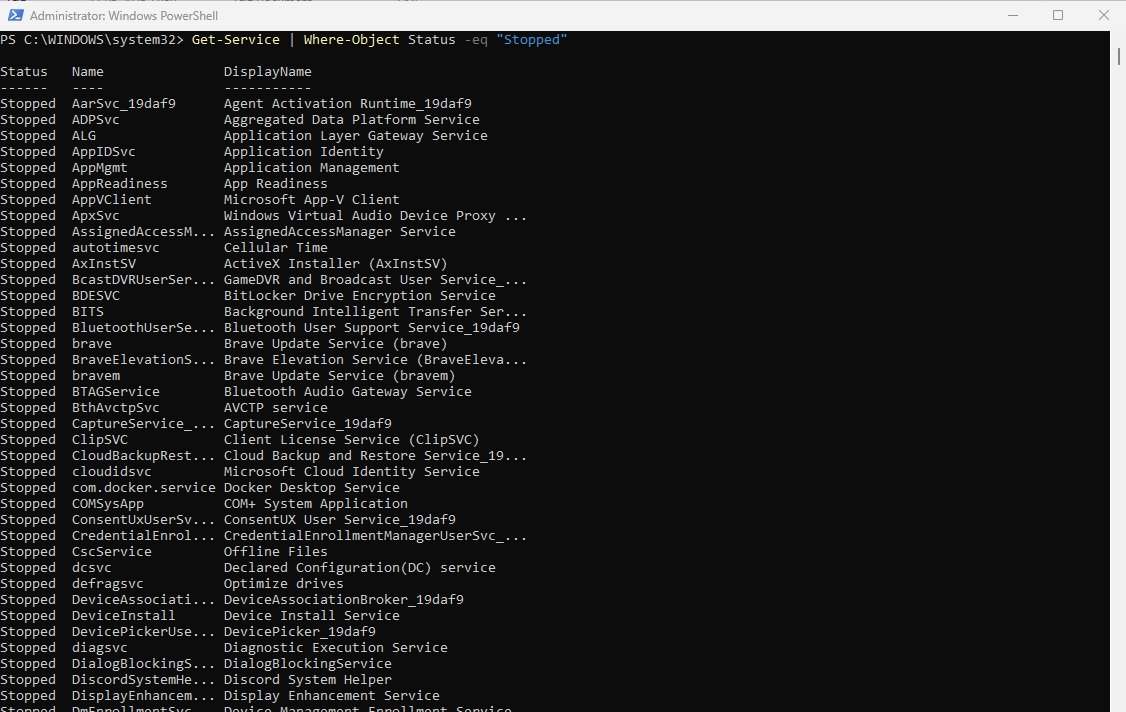
Similarly, you can create a CSV report for auditing and maintenance.
Command: Get-Service | Where-Object -eq "Stopped" | Select-Object Name, DisplayName, Status | Export-Csv C:\stopped-services.csv -NoTypeInformation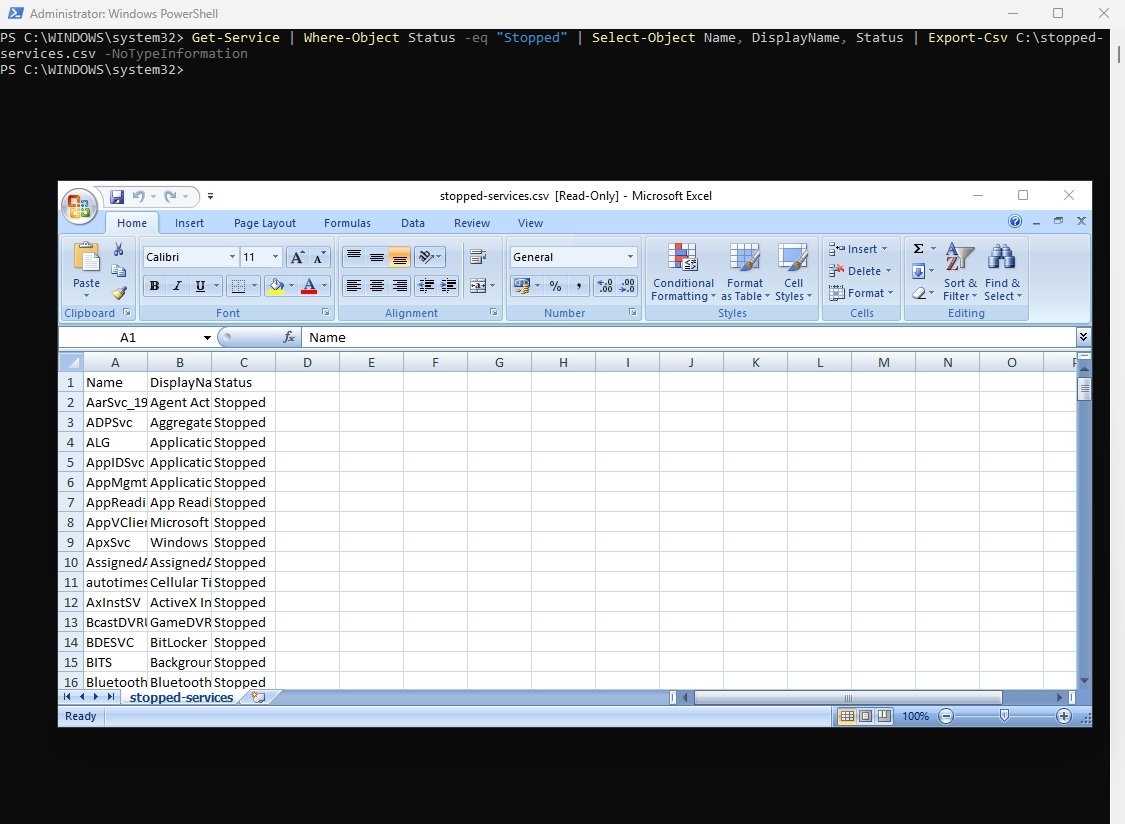
9. Restart-Service
Command: Restart-Service -Name SpoolerMany Windows issues can be fixed simply by restarting a problematic service. Restart-Service stops and starts a service automatically.

To verify the status of any service, the command is:
Command: Get-Service -Name Spooler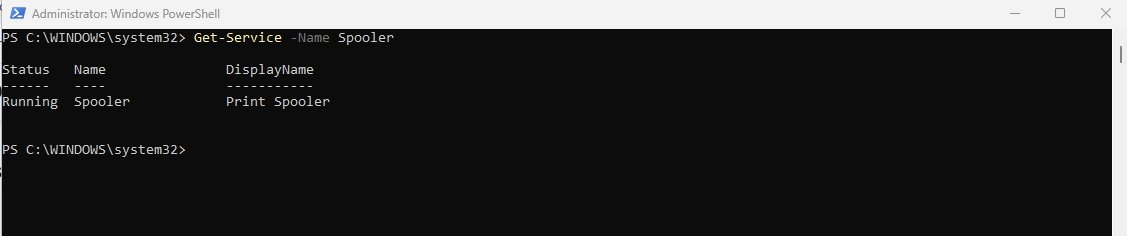
If you need prompt before restarting the service, then the command is:
Command: Restart-Service -Name Spooler -Confirm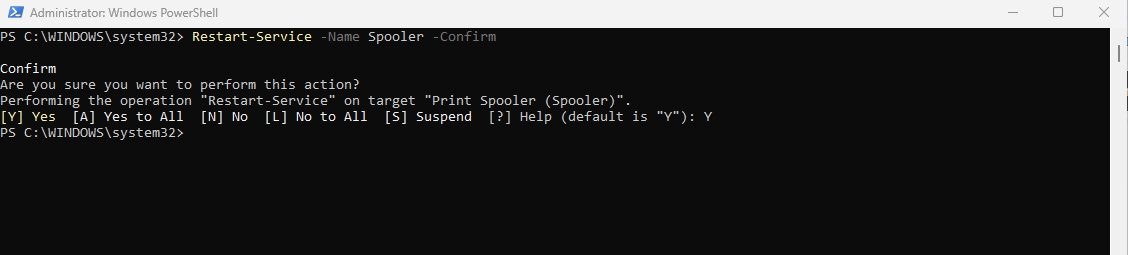
10. Where-Object
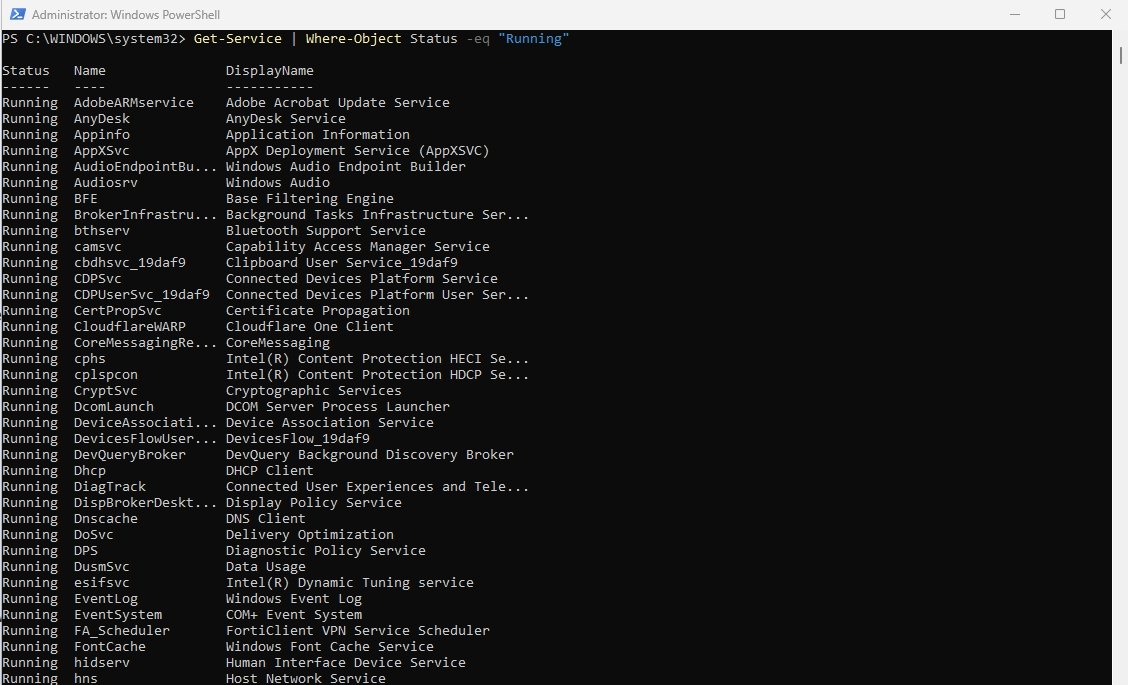
Command: Get-Service | Where-Object Status -eq "Running"Where-Object filters data based on specific conditions. Where-Object acts like a filter. Without it, PowerShell may return thousands of objects.
Command: Get-Service | Where-Object Status -eq "Stopped"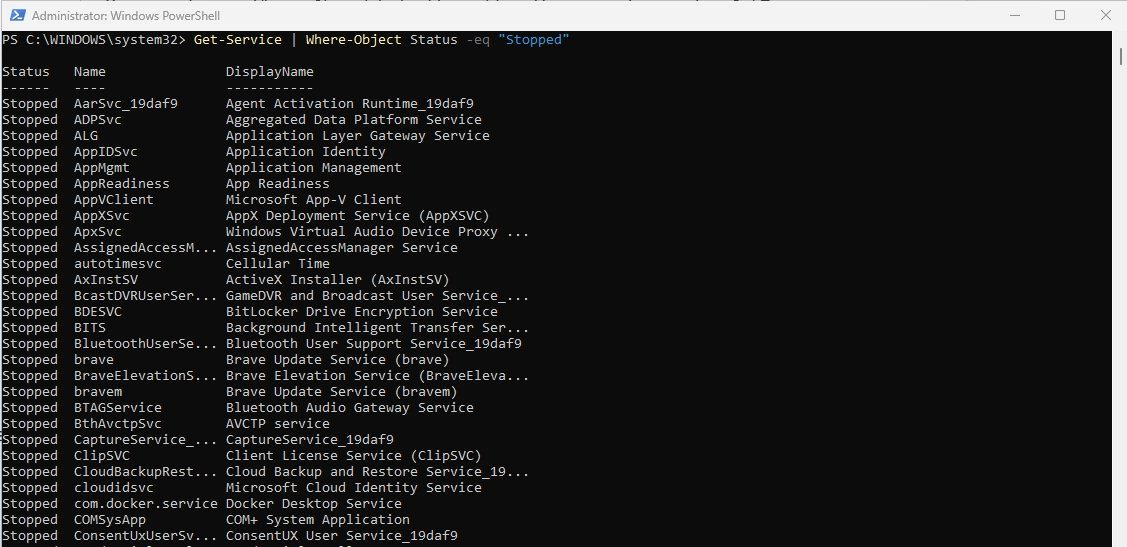
To search large files, the command is:
Command: Get-ChildItem C:\ -Recurse -File | Where-Object Length -gt 100MB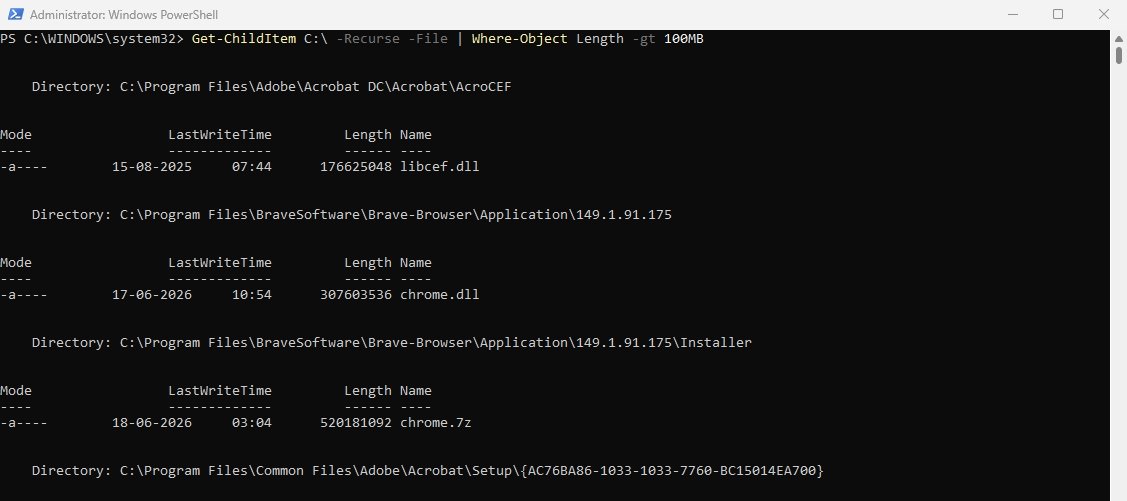
For recently modified files:
Command: Get-ChildItem C:\ -Recurse -File | Where-Object LastWriteTime -gt (Get-Date).AddDays(-7)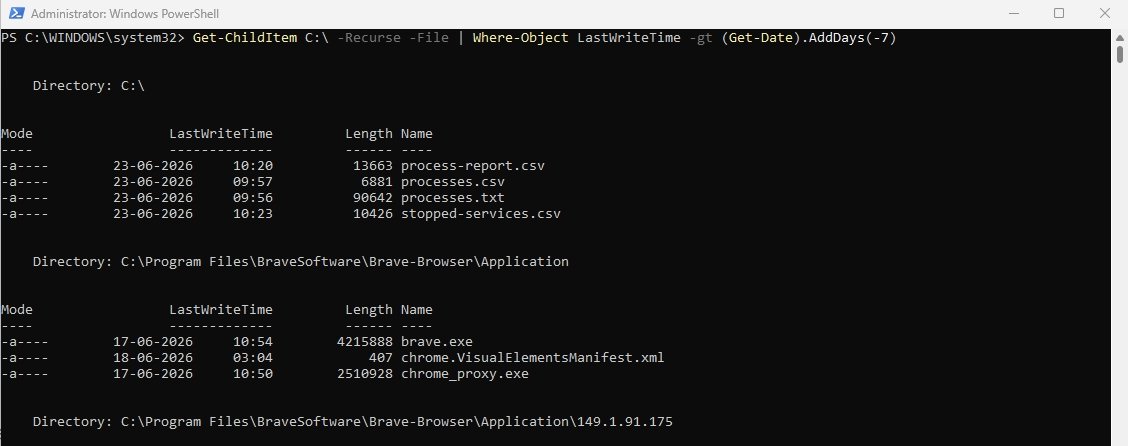
11. Select-Object
Command: Get-Process | Select-Object Name, Id, CPUSelect-Object allows you to choose specific properties from PowerShell objects. This command helps reduce clutter by showing only the information you need.
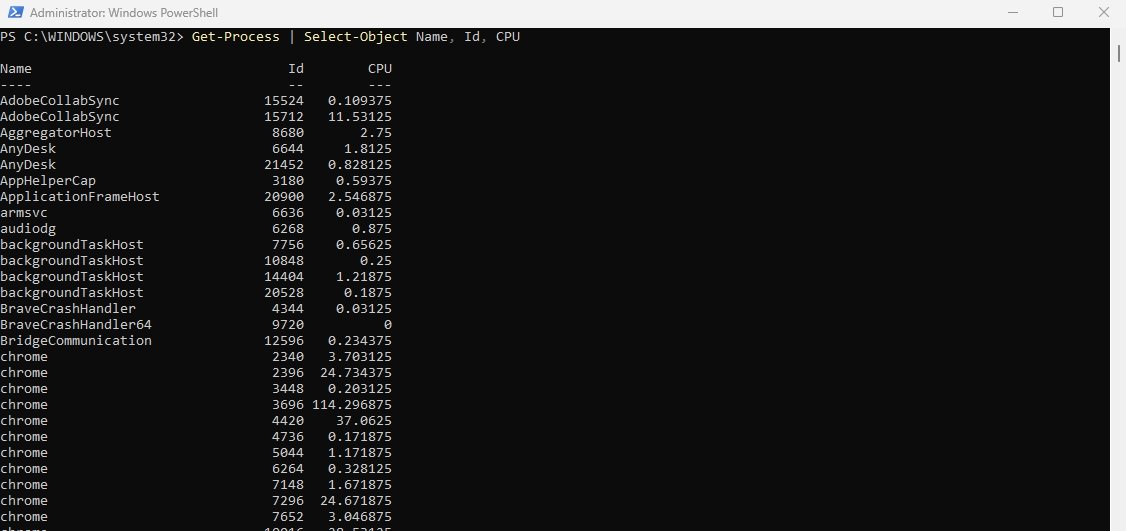
To display only first five processes, the command is:
Command: Get-Process | Select-Object -First 5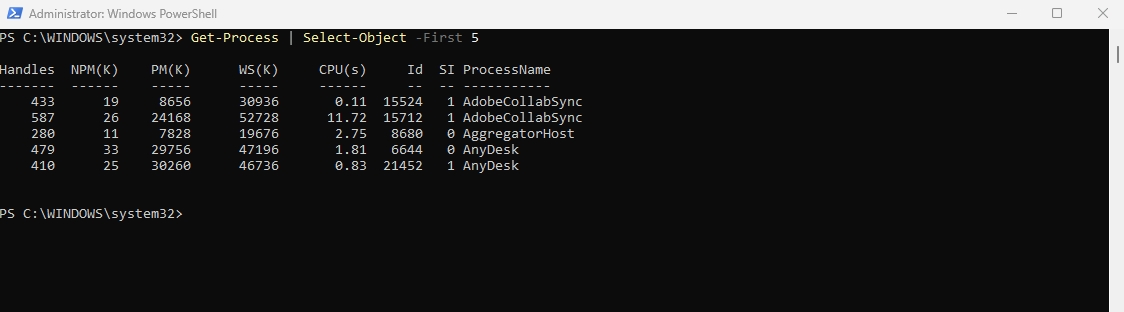
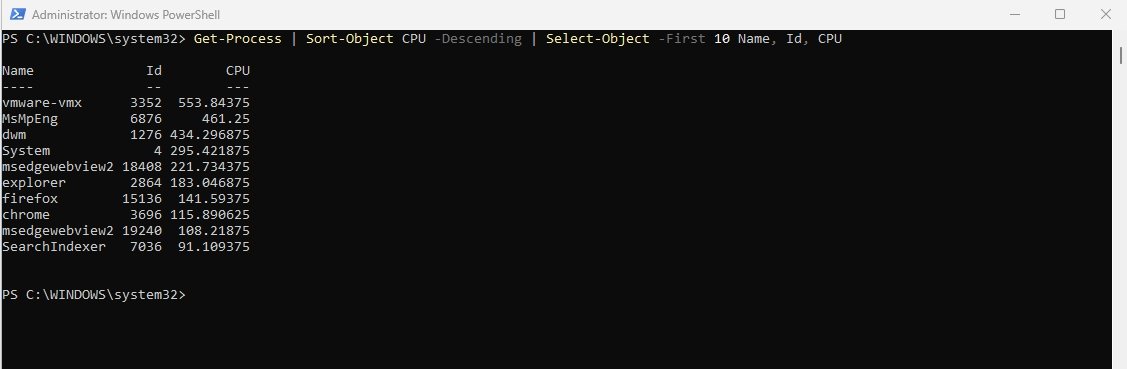
To identify the top 10 processes that have consumed the most CPU time on the system, the command is:
Command: Get-Process | Sort-Object CPU -Descending | Select-Object -First 10 Name, Id, CPUIt is extremely useful when troubleshooting performance issues, investigating resource-intensive applications, or monitoring server health.
This command generates a detailed report of all currently running processes and exports the information to a CSV file named pro.csv. The resulting file can be easily opened in Microsoft Excel, making it easier to analyze process activity, resource consumption, and system performance.
Command: Get-Process | Select-Object Name, Id, CPU, WorkingSet | Export-Csv C:\pro.csv -NoTypeInformation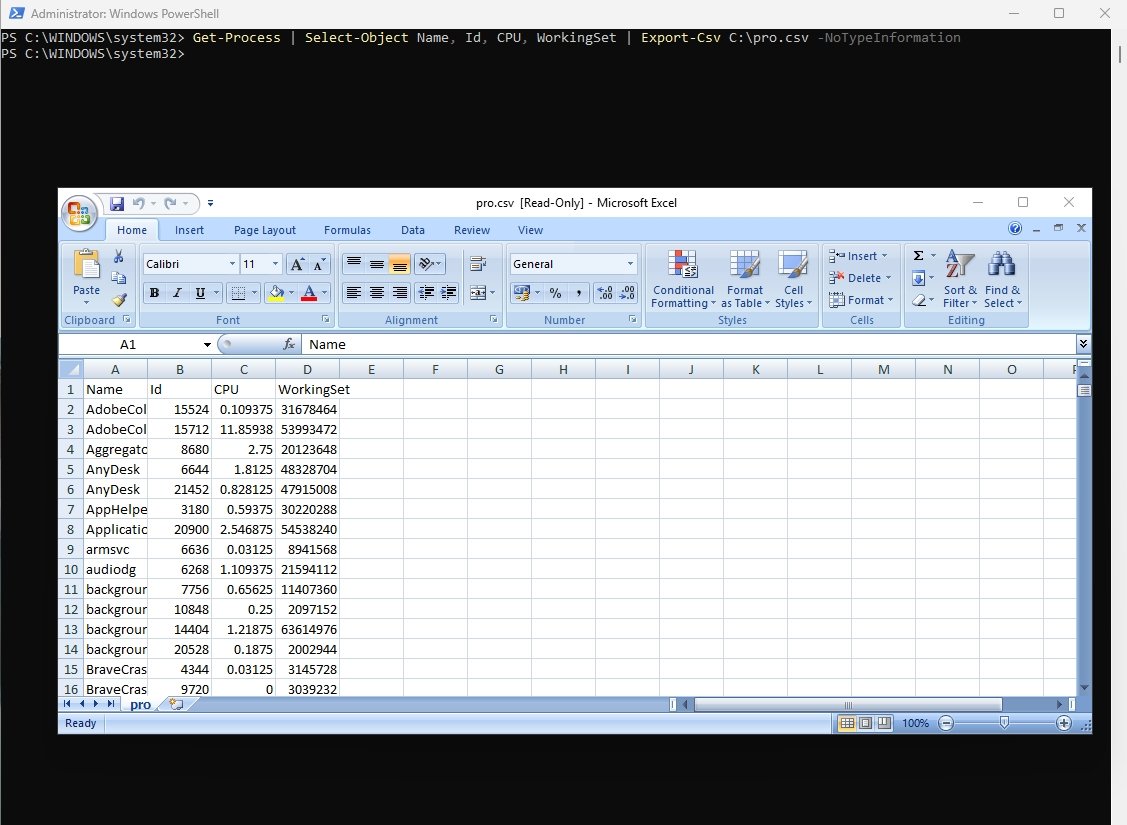
12. Out-GridView
Command: Get-Service | Out-GridViewOut-GridView displays PowerShell output in a graphical table window.
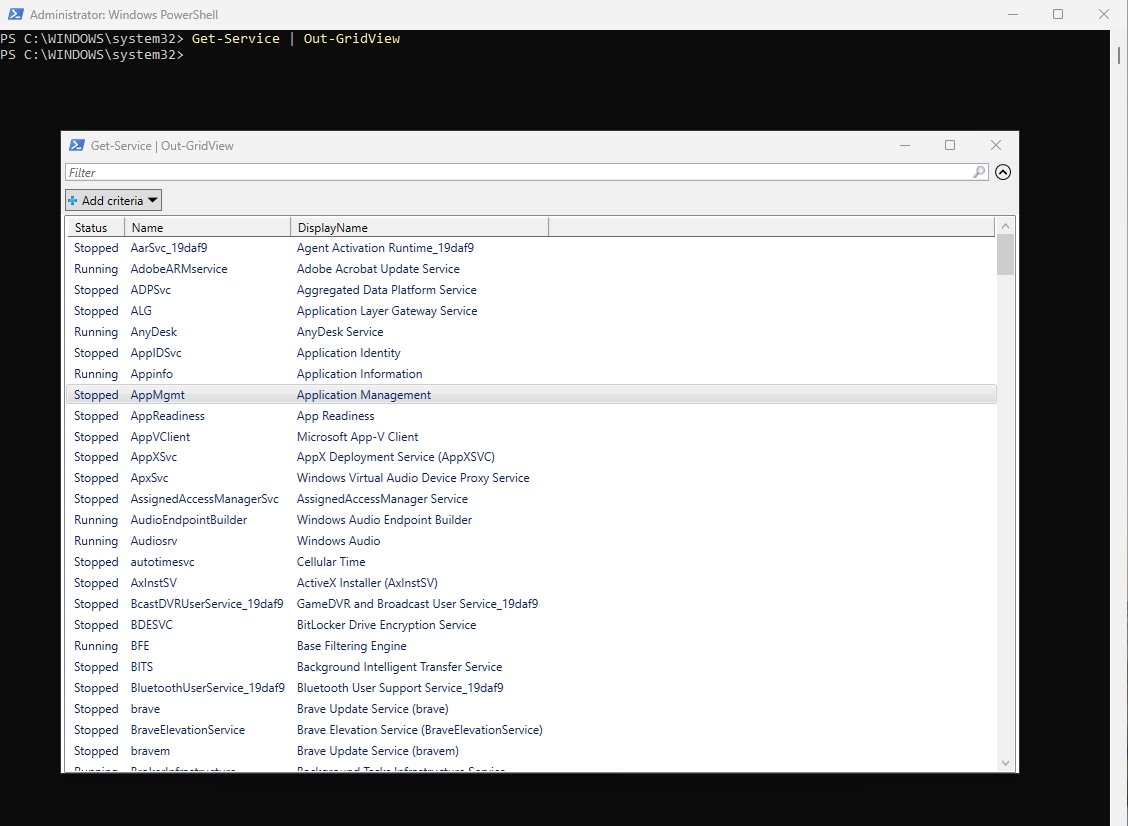
The following command opens all Windows services in a graphical interface, enabling administrators to easily browse, filter, and select specific services.
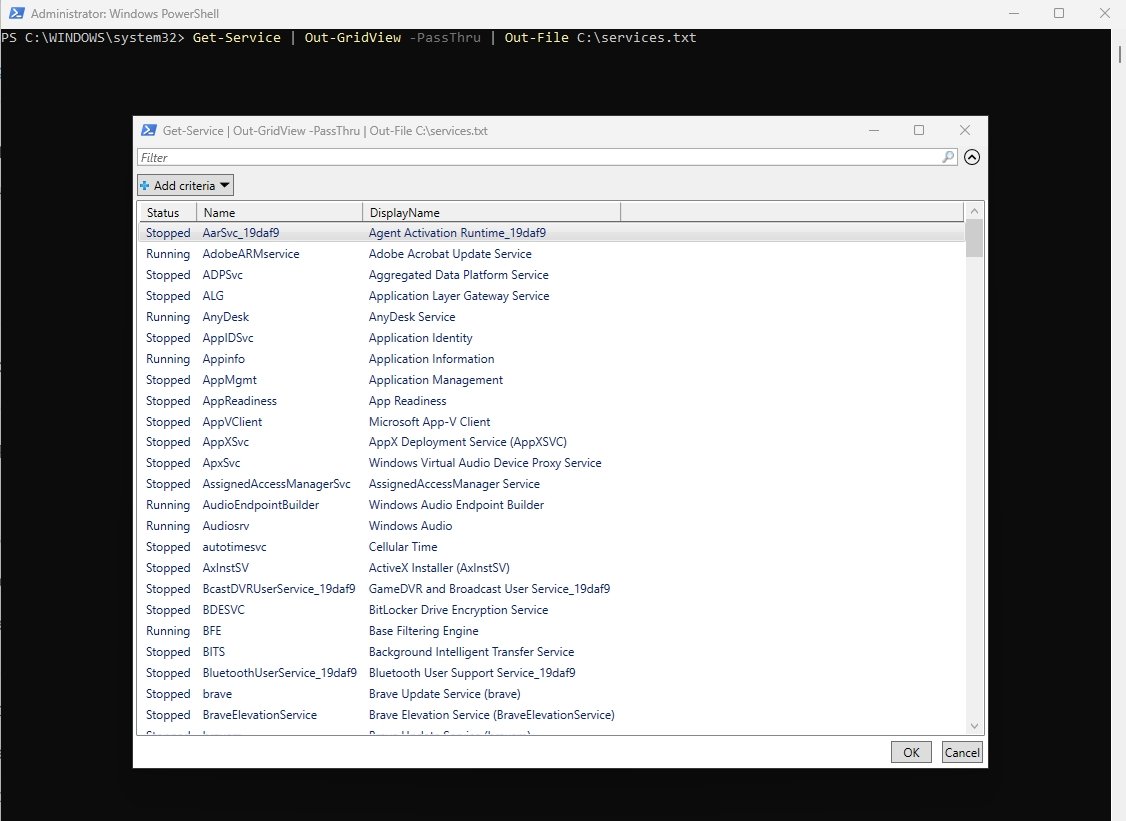
Command: Get-Service | Out-GridView -PassThru | Out-File C:\services.txtOnce selected, the service details are automatically exported to a text file for reporting, auditing, or troubleshooting purposes.
13. Invoke-Item
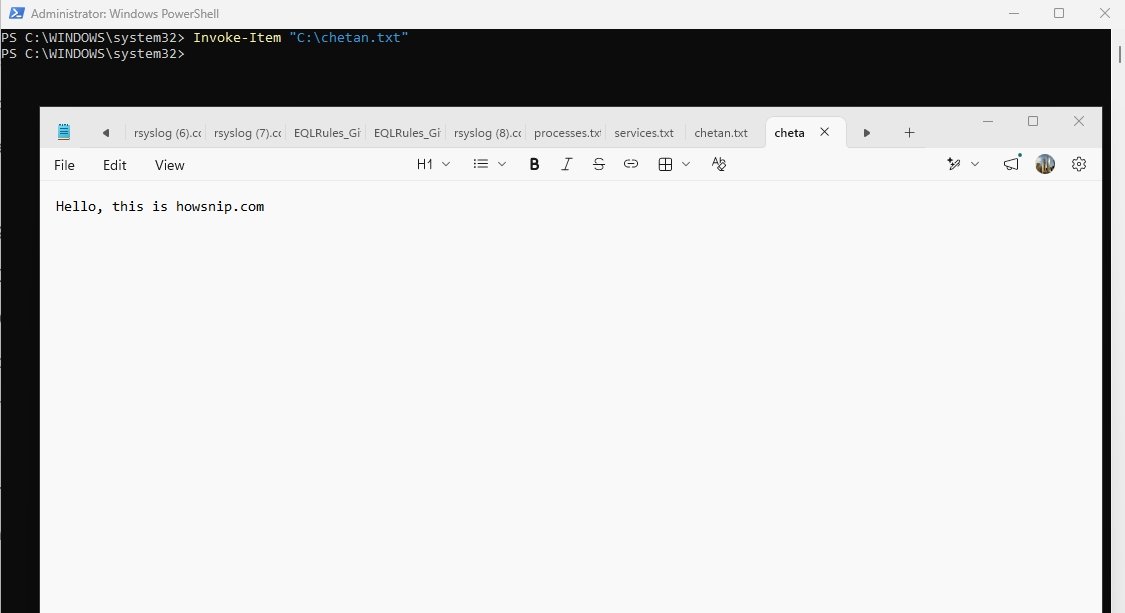
Command: Invoke-Item "C:\chetan.txt"Invoke-Item opens a file using its default associated application. Many administrators use it at the end of scripts to automatically open generated reports.
Final Thoughts
PowerShell is one of the most powerful administration tools available on Windows systems. By mastering these 13 commonly used commands, you’ll be able to manage services, processes, files, reports, and system resources much more efficiently.
Start practicing them regularly, combine them using PowerShell pipelines, and you’ll quickly unlock the true power of Windows automation.