

Odoo is one of the most popular open-source business management platforms, offering applications for ERP, CRM, accounting, inventory, and more. Installing Odoo inside a Python virtual environment provides better isolation, easier maintenance, and the flexibility to run multiple Odoo instances on the same server.
In this tutorial, you’ll learn how to install Odoo 19 on Ubuntu, configure PostgreSQL, set up a systemd service, and secure your deployment with Nginx and HTTPS.
Prerequisites
Before starting, ensure your server meets the following requirements:
- Ubuntu server
- At least 2 GB RAM
- Python 3.10 or later
- PostgreSQL 13 or later
- wkhtmltopdf 0.12.6
- User account with sudo privileges
- Domain name pointing to your server (recommended for SSL)
These versions align with Odoo 19 requirements and help avoid compatibility issues with PostgreSQL and PDF report generation.
Step 1: Install Required System Dependencies
Odoo depends on several development libraries, Python tools, and build packages.
First, update the package index:
sudo apt update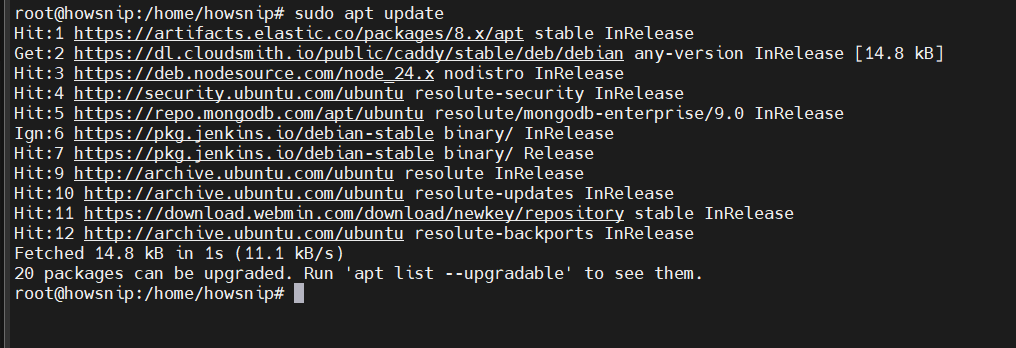
Install all required dependencies:
sudo apt install git python3-venv python3-pip build-essential wget python3-dev \
python3-wheel libfreetype6-dev libxml2-dev libzip-dev libldap2-dev libsasl2-dev \
python3-setuptools libjpeg-dev zlib1g-dev libpq-dev \
libxslt1-dev libtiff5-dev libjpeg8-dev libopenjp2-7-dev \
liblcms2-dev libwebp-dev libharfbuzz-dev libfribidi-dev libxcb1-dev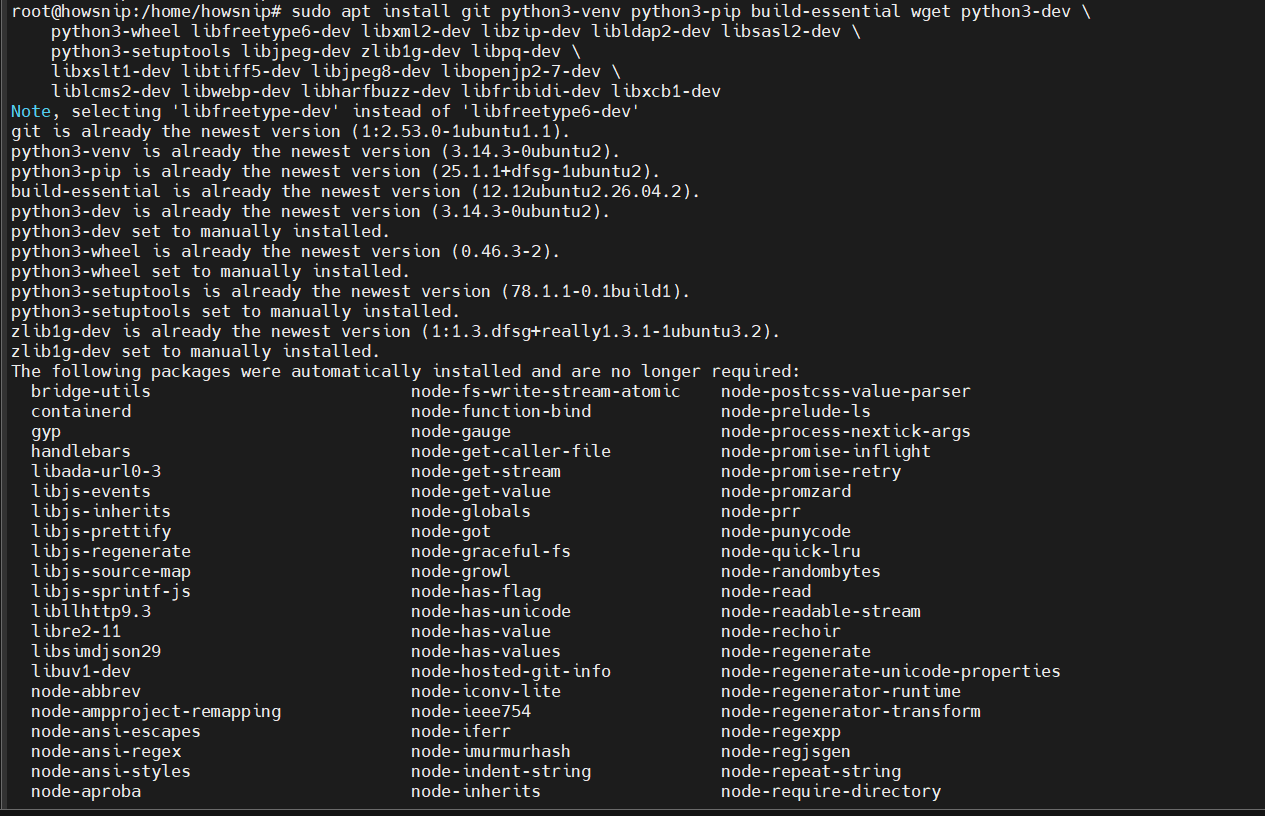
These packages provide the libraries required for Python modules, database connectivity, image processing, and report rendering.
Step 2: Install Node.js and rtlcss
Odoo uses Node.js for certain frontend operations. Ubuntu’s default repositories may not provide the recommended LTS version, so install Node.js from the NodeSource repository.
Add the NodeSource repository:
curl -fsSL https://deb.nodesource.com/setup_22.x | sudo -E bash -
Install Node.js:
sudo apt install nodejs
Install rtlcss, which enables support for right-to-left languages:
sudo npm install -g rtlcss
Verify the installed versions:
python3 --version
node --version
npm --version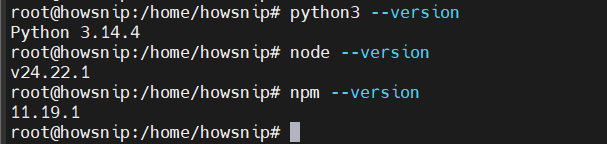
Step 3: Create a Dedicated Odoo System User
For security reasons, Odoo should never run as the root user.
Create a dedicated system account:
sudo useradd -m -d /opt/odoo19 -U -r -s /bin/bash odoo19
This command:
- Creates a new system user named odoo19
- Sets /opt/odoo19 as the home directory
- Creates a corresponding group
- Prevents Odoo from running with elevated privileges
Important: The PostgreSQL user created later should use the same name.
Step 4: Install and Configure PostgreSQL
Odoo stores all application data in PostgreSQL.
Install PostgreSQL:
sudo apt install postgresqlCreate a PostgreSQL user matching the Odoo system account:
sudo su - postgres -c "createuser -R -S -D odoo19"Command options:
- -R = No role creation rights
- -S = No superuser privileges
- -D = Cannot create databases
You do not need to manually create an Odoo database. Odoo will automatically create and initialize it during the first setup.
Step 5: Install wkhtmltopdf
Odoo uses wkhtmltopdf to generate PDF reports. The Ubuntu repository version lacks the patched Qt libraries required for proper headers and footers. Use the official package instead.
Download wkhtmltopdf:
sudo wget https://github.com/wkhtmltopdf/packaging/releases/download/0.12.6.1-3/wkhtmltox_0.12.6.1-3.jammy_amd64.deb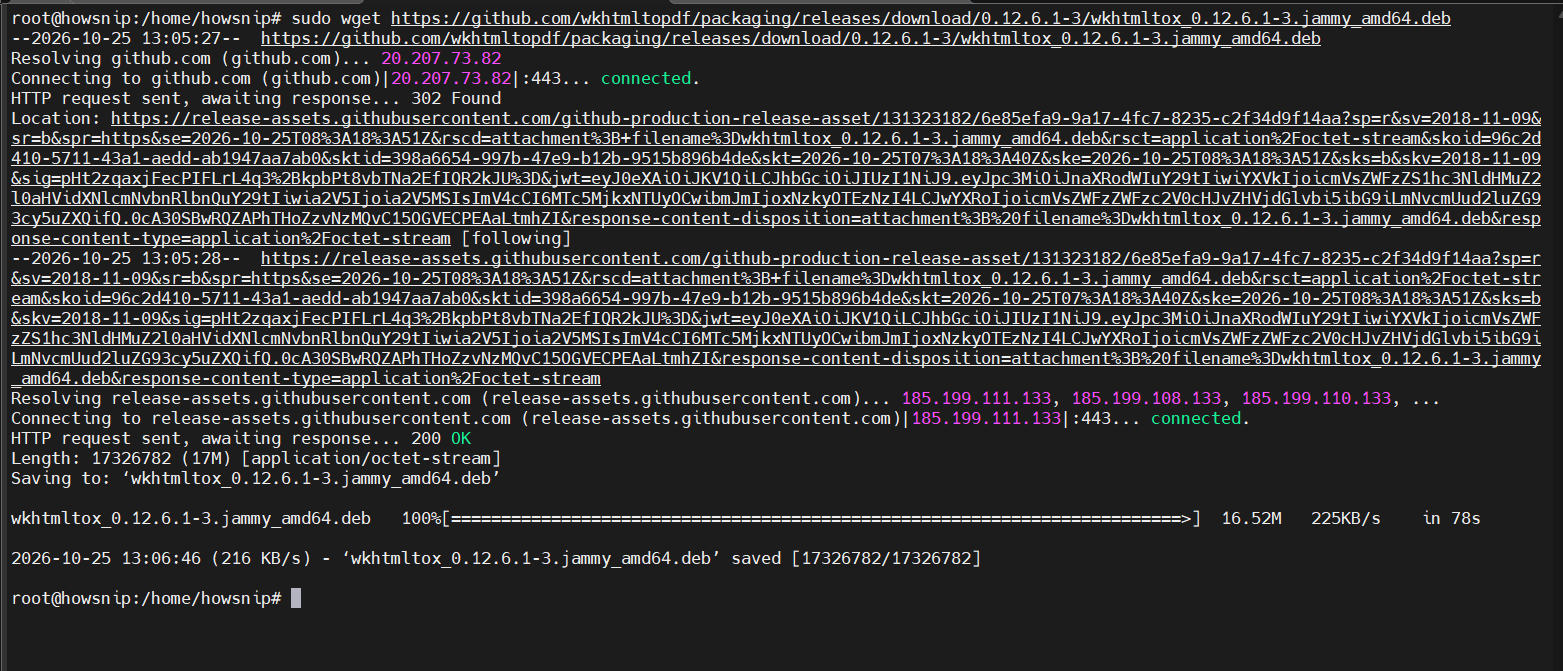
Install the package:
sudo apt install ./wkhtmltox_0.12.6.1-3.jammy_amd64.deb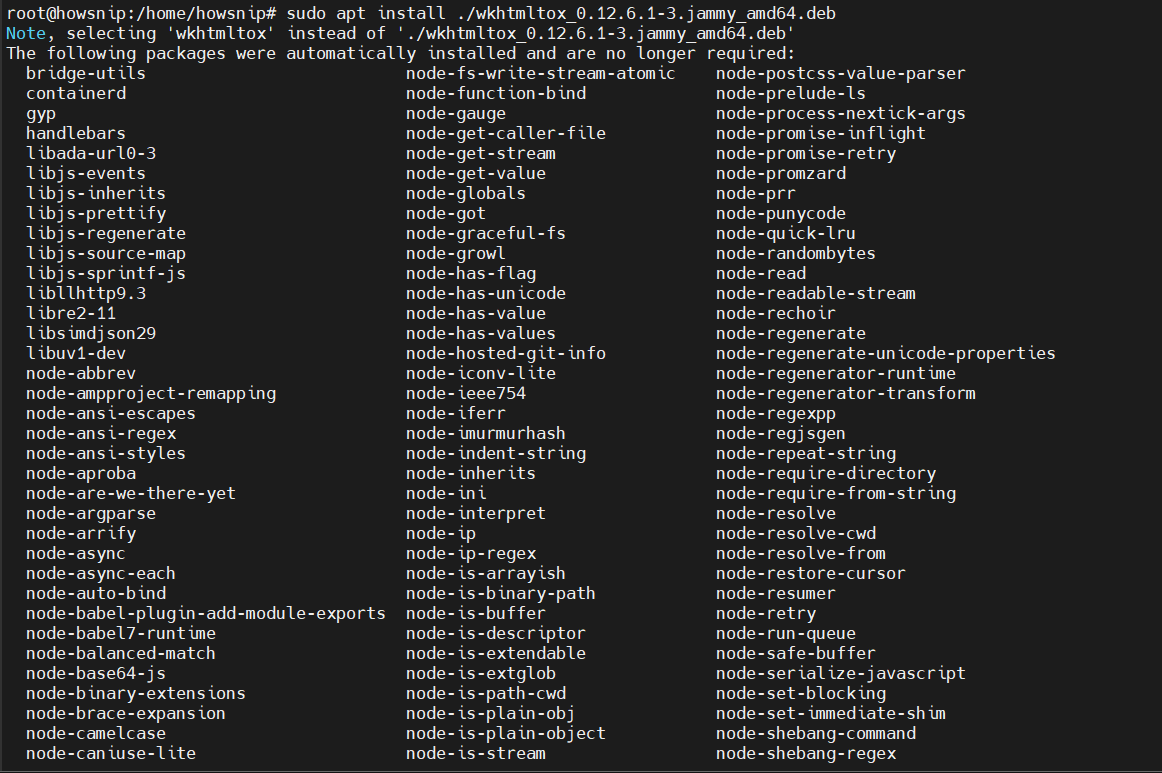
Important: Using the official build helps ensure PDF reports render correctly.
Step 6: Install Odoo 19
a) Switch to the Odoo User
Log in as the newly created Odoo user:
sudo su - odoo19
b) Download the Odoo Source Code
Clone the Odoo 19 repository:
git clone https://www.github.com/odoo/odoo --depth 1 --branch 19.0 /opt/odoo19/odoo
This downloads only the latest content from the Odoo 19 branch, reducing installation time and disk usage.
c) Create a Python Virtual Environment
Move to the Odoo home directory:
cd /opt/odoo19
d) Create a virtual environment:
python3 -m venv odoo-venvActivate it:
source odoo-venv/bin/activate
The virtual environment keeps Odoo’s Python packages isolated from the rest of the system.
e) Install Python Dependencies
Install Wheel:
pip3 install wheelInstall all required Odoo Python packages:
pip3 install -r odoo/requirements.txt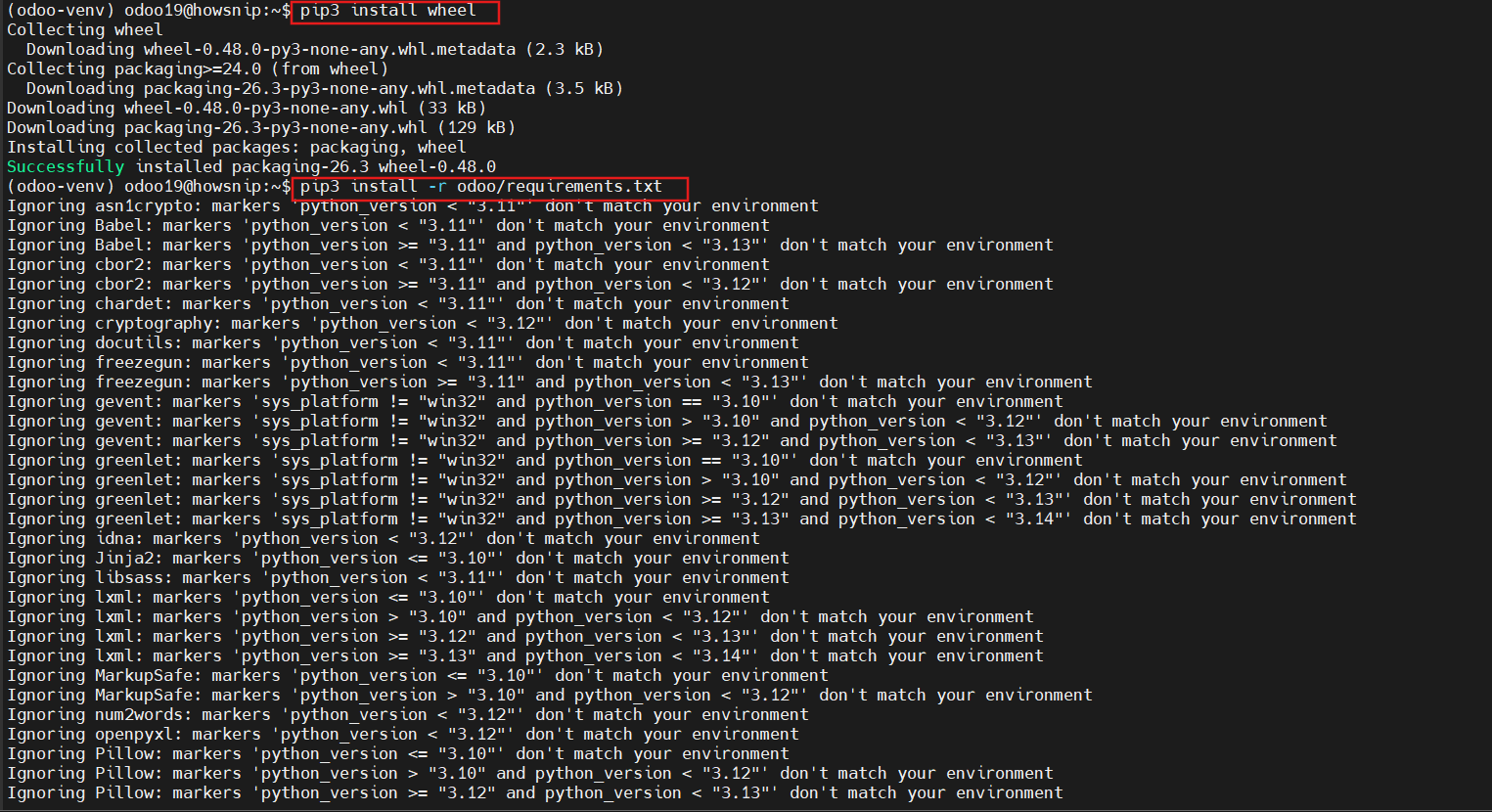
Note: If installation errors occur, verify that all packages from the dependency installation step are present.
f) Deactivate the environment after installation:
deactivateg) Create a Custom Addons Directory
Create a location for third-party modules:
mkdir /opt/odoo19/odoo-custom-addons
This directory can later be used to store community or custom-developed Odoo modules.
Exit the Odoo user session:
exitStep 7: Configure Odoo
Create the Odoo configuration file:
sudo nano /etc/odoo19.conf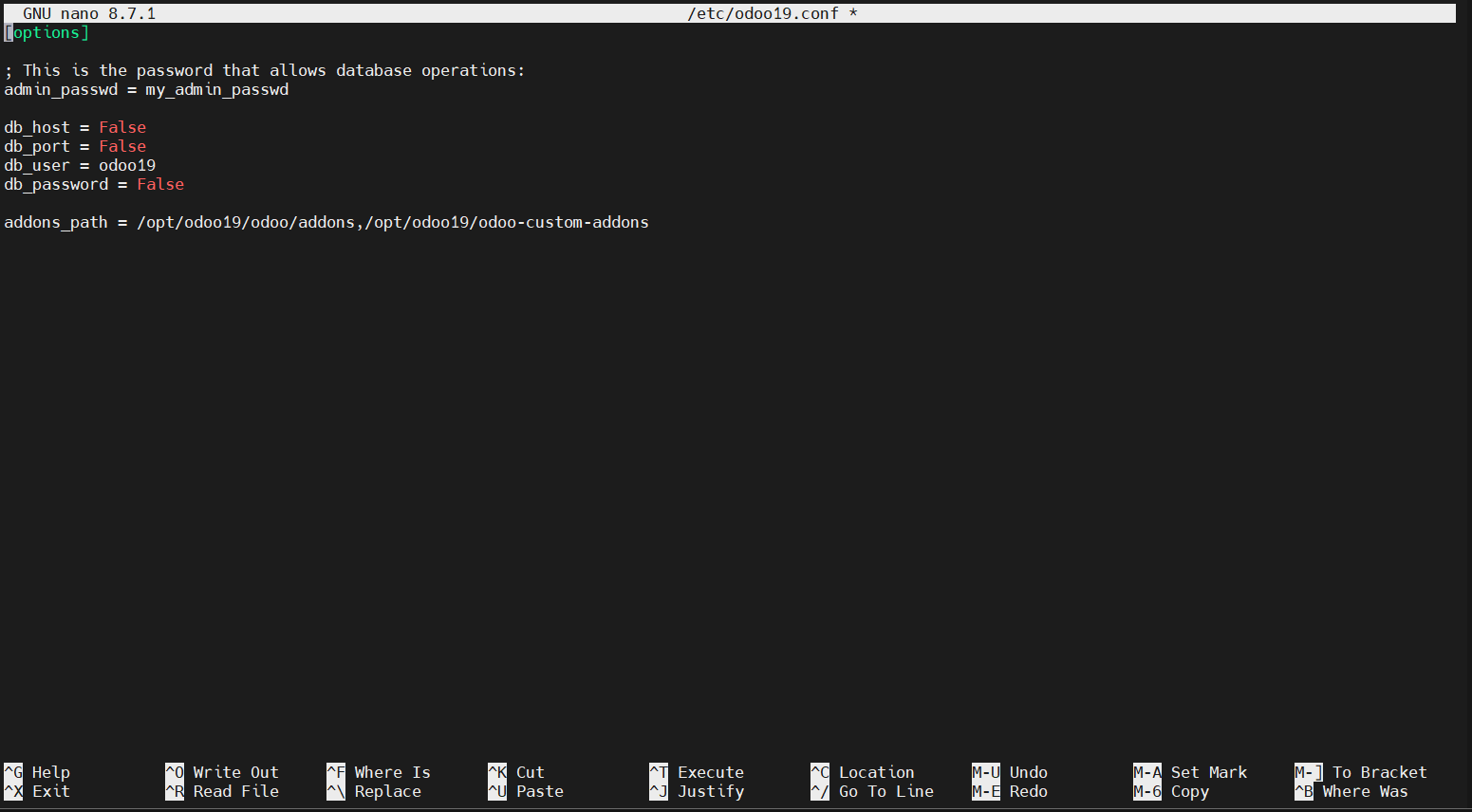
Add the following configuration:
[options]
; This is the password that allows database operations:
admin_passwd = my_admin_passwd

db_host = False
db_port = False
db_user = odoo19
db_password = False

addons_path = /opt/odoo19/odoo/addons,/opt/odoo19/odoo-custom-addons
Configuration Explanation
- admin_passwd – Master password for database management.
- db_user – PostgreSQL user used by Odoo.
- addons_path – Directories where Odoo searches for modules.
Security Warning: Replace my_admin_passwd with a strong, unique password.
Step 8: Create a Systemd Service
Using systemd allows Odoo to start automatically during server boot and restart if needed.
Create the service file:
sudo nano /etc/systemd/system/odoo19.service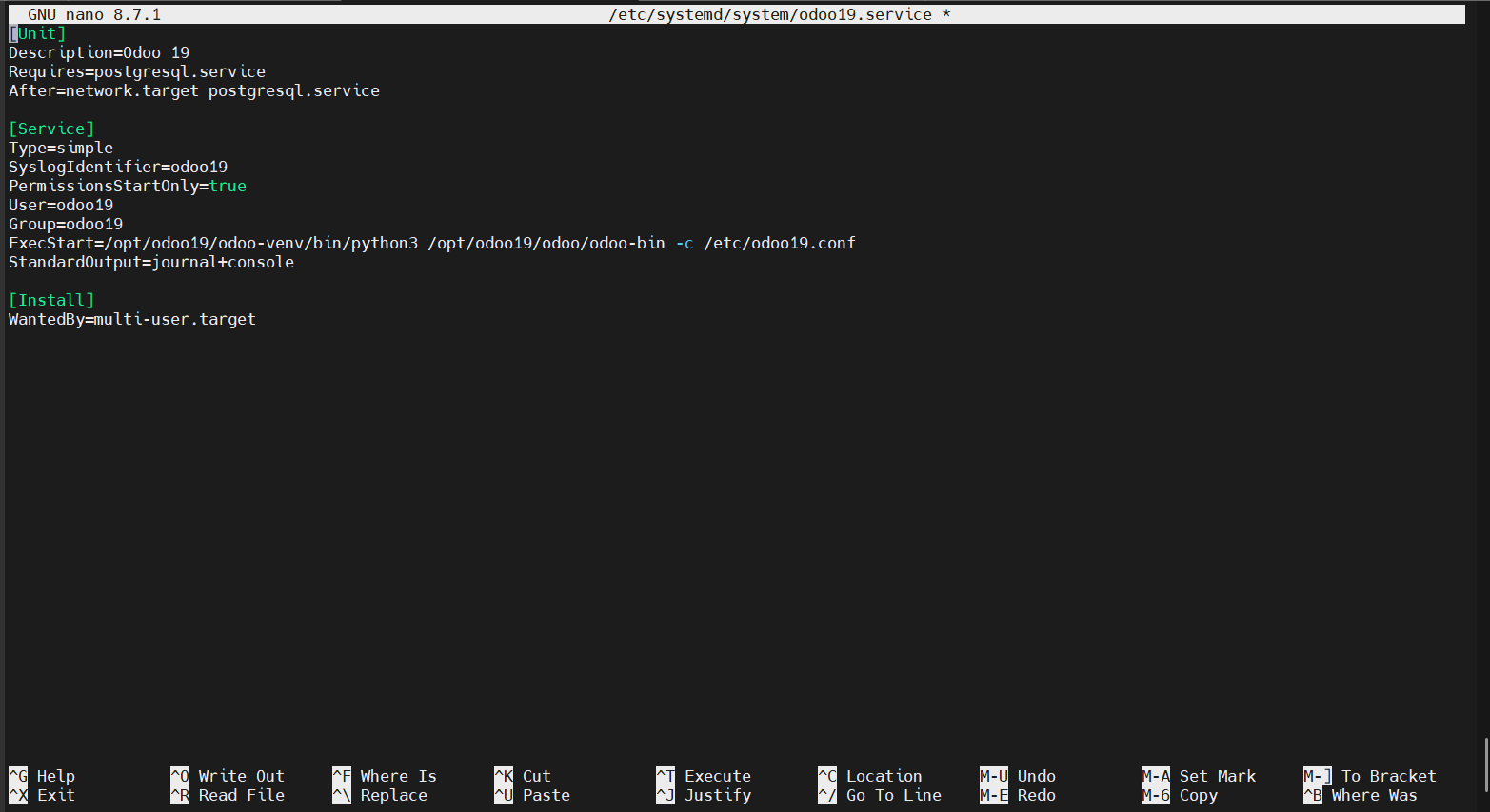
Add the following content:
[Unit]
Description=Odoo 19
Requires=postgresql.service
After=network.target postgresql.service

[Service]
Type=simple
SyslogIdentifier=odoo19
PermissionsStartOnly=true
User=odoo19
Group=odoo19
ExecStart=/opt/odoo19/odoo-venv/bin/python3 /opt/odoo19/odoo/odoo-bin -c /etc/odoo19.conf
StandardOutput=journal+console

[Install]
WantedBy=multi-user.target
Reload systemd:
sudo systemctl daemon-reloadEnable and start Odoo:
sudo systemctl enable --now odoo19
Check service status:
sudo systemctl status odoo19
View logs:
sudo journalctl -u odoo19
Common service management commands:
sudo systemctl restart odoo19
sudo systemctl stop odoo19
sudo systemctl start odoo19
Step 9: Verify the Installation
Open your browser and access:
http://your-domain-or-ip:8069
If everything is working correctly, the Odoo database creation page will appear. From there, you can create your first Odoo database and complete the initial setup.
Step 10: Configure Nginx as a Reverse Proxy
For production deployments, it is recommended to place Nginx in front of Odoo.
Benefits include:
- HTTPS support
- Improved security
- Compression and caching
- Reverse proxy functionality
- Better performance
Requirements
Before continuing, ensure:
- Nginx is installed
- Your domain points to the server
- SSL certificates are available
a) Create the Nginx Configuration
Create a new Nginx site:
sudo nano /etc/nginx/sites-available/odoo.confAdd the provided Odoo reverse proxy configuration.
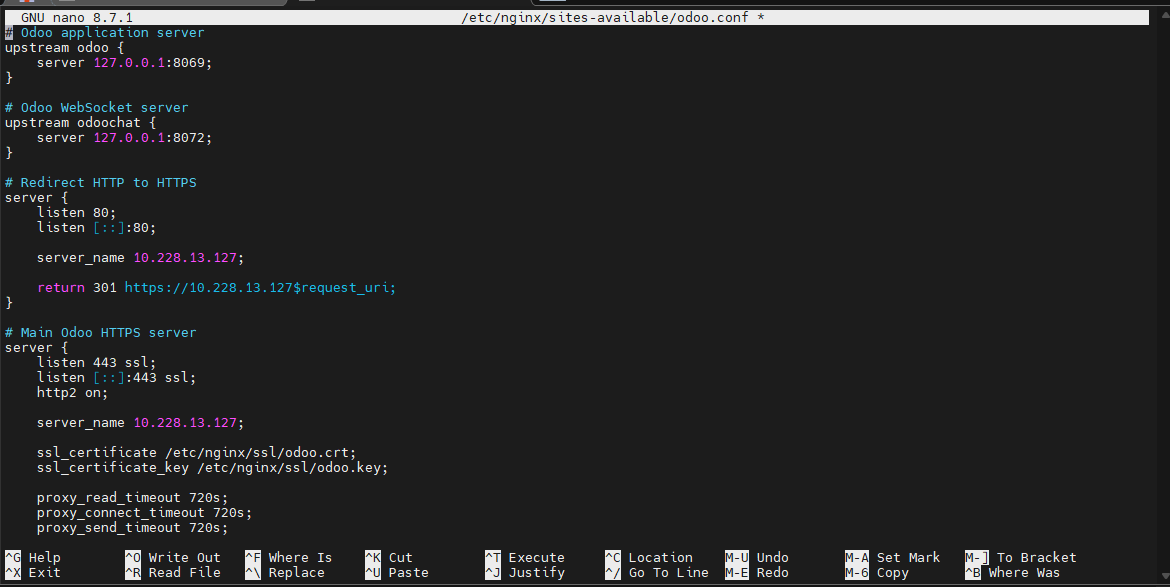
Replace: example.com with your actual domain name. Also update SSL certificate paths to match your environment.
Enable the site:
sudo ln -s /etc/nginx/sites-available/odoo.conf /etc/nginx/sites-enabled/
Test the configuration:
sudo nginx -tRestart Nginx:
sudo systemctl restart nginxb) Enable Proxy Mode in Odoo
Edit the Odoo configuration:
sudo nano /etc/odoo19.conf
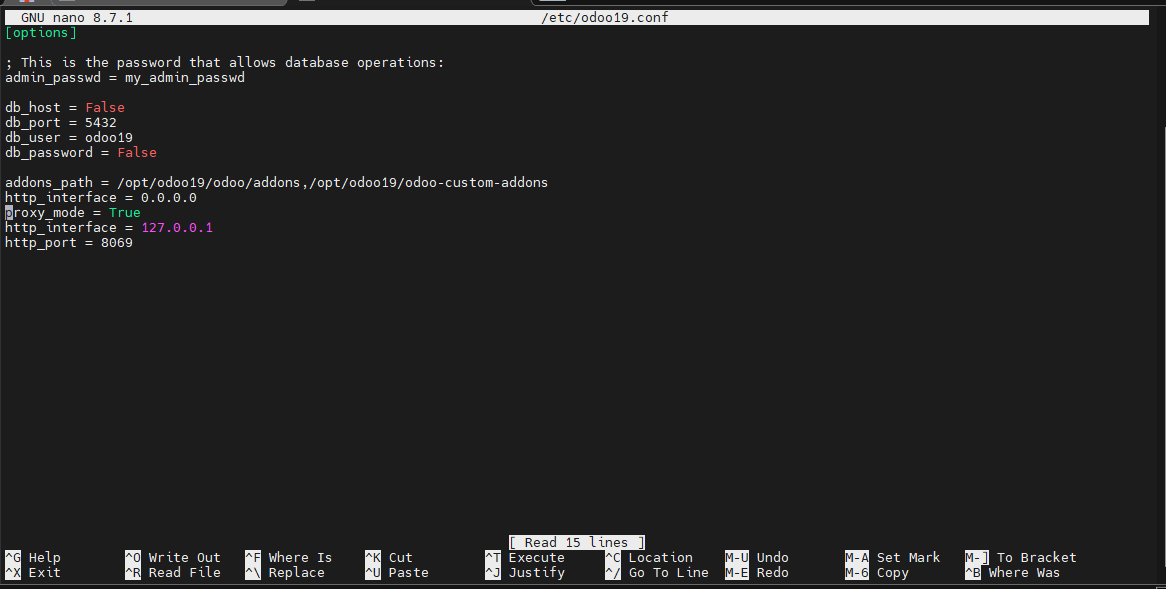
Add:
proxy_mode = TrueRestart Odoo:
sudo systemctl restart odoo19You should now be able to access Odoo securely using: https://example.com
Step 11: Configure the Firewall (Optional)
If UFW is enabled, allow web traffic and restrict direct access to the Odoo port.
Allow SSH:
sudo ufw allow OpenSSHAllow HTTP:
sudo ufw allow 80/tcpAllow HTTPS:
sudo ufw allow 443/tcpBlock direct access to Odoo:
sudo ufw deny 8069/tcpThis ensures visitors can only access Odoo through Nginx.

Step 12: Restrict Odoo to the Local Interface (Recommended)
By default, Odoo listens on all network interfaces. To improve security, bind Odoo to localhost only.
Edit the configuration:
sudo nano /etc/odoo19.confAdd:
xmlrpc_interface = 127.0.0.1
netrpc_interface = 127.0.0.1
Restart Odoo:
sudo systemctl restart odoo19This prevents direct public access to the Odoo service.
Step 13: Enable Multiprocessing for Production
Odoo runs in multithreading mode by default. Production systems benefit from multiprocessing, which improves scalability and stability.
Calculate Worker Requirements
Official Odoo sizing guidelines:
Worker Calculation
- Maximum workers = (CPU cores × 2) + 1
- One worker can serve approximately 6 concurrent users
- Cron workers also consume resources
Memory Estimation
- Needed RAM = workers × ((0.8 × 150) + (0.2 × 1024))
Check available CPU cores:
- grep -c ^processor /proc/cpuinfo
Example
For:
- 4 CPU cores
- 8 GB RAM
- 30 concurrent users
Calculation:
- 30 ÷ 6 = 5 workers
- Maximum supported workers = 9
- Recommended setup = 5 workers + 1 cron worker
Configure Multiprocessing
Edit the configuration:
sudo nano /etc/odoo19.conf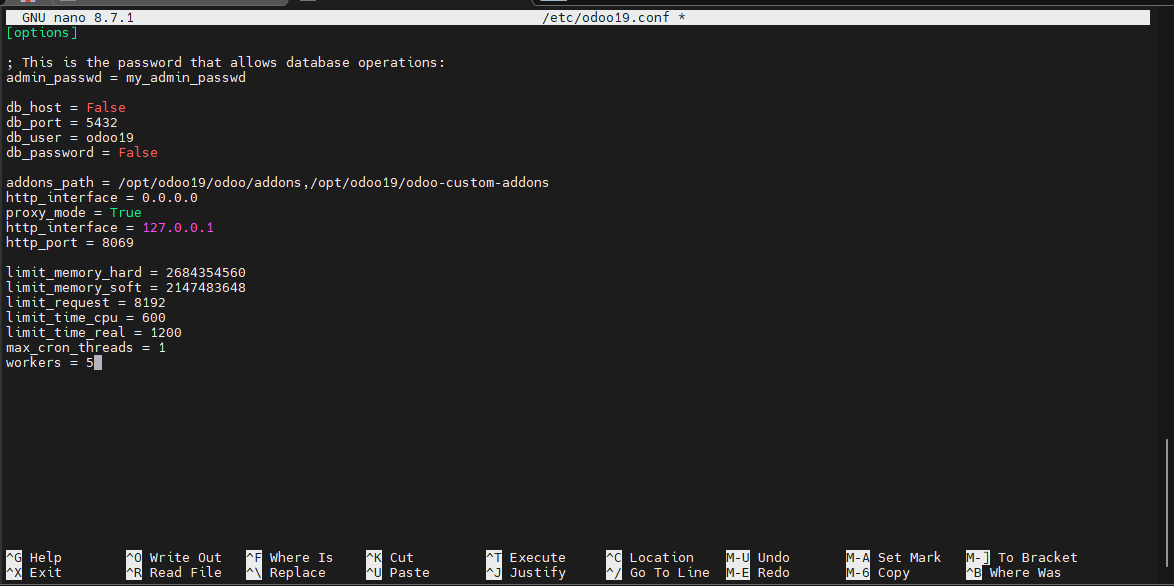
Add:
limit_memory_hard = 2684354560
limit_memory_soft = 2147483648
limit_request = 8192
limit_time_cpu = 600
limit_time_real = 1200
max_cron_threads = 1
workers = 5
Restart Odoo:
sudo systemctl restart odoo19Note: Adjust worker values according to your server resources and expected traffic.
Conclusion
You have successfully installed Odoo 19 on Ubuntu using a Python virtual environment. The setup now includes PostgreSQL, wkhtmltopdf, a dedicated system user, systemd service management, Nginx reverse proxy support, HTTPS readiness, and optional production optimizations such as firewall restrictions and multiprocessing.
For production environments, be sure to keep the server updated, monitor resource usage, and regularly back up your Odoo databases and configuration files.