

Running a simple HTTP server with Python is one of the fastest ways to share files, test web content, build mock APIs, or perform local development on Ubuntu. Python includes a built-in HTTP server module that requires no additional software, making it ideal for beginners and developers alike.
In this tutorial, you’ll learn how to set up a Python HTTP server on Ubuntu, configure firewall access, create a custom server, run it in the background, add HTTPS support with Nginx, and troubleshoot common issues.
Prerequisites
Before you begin, ensure you have:
- An Ubuntu system
- Python 3 installed
- Access to the terminal
- Administrative privileges (required for firewall and service configuration)
Step 1: Verify Python Installation
Most modern Ubuntu releases include Python 3 by default. Start by checking the installed version.
python3 --version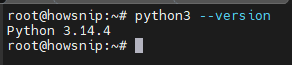
This command displays the currently installed Python version.
Install or Update Python
If Python is not installed, update package information and install Python 3:
sudo apt update
sudo apt install python3
The first command refreshes Ubuntu’s package lists, while the second installs Python 3.
Install Optional Development Tools
For testing, package management, and virtual environments, install the following tools:
sudo apt install python3-pip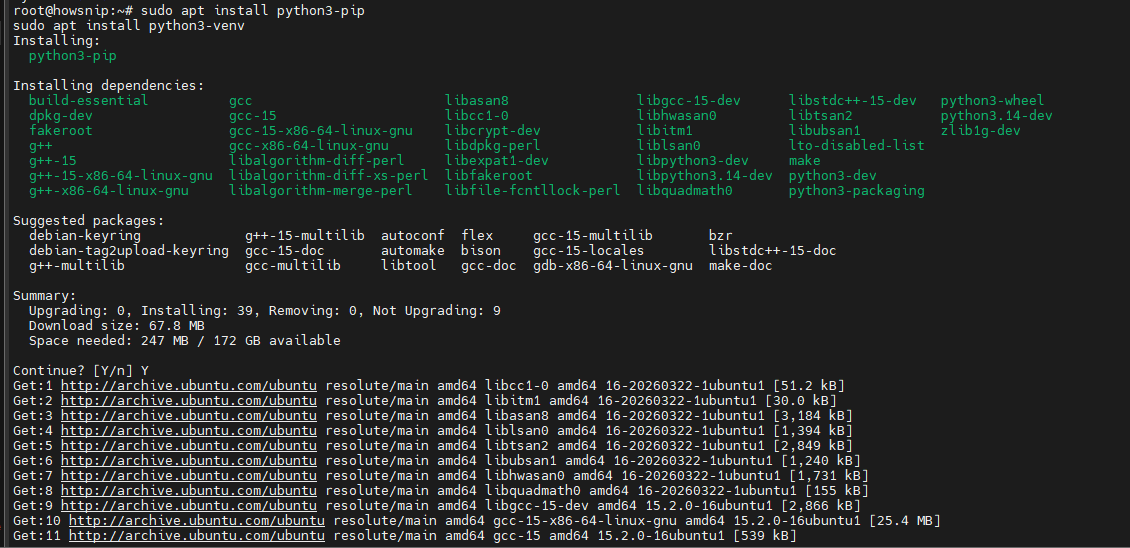
pip allows you to install additional Python packages.
sudo apt install python3-venvThe venv package enables isolated Python environments for development projects.
Step 2: Create a Simple Python HTTP Server
Python includes the built-in http.server module, which can instantly serve files from a directory.
Navigate to Your Working Directory
Move to the folder you want to share:
cd /path/to/your/folderReplace the path with the actual directory you want the server to serve.
Start the Server
Run:
python3 -m http.server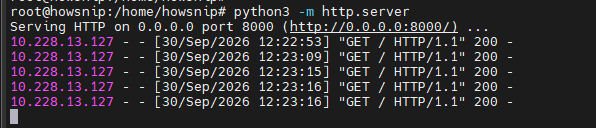
This starts an HTTP server on the default port 8000.
Access the Server
Open a web browser and visit:
http://localhost:8000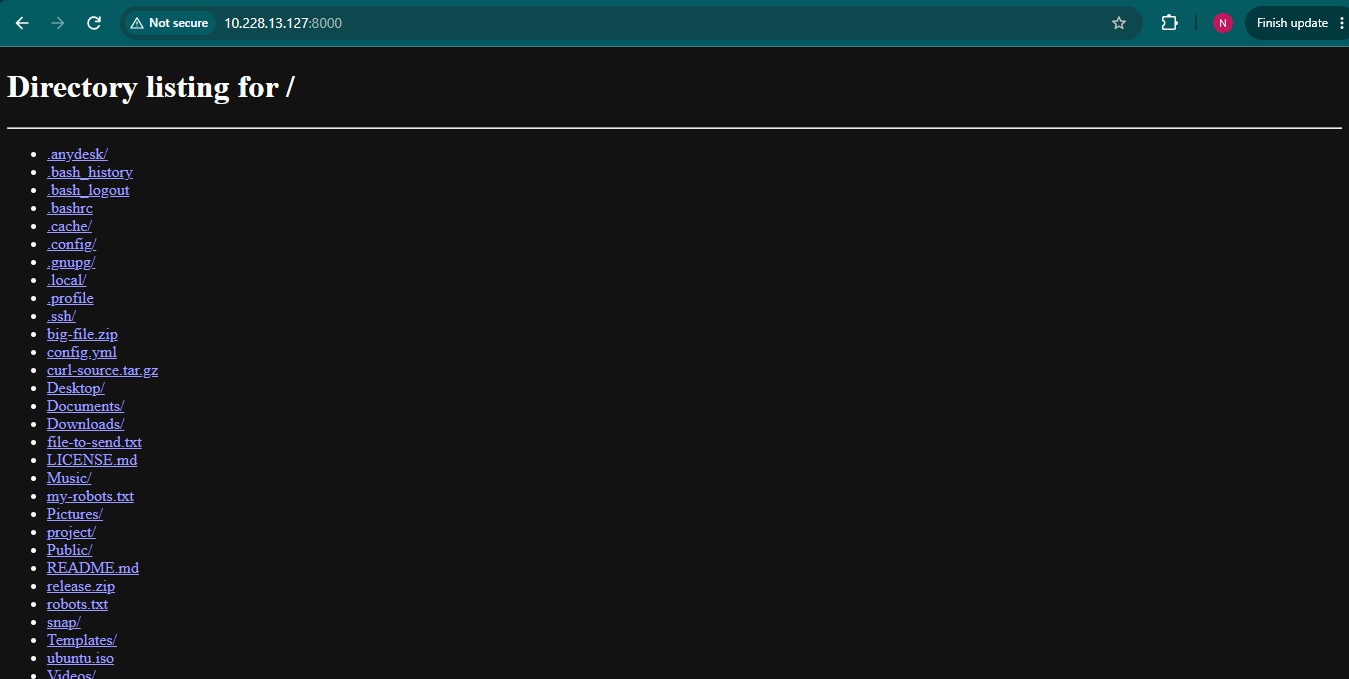
If the directory does not contain an index.html file, the browser displays a list of available files and folders.
Use a Different Port
To run the server on another port, such as 8080:
python3 -m http.server 8080This launches the server on port 8080 instead of the default port 8000.
Allow Access from Other Devices
To make the server accessible from other devices on the network:
python3 -m http.server 8000 --bind 0.0.0.0
The –bind 0.0.0.0 option tells the server to listen on all available network interfaces.
Important: Anyone who can reach your system’s IP address and port may be able to view the served files.
Step 3: Configure Firewall Rules with UFW
Ubuntu commonly uses UFW (Uncomplicated Firewall) for firewall management.
Enable UFW
If UFW is not already enabled, run:
sudo ufw enableThis activates the firewall.
Allow Access to Port 8000
If your Python server is running on port 8000, allow incoming connections on that port:
sudo ufw allow 8000This opens port 8000 for external access.
Reload Firewall Rules
After making changes, reload UFW:
sudo ufw reloadThis applies updated firewall rules without disabling the firewall.
Verify Firewall Status
Check active firewall rules:
sudo ufw status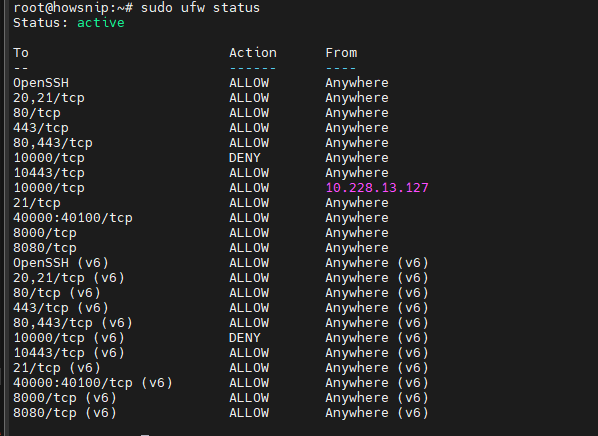
The output shows whether port 8000 is allowed.
Restrict Access to the Local Machine Only
If you only want local access, bind the server to the loopback address:
python3 -m http.server 8000 --bind 127.0.0.1This prevents external devices from reaching the server.
Step 4: Create a Custom Python HTTP Server
While the built-in server is useful for file sharing, custom servers provide greater flexibility. You can create custom responses, add API endpoints, handle requests, and return data in different formats.
Example: Simple API Endpoint
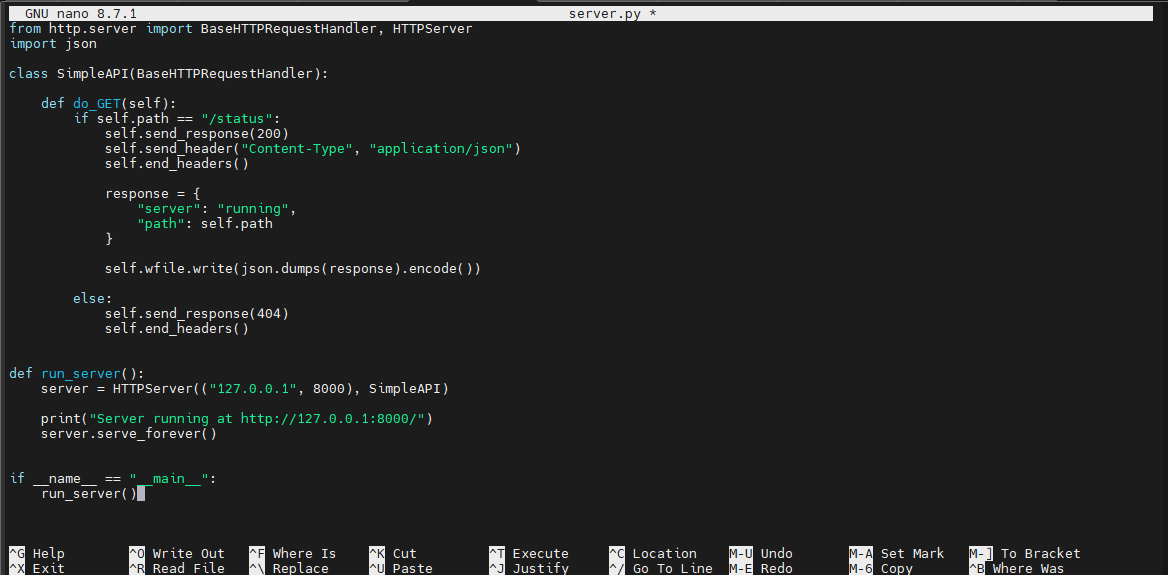
Create a file named server.py and add the following code:
from http.server import BaseHTTPRequestHandler, HTTPServer
import json

class SimpleAPI(BaseHTTPRequestHandler):
def do_GET(self):
if self.path == "/status":
self.send_response(200)
self.send_header("Content-Type", "application/json")
self.end_headers()

response = {
"server": "running",
"path": self.path
}

self.wfile.write(json.dumps(response).encode())
else:
self.send_response(404)
self.end_headers()

def run_server():
server = HTTPServer(("localhost", 8000), SimpleAPI)
print("Server running at http://localhost:8000/")
server.serve_forever()

if __name__ == "__main__":
run_server()
How the Code Works
- BaseHTTPRequestHandler processes incoming HTTP requests.
- The do_GET() method handles GET requests.
- Requests to /status return a JSON response.
- Any other path returns a 404 error.
- serve_forever() keeps the server running continuously.
Run the Custom Server
python3 server.pyTest the Endpoint
Open:
http://localhost:8000/status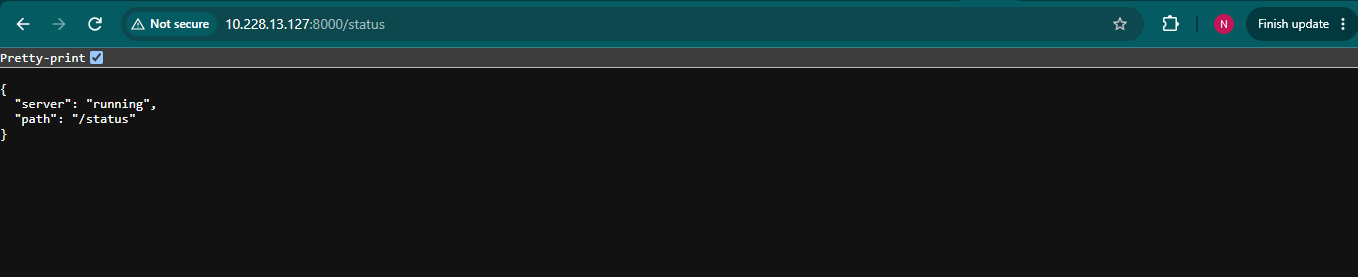
The server returns a JSON response indicating that it is running. This approach is useful for creating simple mock APIs and testing HTTP behavior without installing a full web framework.
Step 5: Run the Server in the Background
For long-running services, running the server directly in a terminal window may not be practical.
Common options include:
- systemd
- tmux
- screen
- nohup
Option 1: Use nohup
A quick way to run the server in the background:
nohup python3 -m http.server 8000 --bind 0.0.0.0 > server.log 2>&1 &
The nohup utility keeps the process running even after you close the terminal session.
Option 2: Create a systemd Service
Create a new service file:
sudo nano /etc/systemd/system/python-http.service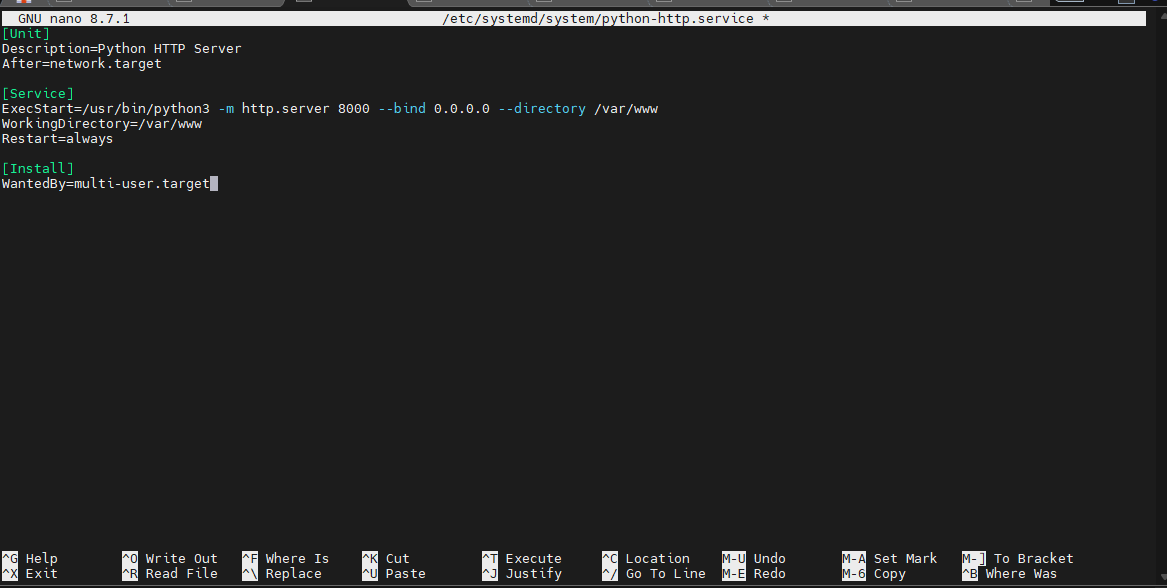
Add the following configuration:
[Unit]
Description=Python HTTP Server
After=network.target

[Service]
ExecStart=/usr/bin/python3 -m http.server 8000 --directory /var/www
WorkingDirectory=/var/www
Restart=always

[Install]
WantedBy=multi-user.target
Enable the Service
sudo systemctl enable python-http
This configures the service to start automatically during system boot.
Start the Service
sudo systemctl start python-httpVerify Service Status
sudo systemctl status python-http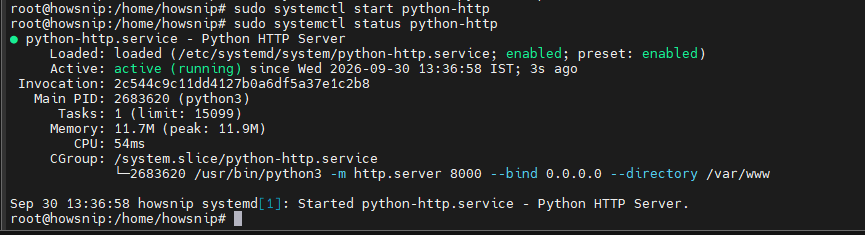
After configuration, the HTTP server will start automatically whenever the system boots.
Step 6: Add HTTPS Using Nginx as a Reverse Proxy
Python’s built-in HTTP server does not provide HTTPS support. A common solution is to place Nginx in front of the Python server.
Install Nginx
sudo apt install nginx
Nginx will handle incoming web traffic and forward requests to the Python server.
Basic Reverse Proxy Configuration
Example Nginx configuration:
Edit the following file /etc/nginx/sites-available/python-proxy
server {
listen 80;

location / {
proxy_pass http://127.0.0.1:8000;
}
}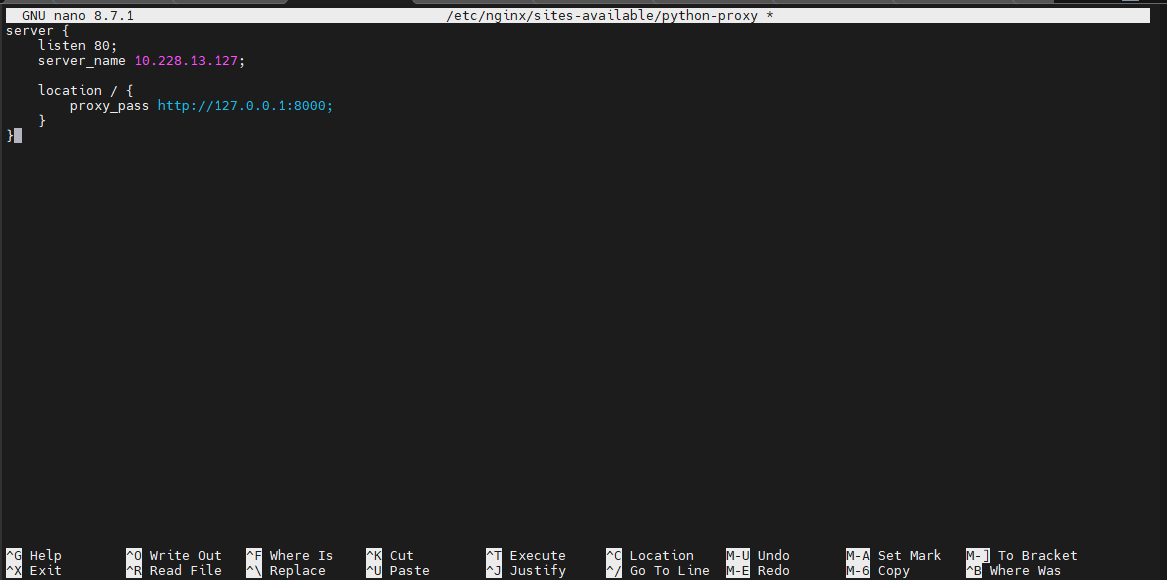
This configuration forwards requests received on port 80 to the Python server running on port 8000.
Reload Nginx
sudo systemctl reload nginx
This applies the new configuration without restarting the service.
Step 7: Enable HTTPS with Let’s Encrypt
To secure traffic with SSL/TLS certificates, install Certbot.
Install Certbot
sudo apt install certbot python3-certbot-nginx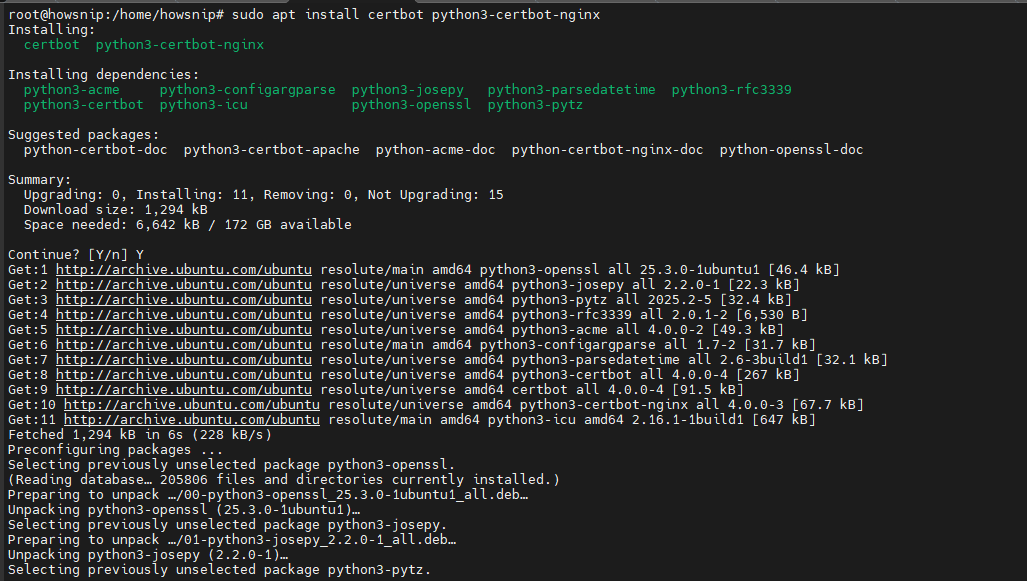
These packages integrate Let’s Encrypt certificates with Nginx.
Request and Configure Certificates
sudo certbot --nginxCertbot automatically obtains and configures SSL certificates for your Nginx server. After completion, users can securely access the site over HTTPS.
Troubleshooting Common Issues
a) Error: Address Already in Use
This error usually occurs when another process is already using port 8000.
Identify the Process
sudo lsof -i :8000
The command displays the process ID (PID) currently using the port.
Stop the Process
sudo kill <pid>Replace <pid> with the actual process ID returned by the previous command.
b) Error: Permission Denied
If you receive permission-related errors:
- Use directories that your user account can access.
- Check folder ownership and permissions.
- Avoid serving files from restricted system locations unless necessary.
- Cannot Access the Server from Another Device
If external devices cannot connect:
- Verify that the server is bound to 0.0.0.0.
- Confirm that UFW allows the required port.
- Check network restrictions or router isolation settings.
- Ensure the correct IP address is being used.
Conclusion
Python’s built-in HTTP server provides a fast and convenient way to serve files and test web applications on Ubuntu.
You can start with a basic server using http.server, expose it to other devices through firewall configuration, build custom API endpoints, run the service automatically with systemd, and secure traffic using Nginx and Let’s Encrypt.