

Linux provides powerful command-line tools for managing files, monitoring system resources, troubleshooting problems, and working with remote servers. Whether you’re just getting started with Linux or need a quick reference for everyday administration tasks, this guide covers some of the most useful commands organized by category.
Prerequisites
Before using these commands:
- Open a terminal window on your Linux system.
- Ensure you have appropriate permissions for administrative commands.
- Some tools such as htop, ncdu, and nmap may need to be installed first.
- Be cautious when using commands that modify or delete files.
Important: Commands that use sudo, rm, kill -9, or recursive operations can affect your system. Verify commands before running them.
- File Operations
- Disk and Memory Management
- Process Management
- Network Commands
- Text Processing Commands
- Managing Permissions and Users
- SSH and Remote Access
- Git Quick Reference
- System Information Commands
1. File Operations
File management is one of the most common tasks in Linux. These commands help you find, search, copy, move, and remove files efficiently.
Find Files by Name
Use find to locate files by name while searching the current directory and its subdirectories.
Search for JavaScript files in the current directory and all subdirectories:
find . -name "*.js" -type f
Find Files Modified in the Last 7 Days
Use this command to identify files that have been modified recently, which is useful for tracking changes.
find . -mtime -7 -type f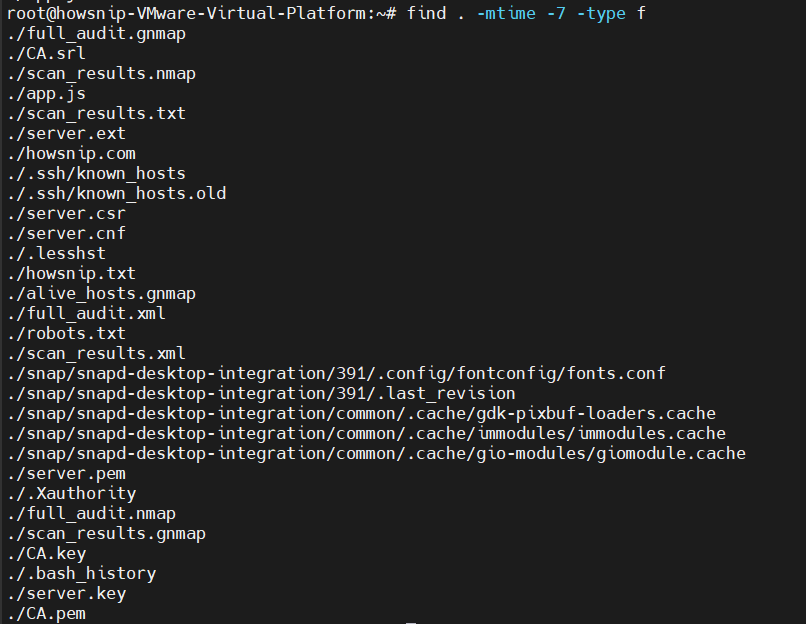
This is useful when tracking recently changed files within a project.
Find Large Files
Use find with a size filter to locate files that are consuming a significant amount of disk space.
Locate files larger than 100 MB:
find . -size +100M -ls
This helps identify files that may be consuming significant storage space.
Search Inside Files
Use grep to search file contents recursively for a specific word, phrase, or pattern.
Search recursively for a specific word:
grep -r "TODO" .
Search only JavaScript files in the src directory:
grep -r "functionName" src/ --include="*.js"
Replace Text in Files
Use sed to search for and replace text directly inside matching files.
Replace all instances of text within JavaScript files:
sed -i 's/oldText/newText/g' *.js
Warning: This command modifies files directly. Consider making a backup first.
Copy Files and Directories
Use cp to create a copy of files or directories while preserving the original data.
Copy a directory and its contents:
cp -r source/ dest/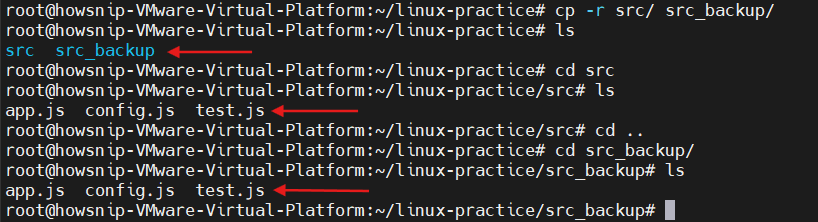
Move or Rename Files
Use mv to rename a file or directory or move it to a different location.
mv old_name.js new_name.js
This command can be used either to rename a file or move it to another location.
Delete Directories Recursively
Use rm with recursive options to remove a directory and everything contained within it.
rm -rf node_modules/
Warning: rm -rf permanently deletes files and folders without confirmation.
2. Disk and Memory Management
Monitoring storage and memory usage is essential for maintaining system performance.
Check Disk Usage
Use df to view filesystem disk usage, including used space and available space.
View mounted disks and available space:
df -h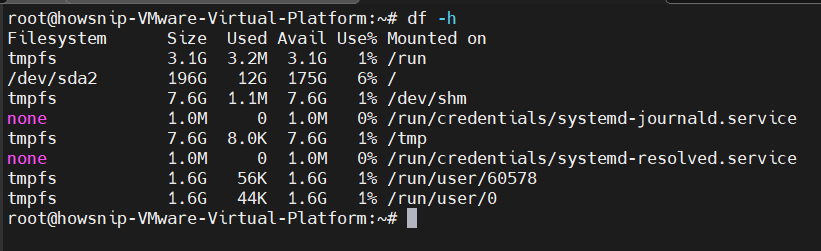
The -h option displays values in a human-readable format.
View Directory Sizes
Use du to calculate directory sizes and sort the results so the largest directories are easy to identify.
Show directory sizes and sort them from largest to smallest:
du -sh * | sort -hr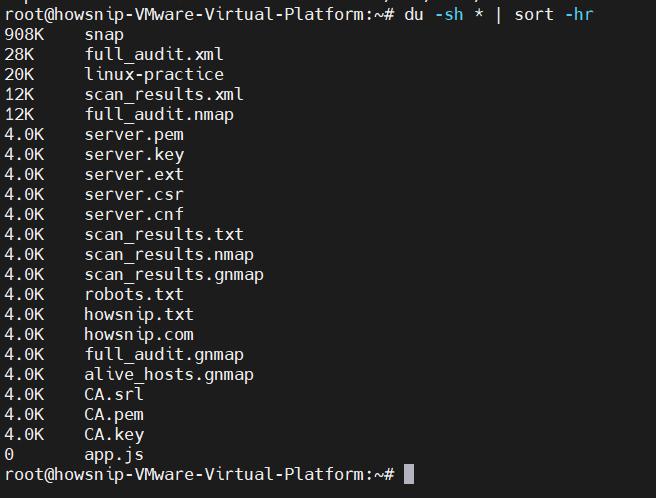
Find the Largest Files
Use du, sort, and head together to quickly identify the largest files and directories.
Display the top 10 largest files and directories:
du -ah . | sort -hr | head -10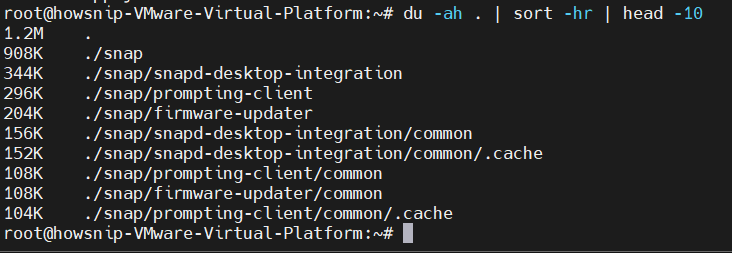
Check Available Memory
Use free to view available, used, and total system memory in a human-readable format.
free -h
This command provides a quick overview of RAM usage.
Identify Disk Space Usage Interactively
Use ncdu to explore disk usage interactively and quickly locate directories consuming the most space.
ncdu /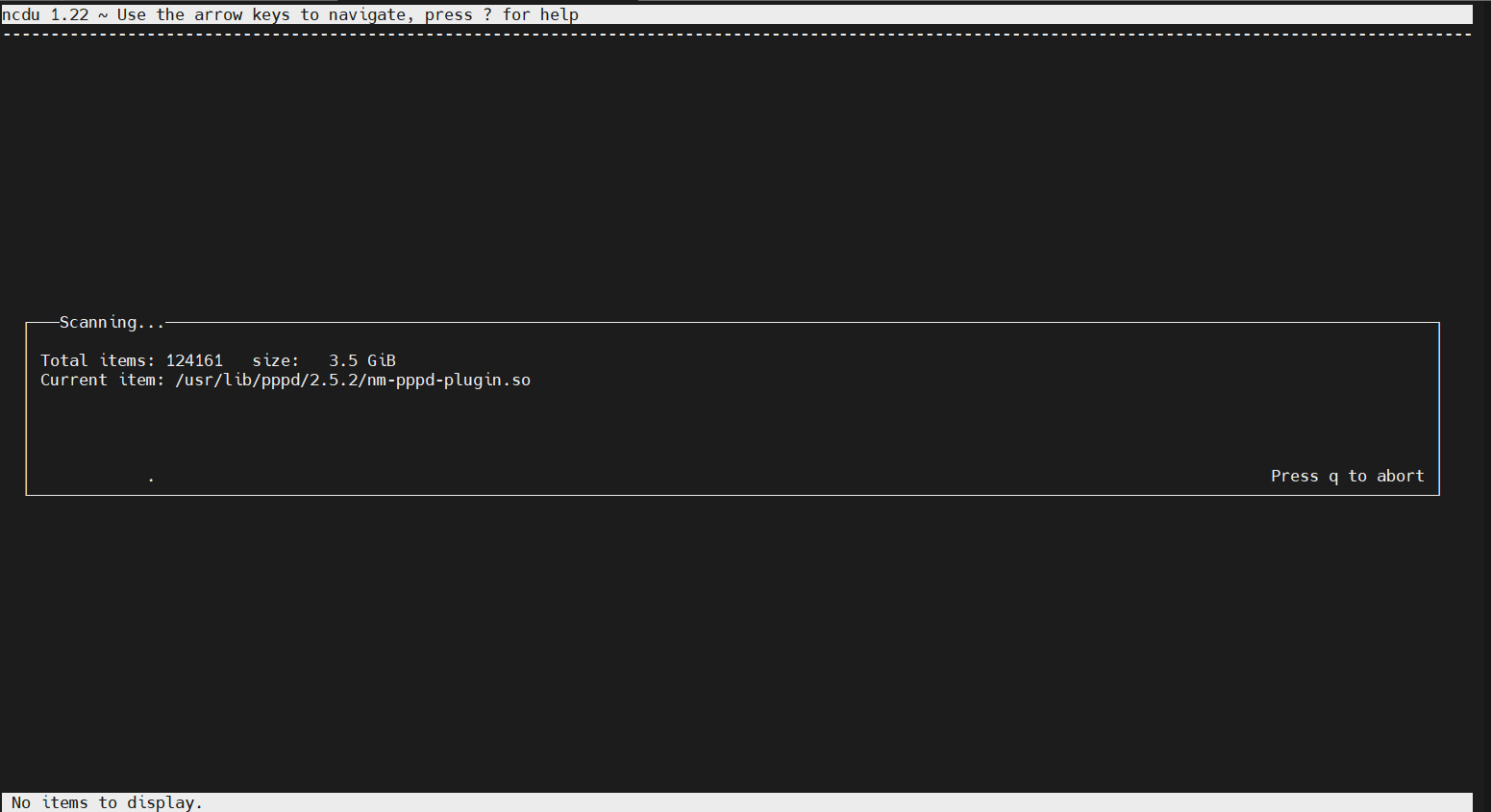
Install it first if necessary:
sudo apt install ncduClean Up Unused Resources
Use system cleanup commands to remove unused packages, Docker data, or cached files and recover disk space.
Remove unused packages:
sudo apt autoremove
Clean unused Docker data:
docker system prune -a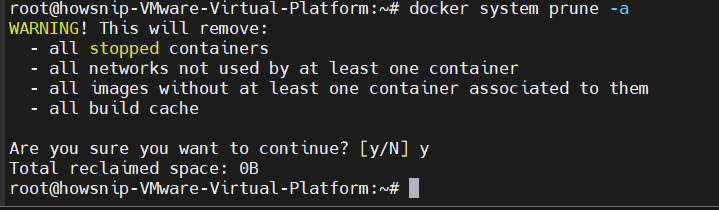
Clear the npm cache:
npm cache clean --force
3. Process Management
Linux makes it easy to monitor and manage running applications.
Find Running Processes
Use ps to list running processes and grep to filter the output for a specific application or process.
Search for Node.js-related processes:
ps aux | grep node
Monitor Processes in Real Time
Use htop to interactively monitor running processes, CPU usage, memory usage, and system load.
htop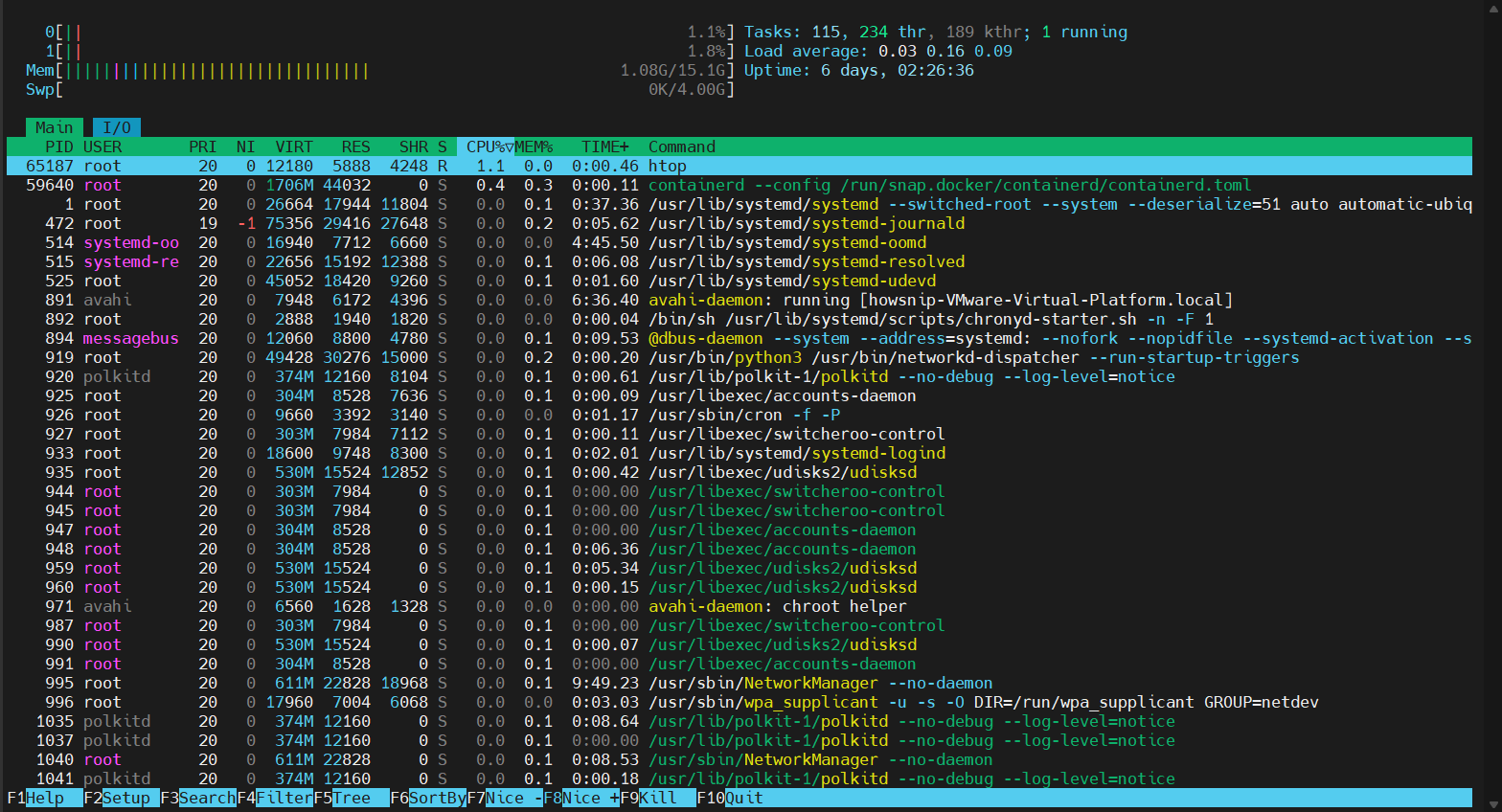
Install htop if it is not already available:
sudo apt install htopStop a Process
Use kill to request that a running process terminate gracefully by specifying its process ID.
Terminate a process using its PID:
kill PID
Force termination if needed:
kill -9 PID
Note: Use kill -9 only when a normal termination fails.
Kill a Process by Name
Use pkill to terminate processes by matching their name or command line.
pkill -f "node server"
Check Which Process Is Using a Port
Use lsof or ss to identify the process that is listening on or using a specific network port.
Using lsof:
lsof -i :3000
Using ss:
ss -tlnp | grep :3000
Run Processes in the Background
Use the background operator, nohup, and disown to keep commands running without occupying the current terminal.
Start a server in the background:
node server.js &
For persistent execution after terminal closure:
nohup node server.js &
Detach the process:
disown
4. Network Commands
Networking tools help troubleshoot connectivity issues and inspect network behavior.
Test Internet Connectivity
Use ping to test basic network reachability and measure response time to a remote host.
ping google.com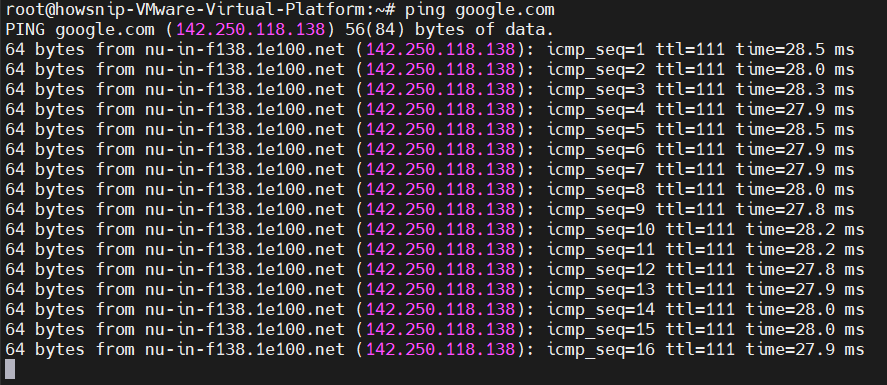
Perform DNS Lookups
Use nslookup or dig to query DNS records and troubleshoot domain name resolution.
Basic lookup:
nslookup example.com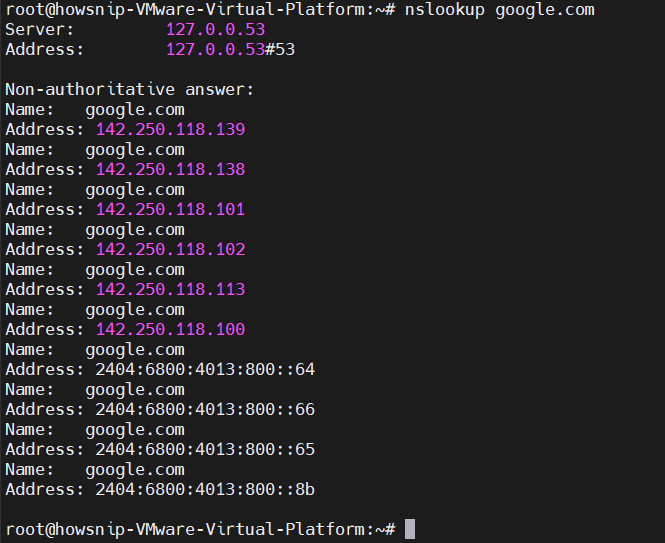
Detailed lookup:
dig example.com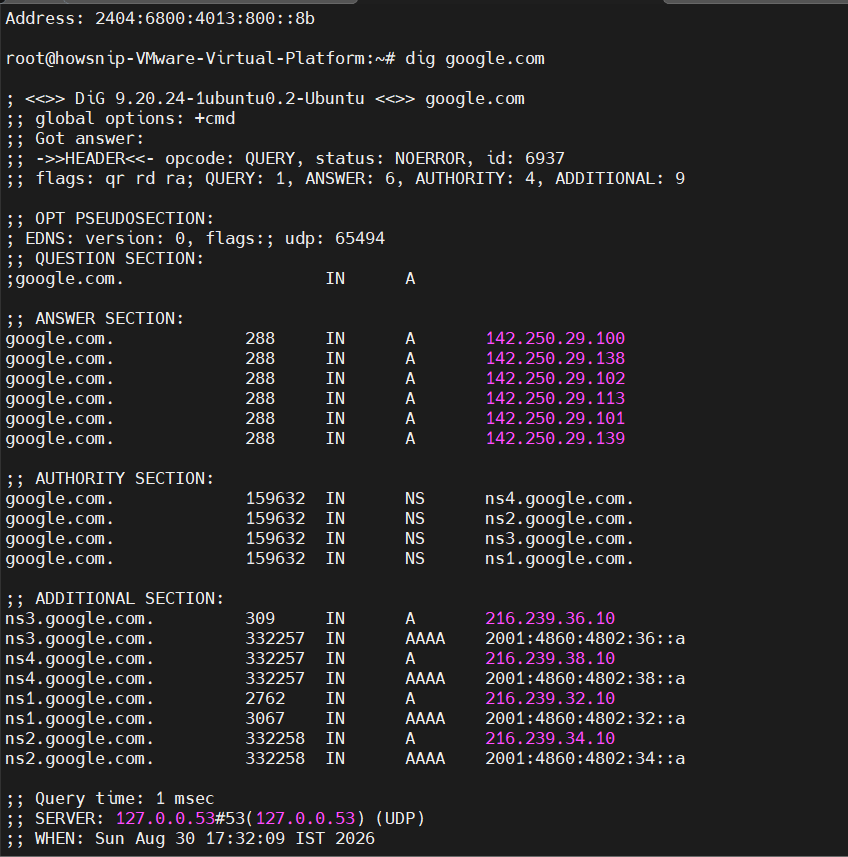
Make HTTP Requests
Use wget to retrieve content from an HTTP or HTTPS URL directly from the command line.
Retrieve webpage content:
wget -qO- https://example.com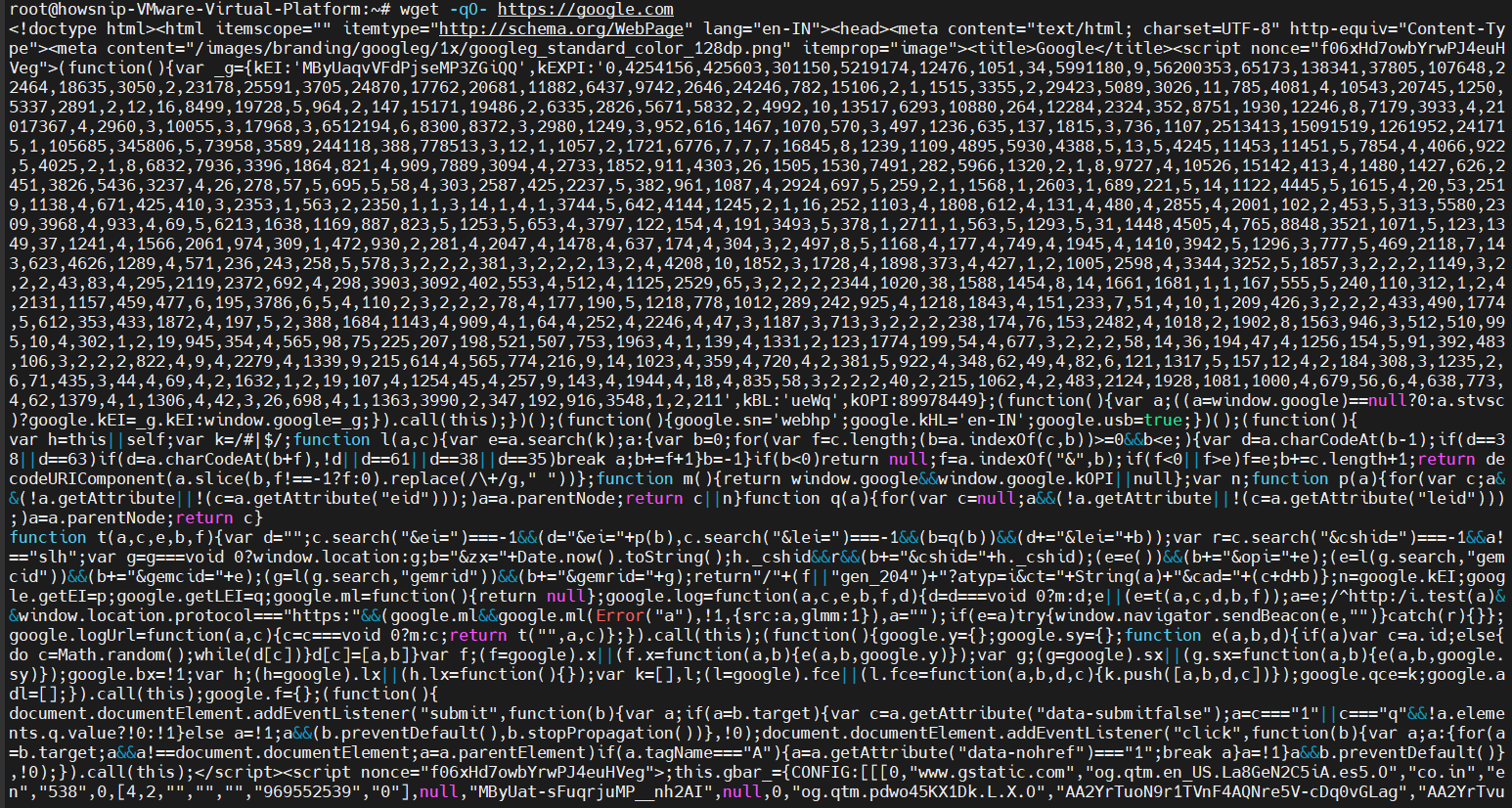
View HTTP Headers
Use curl to inspect HTTP response headers and, with verbose mode, view additional connection details.
Headers only:
curl -I https://example.com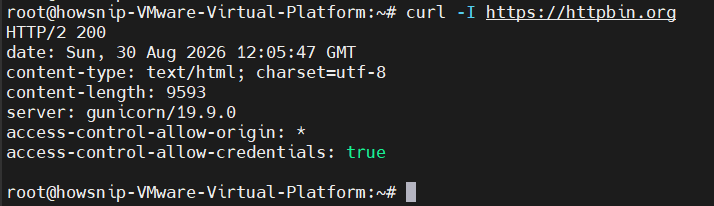
Verbose output:
curl -v https://example.com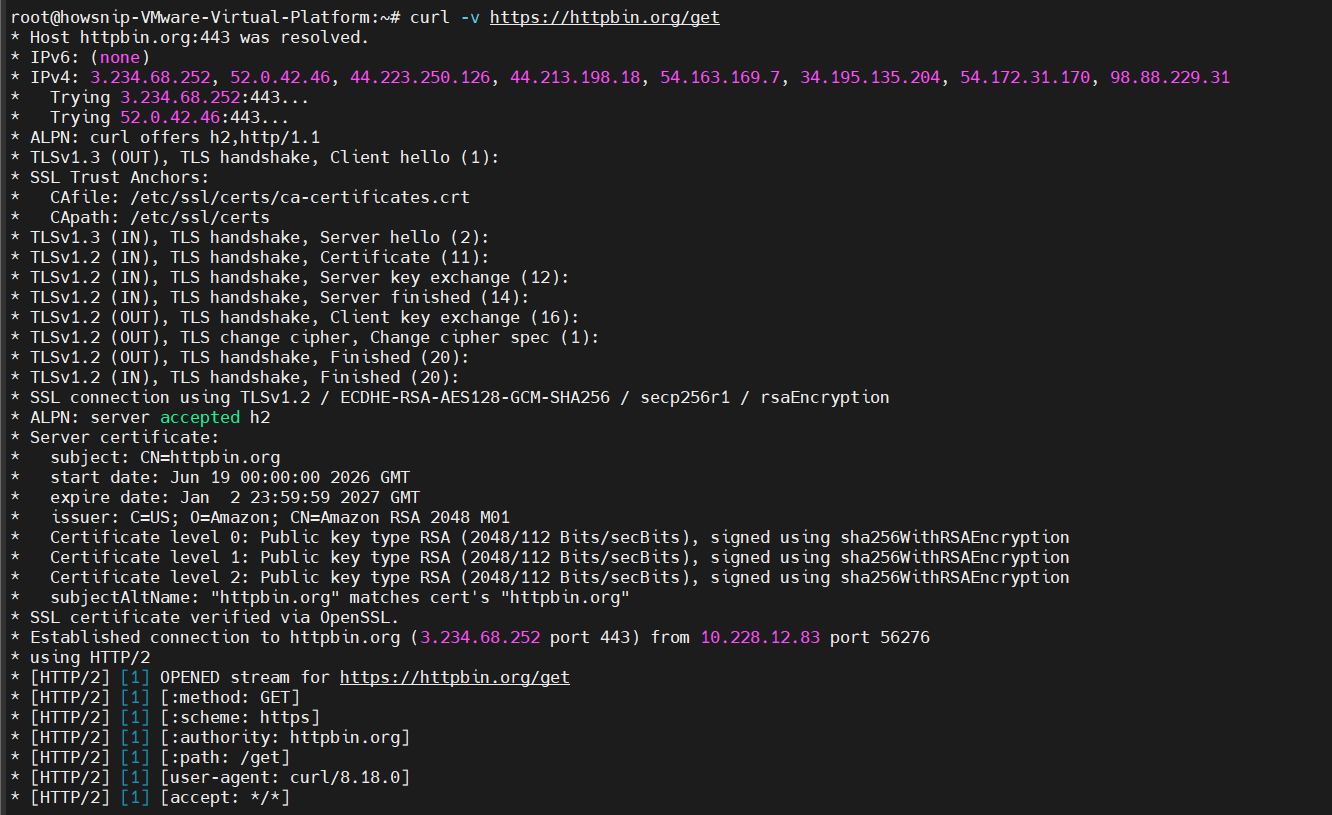
Send a POST Request
Use curl to send data to a web API using an HTTP POST request with custom headers and a request body.
curl -X POST https://api.example.com/data \
-H "Content-Type: application/json" \
-d '{"key": "value"}'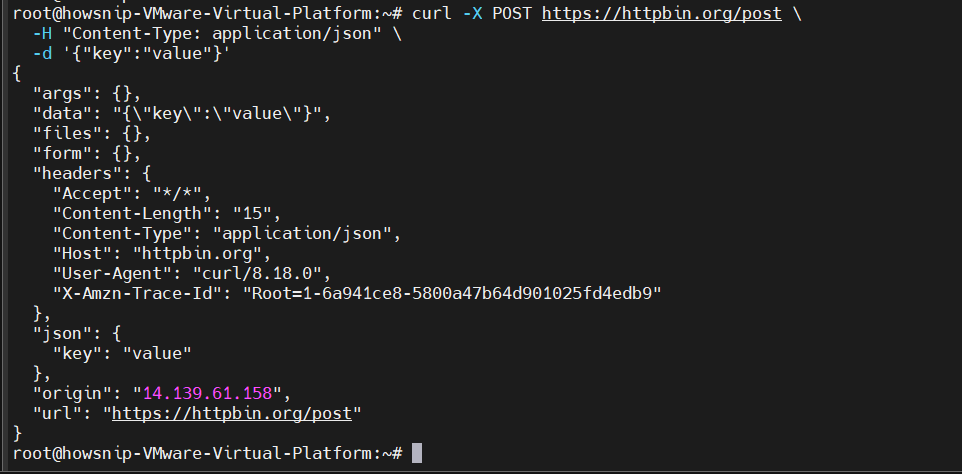
Download a File
Use curl with the -o option to download remote content and save it with a specified filename.
curl -o filename.zip https://example.com/file.zip
Scan Open Ports
Use nmap to identify open ports on a host and get a basic view of its network services.
nmap localhost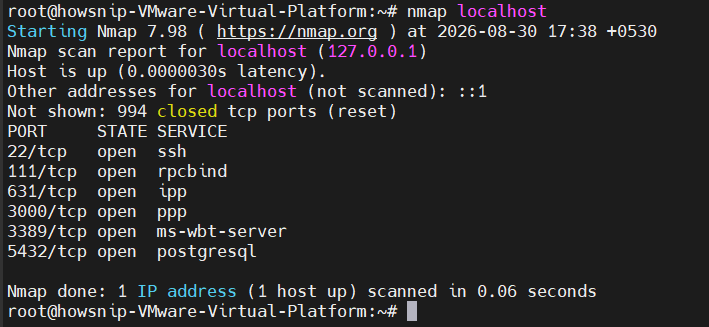
Install nmap if required:
sudo apt install nmap5. Text Processing Commands
Linux includes powerful text-processing tools for inspecting and manipulating files.
View File Contents
Use cat to display a file’s contents directly in the terminal, while less is useful for viewing large files page by page.
Display an entire file:
cat file.txt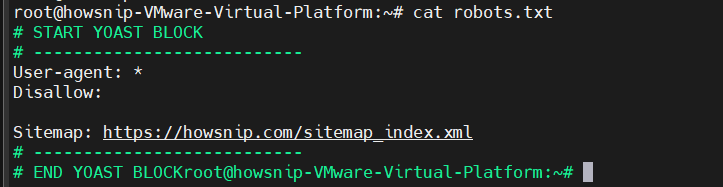
Open a large file page by page:
less file.txt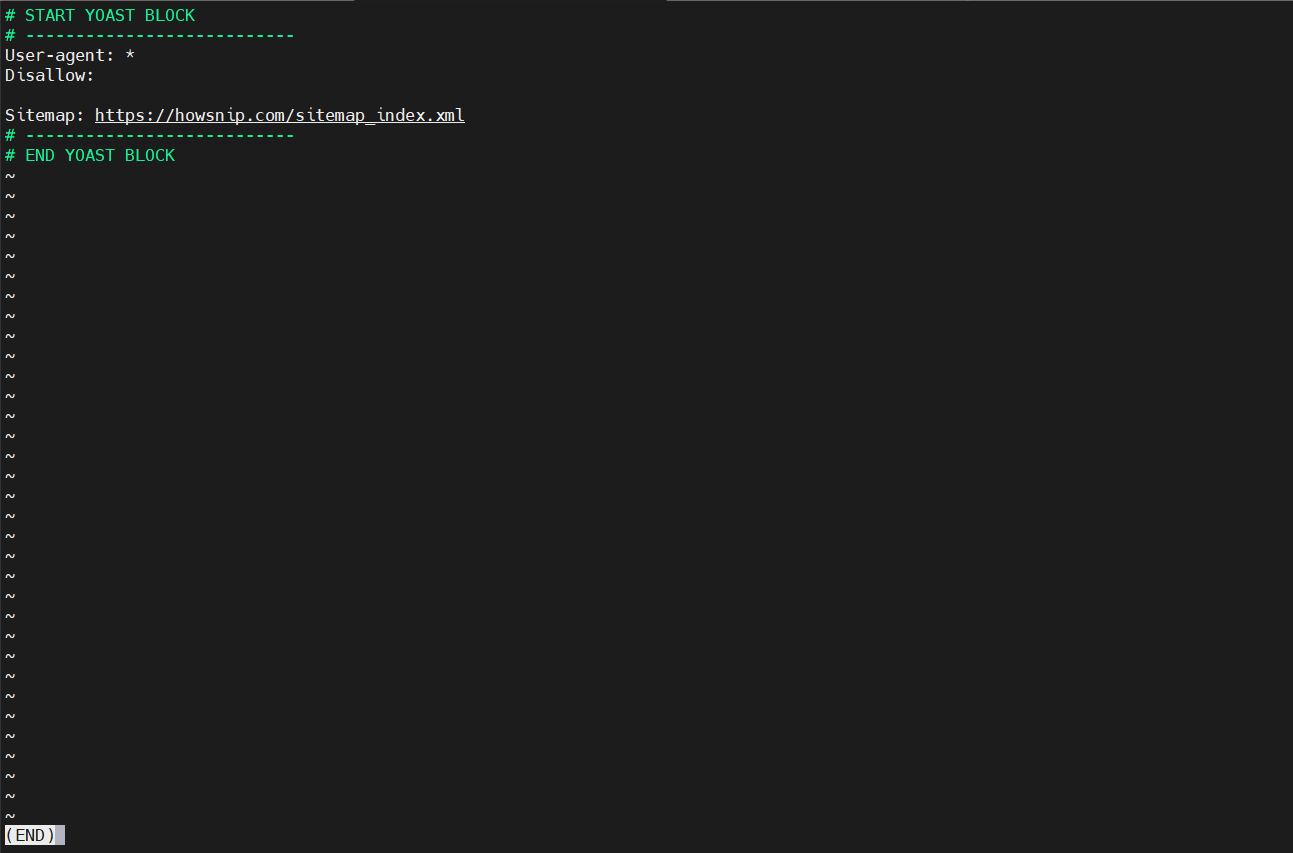
Exit less by pressing:
qView the Beginning or End of a File
Use head to view the beginning of a file and tail to inspect the end or follow new content in real time.
First 20 lines:
head -n 20 file.txt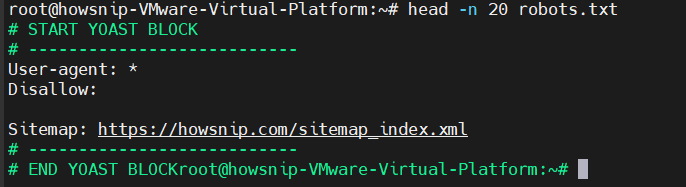
Follow a file in real time:
tail -f file.txt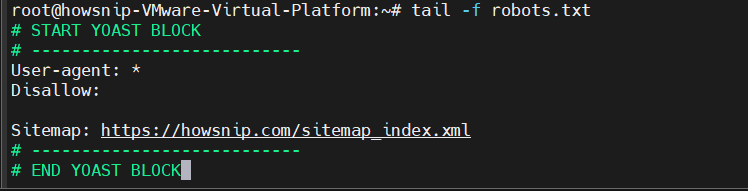
Count Lines and Words
Use wc to count lines, words, and other basic file statistics.
Count lines:
wc -l file.txt
Count words:
wc -w file.txt
Sort Data
Use sort to arrange text alphabetically, numerically, or by a selected field.
Alphabetical sort:
sort file.txt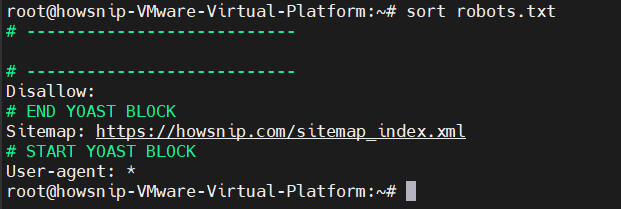
Numerical reverse sort:
sort -nr numbers.txt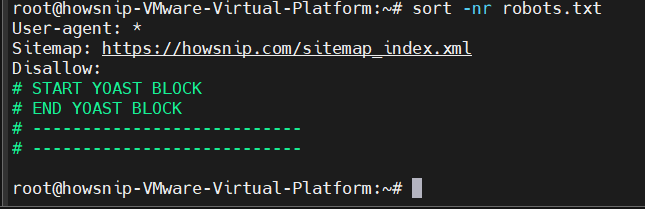
Sort a CSV file by the second column:
sort -k2 -t',' file.csv
Find Unique Values
Use uniq with sorted input to remove duplicate lines, count occurrences, or identify the most common values.
Remove duplicates:
sort file.txt | uniq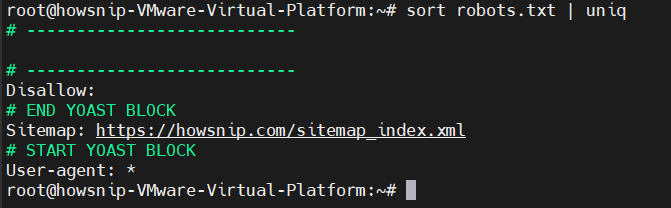
Count occurrences:
sort file.txt | uniq -c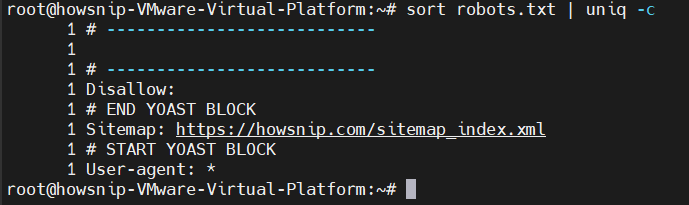
Display most common values:
sort file.txt | uniq -c | sort -rn | head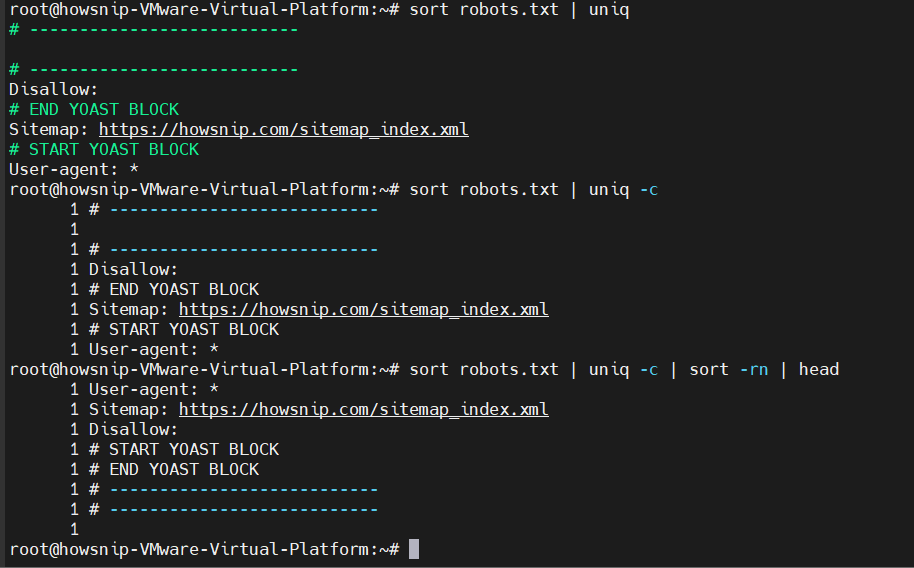
Extract Specific Columns
Use awk or cut to select specific fields or columns from structured text such as CSV files.
Using awk:
awk -F',' '{print $1, $3}' data.csv
Using cut:
cut -d',' -f1-3 data.csv
6. Managing Permissions and Users
Permissions control who can read, write, and execute files.
Check Current Permissions
Use ls -la to view files, directories, ownership, permissions, hidden files, and other metadata.
ls -la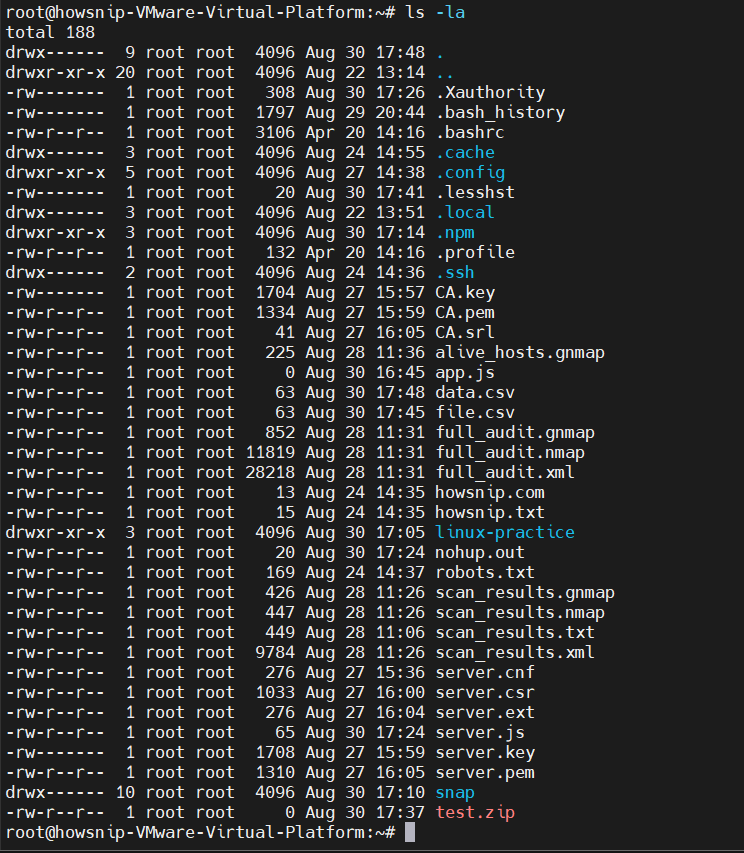
Change Permissions
Use chmod to change read, write, and execute permissions for files and directories.
Set permissions explicitly:
chmod 755 script.sh
Make a file executable:
chmod +x script.shChange permissions recursively:
chmod -R 644 linux-practice/
Change File Ownership
Use chown to change the user and group ownership associated with a file or directory.
chown user:group file
Recursive ownership change:
chown -R www-data:www-data ~/linux-practice/src/
Check Current User Information
Use whoami and id to determine the current user and view associated user and group information.
Current user:
whoami
User and group details:
id
Switch Users
Use su to switch to another user account or sudo to run a command with another user’s privileges.
su - username
Run a command as another user:
sudo -u postgres psql
7. SSH and Remote Access
SSH allows secure access to remote Linux systems.
Connect to a Remote Server
Use ssh to establish a secure command-line connection to a remote Linux server.
ssh user@hostname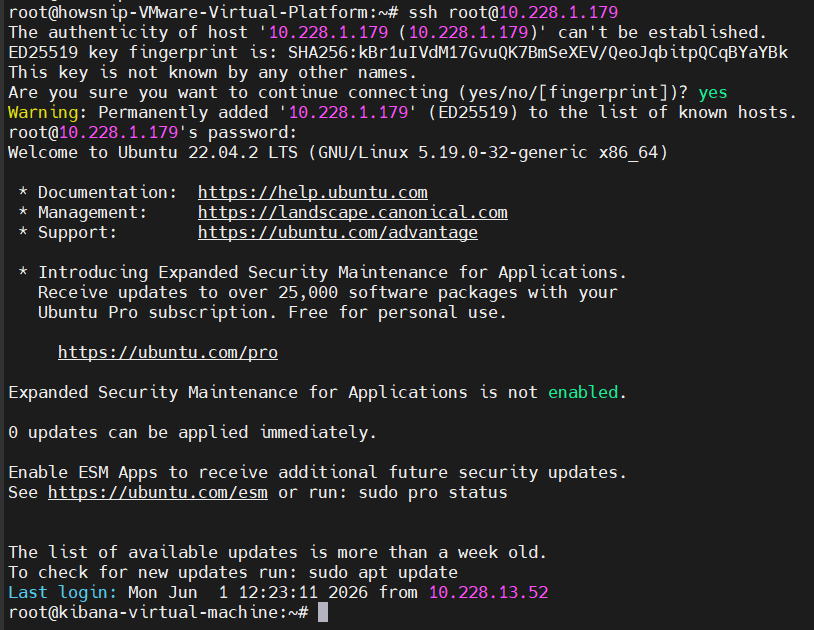
Connect Using a Custom Port
Use ssh with the -p option when the remote SSH service is listening on a port other than the default.
ssh -p 22 user@hostname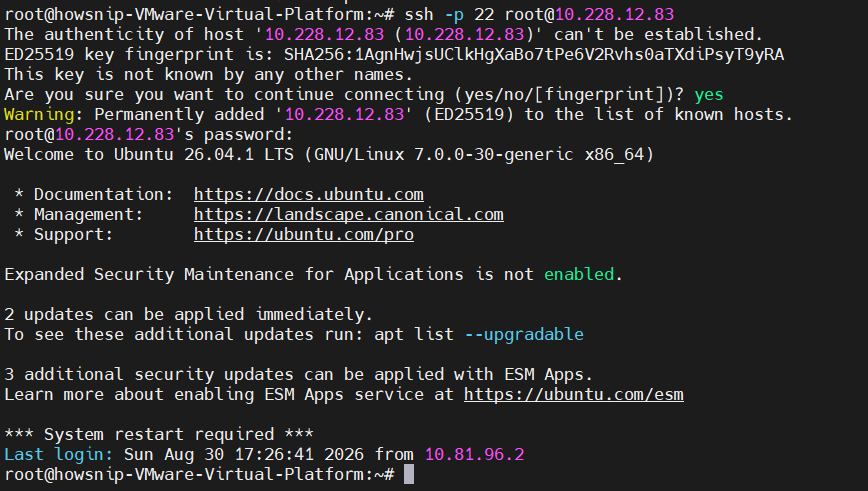
Copy Files to a Remote Server
Use scp to securely transfer files or directories from the local system to a remote server.
Copy a file:
scp file.txt user@host:/path/to/dest/
Copy a directory:
scp -r folder/ user@host:/path/to/dest/
Copy Files from a Remote Server
Use scp to securely copy files from a remote server to the local system.
scp user@host:/path/file.txt ./
Configure Passwordless Authentication
Use SSH keys to authenticate to remote servers without entering a password for every connection.
Generate an SSH key:
ssh-keygen -t ed25519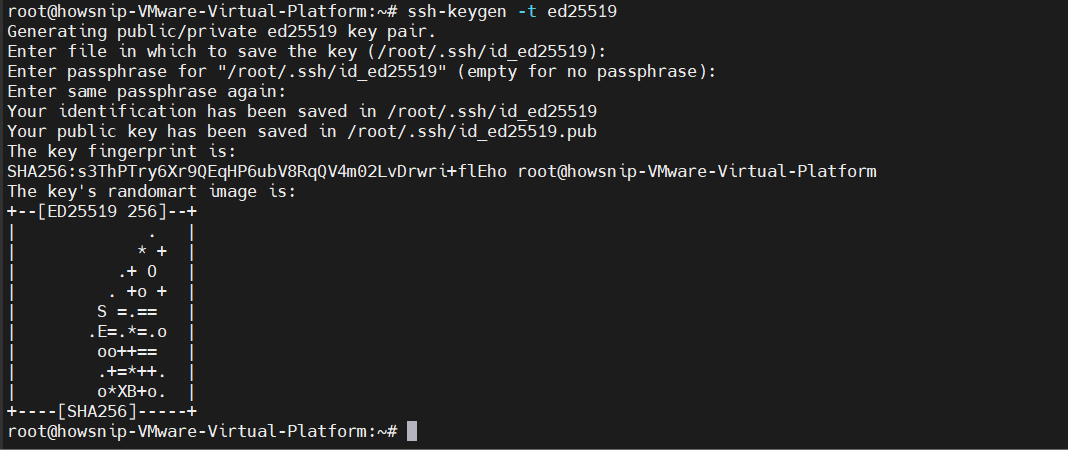
Copy the key to the remote server:
ssh-copy-id user@host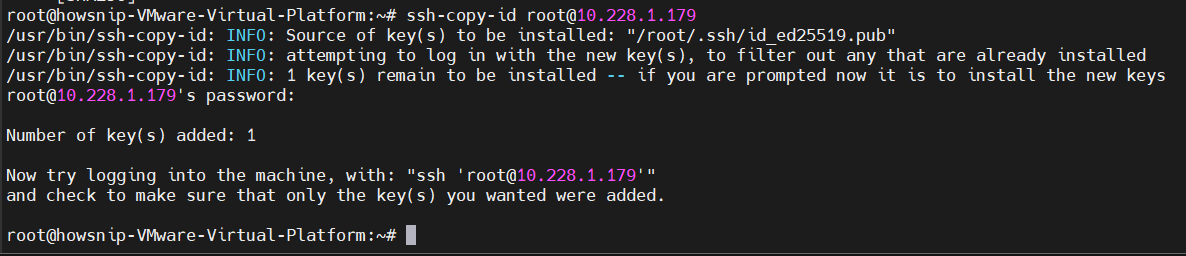
Create an SSH Configuration
Use ~/.ssh/config to define reusable SSH connection settings and simplify access to frequently used servers.
Edit ~/.ssh/config:
Host myserver
HostName 192.168.1.100
User ubuntu
IdentityFile ~/.ssh/id_ed25519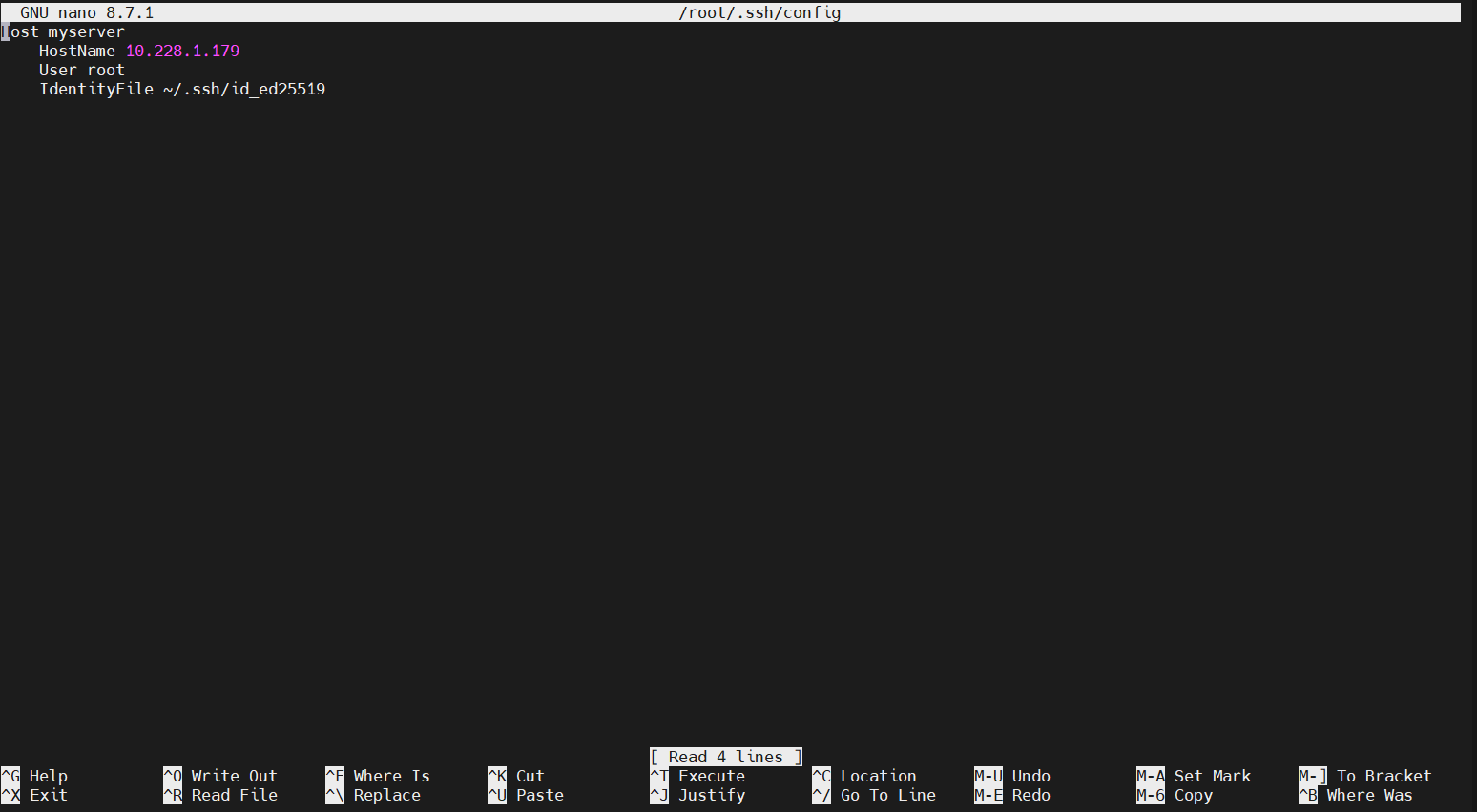
Then connect using:
ssh myserver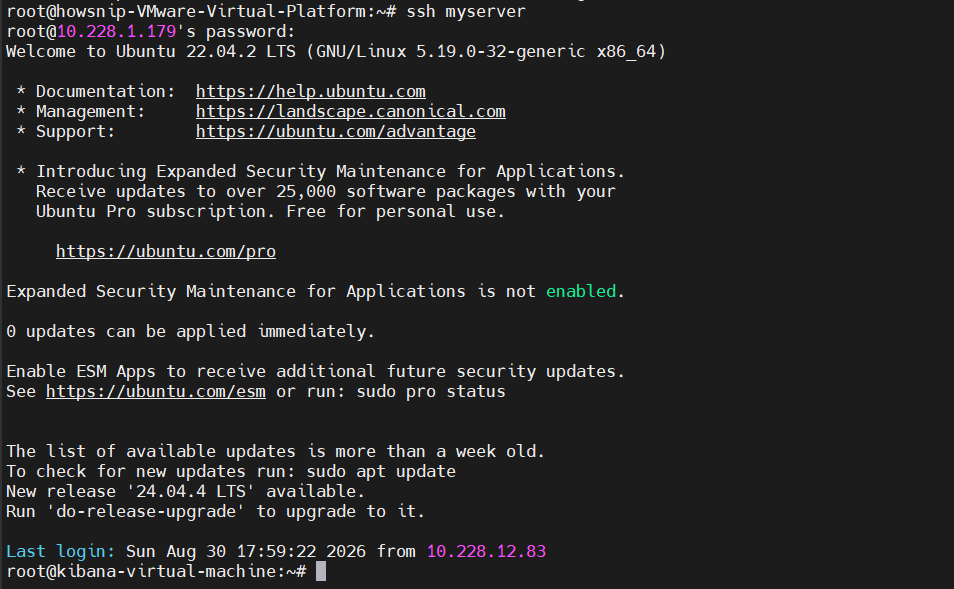
8. Git Quick Reference
These Git commands are useful for daily development tasks.
Check Repository Status
Use git status to see modified, staged, and untracked files in the current Git repository.
git status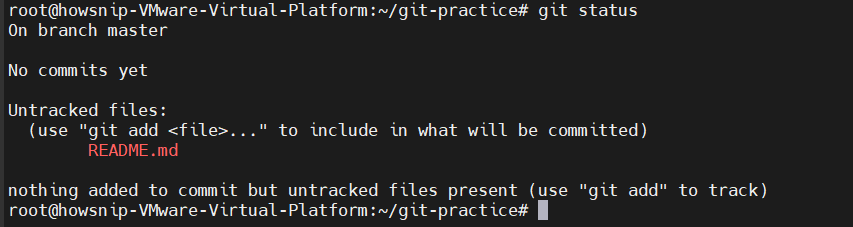
Review Changes
Use git diff to inspect changes that have been made but are not yet committed.
git diff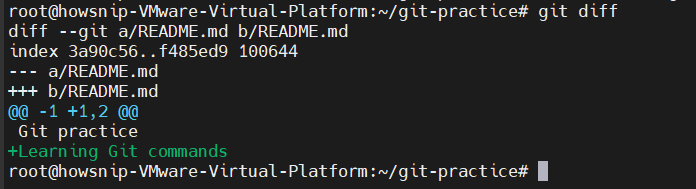
View Recent Commits
Use git log to review recent commits in a compact, easy-to-read format.
git log --oneline -10
Commit Changes
Use git add and git commit to stage changes and save them as a new commit in the repository.
git add -A && git commit -m "msg"
Push Changes
Use git push to upload local commits from a branch to the configured remote repository.
git push origin main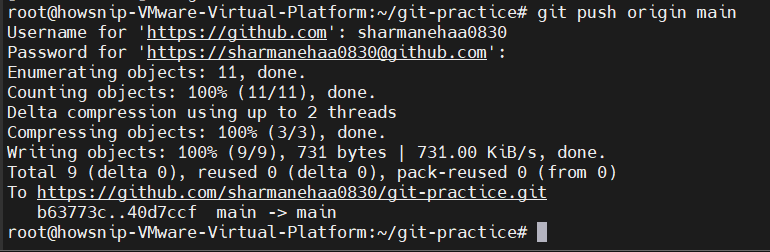
Pull Latest Updates
Use git pull to fetch and integrate the latest changes from the remote repository into the current branch.
git pull origin main
Save Work Temporarily
Use git stash to temporarily save uncommitted changes so you can switch tasks without committing them.
Create a stash:
git stash
Restore the stash:
git stash pop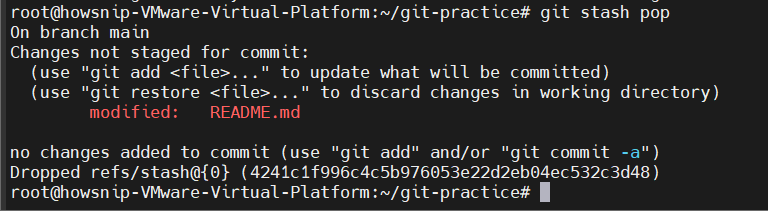
9. System Information Commands
These commands help you inspect operating system and hardware details.
View Operating System Information
Use uname and /etc/os-release to view kernel, architecture, distribution, and operating system details.
uname -a
cat /etc/os-release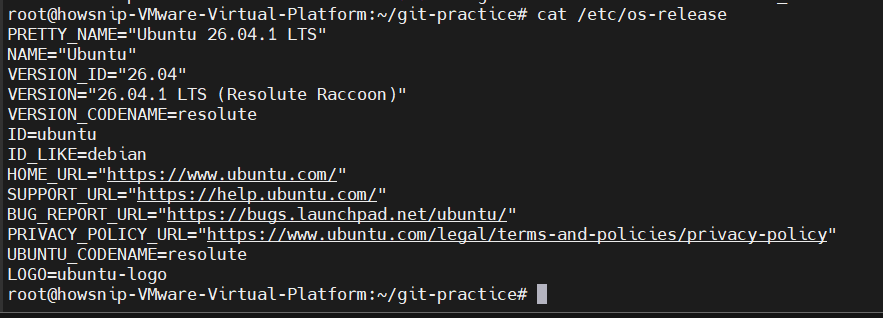
Check CPU Details
Use nproc for the number of available processing units and lscpu for detailed CPU architecture information.
Number of CPU cores:
nproc
Detailed CPU information:
lscpu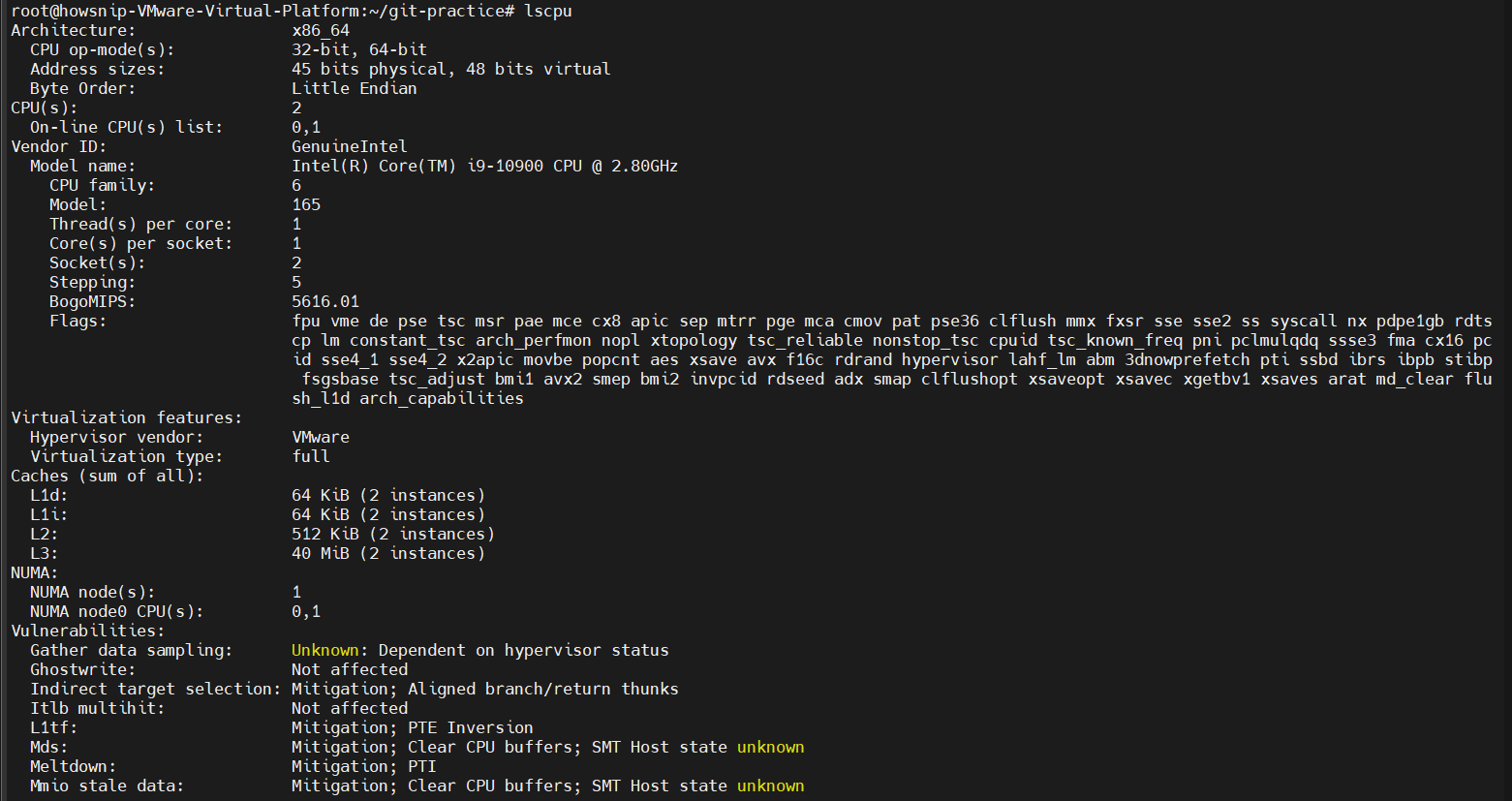
Check System Uptime
Use uptime to see how long the system has been running along with current load information.
uptime
Work With Environment Variables
Use env, grep, and echo to inspect environment variables and view or modify the shell’s PATH.
Filter variables by keyword:
env | grep NODE
Display the system PATH:
echo $PATH
Add a directory to PATH:
export PATH="$PATH:/new/path"
Conclusion
These commands provide a practical foundation for everyday Linux administration, troubleshooting, development, networking, and remote system management.
These Linux commands cover the most common tasks you’ll encounter when working with files, processes, networking, system administration, Git repositories, and remote servers.
Learning and practicing these commands can significantly improve your productivity and troubleshooting skills. Keep this guide handy as a reference.