

Wazuh is an open-source security platform that provides threat detection, vulnerability assessment, file integrity monitoring, log analysis, incident response, and security event management. Running Wazuh with Docker simplifies deployment by packaging all required components into containers that can be managed from a single host.
In this tutorial, you’ll learn how to install the Wazuh All-in-One Docker deployment on Ubuntu 26.04, configure the required services, and access the Wazuh Dashboard for security monitoring.
Prerequisites
Before you begin, make sure you have:
- An Ubuntu 26.04 server
- A user account with sudo or root privileges
- Internet access for downloading packages and Docker images
- A firewall configured to allow required Wazuh ports
Note: The commands in this guide are executed as the root user. If you are using a regular user account, prepend commands with sudo.
Step 1: Update the System
Start by updating your system packages to ensure you have the latest security patches and software updates.
apt update -y
apt upgrade -y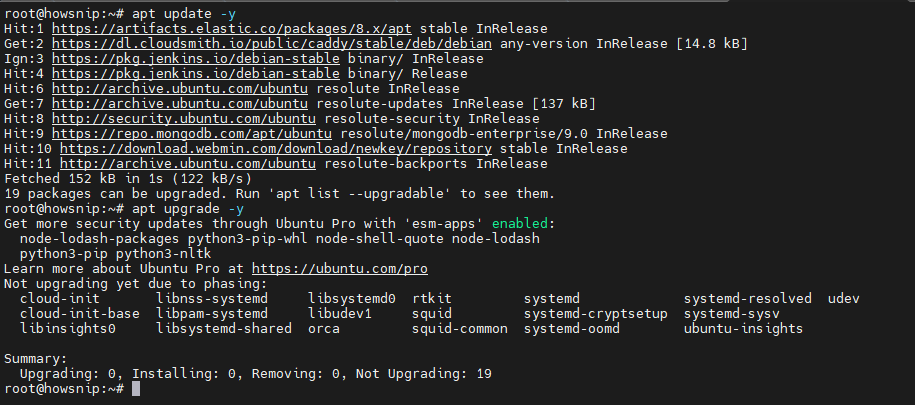
Step 2: Install Required Packages
Install the packages required for downloading repositories, handling certificates, and preparing the server for Docker installation.
apt install -y curl apt-transport-https ca-certificates software-properties-common gnupg lsb-release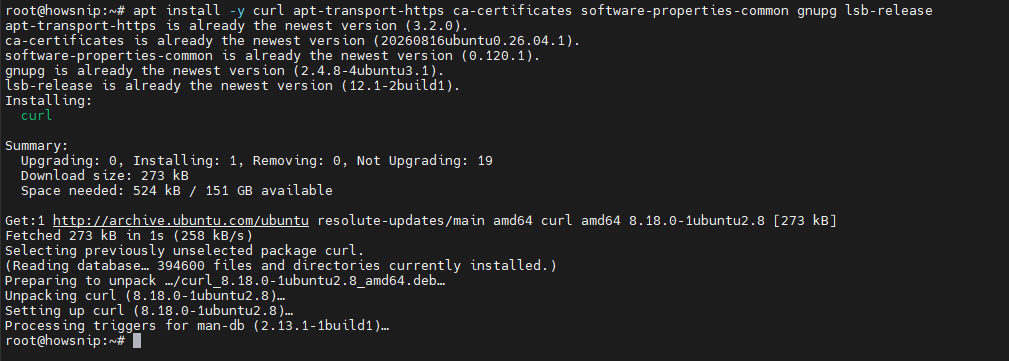
These packages provide:
- curl for downloading files
- ca-certificates for SSL certificate validation
- gnupg for repository key management
- Additional utilities required by Docker and Ubuntu repositories
Step 3: Install Docker
Wazuh’s Docker deployment requires Docker Engine.
Install Docker from the Ubuntu repository:
apt install -y docker.io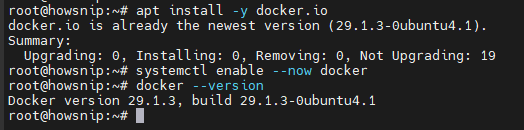
Enable and start the Docker service:
systemctl enable --now dockerVerify that Docker has been installed successfully:
docker --versionThis command displays the installed Docker version.
Step 4: Install Docker Compose
Ubuntu 26.04 may not include the Docker Compose plugin package by default. In this case, install the standalone Docker Compose binary manually.
Download Docker Compose:
curl -L "https://github.com/docker/compose/releases/latest/download/docker-compose-$(uname -s)-$(uname -m)" \
-o /usr/local/bin/docker-compose
Make the binary executable:
chmod +x /usr/local/bin/docker-composeVerify the installation:
docker-compose --version
If the command returns a version number, Docker Compose has been installed successfully.
Step 5: Download the Wazuh Docker Deployment
Create a directory for the Wazuh deployment files:
mkdir -p /opt/wazuh
cd /opt/wazuh
Clone the official Wazuh Docker repository:
git clone https://github.com/wazuh/wazuh-docker.git -b v4.12.0Move to the single-node deployment directory:
cd wazuh-docker/single-node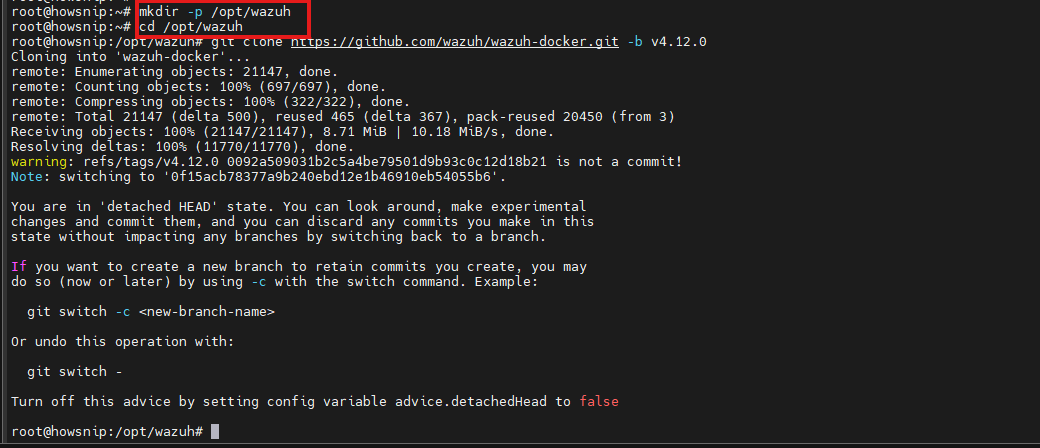
This deployment mode installs all Wazuh components on a single server using Docker containers.
Step 6: Generate SSL Certificates
Wazuh uses SSL/TLS certificates to secure communication between its components.
Generate the required certificates by running:
docker-compose -f generate-indexer-certs.yml run --rm generator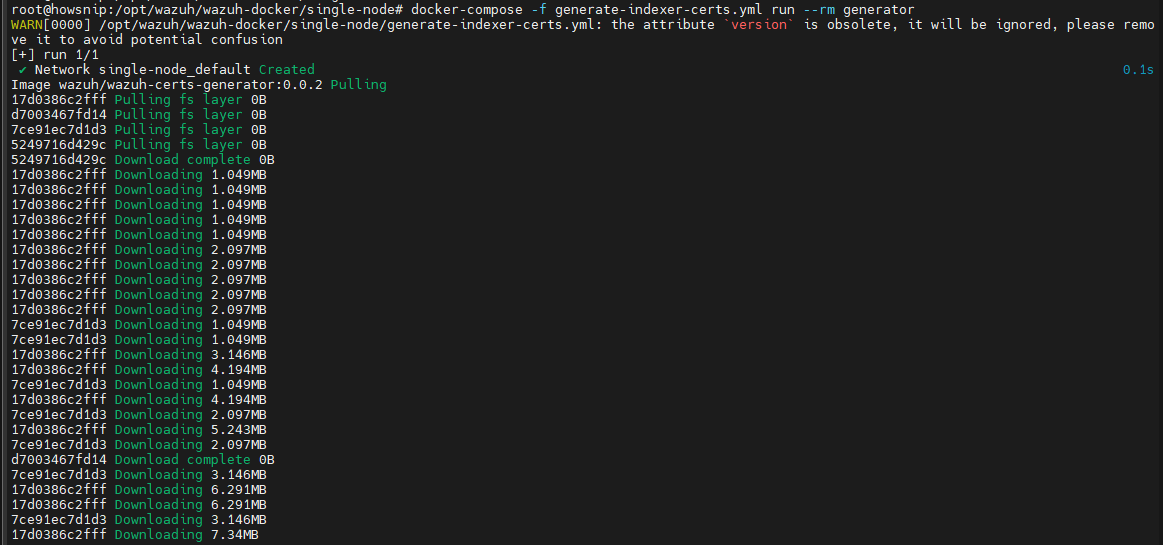
This command creates the certificates needed by the Wazuh Indexer, Manager, and Dashboard services.
Step 7: Start the Wazuh Stack
Launch all Wazuh containers in detached mode:
docker-compose up -d
Docker will download the required images and start the Wazuh services in the background.
Check that the containers are running:
docker ps
You should see containers related to the Wazuh Manager, Dashboard, and Indexer.
Step 8: Configure the Firewall
Allow the ports required by Wazuh services.
Open HTTPS access to the dashboard:
ufw allow 443/tcp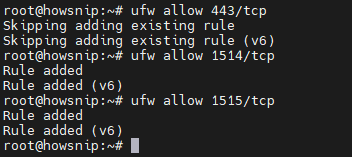
Allow agent communication ports:
ufw allow 1514/tcp
ufw allow 1515/tcp
Enable the firewall:
ufw enableReload the firewall configuration:
ufw reloadVerify the current firewall rules:
ufw statusThese ports are required for dashboard access and Wazuh agent communication.
Step 9: Access the Wazuh Dashboard
Open a web browser and navigate to:
https://your_server_ip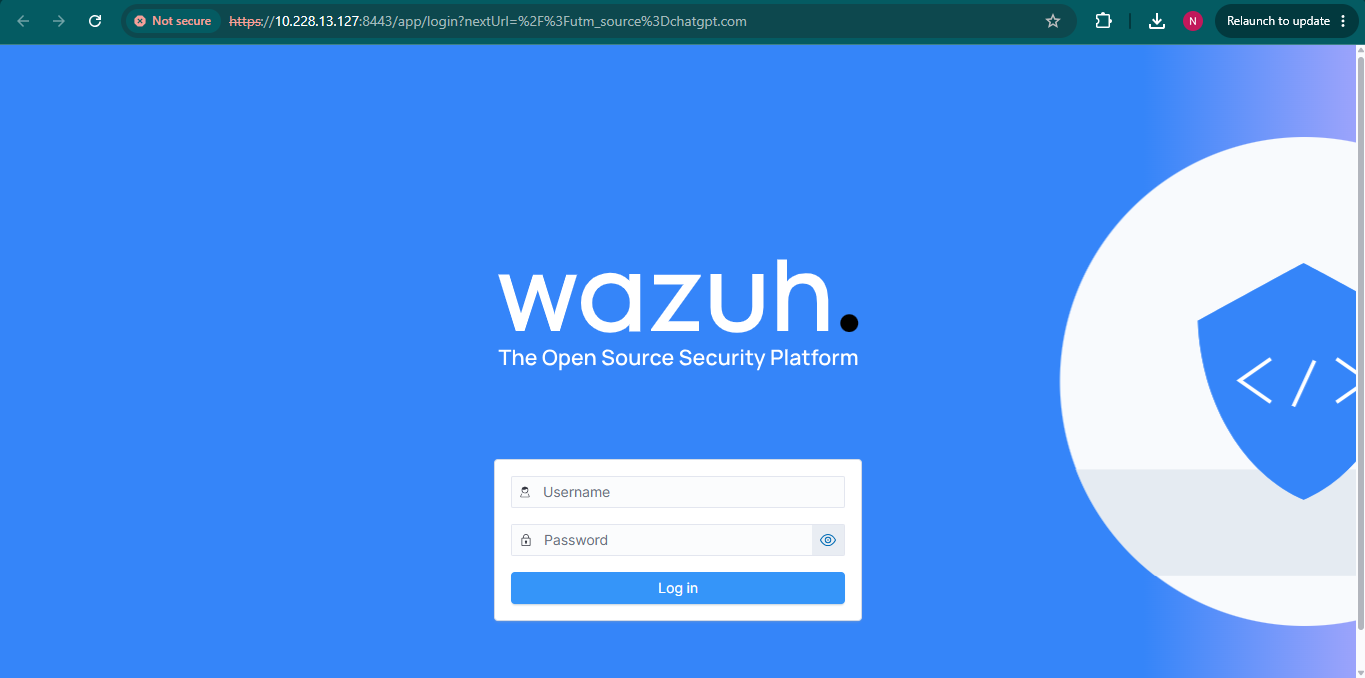
Replace your_server_ip with the public IP address or domain name of your server.
Because Wazuh uses a self-signed SSL certificate by default, your browser may display a security warning. Proceed through the warning to continue to the login page.
Step 10: Obtain the Login Credentials
The default dashboard credentials are commonly:
Username: admin
Password: SecretPassword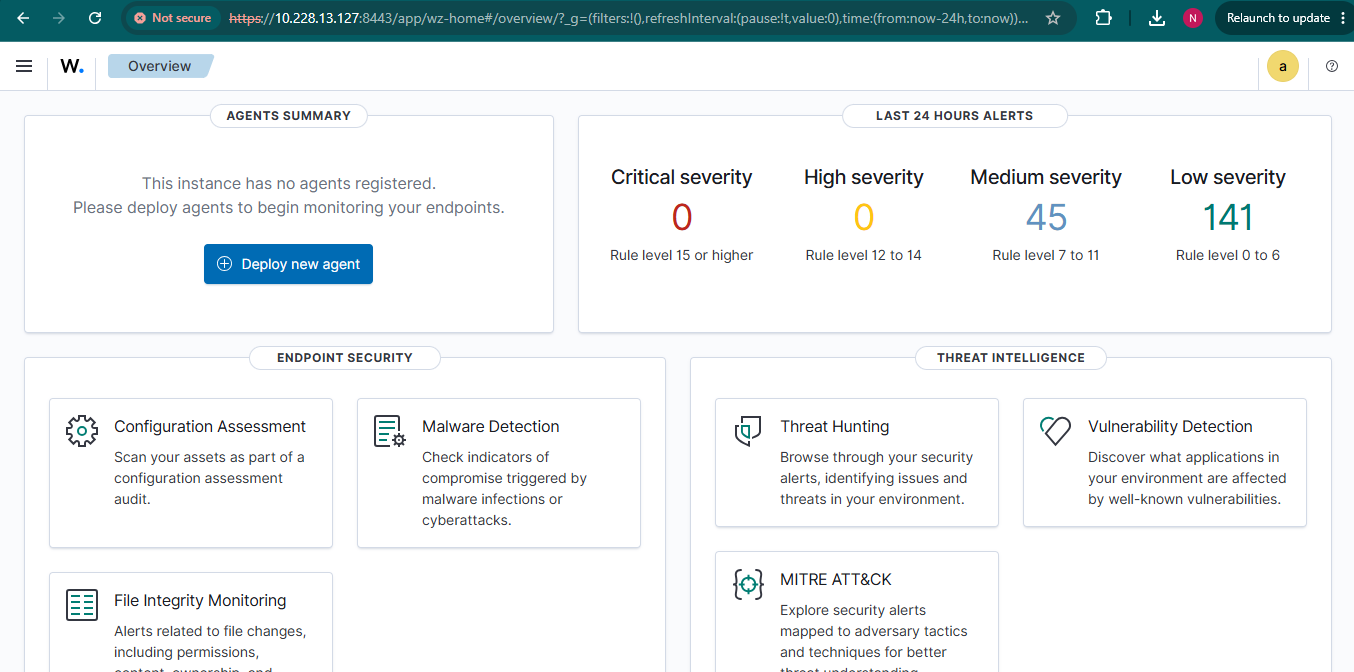
If the deployment generates a different administrator password, retrieve it from the container.
Access the dashboard container:
docker-compose exec wazuh.dashboard bash
Inside the container, view the configuration:
cat /usr/share/wazuh-dashboard/data/wazuh/config/wazuh.ymlYou can also search the container logs for administrator credentials:
docker-compose logs | grep admin
Step 11: Verify Wazuh Services
After logging in, confirm that all services are operating correctly.
Check running containers:
docker ps
View real-time logs:
docker-compose logs -f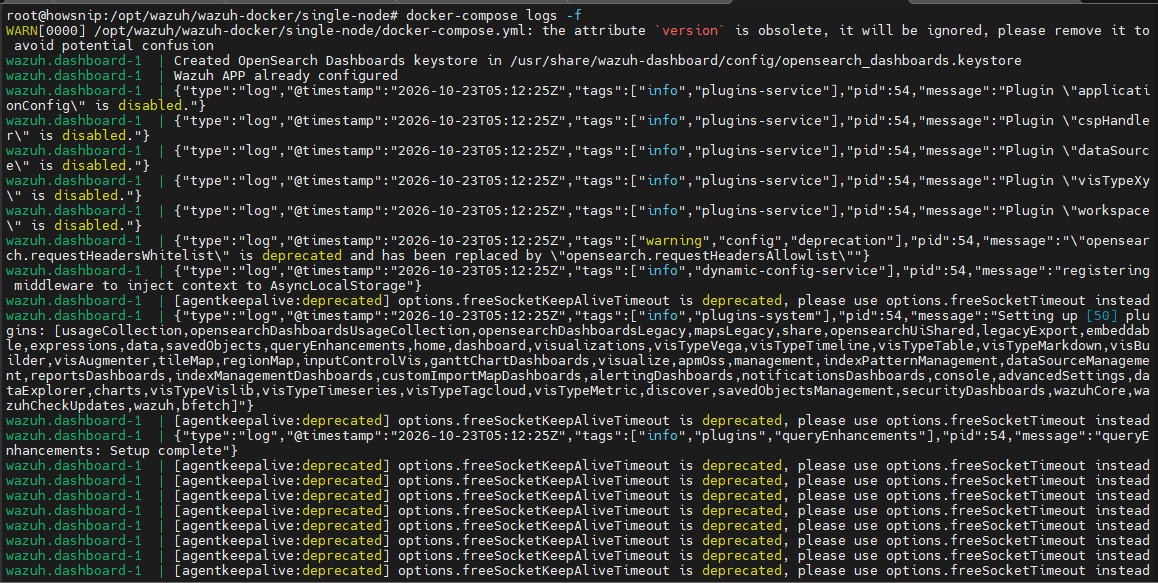
Restart the Wazuh services if necessary:
docker-compose restartStop all containers:
docker-compose downThese commands are useful for troubleshooting and routine maintenance.
Optional: Install a Wazuh Agent on Another Linux Server
To monitor additional Linux systems, install the Wazuh agent on the target server.
Download the installation script:
curl -sO https://packages.wazuh.com/4.x/wazuh-install.shRun the installer:
bash ./wazuh-install.sh -aFollow the on-screen prompts to connect the agent to your Wazuh Manager. Once connected, the monitored system will begin sending logs and security events to the Wazuh platform.
Conclusion
You have successfully installed the Wazuh All-in-One Docker Deployment on Ubuntu 26.04. The setup includes Docker, Docker Compose, SSL certificate generation, Wazuh container deployment, firewall configuration, and dashboard access.
You can now use Wazuh to monitor systems, analyze logs, detect threats, and manage security events from a centralized dashboard.