

SuiteCRM is a powerful open-source Customer Relationship Management (CRM) platform that helps businesses manage sales, marketing, customer support, and related workflows from a single interface. Installing it on an Ubuntu server gives you complete control over your CRM environment while keeping costs low.
In this tutorial, you’ll learn how to install SuiteCRM on Ubuntu Server using Apache, MySQL, PHP, and Composer. The guide is written for both beginners and experienced Linux users and walks through the complete setup process from start to finish.
Prerequisites
Before you begin, make sure you have:
- Ubuntu Server (LTS)
- SSH access as the root user or a user with sudo privileges
- A fully updated system
- A domain or subdomain (optional but recommended)
Note: If you’re installing SuiteCRM on a VPS, ensure that your firewall and networking settings allow HTTP traffic.
Step 1: Install Apache Web Server
Apache will serve the SuiteCRM website to users accessing it through a browser.
Install Apache using:
apt install apache2
Start, enable, and restart the Apache service:
systemctl start apache2
systemctl enable apache2
systemctl restart apache2
Verify Apache Installation
Open your server’s IP address or http://localhost in a web browser.
If Apache is working correctly, you should see the default Apache2 Ubuntu Default Page.
Step 2: Install PHP, Composer, and Required Extensions
SuiteCRM requires PHP and several extensions to handle database connections, images, emails, file uploads, and other application features.
Run the following command:
sudo apt install php composer php-cli php-imagick php-fpm php-mysql php-common php-gd php-imap php-json php-curl php-zip php-xml php-mbstring php-bz2 php-intl php-gmp php-curl php-gd php-zip php-imap php-dom php-intl php-opache php-soapWhat this installs
- PHP: The scripting language used by SuiteCRM.
- Composer: PHP dependency manager.
- php-mysql: MySQL database connectivity.
- php-gd / php-imagick: Image processing support.
- php-curl: External HTTP requests.
- php-mbstring: Multibyte string handling.
- php-xml: XML processing.
- php-zip: ZIP archive support.
Step 3: Install MySQL Server
SuiteCRM requires a MySQL database to store CRM data.
Install MySQL Server:
apt install mysql-server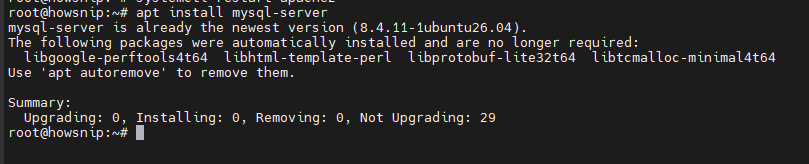
Once installed, log in to MySQL:
mysql -u root -p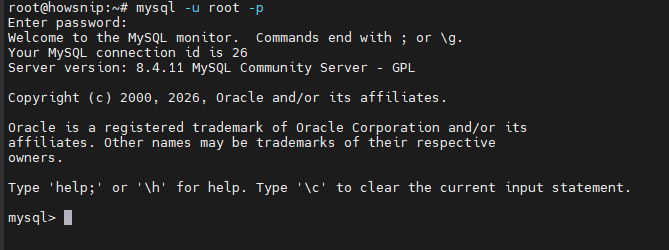
Enter the root password when prompted.
Step 4: Create a Database for SuiteCRM
Create a dedicated database and user account for SuiteCRM.
Inside the MySQL console, run:
CREATE DATABASE howsnip4;
CREATE USER 'howsnip4'@'localhost' IDENTIFIED BY 'Howsnip@123!';
GRANT ALL PRIVILEGES ON howsnip4.* TO 'howsnip4'@'localhost';
FLUSH PRIVILEGES;
EXIT;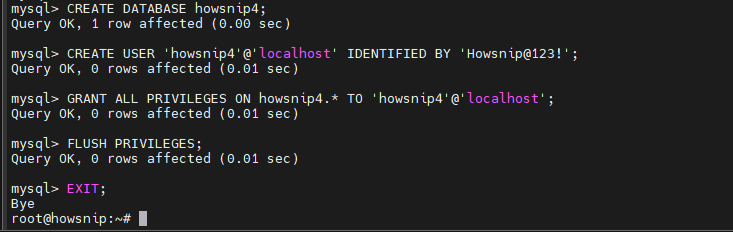
What these commands do
- Creates a database named howsnip4.
- Creates a database user named howsnip4.
- Grants the user full access to the howsnip4 database.
- Reloads MySQL privileges.
Important: Replace ‘password’ with a strong password before using this setup in production.
Step 5: Download SuiteCRM
Download the SuiteCRM package using the provided release URL.
wget https://github.com/salesagility/SuiteCRM/archive/refs/tags/v7.12.5.zip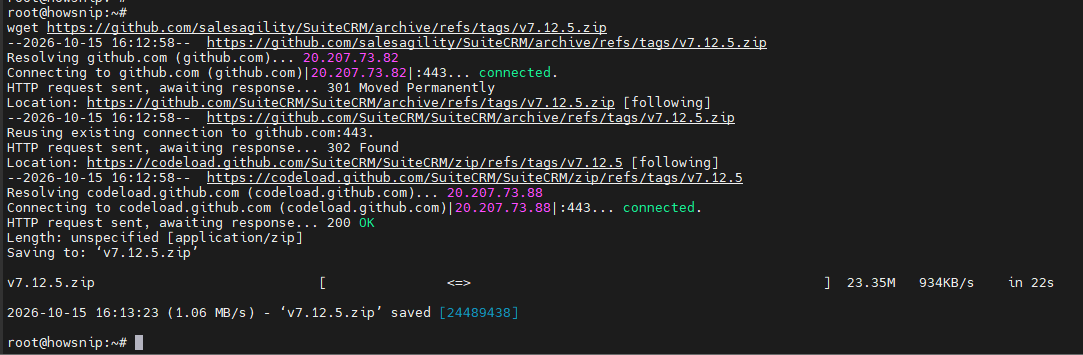
This downloads the SuiteCRM installation archive to your server.
Step 6: Extract SuiteCRM Files
Extract the downloaded archive into your web directory.
unzip SuiteCRM-8.0.3.zip -d /var/www/html/howsnip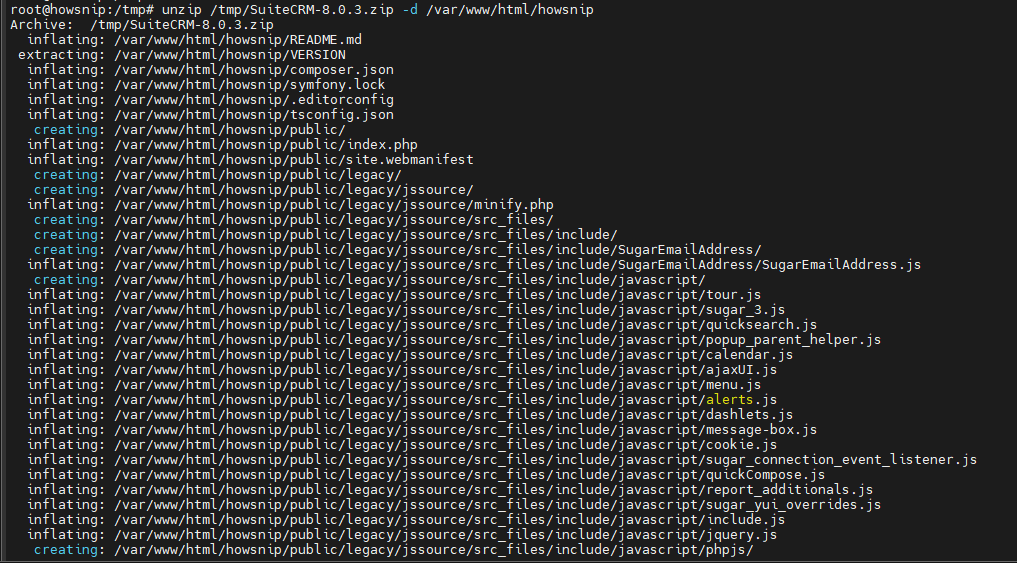
Next, move into the SuiteCRM directory:
cd /var/www/html/howsnipCreate the required directories:
mkdir -p cache vendor
Create the configuration override file:
touch config_override.phpSet Correct Permissions
Assign ownership to the Apache web server user:
chown -R www-data:www-data /var/www/html/howsnip/Set directory permissions:
chmod -R 755 /var/www/html/howsnip/These permissions allow Apache to access and manage SuiteCRM files correctly.

Note: The download filename and extraction filename shown in the original procedure differ. Verify the actual downloaded archive name before extracting.
Step 7: Install Composer Dependencies
SuiteCRM uses Composer to manage required PHP packages.
Navigate to the SuiteCRM directory and run:
composer installThis command downloads and installs all required application dependencies.
Step 8: Configure Apache Virtual Host
Create a new Apache virtual host configuration file:
nano /etc/apache2/sites-available/howsnip.conf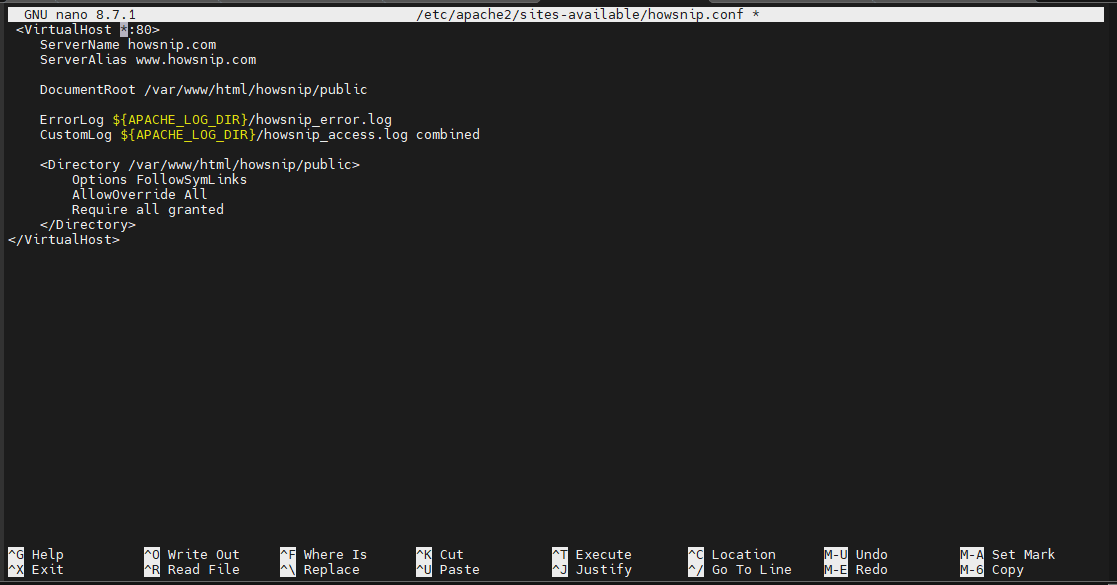
Add the following configuration:
<VirtualHost *:80>
ServerName howsnip.com
DocumentRoot /var/www/html/howsnip/

ErrorLog ${APACHE_LOG_DIR}/howsnip_error.log
CustomLog ${APACHE_LOG_DIR}/howsnip_access.log combined

<Directory />
Options FollowSymLinks
AllowOverride All
</Directory>

<Directory /var/www/html/howsnip/>
Options FollowSymLinks MultiViews
AllowOverride All
Order allow,deny
allow from all
</Directory>

Include /etc/apache2/conf-available/php7.4-fpm.conf

</VirtualHost>
Step 9: Increase PHP Upload Limits
SuiteCRM may require larger upload limits for imports and attachments.
Update the PHP upload limit:
sed -i 's/upload_max_filesize = 2M/upload_max_filesize = 20M/g' /etc/php/7.4/fpm/php.iniRestart PHP-FPM:
systemctl restart php7.4-fpm
This increases the maximum upload size from 2 MB to 20 MB.
Step 10: Enable the SuiteCRM Site
Enable the newly created Apache site configuration:
a2ensite howsnip.confRestart Apache to apply the changes:
systemctl restart apache2
At this point, all command-line configuration is complete.
Step 11: Complete the Web-Based Installation
Open your browser and visit:
http://localhost or http://ip/Or browse to your configured domain/subdomain.
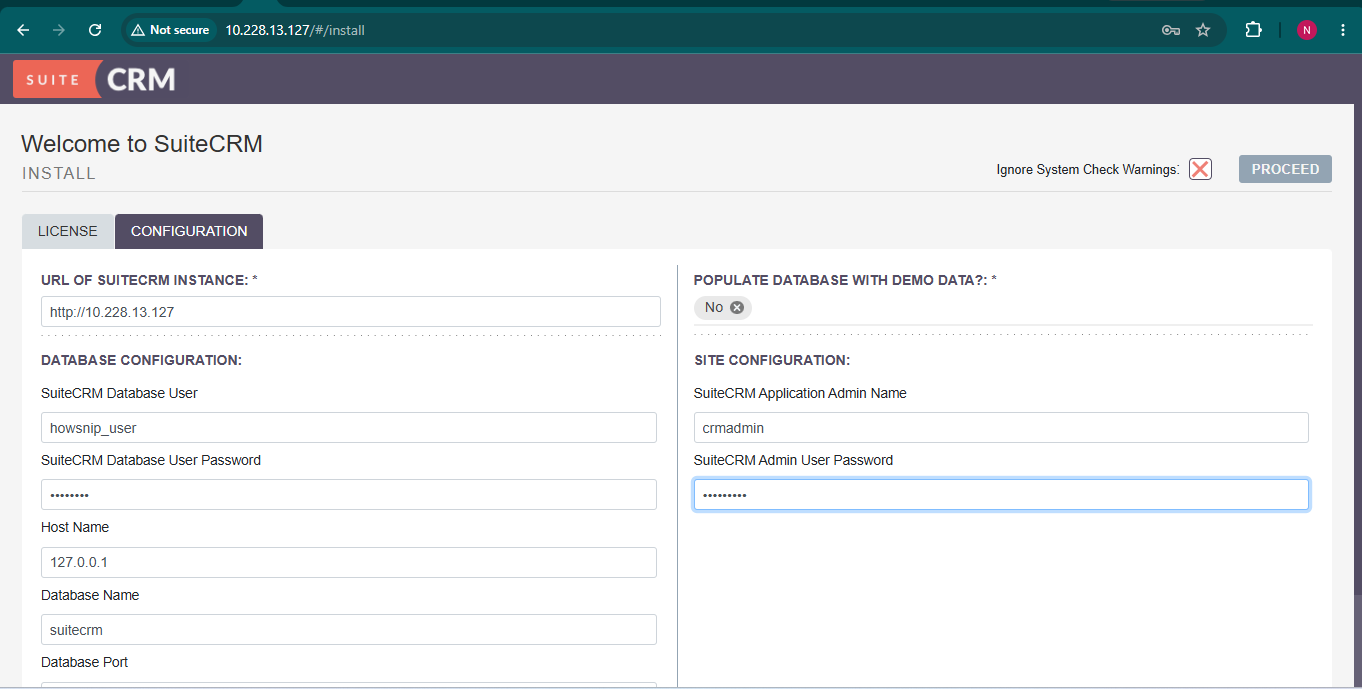
If you’re using a local hostname or subdomain, make sure it resolves correctly. You may need to add an entry to /etc/hosts.
During the installation wizard:
- Accept the License Agreement
- Read and accept the terms to continue.
- Configure Database Settings
Enter the database details created earlier:
Setting ValueDatabase Name suitecrm
Username suitecrm
Password password
Replace the example password with the actual password you configured.
Create an Administrator Account
Create the administrator username and password that you’ll use to access the SuiteCRM dashboard.
Troubleshooting Tips
a) Apache Page Doesn’t Load
Verify Apache is running:
systemctl status apache2b) Database Connection Errors
Confirm:
- MySQL service is running.
- Database credentials are correct.
- Database user has proper permissions.
c) Permission Issues
Reapply ownership and permissions:
chown -R www-data:www-data /var/www/suitecrm/
chmod -R 755 /var/www/suitecrm/
Conclusion
You have successfully installed SuiteCRM on Ubuntu LTS using Apache, MySQL, PHP, and Composer. After completing the web-based setup wizard, you can begin managing customers, sales opportunities, marketing campaigns, and support processes through your new CRM platform.
For better security and performance in production environments, consider enabling HTTPS with SSL certificates, strengthening database credentials, and implementing regular backups.