

The curl command is one of the most useful networking tools available on Linux. Whether you’re downloading files, testing APIs, troubleshooting websites, automating server tasks, or working with DevOps workflows, curl provides a fast and reliable way to transfer data directly from the command line.
In this tutorial, you’ll learn how to install curl, understand its syntax, perform HTTP requests, work with APIs, handle authentication, manage SSL certificates, and use advanced options for troubleshooting and automation.
What Is the curl Command in Linux?
curl (Client URL) is a command-line utility built on the libcurl library that transfers data using URLs.
It supports a wide range of protocols, including:
- HTTP and HTTPS
- FTP and FTPS
- SFTP
- SCP
- SMTP
- IMAP
Unlike a web browser, curl operates non-interactively, making it ideal for:
- API testing
- Automation scripts
- CI/CD pipelines
- Server monitoring
- Website diagnostics
- File downloads
Most Linux distributions include curl by default.
Prerequisites
Before starting, ensure that:
- You have access to a Linux system.
- You can open a terminal.
- You have permission to install packages if curl is not already installed.
- Your system has internet connectivity.
1. Check Whether curl Is Installed
Before installing anything, verify whether curl already exists on your system.
curl --version
This command displays the installed curl version along with supported protocols and features.
If you receive a “command not found” error, install curl using the instructions below.
2. Install curl on Linux
Choose the appropriate command for your Linux distribution.
a) For Ubuntu and Debian
sudo apt update && sudo apt install curlThis updates the package repository and installs curl.
b) For RHEL, CentOS, Rocky Linux, and AlmaLinux
sudo dnf install curlOlder systems may require:
sudo yum install curlc) For Fedora
sudo dnf install curld) For Arch Linux
sudo pacman -S curle) For Alpine Linux
sudo apk add curlImportant: On minimal server installations, consider installing ca-certificates as well. Missing certificate bundles can cause HTTPS connection failures.
3. Understand Basic curl Syntax
The general syntax of curl is:
curl [options] <URL>Where:
- curl is the command.
- [options] modifies the request behavior.
- <URL> is the destination resource.
Example:
curl https://example.com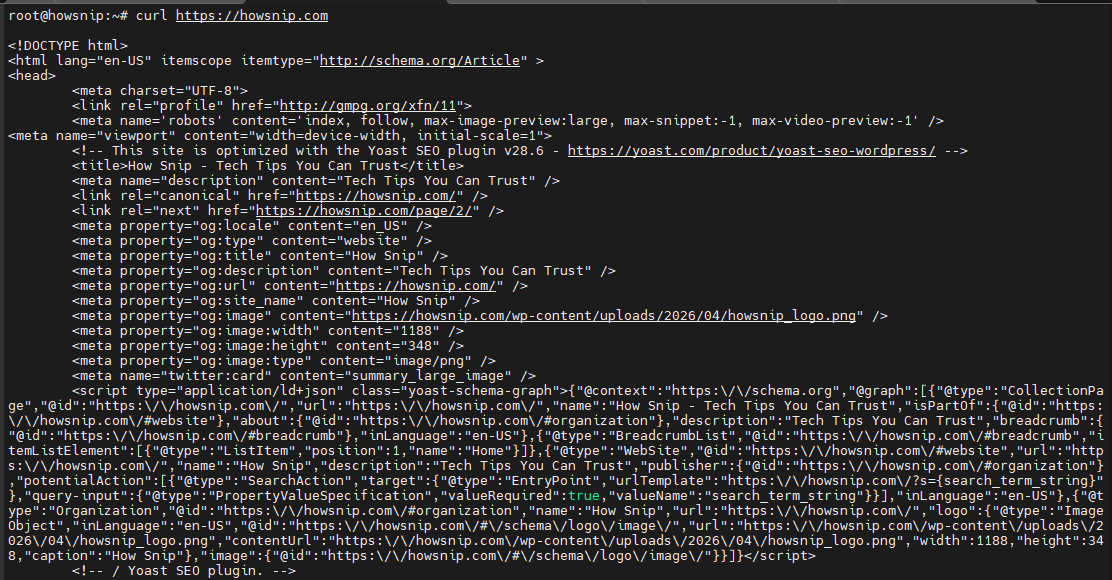
This retrieves the webpage content and prints it directly in the terminal.
Common curl Options You Should Know
These options are frequently used and worth learning early.
- -I Fetch only HTTP headers
- -L Follow redirects
- -o Save output using a custom file name
- -O Save using the remote file name
- -s Silent mode
- -S Show errors while in silent mode
- -v Verbose output
- -X Specify HTTP method
- -H Add custom headers
- –data Send request body data
- -u Basic authentication
- –http2 Force HTTP/2
- –compressed Request compressed responses
- –retry Retry failed requests
- –max-time Set transfer timeout
4. Make Your First GET Request
A GET request retrieves data from a website or API.
curl https://example.comThe HTML content of the webpage is displayed in the terminal. This is the simplest curl operation and is useful for testing connectivity and inspecting responses.
5. Follow HTTP Redirects
Many websites automatically redirect visitors from HTTP to HTTPS.
Use the -L option to follow redirects automatically.
curl -L http://example.com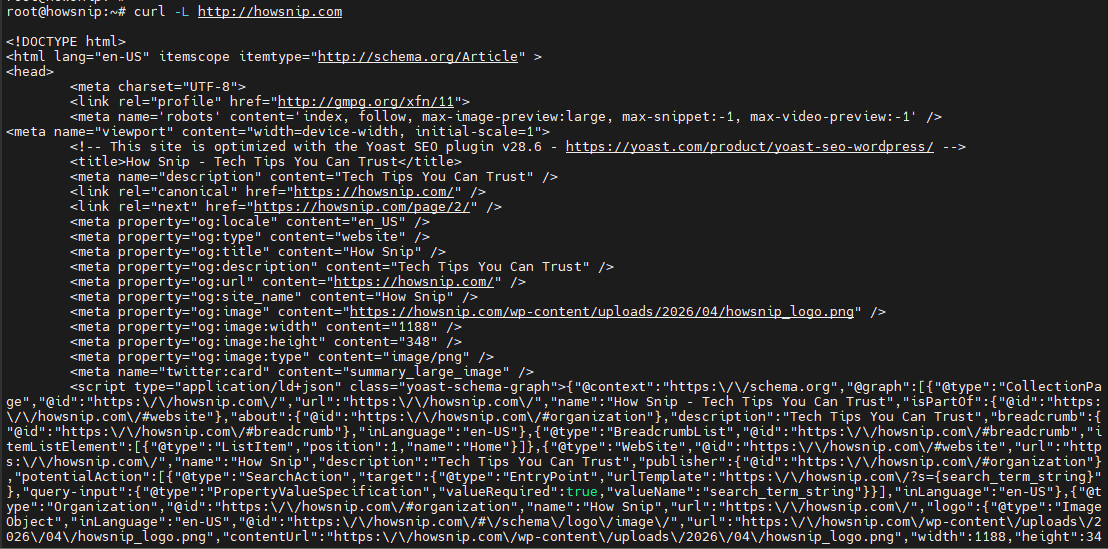
Without -L, curl may only display redirect information rather than the final page content.
6. Download Files with curl
a) Save Using the Original File Name
Use uppercase -O to preserve the file name provided by the server.
curl -O https://example.com/file.zip
The file will be downloaded and stored using its original name.
b) Save Using a Custom Name
Use lowercase -o when you want a different file name.
curl -o backup.zip https://example.com/file.zip
This downloads the file and saves it as backup.zip.
7. Resume Interrupted Downloads
Large downloads can sometimes be interrupted due to network issues.
The -C – option allows curl to continue downloading from where it stopped.
curl -C - -O https://example.com/large.iso
This can save significant time when downloading large files.
8. View Only HTTP Response Headers
If you only need header information, use:
curl -I https://example.com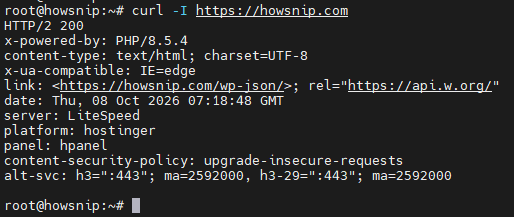
This is useful for checking:
- HTTP status codes
- Cache settings
- Content type
- Server information
9. Enable Verbose Debugging
Verbose mode shows detailed connection information.
curl -v https://example.com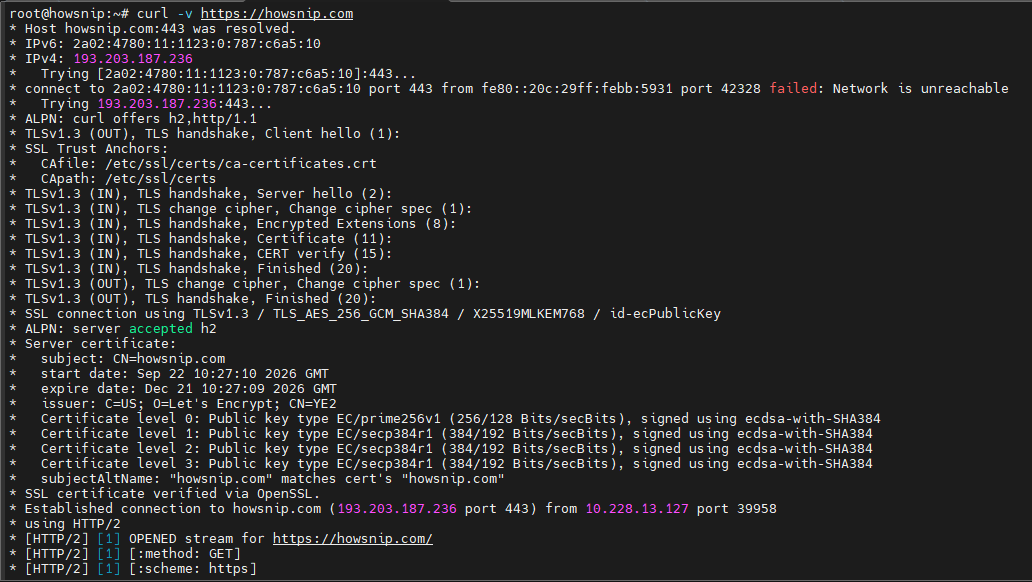
This includes:
- Request headers
- Response headers
- Connection details
- SSL/TLS negotiation information
For deeper troubleshooting, use additional verbosity where supported.
10. Send Custom HTTP Headers
Many APIs require specific request headers.
curl -H "Accept: application/json" https://api.example.com/v1/status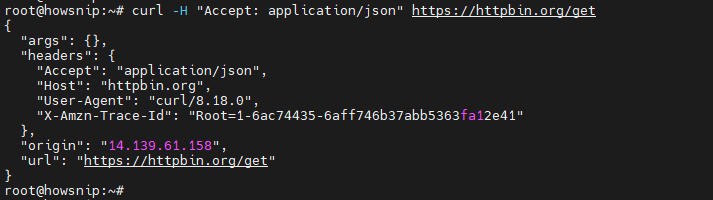
This tells the server that JSON responses are preferred.
You can add multiple headers by repeating the -H option.
curl \
-H "Accept: application/json" \
-H "Authorization: Bearer TOKEN" \
https://api.example.com/v1/status
Using curl for API Requests
curl is commonly used to test REST APIs directly from the terminal.
a) Send a POST Request with JSON
curl -X POST https://api.example.com/v1/users \
-H "Content-Type: application/json" \
-H "Authorization: Bearer <TOKEN>" \
--data '{"name":"Alice","email":"alice@example.com"}'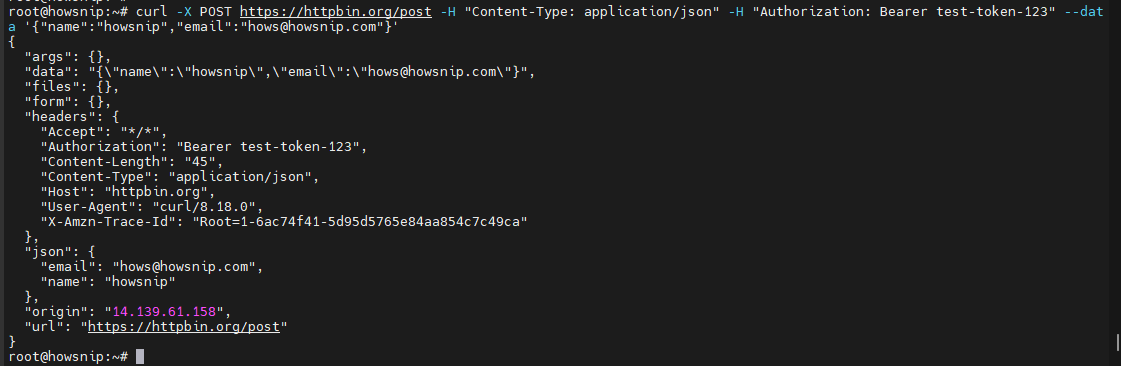
What This Command Does
- -X POST specifies the POST request method.
- Content-Type: application/json tells the server the request body contains JSON.
- Authorization sends an access token.
- –data provides the JSON payload.
b) Update Resources Using PUT
curl -X PUT https://api.example.com/v1/users/123 \
-H "Content-Type: application/json" \
-H "Authorization: Bearer <TOKEN>" \
--data '{"email":"new@example.com"}'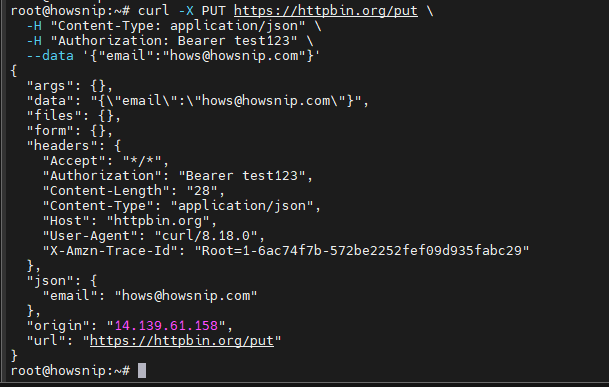
Use PUT requests when updating existing records.
c) Delete Resources Using DELETE
curl -X DELETE https://api.example.com/v1/users/123 \
-H "Authorization: Bearer <TOKEN>"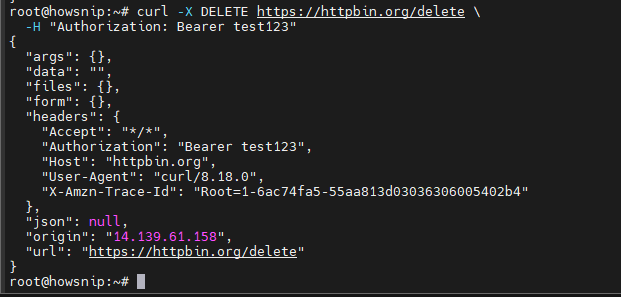
This removes the specified resource from the server.
Submit Form Data and Upload Files
a) Send Form Data
curl -X POST https://example.com/form \
-H "Content-Type: application/x-www-form-urlencoded" \
--data "name=Alice&email=alice@example.com"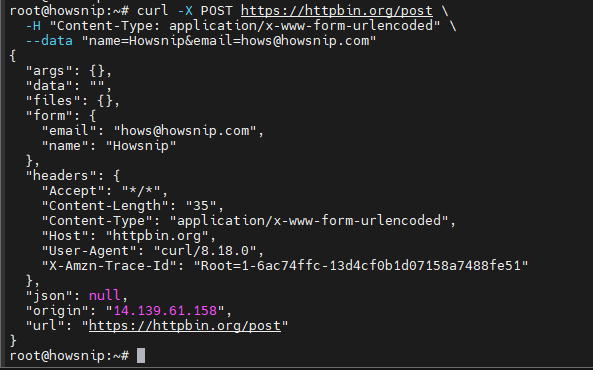
This sends standard HTML form data to a server.
b) Upload Files
curl -X POST https://api.example.com/v1/upload \
-H "Authorization: Bearer <TOKEN>" \
-F "file=@/path/to/report.pdf" \
-F "meta=quarterly"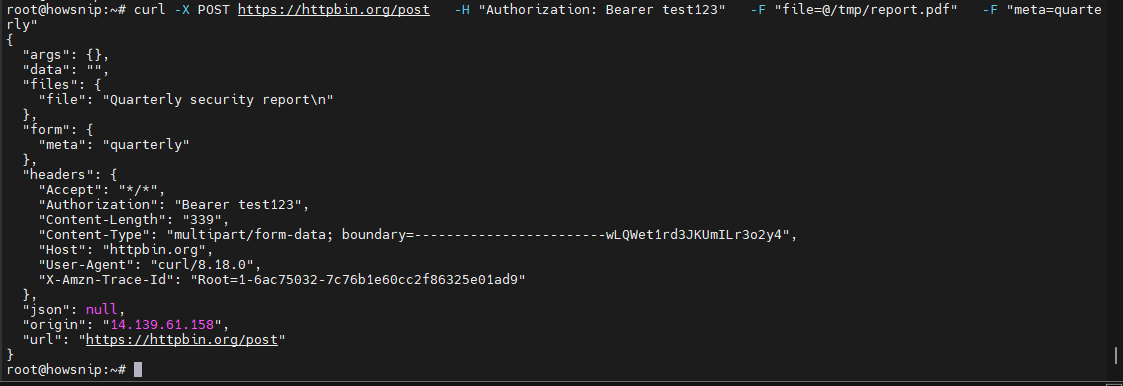
The -F option creates a multipart form request and automatically sets the required boundary headers.
This is commonly used for:
- Document uploads
- Image uploads
- Backup transfers
- Authentication with curl
Many web services require authentication before granting access.
c) Basic Authentication
curl -u "username:password" https://secure.example.com/endpoint
This sends a username and password using HTTP Basic Authentication.
Security Note: Avoid typing passwords directly whenever possible. Consider using tokens, environment variables, or credential files with proper permissions.
d) Bearer Token Authentication
curl -H "Authorization: Bearer $API_TOKEN" \
https://api.example.com/v1/me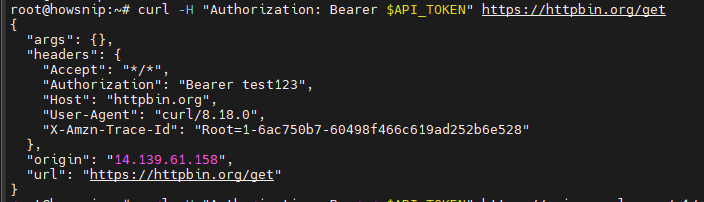
Bearer tokens are widely used with modern REST APIs.
Working with Session Cookies
a) Save Cookies
curl -c cookies.txt -X POST https://example.com/login \
-d "user=alice&pass=secret"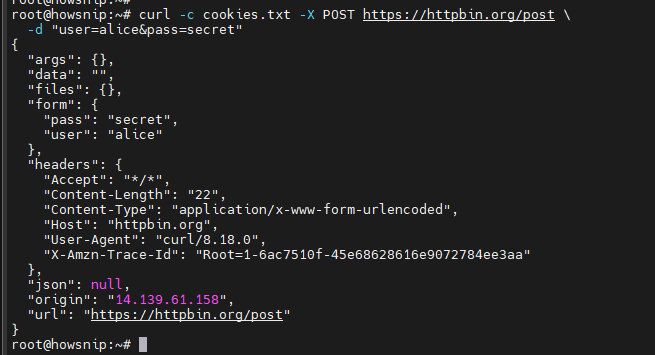
This stores cookies locally.
b) Reuse Saved Cookies
curl -b cookies.txt https://example.com/dashboard
This allows subsequent authenticated requests using the saved session.
Working with SSL/TLS Certificates
By default, curl validates SSL certificates when connecting to HTTPS websites.
a) Use a Custom Certificate Authority
curl --cacert /etc/ssl/certs/custom-ca.crt \
https://secure.example.com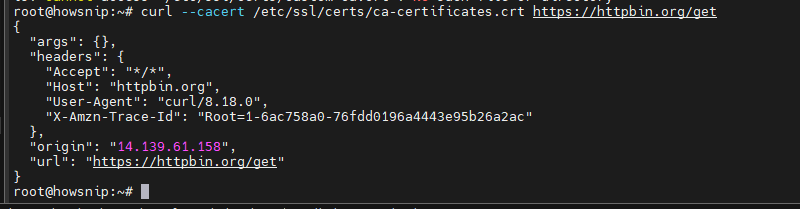
Use this when connecting to systems that rely on private certificate authorities.
b) Use Client Certificates (Mutual TLS)
curl --cert client.crt --key client.key \
https://mtls.example.com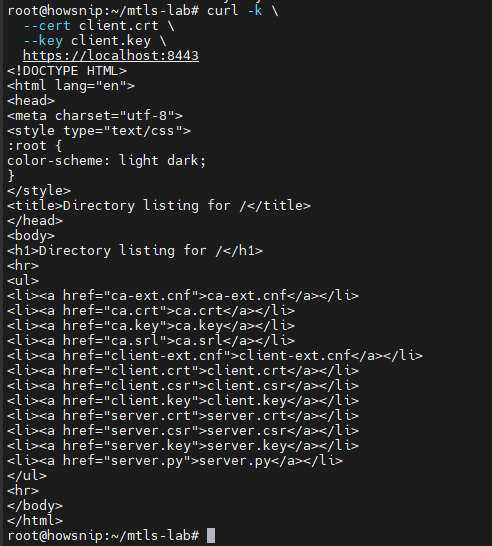
This provides both the client certificate and private key for mutual TLS authentication.
c) Ignore Certificate Validation (Testing Only)
curl -k https://self-signed.local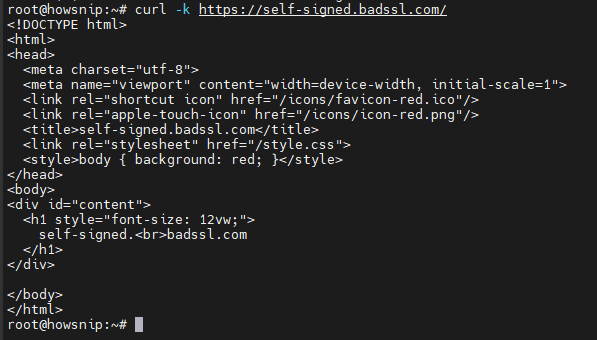
The -k or –insecure option skips certificate verification.
Warning: Avoid using -k in production environments. Fix certificate trust issues instead of bypassing validation.
Use curl with Proxies
curl includes built-in proxy support.
a) HTTP Proxy
curl -x http://proxy.local:3128 https://example.com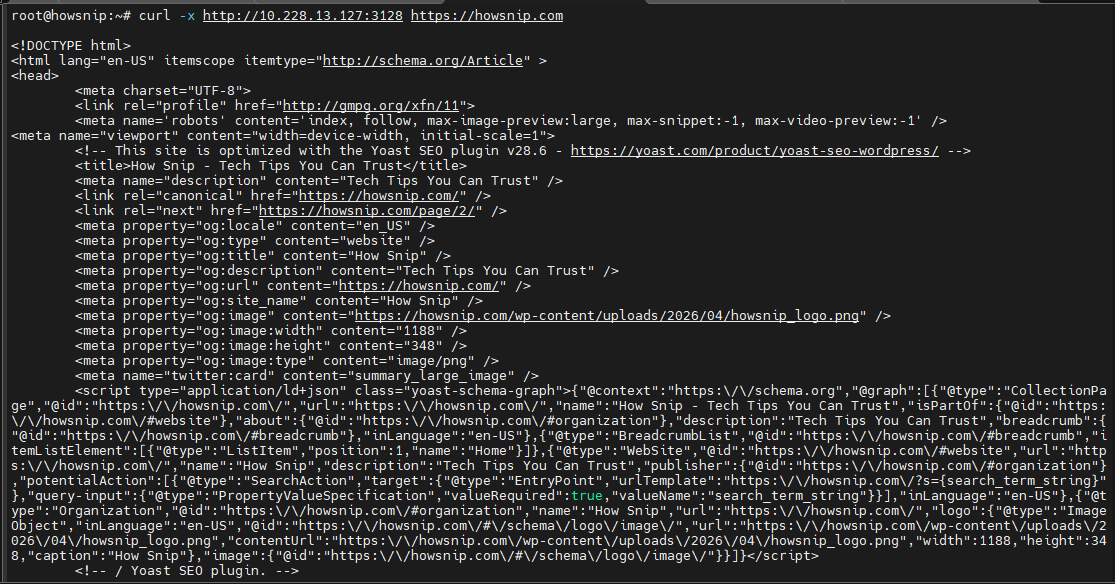
Routes traffic through an HTTP proxy server.
b) SOCKS5 Proxy
curl -x socks5h://user:pass@proxy.local:1080 \
https://example.com
It is useful when working in restricted network environments.
Advanced curl Techniques for Automation and DevOps
a) Set Timeouts and Automatic Retries
curl --max-time 5 \
--retry 3 \
--retry-delay 2 \
--retry-connrefused \
https://api.example.com/health
Explanation
- –max-time 5 stops the request after 5 seconds.
- –retry 3 retries failed requests.
- –retry-delay 2 waits 2 seconds between retries.
- –retry-connrefused retries connection refusals.
This is useful in scripts and monitoring systems.
b) Capture HTTP Status and Response Body Separately
status=$(curl -s -o /tmp/body.txt -w "%{http_code}" https://example.com/health)
echo "Status: $status"
cat /tmp/body.txt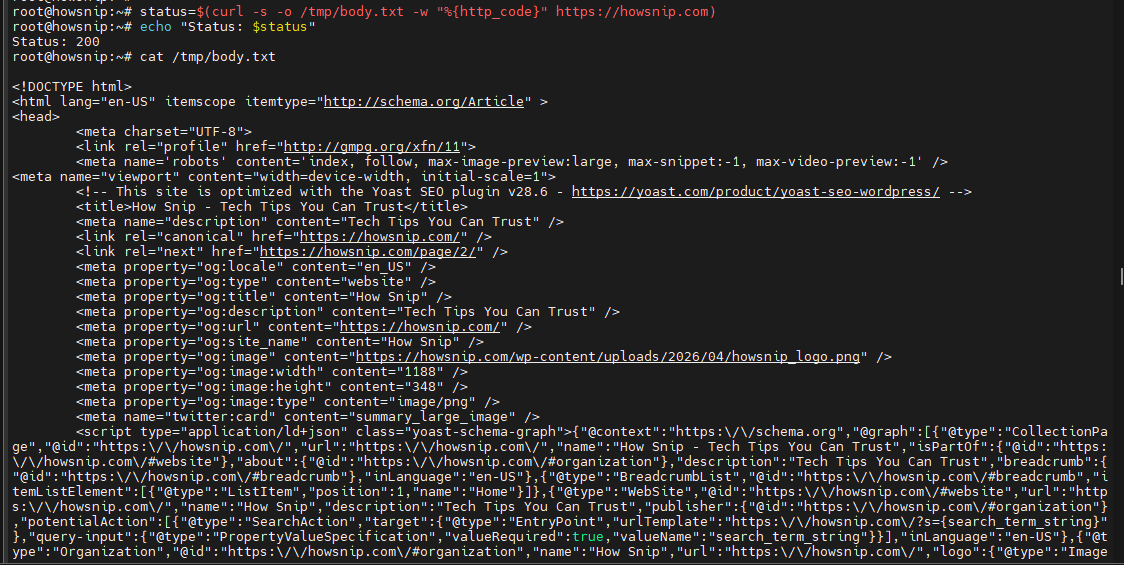
This approach stores:
- The response body in a file.
- The HTTP status code in a variable.
The -w (write-out) option can also provide metrics such as transfer times and protocol details.
c) Measure Request Performance
curl -o /dev/null -s -w "dns:%{time_namelookup} connect:%{time_connect} ttfb:%{time_starttransfer} total:%{time_total}\n" https://example.com
This displays timing statistics including:
- DNS lookup time
- Connection time
- Time to first byte (TTFB)
- Total request time
These metrics are valuable when troubleshooting slow websites or APIs.
d) Download Multiple Files
curl -O https://example.com/logs/2024-12-{01..31}.log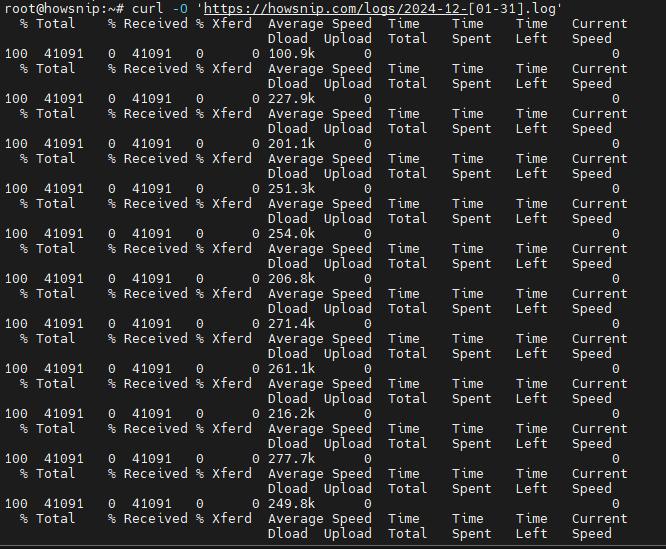
This uses shell brace expansion to download multiple files that follow a predictable naming pattern. For larger download jobs or parallel execution, tools such as xargs or GNU Parallel can be used alongside curl.
Conclusion
The curl command is an essential Linux utility for downloading files, testing APIs, troubleshooting websites, handling authentication, and automating network operations.
As you become more comfortable with curl, advanced features like SSL certificates, cookies, proxies, retries, and performance measurements make it an invaluable tool for system administrators, developers, and DevOps engineers alike.