

Managing the correct date, time, and timezone is essential for every Linux system. Accurate time settings help ensure proper log timestamps, scheduled tasks, application functionality, and secure network communication.
In this tutorial, you’ll learn how to check your current timezone, change it when needed, configure the system date and time, manage the hardware clock, and enable automatic time synchronization using NTP.
Prerequisites
Before you begin:
- Access to a Linux system with systemd.
- A user account with sudo privileges for making system-wide changes.
- Terminal access.
Step 1: Check the Current Date and Time
Start by viewing the current date, time, and timezone settings on your system.
timedatectl statusThe output displays important information, including:
- Local system time
- Universal time (UTC)
- Timezone
- NTP synchronization status
- RTC (Real-Time Clock) or hardware clock time
Step 2: Check the Current Timezone
The system time is controlled by the configured timezone. To view the active timezone, run:
timedatectl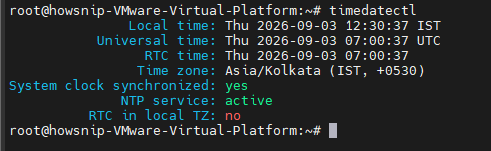
Or filter the output to show only timezone-related information:
timedatectl | grep Time
This command helps you quickly confirm which timezone your system is currently using.
Step 3: List Available Timezones
Linux includes a large database of supported timezones. To display all available options:
timedatectl list-timezones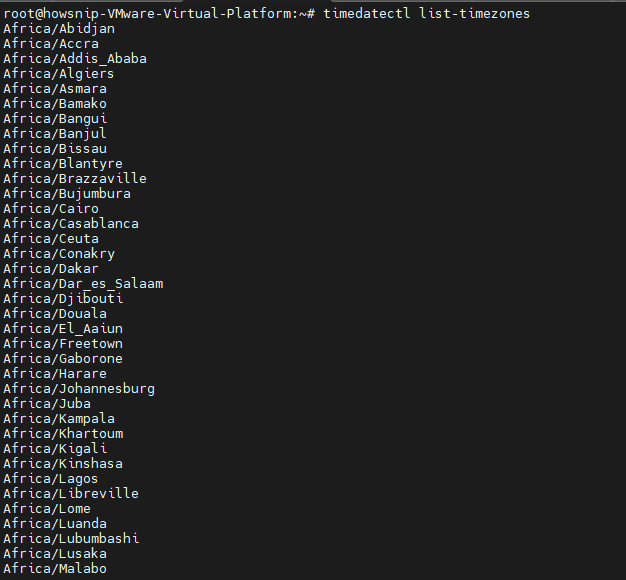
The command returns a complete list of timezone names that can be assigned to your system.
Step 4: Find a Timezone for Your Region
If the timezone list is too large, you can filter it by region.
Examples:
timedatectl list-timezones | egrep -o "Asia/B.*"
timedatectl list-timezones | egrep -o "Europe/L.*"
timedatectl list-timezones | egrep -o "America/N.*"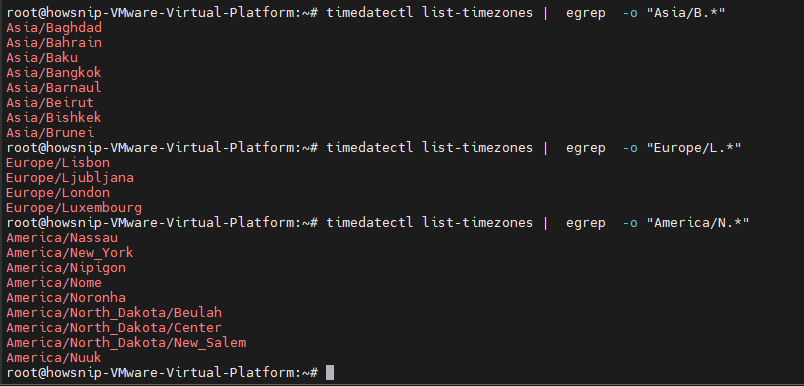
Replace the pattern as needed to locate timezones for your geographic region.
Step 5: Set the System Timezone
Once you’ve identified the correct timezone, use set-timezone to change it.
For example:
sudo timedatectl set-timezone Asia/Kolkata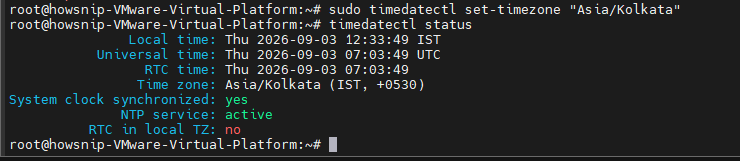
Verify the change:
timedatectl status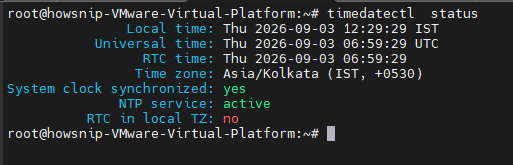
Set the System to UTC
Many administrators prefer using UTC for servers because it avoids daylight-saving time complications.
sudo timedatectl set-timezone UTC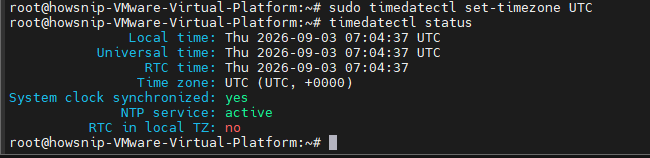
Verify the change:
timedatectl status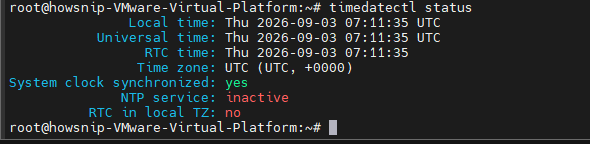
Important Note
You must enter a valid timezone name exactly as it appears in the timezone database. An incorrect timezone string will trigger an error such as:
failed to set time zone: invalid timezone
Always confirm the timezone name with:
timedatectl list-timezonesStep 6: Set the System Time Manually
To change only the time, use the set-time option with the format:
HH:MM:SS
Example:
sudo timedatectl set-time 12:25:30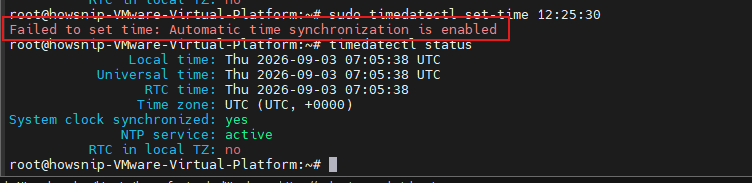
Check the result:
timedatectl statusTroubleshooting: NTP Synchronization Error
You may receive the following message as showing in above output:
Failed to set time: Automatic time synchronization is enabled
This occurs when NTP synchronization is active, preventing manual time changes.
Disable NTP before setting the time:
sudo timedatectl set-ntp false
sudo timedatectl set-time 12:25:30
timedatectl status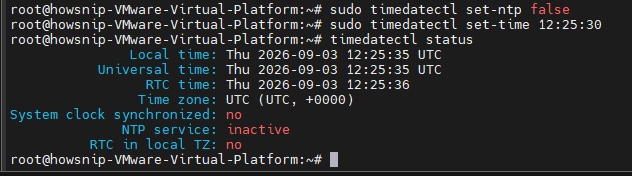
Warning: Disabling NTP stops automatic clock synchronization until it is re-enabled.
Step 7: Set the Date and Time Together
To configure both the date and time in a single command, use the format:
YYYY-MM-DD HH:MM:SS
Example:
sudo timedatectl set-time '2026-01-23 12:25:30'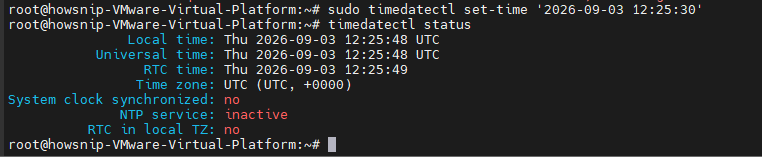
This updates both the system date and time simultaneously.
Step 8: Check and Configure the Hardware Clock (RTC)
Linux systems maintain a hardware clock, also known as the Real-Time Clock (RTC), which keeps time even when the system is powered off.
Check the Hardware Clock Configuration
timedatectl | grep local
Review the output to determine whether the hardware clock is using local time or UTC.
Set the Hardware Clock to UTC
Using UTC for the hardware clock is typically recommended.
sudo timedatectl set-local-rtc 0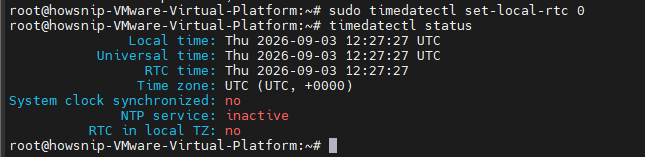
Configure Automatic Time Synchronization with NTP
NTP (Network Time Protocol) automatically synchronizes your system clock with remote time servers, helping maintain accurate system time.
Modern Linux distributions commonly use either:
- systemd-timesyncd (lightweight and suitable for most desktop systems)
- chrony (recommended for many server deployments and systems requiring higher accuracy)
Enable NTP Using systemd-timesyncd
To enable automatic synchronization:
sudo timedatectl set-ntp true
To disable synchronization:
sudo timedatectl set-ntp false
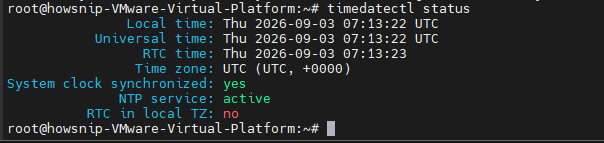
Check the synchronization status:
timedatectl statusLook for output similar to:
System clock synchronized: yes
NTP service: active
Configure Time Synchronization with Chrony
For servers and environments where accurate timekeeping is critical, Chrony is often preferred.
Chrony is especially useful for:
- Servers requiring precise time synchronization
- Systems with intermittent network connectivity
- Laptops and desktops that are not always online
- Clustered environments where consistent time is important
Install Chrony
Debian-Based Systems
sudo apt install chrony
RHEL-Based Systems
sudo dnf install chronyNote: Installing Chrony automatically disables systemd-timesyncd to prevent conflicts between multiple NTP implementations.
Enable and Start Chrony
sudo systemctl enable --now chronyVerify the synchronization status:
timedatectl statusConfigure Custom NTP Servers
To use custom NTP sources, edit the Chrony configuration file.
sudo nano /etc/chrony/chrony.conf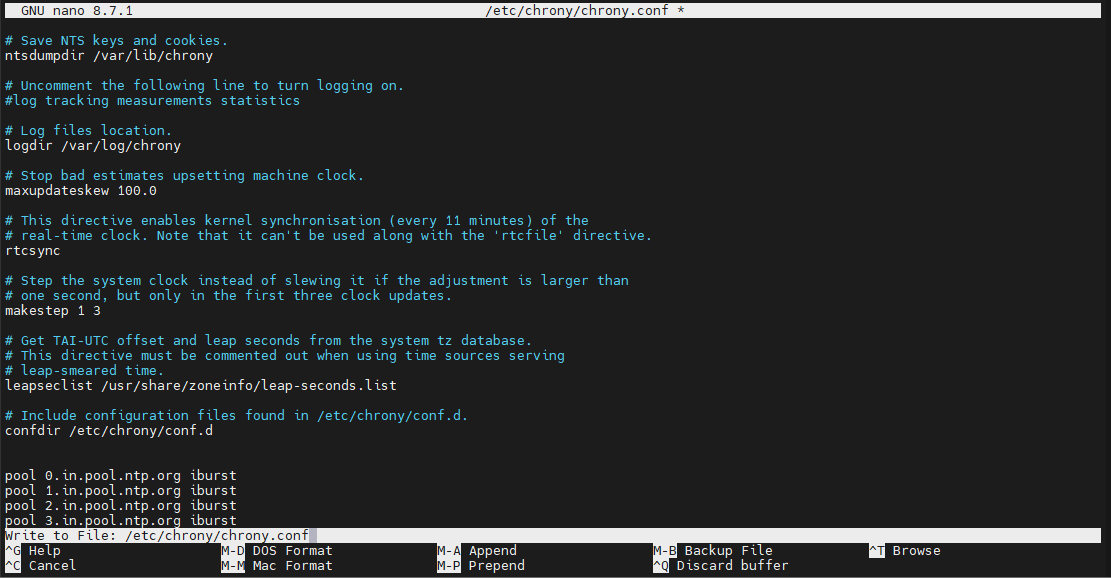
Or:
sudo nano /etc/chrony/sources.d/custom.sourcesAdd your preferred NTP servers:
pool 0.pool.ntp.org iburst
pool 1.pool.ntp.org iburst
pool 2.pool.ntp.org iburst
Save the file and restart Chrony:
sudo systemctl restart chronyd
Important Notes About NTP
Keep the following points in mind:
- Run only one NTP implementation at a time.
- systemd-timesyncd functions only as an NTP client.
- chrony can operate as both an NTP client and server.
- Chrony is generally preferred for production servers.
- NTP requires UDP port 123 for outbound communication.
Conclusion
Using the timedatectl utility, you can easily manage timezone settings, configure the system date and time, adjust the hardware clock, and enable automatic synchronization through NTP.
Whether you’re administering a Linux server or maintaining a desktop system, keeping accurate time settings ensures reliable logs, scheduled tasks, and network operations.