
When a Linux system feels slow, storage performance is often one of the first areas to investigate. High disk usage, excessive read/write operations, or storage latency can affect application performance and overall system responsiveness.
Fortunately, Linux provides several built-in and third-party tools that make it easy to measure disk activity and identify potential bottlenecks. In this guide, you’ll learn how to use five useful commands to monitor disk I/O, disk utilization, and storage performance:
- dstat
- iostat
- iotop
- ioping
- atop
Some of these tools may not be installed by default on all Linux distributions. Additionally, iotop and ioping typically require elevated privileges.
Prerequisites
- A Linux system with terminal access
- Appropriate permissions (sudo access when required)
- iostat and ioping may need to be installed if they are not already available on your system
1. Monitor Disk Activity with dstat
The dstat command is one of the easiest tools for getting a quick overview of system performance. Although it’s often used to monitor disk activity, it also displays CPU usage, interrupts, context switches, and other system statistics.
a) View General System Statistics
Run the following command:
dstat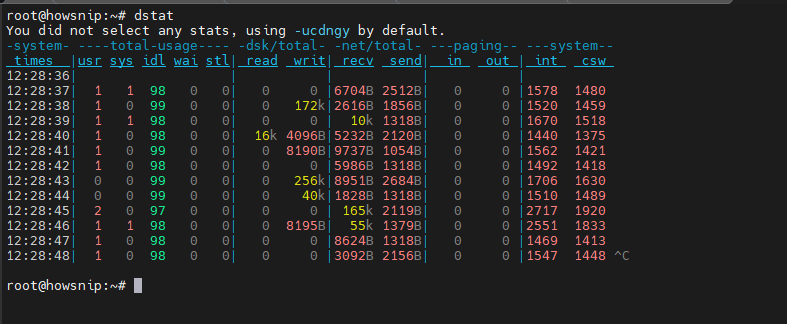
This displays real-time information about:
- CPU utilization (user, system, and idle time)
- Disk read and write activity
- Interrupts
- Context switches
b) View Top CPU and Memory Consumers
To identify processes consuming the most CPU and memory resources:
dstat --top-mem --top-cpu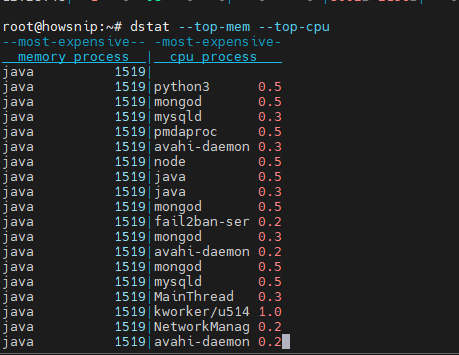
This helps correlate heavy resource usage with disk-related performance issues.
c) Display Only Disk Activity
If you want to focus exclusively on disk read and write operations:
dstat -d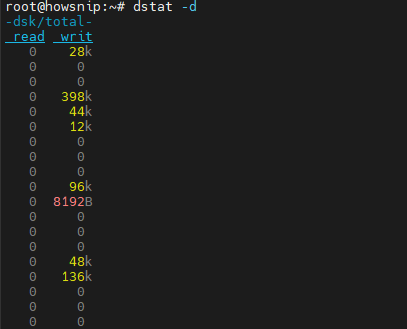
This command continuously updates disk activity statistics at the default interval of one second.
d) Change the Refresh Interval
To display updates every 10 seconds:
dstat -d 10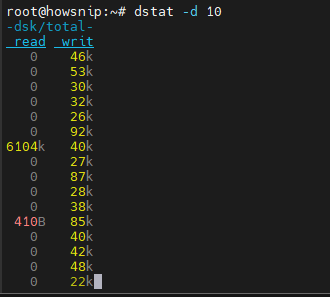
The value after -d specifies the reporting interval in seconds.
Note: Output values may be displayed in different units such as bytes (B), kilobytes (k), or megabytes (M), depending on the amount of disk activity being measured.
2. Analyze Disk I/O with iostat
The iostat command is designed specifically for monitoring input/output device performance. It helps determine how busy storage devices are and how efficiently they are handling data transfers.
a) Display Disk I/O Statistics
Run:
iostat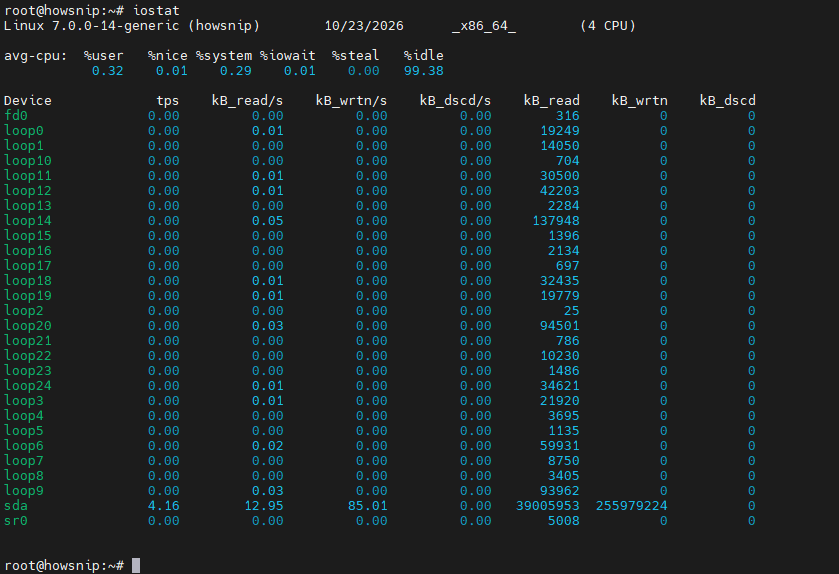
The output includes statistics for available storage devices and transfer rates.
b) Monitor a Specific Disk
The default output may include loop devices and other entries that are not relevant to your analysis.
To monitor a specific disk such as sda:
iostat -p sda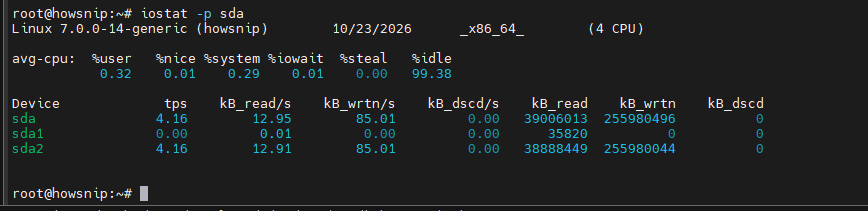
This limits the output to the selected device.
b) Generate Continuous Reports
To refresh disk statistics every five seconds:
iostat -p sda -d 5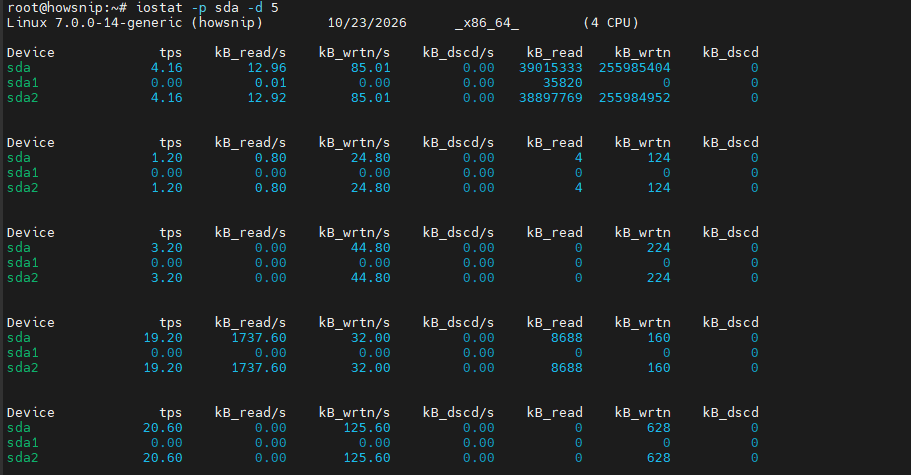
c) Skip the Since-Boot Report
By default, the first report contains statistics collected since system startup.
To display only current interval-based data:
iostat -p sda -d 5 -y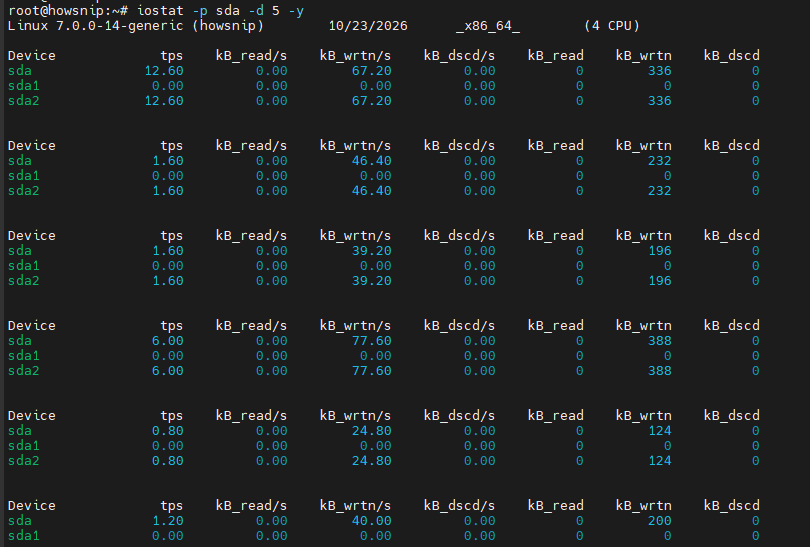
The -y option suppresses the initial since-boot report, making it easier to focus on real-time activity.
3. Identify Heavy Disk Users with iotop
The iotop utility works similarly to the top command, but focuses on disk I/O usage instead of CPU utilization.
It helps identify which processes are generating the most disk activity.
Run iotop
Execute:
sudo iotop -d 5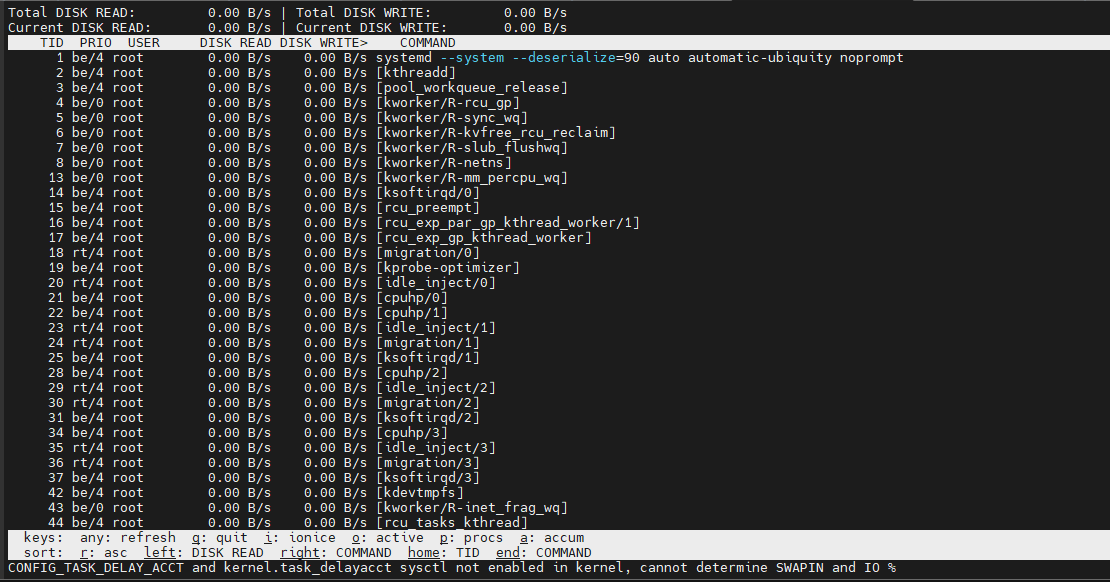
What This Command Does
- sudo provides the necessary privileges.
- iotop displays process-level disk I/O activity.
- -d 5 refreshes the display every five seconds.
The screen updates automatically, replacing the previous output each cycle.
Use iotop when:
- Disk performance suddenly degrades
- Applications become slow
- You need to identify processes causing excessive I/O activity
- Troubleshooting storage bottlenecks
4. Check Disk Latency with ioping
Unlike the previous tools, ioping is focused on measuring storage latency rather than throughput. Latency indicates how long it takes a storage device to respond to requests.
Measure Disk Response Time
Run:
sudo ioping /dev/sda1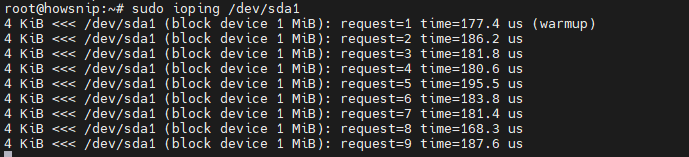
What This Command Does
- Tests the responsiveness of the specified device or partition.
- Reports latency measurements.
- Helps identify storage delays and performance issues.
High latency may indicate:
- Slow storage hardware
- Heavy disk load
- Storage subsystem bottlenecks
- Underlying disk problems
ioping is particularly useful when a system feels sluggish even though disk utilization appears normal.
Important: Make sure you replace /dev/sda1 with the correct disk or partition for your system.
5. View Disk Statistics with atop
The atop utility is a powerful system monitoring tool that provides detailed information about CPU, memory, disk, and process activity.
a) Display Disk-Related Statistics
To filter and display disk information:
atop | grep DSK
This extracts disk-related statistics from the atop output.
b) Display Memory Statistics
To view memory usage information:
atop | grep MEM
This displays memory-related metrics from the monitoring output.
atop is useful because it provides:
- System-wide performance metrics
- Process-level resource consumption
- Disk activity statistics
- Memory utilization details
It can be valuable when performing detailed performance investigations.
Conclusion
Monitoring disk performance is an important part of Linux system administration and troubleshooting. Tools such as dstat, iostat, iotop, ioping, and atop make it easier to understand how busy your storage devices are, identify resource-heavy processes, and diagnose latency-related issues.
By using the right tool for the task, you can quickly determine whether disk activity is contributing to performance problems and take appropriate action before they impact users or applications.