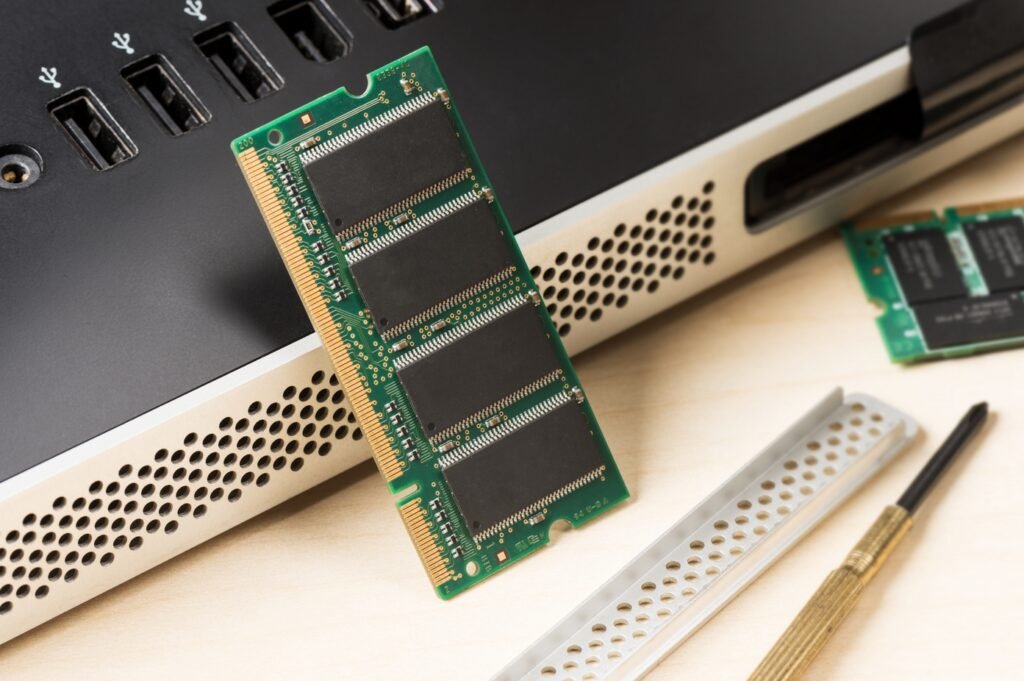

Knowing your system’s RAM details is important when you are planning a hardware upgrade, troubleshooting performance issues, or doing system audits. Windows provides multiple built-in and third-party ways to check RAM information, but each method shows different levels of detail.
In this article, we’ll walk through six practical methods to find RAM information in Windows, based on real screenshots taken from an actual system.
1. Checking RAM Details Using Command Prompt (WMIC)
Command used:
wmic memorychip get Manufacturer, PartNumber, Speed, Capacity, SerialNumberThe WMIC (Windows Management Instrumentation Command-line) tool provides slot-wise physical RAM details.
What this method shows:
- RAM Manufacturer (e.g., Kingston, Corsair, Samsung)
- Part Number / Model number
- Speed (in MHz)
- Capacity (shown in bytes)
- Serial Number
Why this method is useful:
- Helps identify exact RAM model
- Useful for checking multiple RAM sticks
- Works without installing any software
Note: Capacity is displayed in bytes, so you may need to convert it to GB.

2. Checking RAM Details Using PowerShell
Command used:
Get-CimInstance Win32_PhysicalMemory | Select Manufacturer, PartNumber, Speed, Capacity, ConfiguredVoltagePowerShell provides similar information as WMIC, but in a more modern and script-friendly way.
What this method shows:
- Manufacturer
- Part number
- Speed
- Capacity
- Configured voltage
Why this method is useful:
- Best for automation and scripting
- Useful for system inventory
- More reliable on newer Windows versions compared to WMIC
This method is commonly used by system administrators and SOC teams for hardware checks.

3. Checking RAM Using Task Manager
Path:
Task Manager → Performance → MemoryThis is the fastest and easiest way to check RAM information.
What this method shows:
- Total installed RAM
- RAM speed
- RAM type (DDR4 / DDR5)
- Form factor (DIMM / SODIMM)
- Slots used vs total slots
Why this method is useful:
- Very quick overview
- No commands required
- Ideal for non-technical users

4. Checking RAM via System Information (msinfo32)
Path:
Win + R → msinfo32 → System SummaryThis tool provides a general system overview.
What this method shows:
- Installed Physical Memory (RAM)
- Total Physical Memory
- Available Physical Memory
Why this method is useful:
- Good for basic system documentation
- Helpful for support and reporting

5. Checking RAM Using HWiNFO
HWiNFO is a powerful hardware monitoring tool widely used by IT professionals.
What this method shows:
- Total memory size
- Memory type
- Frequency
- Channel mode
- Detailed memory controller information
Why this method is useful:
- Very detailed hardware insights
- Useful for performance analysis
- Ideal for enterprise-level diagnostics
- HWiNFO goes deeper than Windows tools and is often used for advanced troubleshooting.

6. Checking RAM Using CPU-Z
CPU-Z is one of the most reliable tools for identifying RAM details.
What this method shows (Memory tab):
- RAM type (DDR4 / DDR5)
- Total size
- Current operating frequency
- Timings and CAS latency
Why this method is useful:
- Accurate real-time RAM frequency
- Shows memory timings
- Great for checking XMP and performance-related details
- For exact RAM model and slot-wise details, the SPD tab in CPU-Z is especially useful.

There is no single tool in Windows that shows everything about RAM. Using these tools together gives you a complete picture of your system memory, which is essential before upgrading RAM or troubleshooting performance issues.