
Nmap (Network Mapper) is a widely used network scanning and security assessment tool. It helps security professionals and system administrators discover active hosts, identify open ports, determine running services, and gather information about network devices.
Nmap can be used for everything from a simple scan of a single computer to larger network discovery and service enumeration.
- Scanning a Single Host
- Scanning Multiple IP Addresses
- Scanning a Range of IP Addresses
- Ping Sweep
- Scanning Specific Ports
- Scanning Common Web Ports
- Service Version Detection
- Operating System Detection
1. Scanning a Single Host
To scan a specific host, provide its IP address or hostname:
nmap [target IP]For example:
nmap 10.228.1.179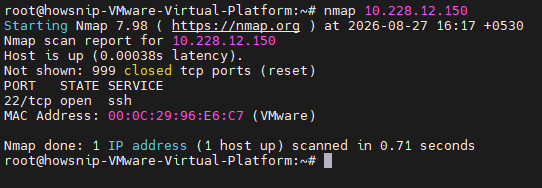
This performs a basic scan and reports the ports that Nmap determines to be open, closed, or filtered.
2. Scanning Multiple IP Addresses
Nmap allows you to scan several hosts in a single command. Simply specify each target:
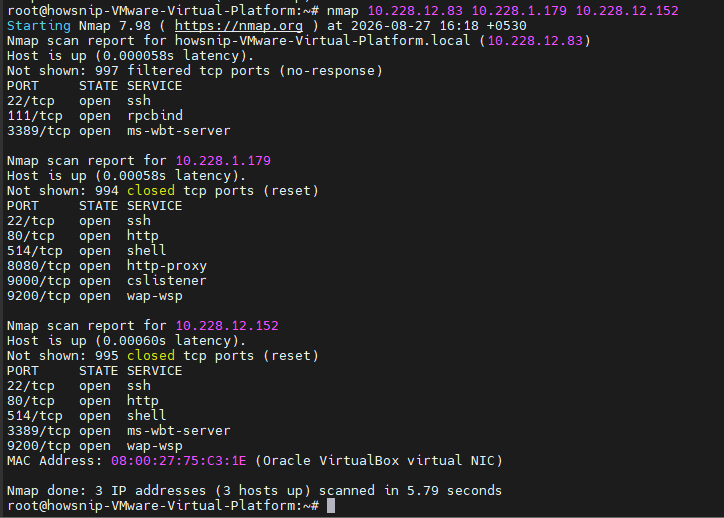
nmap [target IP] [target IP] [target IP]For example:
nmap 10.228.1.179 10.228.1.180 10.228.1.181This is useful when you need to quickly assess a small group of systems.
3. Scanning a Range of IP Addresses
You can scan a continuous range of IP addresses by specifying the starting and ending host numbers:
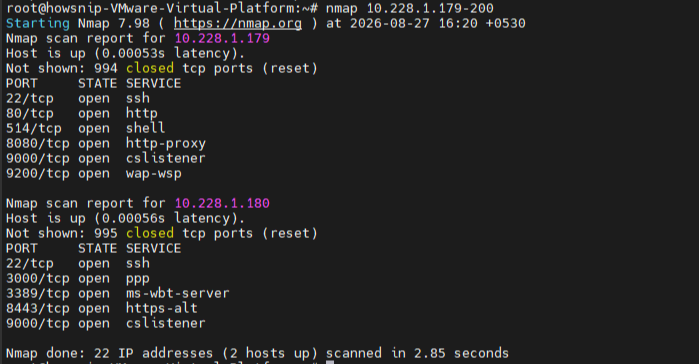
nmap [target range]For example, to scan hosts from `10.228.1.179` through `10.228.1.200`:
nmap 10.228.1.179-200This allows you to examine multiple systems without entering every IP address individually.
4. Ping Sweep
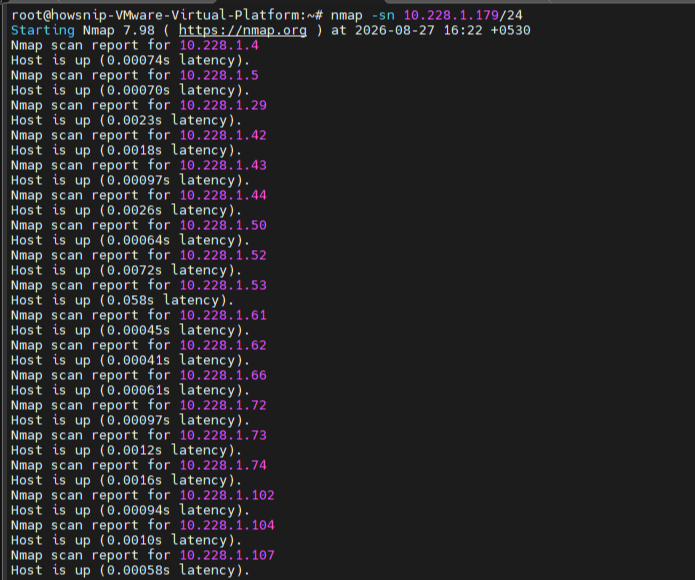
A ping sweep can be used to discover which hosts are currently online within a network range:
nmap -sn [target IP range]For example:
nmap -sn 10.228.1.0/24The `-sn` option performs host discovery without conducting a port scan. It reports hosts that respond to the discovery methods Nmap uses. Keep in mind that firewalls and other security controls may prevent a host from responding, so an apparently inactive host is not necessarily offline.
5. Scanning Specific Ports
If you only want to check particular ports instead of scanning Nmap’s default set of ports, use the `-p` option:
nmap -p [port numbers] [target IP]For example, to scan ports 80 and 443:
nmap -p 80,443 10.228.1.179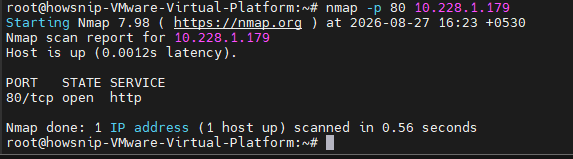
You can also scan a range of ports:
nmap -p 1-1000 10.228.1.1796. Scanning Common Web Ports
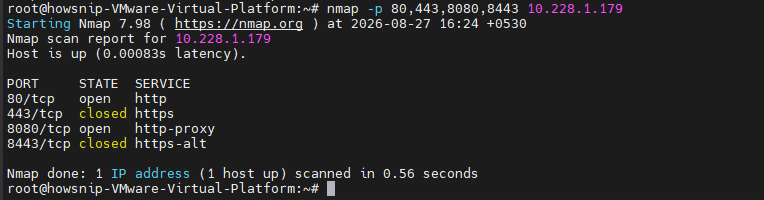
Ports such as `80` and `443` are commonly associated with HTTP and HTTPS services. You can check them with:
nmap -p 80,443 [target IP]This is useful when assessing whether a web server is exposing the expected network services.
7. Service Version Detection
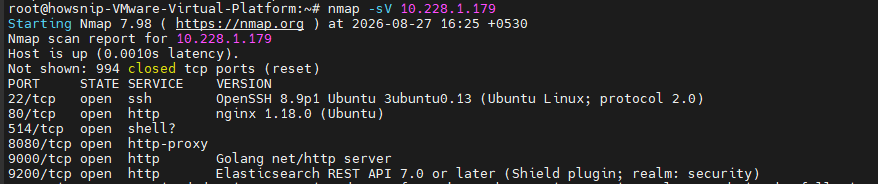
Nmap can attempt to identify the services running on open ports and determine their versions using the `-sV` option:
nmap -sV [target IP]For example:
nmap -sV 10.228.1.179Version detection can provide useful information such as the application name and version running on an open port. Security professionals can use this information to determine whether services are outdated or require further investigation.
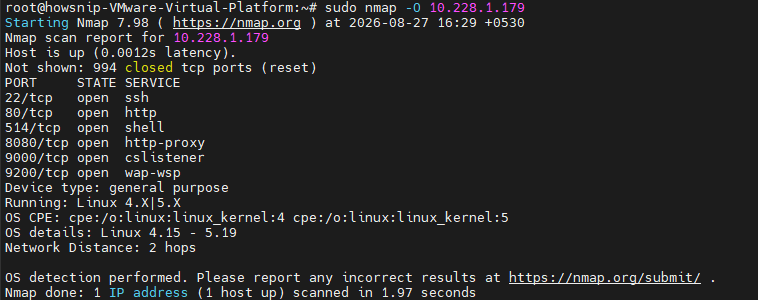
8. Operating System Detection
Nmap can also attempt to identify the operating system of a target using:
nmap -O [target IP]For example:
nmap -O 10.228.1.179OS detection relies on analyzing characteristics of the target’s network responses. The accuracy of the result can vary depending on firewalls, network configurations, and the privileges available to Nmap.
Nmap is a powerful tool for checking and understanding networks, but it should always be used with permission. Before scanning a computer, server, or network, make sure you are authorized to perform the scan.
A few simple things to keep in mind:
- Only scan systems that you own or have permission to test.
- Know which IP addresses and systems are included in the testing scope.
- Do not scan someone else’s network without approval.
- Follow the security rules and policies of the organization.
- Keep any information found during the scan secure and confidential.
Using Nmap responsibly helps prevent accidental disruption and ensures that network testing is carried out in a safe and controlled way.
Conclusion
Nmap is a useful tool for understanding what is happening on a network. It can help you find active devices, check open ports, identify running services, and gather basic information about a system.
Once you understand the basic Nmap commands, you can use them to troubleshoot networks, check exposed services, and perform authorized security assessments. The key is to practice in your own lab or on systems where you have permission to test.