

Working with text files is a fundamental Linux skill. Whether you’re analyzing documents, examining log files, or studying command history, tools such as wc, awk, grep, sort, and uniq make it easy to extract useful information from text.
This guide demonstrates practical techniques for counting lines, words, characters, and frequencies while also covering common pitfalls such as blank lines, punctuation, and UTF-8 character handling.
Quick One-Liner Setup
On Ubuntu 26.04, you can generate a sample file directly from a manual page:
man man > sample.txtVerify that meaningful content was captured:
wc -l -w -c sample.txt
If the man command reports missing documentation or generates very little output, install the required packages first.
For Ubuntu and Debian
sudo apt update
sudo apt install man-db manpages
Create a Sample Text File
Before exploring text-processing commands, create a simple test file:
cat > sample.txt <<'EOF'
Linux is powerful
Linux is useful
Linux is powerful

Cyber security is interesting
Cyber security is important
EOF
Display the file contents:
cat sample.txt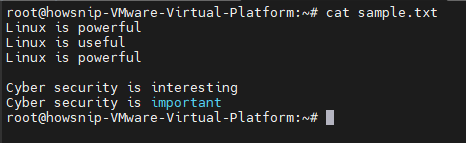
This sample file provides repeated words and an empty line, making it useful for testing counting and frequency-analysis techniques.
Count Lines with wc
The wc command is the standard Linux utility for counting content in files.
To count lines:
wc -l sample.txt
The -l option returns the total number of lines in the file.
Count Words in a File
To calculate the total number of words:
wc -w sample.txt
Word counts are based on whitespace-separated fields. As a result, spaces, tabs, and formatting can influence the final count.
Character Count
Use:
wc -m sample.txt
The -m option counts characters according to the active locale settings.
Byte Count
For byte-level counting:
wc -c sample.txt
Unlike -m, the -c option measures bytes rather than characters. This distinction becomes important when working with UTF-8 encoded text because some characters occupy more than one byte.
Basic Word Frequency Analysis
One commonly used pipeline converts spaces into new lines before counting duplicate entries:
tr ' ' '\n' < sample.txt | sort | uniq -c | sort -nr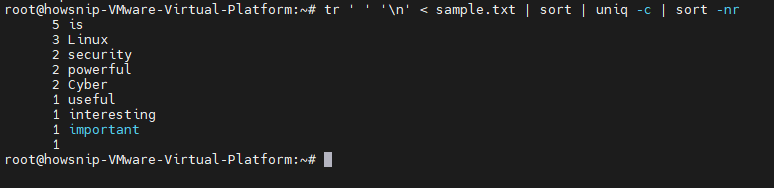
This process:
- Replaces spaces with newlines.
- Sorts the words.
- Counts duplicate occurrences.
- Sorts results by frequency.
Although simple, this method is not ideal because it can incorrectly handle multiple whitespace characters, punctuation, and empty lines.
A More Reliable Word Frequency Command
A better approach uses awk to process fields directly:
awk '{for(i=1;i<=NF;i++) print $i}' sample.txt | sort | uniq -c | sort -nr
This method avoids creating empty entries and handles irregular spacing more effectively.
Normalize Words by Converting to Lowercase
Case differences can cause identical words to be counted separately.
For example:
Linux
linux
LINUX
would appear as three different words.
Convert everything to lowercase before counting:
awk '{for(i=1;i<=NF;i++) print tolower($i)}' sample.txt | sort | uniq -c | sort -nr
Normalizing text improves the accuracy of word-frequency analysis.
Remove Punctuation Before Counting
Real-world text often contains punctuation attached to words. Use the following command to remove leading and trailing punctuation before analysis:
awk '{for(i=1;i<=NF;i++){gsub(/^[[:punct:]]+|[[:punct:]]+$/, "", $i);if($i!="") print tolower($i)}}' sample.txt | sort | uniq -c | sort -nr
For example:
Linux,
Linux.
Linux!
becomes:
linux
linux
linux
This produces cleaner and more realistic results.
Handling Blank Lines Correctly
Empty lines can introduce inaccurate counts when using simple pipelines. Avoid relying solely on:
tr ' ' '\n' < sample.txt | sort | uniq -c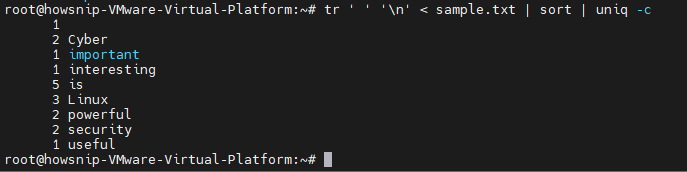
Instead, use:
awk 'NF {for(i=1;i<=NF;i++) print $i}' sample.txt | sort | uniq -c | sort -nr
Why NF Matters
In awk, NF represents the number of fields on a line. When used as a condition:
NFonly lines containing at least one field are processed. As a result, blank lines are excluded automatically.
Remove Empty Lines with grep
Another way to filter blank lines is with grep:
grep -v '^[[:space:]]*$' sample.txt
This displays only non-empty lines.
You can combine it with frequency analysis:
grep -v '^[[:space:]]*$' sample.txt | awk '{for(i=1;i<=NF;i++) print tolower($i)}' | sort | uniq -c | sort -nr
Display the Most Frequent Words
Often you only need the highest-frequency terms.
Top 10 Words
awk '{for(i=1;i<=NF;i++) print tolower($i)}' sample.txt | sort | uniq -c | sort -nr | head -10
Top 5 Words
awk '{for(i=1;i<=NF;i++) print tolower($i)}' sample.txt | sort | uniq -c | sort -nr | head -5
Top 20 Words
awk '{for(i=1;i<=NF;i++) print tolower($i)}' sample.txt | sort | uniq -c | sort -nr | head -20
Using head allows you to focus on the most common terms quickly.
Analyze Word Frequency in Log Files
You can apply the same techniques to system logs.
For example:
sudo awk '{for(i=1;i<=NF;i++) print tolower($i)}' /var/log/auth.log | sort | uniq -c | sort -nr | head
This highlights the most frequently occurring tokens in the log. However, for security investigations, analyzing specific log fields is often more useful than treating every token as a separate word.
Count IP Addresses in Logs
To identify frequently appearing IPv4 addresses:
grep -oE '\b([0-9]{1,3}\.){3}[0-9]{1,3}\b' /var/log/auth.log | sort | uniq -c | sort -nr
Example output:
25 192.168.1.20
12 10.0.0.5
4 172.16.1.10
This technique is useful when investigating network activity or reviewing authentication logs.
Identify Repeated Failed SSH Attempts
To inspect failed SSH logins:
sudo grep 'Failed password' /var/log/auth.log
To count source IPs associated with those failures:
sudo grep 'Failed password' /var/log/auth.log | grep -oE '\b([0-9]{1,3}\.){3}[0-9]{1,3}\b' | sort | uniq -c | sort -nrThis makes it easy to identify hosts generating repeated authentication failures.
Wrap Long Lines with fold
The fold utility breaks long lines into shorter sections.
Example:
fold -w 40 sample.txt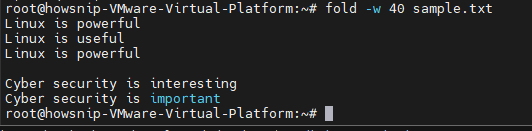
Here, -w 40 wraps content at roughly 40 columns. You can also test it with a long string:
echo "This is a very long line of text for Linux practice" | fold -w 20
This command helps when viewing lengthy text in narrow terminal windows.
UTF-8 Character Counting vs Byte Counting
Multibyte characters can cause character and byte counts to differ.
Create a UTF-8 sample file:
printf 'café\nnaïve\nrésumé\n' > unicode.txt
Count characters:
wc -m unicode.txtCount bytes:
wc -c unicode.txt
Characters such as é may occupy multiple bytes, which is why the totals can vary.
Verify Your Locale
Check the active locale settings:
locale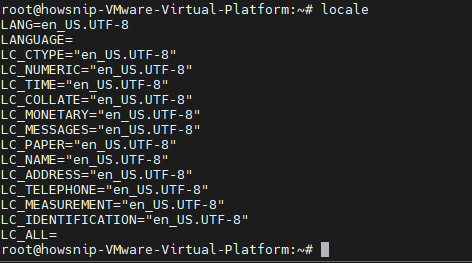
Pay particular attention to:
LANG=
LC_ALL=
Locale configuration influences how character counting behaves.
Check Your Coreutils Versions
Different systems may provide different implementations of common utilities.
Determine which executable is being used:
type -a wc
Check versions:
wc --version
sort --version
uniq --version
tr --version
These commands help when comparing GNU coreutils behavior across environments.
Analyze Command Usage from Bash History
To find the commands you use most often:
history | awk '{$1=""; print}' | awk '{print $1}' | sort | uniq -c | sort -nr | head
A cleaner alternative removes history line numbers first:
history | sed 's/^[ ]*[0-9]*[ ]*//' | awk '{print $1}' | sort | uniq -c | sort -nr | head
This can reveal patterns in your daily command-line workflow.
Analyze Git Commit Messages
Inside a Git repository, you can examine commit subjects for commonly used terms.
git log --pretty=format:%s | awk '{for(i=1;i<=NF;i++) print tolower($i)}' | sort | uniq -c | sort -nr | head
This approach provides a quick overview of recurring themes within a project’s commit history.
Conclusion
Linux provides powerful built-in tools for counting text and performing word frequency analysis.
By combining wc, awk, grep, sort, uniq, and related utilities, you can quickly analyze files, review logs, investigate authentication events, and gain insights from shell or Git history. Understanding how to handle case normalization, punctuation, blank lines, and UTF-8 text will help you produce more accurate and meaningful results.