

Nmap is one of the most widely used network scanning and reconnaissance tools in cybersecurity and system administration. Whether you’re managing servers, auditing networks, or troubleshooting connectivity issues, Nmap helps you discover hosts, identify open ports, detect running services, and gather valuable information about systems on a network.
This Nmap tutorial covers installation, core scanning techniques, service detection, OS fingerprinting, Nmap Scripting Engine (NSE) usage, reporting options, and practical auditing examples.
What Is Nmap and Why Is It Useful?
Nmap, short for Network Mapper, is an open-source utility designed to explore networks and assess system exposure. It works by sending specially crafted packets to target systems and analyzing the responses.
When Nmap scans a host, it determines the status of network ports:
- Open: A service is actively listening for connections.
- Closed: The port is reachable, but no service is currently using it.
- Filtered: A firewall or filtering device prevents Nmap from determining the port state.
Understanding these results is important during security assessments. Open ports represent accessible services, filtered ports typically indicate firewall protection, and closed ports still reveal information about reachable systems.
Installing Nmap
Nmap is available through the package managers of most operating systems.
For Ubuntu and Debian
sudo apt update && sudo apt install nmap -y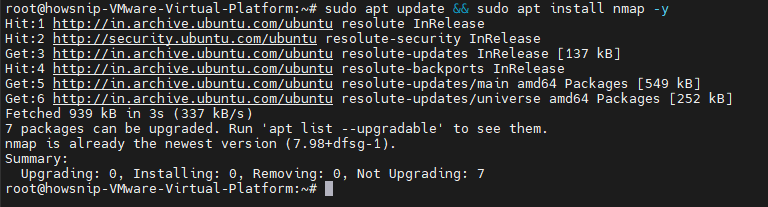
This command updates the local package repository information and installs Nmap on Ubuntu or Debian-based systems. The `-y` option automatically confirms the installation prompt.
For Fedora and RHEL
sudo dnf install nmap -yThis command installs the Nmap package using the DNF package manager. It is commonly used on Fedora, RHEL, and other RPM-based Linux distributions.
For macOS (Homebrew)
brew install nmapThis command installs Nmap through Homebrew on macOS. Homebrew automatically downloads and installs the required package and dependencies.
For Arch Linux
sudo pacman -S nmapThis command installs Nmap from the Arch Linux package repositories using the `pacman` package manager.
For Verify Installation
nmap --version
This command displays the installed Nmap version and build information. It is useful for confirming that Nmap was installed correctly and is available in the system PATH.
A successful installation should display the installed Nmap version along with its supporting libraries, such as Npcap/libpcap and OpenSSL. If the command cannot be found, verify that directories such as /usr/bin or /usr/local/bin are included in your system’s PATH.
1. Basic Nmap Scans for Beginners
For the examples below, the IP address 10.228.1.179 is used as a sample target. Replace it with a system you are authorized to scan.
Host Discovery (Ping Scan)
nmap -sn 10.228.1.179/24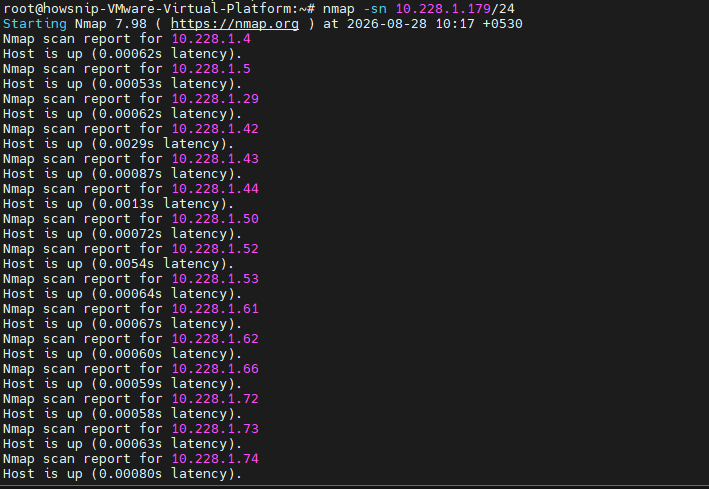
This command performs host discovery across the 10.228.1.0/24 subnet without performing a traditional port scan. It helps identify which devices are currently online.
This scan identifies active hosts on a subnet without performing port scans. Nmap sends several discovery probes, including ICMP and TCP-based checks, to determine which devices are online. This is particularly useful when creating an inventory of devices on a network.
Default Port Scan
nmap 10.228.1.179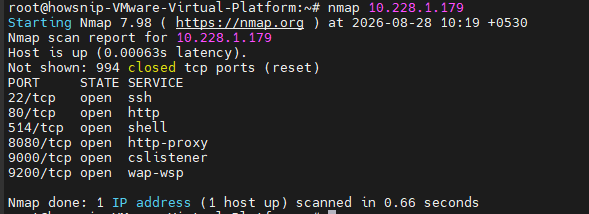
This performs Nmap’s standard TCP port scan against the target. By default, Nmap checks the 1,000 most commonly used TCP ports. When run with elevated privileges, Nmap typically uses a SYN scan. Without elevated privileges, it generally falls back to a TCP connect scan.
2. Scan Specific Ports
Scan a Single Port
nmap -p 22 10.228.1.179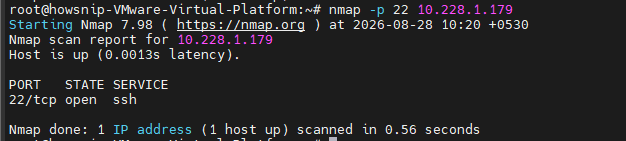
This command checks only TCP port `22` on the target. It is useful when you want to verify whether a particular service, such as SSH, is accessible.
Scan a Range of Ports
nmap -p 1-1000 10.228.1.179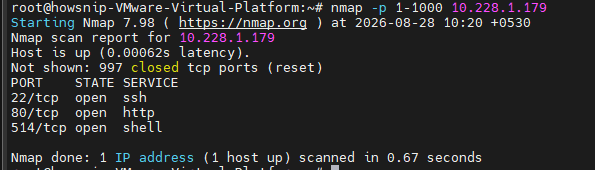
This command scans TCP ports from `1` through `1000`. It provides broader coverage than the default scan when you want to examine a specific port range.
Scan Multiple Ports
nmap -p 22,80,443,8080 10.228.1.179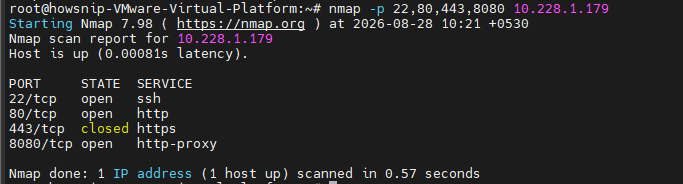
This command scans only the specified ports instead of scanning the default port list. It is useful for quickly checking commonly used SSH and web service ports.
Scan All Ports
nmap -p- 10.228.1.179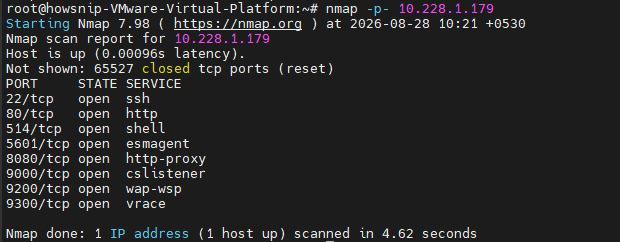
The `-p-` option tells Nmap to scan all 65,535 TCP ports. Although this takes longer, it can discover services operating on non-standard ports. A full scan can uncover databases, management interfaces, development applications, and other services that may not use their standard ports.
TCP SYN Scan (Stealth Scan)
sudo nmap -sS 10.228.1.179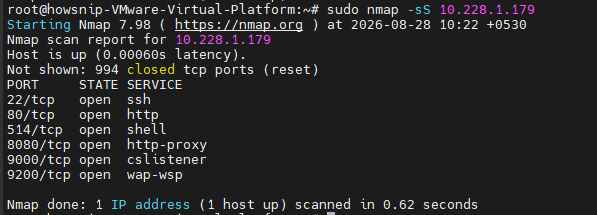
This command performs a TCP SYN scan, which sends SYN packets to determine whether TCP ports are open without completing the full TCP connection. It is one of Nmap’s commonly used TCP scanning techniques. The target generally responds with:
- SYN-ACK indicates an open port.
- RST indicates a closed port.
Because the full TCP handshake is never completed, the technique is often called a “half-open” scan. Although historically referred to as a stealth scan, modern intrusion detection systems can usually detect SYN scanning activity.
UDP Scanning
sudo nmap -sU --top-ports 100 10.228.1.179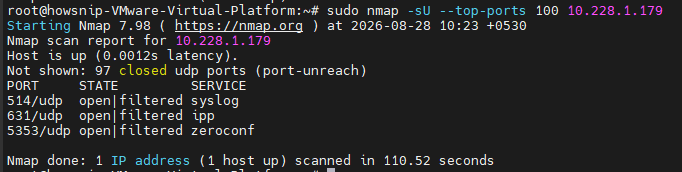
This command scans the 100 most common UDP ports on the target. UDP scanning can identify services that would not appear during a TCP-only assessment. UDP scans are generally slower than TCP scans because UDP is connectionless and often relies on timeout behavior to determine port status.
Common UDP-based services include:
- DNS (Port 53)
- DHCP (Ports 67/68)
- NTP (Port 123)
- SNMP (Port 161)
Skipping UDP scans can leave important services undiscovered during a security assessment.
Service and Version Detection
Finding open ports is useful, but identifying the software behind those ports provides far more valuable information.
nmap -sV 10.228.1.179
The `-sV` option enables service and version detection. Nmap sends additional probes to open ports to determine the application name and, where possible, its version. Version detection helps administrators identify outdated software that may contain known vulnerabilities.
3. Adjust Detection Intensity
Faster, Lighter Detection
nmap -sV --version-intensity 2 10.228.1.179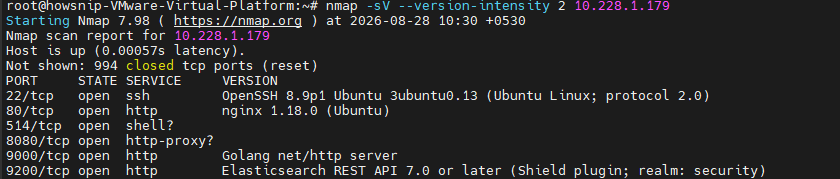
This command performs service version detection with a lower probe intensity. It generally completes faster but may provide less detailed or less accurate version information.
More Thorough Detection
nmap -sV --version-intensity 9 10.228.1.179
This command uses the highest version-detection intensity and performs more probes against discovered services. It can provide better identification but generally increases scan time and network traffic. Higher values increase probe accuracy but also extend scan duration.
Operating System Detection
sudo nmap -O 10.228.1.179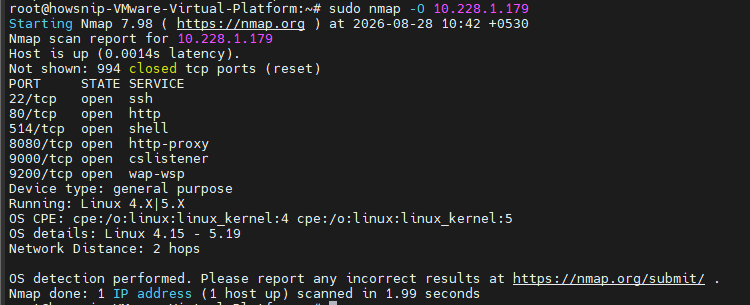
The `-O` option enables operating system detection. Nmap analyzes characteristics of the target’s network responses to estimate the operating system and sometimes its version. Nmap can estimate a target’s operating system by analyzing TCP/IP behavior, including factors such as window sizes, TTL values, and packet handling characteristics.
Reliable OS detection generally requires at least one open and one closed port.
Aggressive Scan Mode
sudo nmap -A 10.228.1.179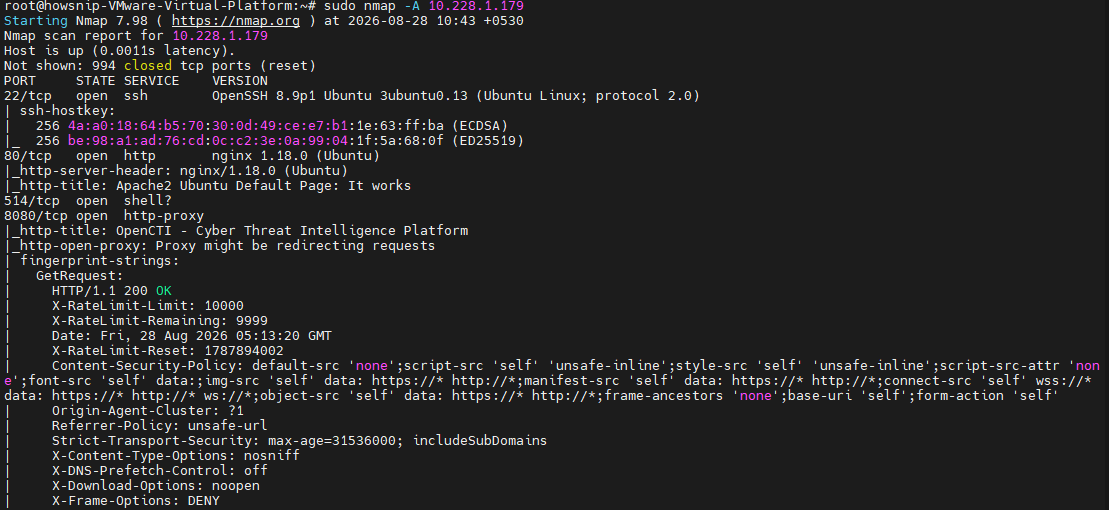
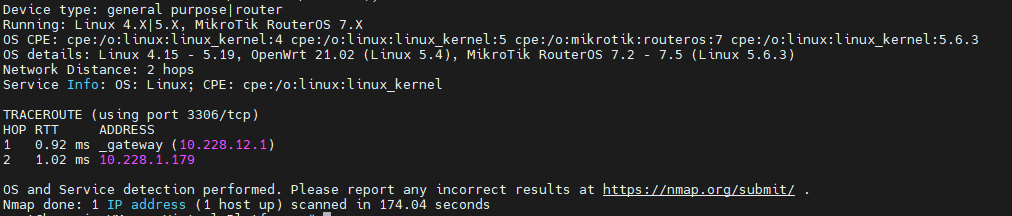
The `-A` option enables several advanced detection capabilities in a single scan. It is useful when you need a broad overview of a target rather than only its open ports. The -A option combines several advanced features:
- OS detection
- Service version detection
- NSE scripting
- Traceroute
This approach provides a broad overview of a system but generates significantly more traffic than standard scans.
4. Unlocking Advanced Features with NSE Scripts
One of Nmap’s most powerful capabilities is the Nmap Scripting Engine (NSE), which includes hundreds of scripts for enumeration, analysis, and vulnerability checks.
Run Default NSE Scripts
nmap -sC 10.228.1.179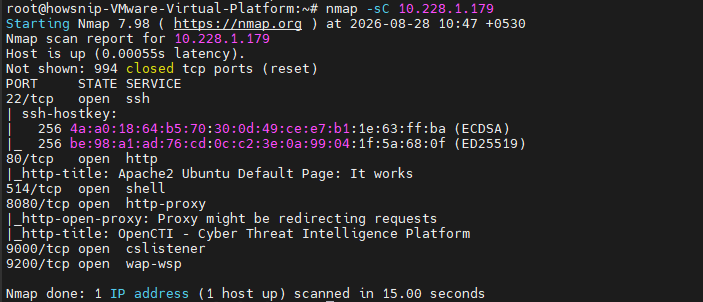
The `-sC` option runs Nmap’s default NSE script set against the target. These scripts perform common enumeration and information-gathering tasks. Default scripts perform tasks such as: Default scripts may perform tasks such as:
- Retrieving SSH host keys
- Gathering HTTP titles
- Enumerating SSL certificate information
- Checking common service configurations
These scripts are generally considered relatively safe and non-intrusive, although they can still generate additional traffic.
5. Enumerating SSL certificate information
These scripts are generally considered safe and non-intrusive.
Run Vulnerability Scripts
nmap --script vuln 10.228.1.179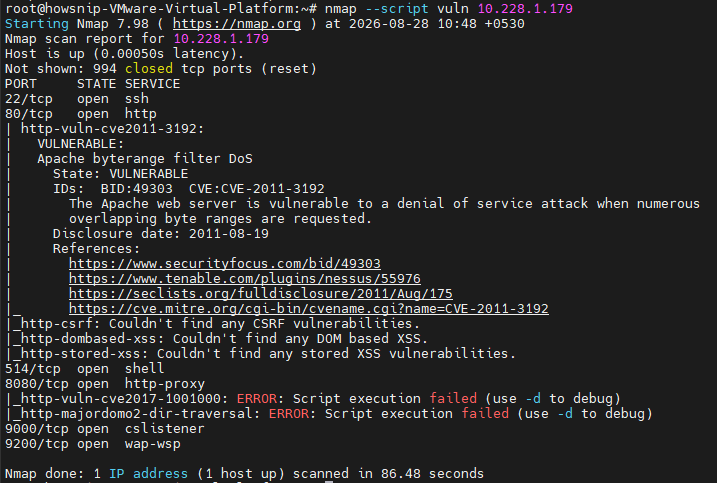
This command runs NSE scripts categorized for vulnerability detection. It can identify certain known security weaknesses in exposed services and applications. Because vulnerability scripts can generate additional traffic or requests, they should be used only against systems you are authorized to assess.
Run a Specific Script
nmap --script http-headers 10.228.1.179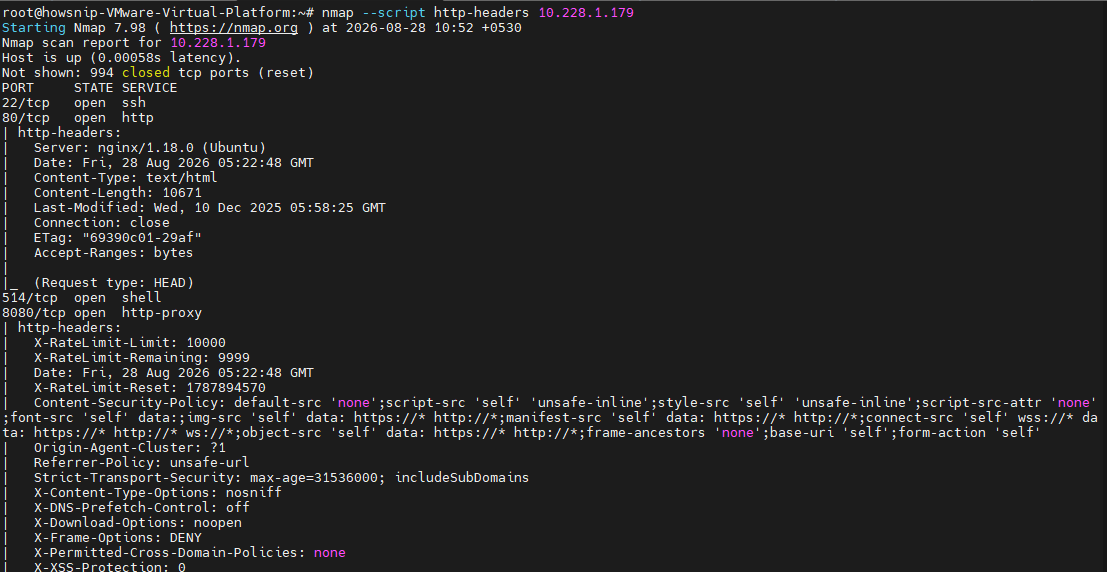
This command executes the `http-headers` NSE script against the target. It retrieves and analyzes HTTP response headers exposed by a web service.
Run Multiple Scripts
nmap --script "http-headers,http-title,ssl-enum-ciphers" -p 80,443 10.228.1.179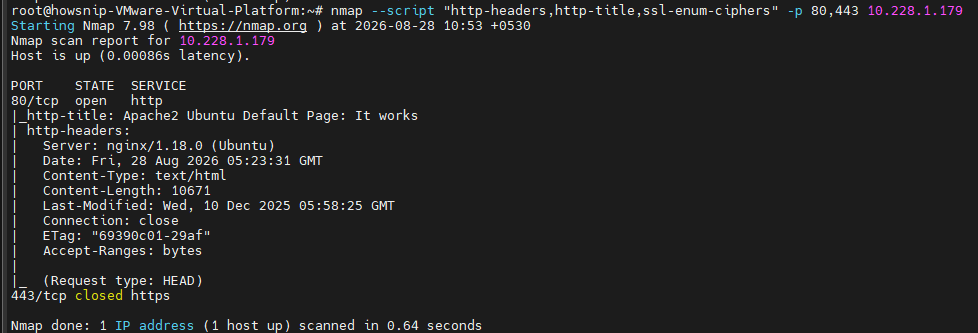
This command runs multiple NSE scripts against ports 80 and 443. It can collect HTTP headers, identify web page titles, and examine supported SSL/TLS cipher configurations.
6. Useful NSE Scripts for Security Auditing
Check HTTP Security Headers
nmap --script http-security-headers -p 80,443 10.228.1.179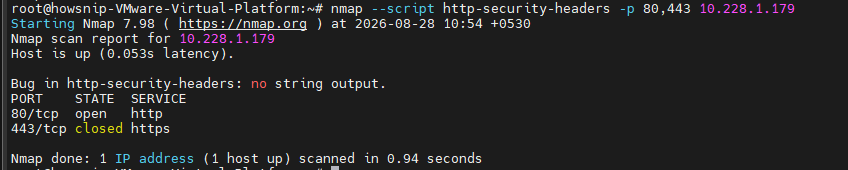
This command checks HTTP security-related headers on the specified web ports. It can help identify missing or improperly configured browser security controls.
Analyze SSL/TLS Configuration
nmap --script ssl-enum-ciphers -p 443 10.228.1.179
This command enumerates SSL/TLS protocols and cipher suites supported by the target service. It is useful for identifying outdated protocols and weak cryptographic configurations. The script reports:
- Supported TLS versions
- Available cipher suites
- Weak encryption configurations
- Certificate-related issues
Look for Known Vulnerabilities
nmap --script vulners -sV -p 22,80,443 10.228.1.179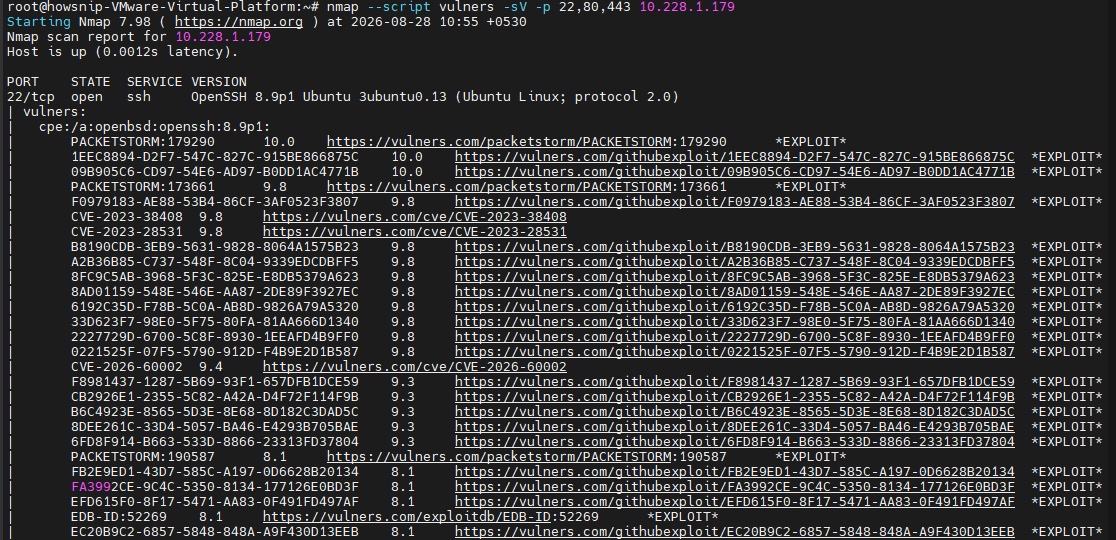
This command combines service version detection with the Vulners NSE script. It attempts to associate detected software versions with known vulnerabilities and CVEs. The results should be treated as an initial vulnerability indication and verified against authoritative vendor advisories and vulnerability databases.
SSH Password Auditing
nmap --script ssh-brute -p 22 10.228.1.179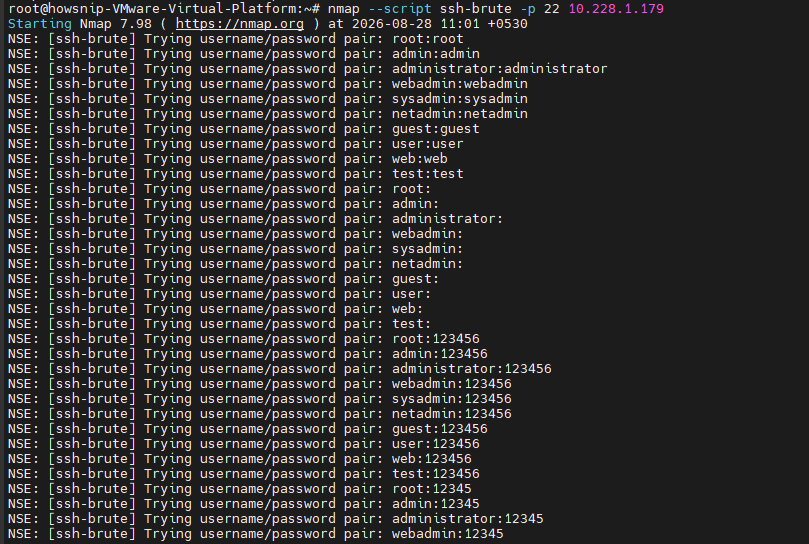
This command uses the `ssh-brute` NSE script to test SSH authentication against a target. It should only be used against systems where you have explicit authorization to perform credential testing.
7. Discover Available Scripts
Count installed scripts:
ls /usr/share/nmap/scripts/ | wc -l

This command counts entries in Nmap’s local NSE script directory. It provides a quick way to see approximately how many script files are installed.
Browse script categories:
ls /usr/share/nmap/scripts/ | grep http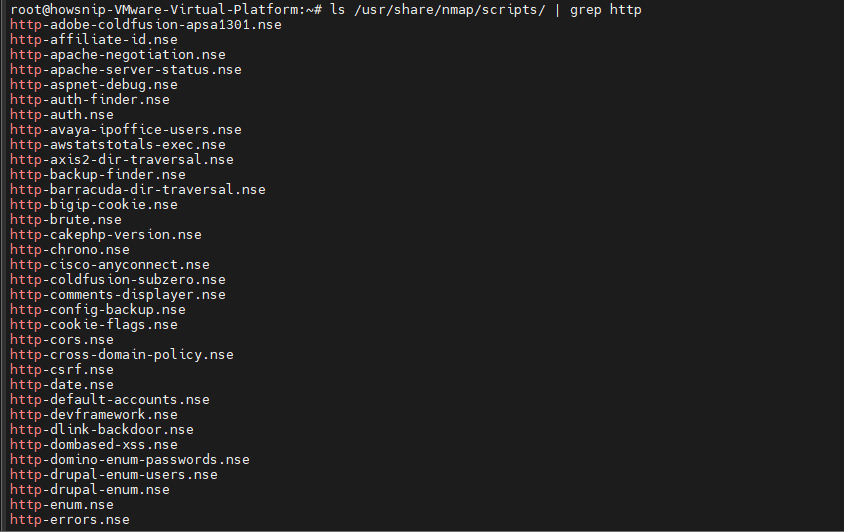
This command lists installed NSE scripts whose filenames contain `http`. It is useful for discovering scripts related to web servers and HTTP services.
ls /usr/share/nmap/scripts/ | grep ssh
This command searches the NSE script directory for scripts related to SSH. It can help identify available SSH enumeration and auditing scripts.
ls /usr/share/nmap/scripts/ | grep vuln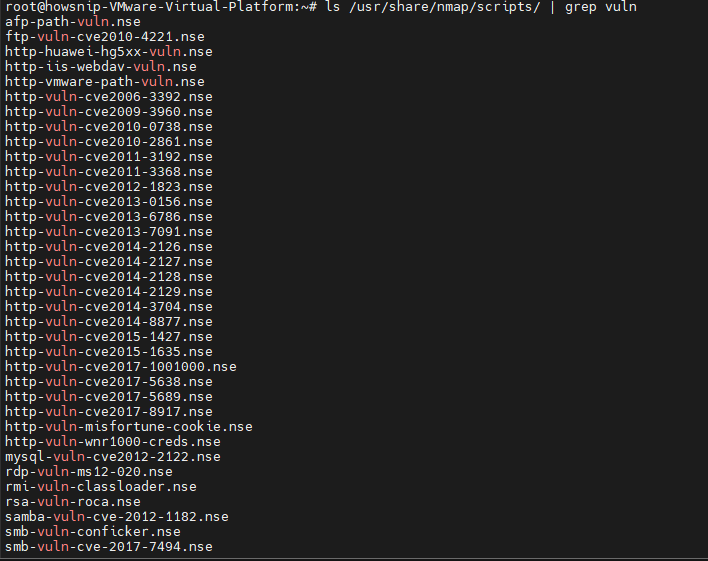
This command lists NSE scripts with `vuln` in their filenames. It provides a quick way to find scripts designed for vulnerability-related checks.
8. Saving and Exporting Scan Results
Documenting scan results is critical for later review and reporting.
Normal Text Output
nmap -oN scan_results.txt 10.228.1.179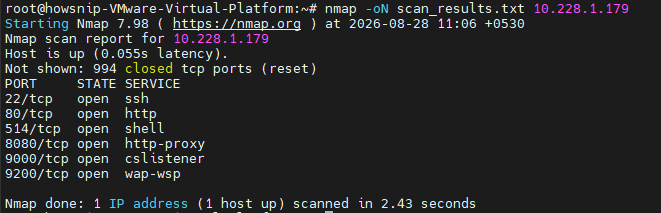
The `-oN` option saves the scan results in Nmap’s normal human-readable format. This format is convenient for reviewing results manually or attaching them to assessment reports.
XML Output
nmap -oX scan_results.xml 10.228.1.179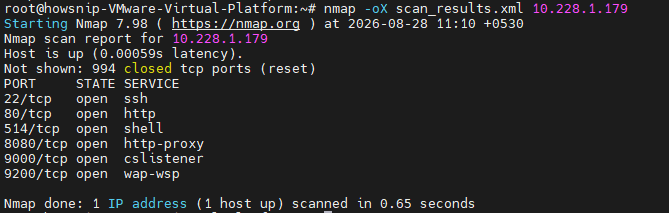
The `-oX` option saves results as XML. XML output is useful when integrating Nmap results with other security tools, scripts, dashboards, or reporting systems.
Grepable Output
nmap -oG scan_results.gnmap 10.228.1.179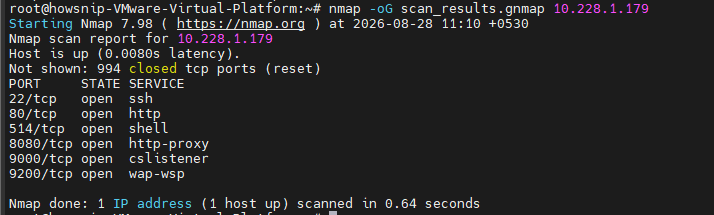
The `-oG` option produces grepable output designed for simple command-line processing. It makes it easier to extract specific hosts, ports, or service states using tools such as `grep` and `awk`.
Export All Formats
nmap -oA scan_results 10.228.1.179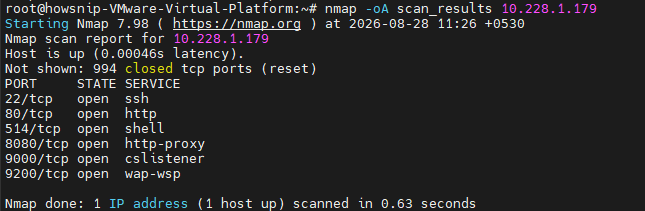
The `-oA` option saves the scan in Nmap’s major output formats using the specified base filename. This is useful when the same scan needs to be reviewed manually and processed automatically. Using `-oA` creates multiple output files simultaneously, making it easier to integrate results into reporting and analysis workflows.
You can then filter output quickly:
grep "22/open" scan_results.gnmap
This command searches the grepable Nmap output for entries containing `22/open`. It can quickly identify systems where TCP port 22 was reported as open.
9. Practical Nmap Scanning Examples
Complete Server Audit
sudo nmap -sS -sV -sC -O -p- -oA full_audit 10.228.1.179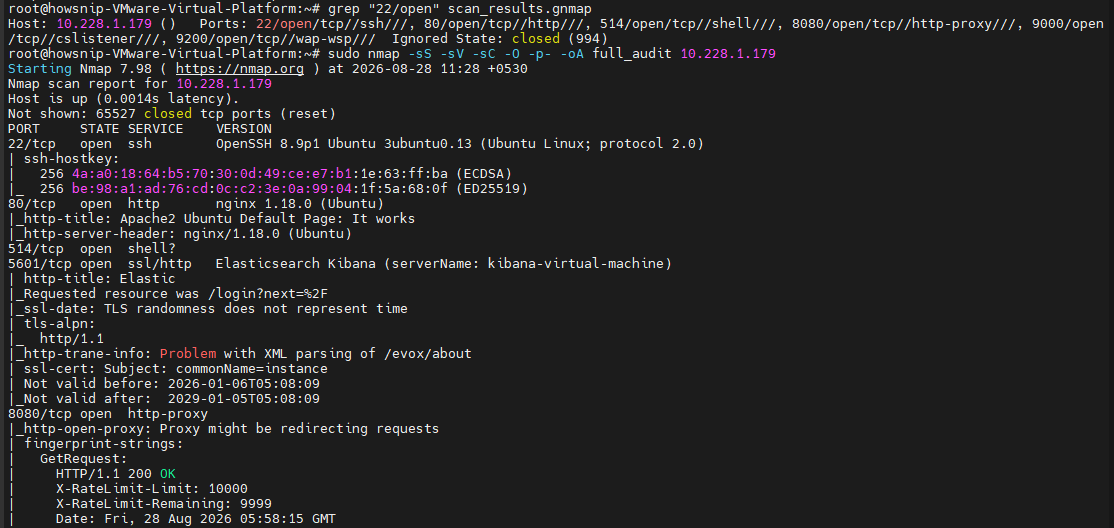
This command combines several Nmap capabilities to perform a detailed TCP assessment. It scans all TCP ports, detects services and versions, runs default NSE scripts, attempts OS detection, and saves the results in multiple formats.
This comprehensive scan includes:
- SYN scanning
- Version detection
- Default NSE scripts
- OS fingerprinting
- All TCP ports
Verify Firewall Changes
nmap -sS -p 22,80,443 10.228.1.179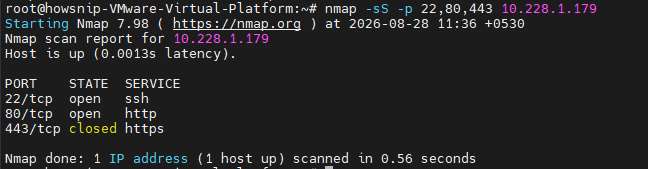
This command checks whether the specified SSH and web ports are reachable after firewall configuration changes. It can be used to verify that intended services remain accessible while unnecessary ports are blocked.
Find Unknown Devices on a Network
sudo nmap -sn -oG alive_hosts.gnmap 10.228.1.179
This command performs host discovery and saves the results in grepable format. It can help build an inventory of responding systems for authorized network administration and monitoring. For a subnet-wide discovery scan, a CIDR range such as `10.228.1.0/24` would normally be specified instead of a single host address.
Running periodic discovery scans helps identify unexpected or unauthorized devices.
Check for a Specific Vulnerability
nmap --script smb-vuln-ms17-010 -p 445 10.228.1.179
This command runs the `smb-vuln-ms17-010` NSE script against TCP port 445. It checks for indicators associated with the MS17-010 SMB vulnerability, commonly associated with the EternalBlue exploit. A positive result should be validated carefully because automated vulnerability checks can produce false positives or require additional verification.
10. Improving Scan Performance
Nmap provides timing templates ranging from T0 to T5. Higher values generally make scans more aggressive and faster but can increase network traffic and the likelihood of triggering defensive controls.
Conservative Scan
nmap -T2 10.228.1.179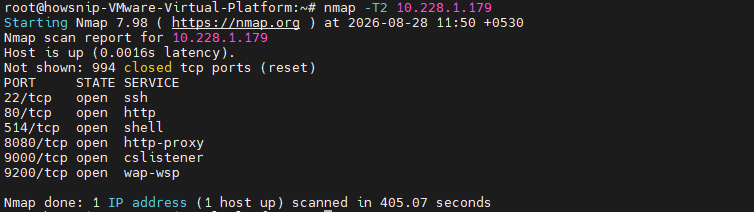
The `-T2` timing template performs the scan more cautiously than the default timing. It can be useful when minimizing network load or reducing the impact on sensitive systems.
Default Timing
nmap -T3 10.228.1.179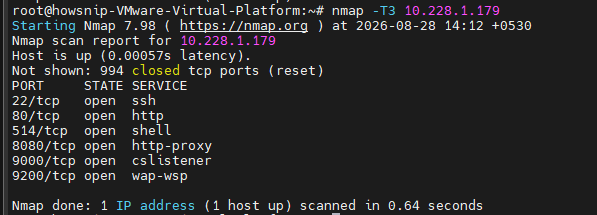
The `-T3` timing template represents Nmap’s default timing behavior. It provides a general-purpose balance between scan speed and reliability.
Faster Scan
nmap -T4 10.228.1.179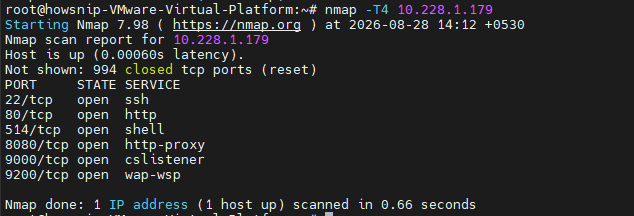
The `-T4` timing template increases scanning speed compared with the default settings. It is commonly used on reliable networks where additional traffic is acceptable. For systems you own or manage, T4 often provides a practical balance between speed and reliability.
Increase Scan Rate
nmap --min-rate 1000 -p- 10.228.1.179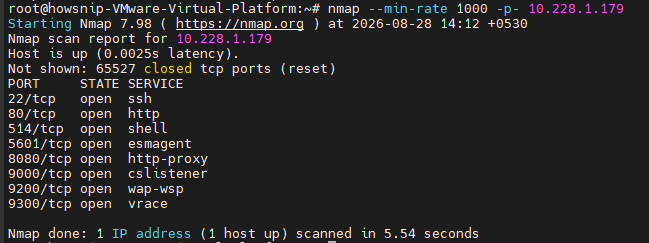
The `–min-rate` option requests a minimum packet transmission rate during the scan. A value such as `1000` can significantly reduce scan duration, but it may also increase network traffic and packet loss.
Nmap Security and Best Practices
Nmap is a legitimate security and administration tool, but it should always be used responsibly. Consider the following best practices:
- Clearly define and document your authorized scope before scanning.
- Avoid running intensive scans against production systems during peak business hours.
- Monitor your infrastructure for scanning activity using defensive tools and logging systems.
- Keep Nmap updated to benefit from newer fingerprints, detection methods, and NSE scripts.
- Treat scan reports as sensitive information because they reveal details about your environment.
Conclusion
A solid understanding of Nmap can dramatically improve network visibility and security assessment capabilities. From simple host discovery and port scanning to advanced service detection, operating system fingerprinting, and NSE-powered analysis, Nmap provides a complete toolkit for examining networked systems.
By combining these features with proper documentation and secure scanning practices, administrators and security professionals can identify exposures, verify configurations, and maintain stronger network security.