

The Trivial File Transfer Protocol (TFTP) is a lightweight file transfer protocol that operates over UDP Port 69. Unlike FTP or SFTP, TFTP does not provide authentication, encryption, or access control, making it widely used for:
- PXE Network Boot
- Cisco Router/Switch Configuration Backup
- VoIP Phone Firmware Updates
- Embedded Devices
- Network Appliances
Because of its simplicity, TFTP is often misconfigured and can expose sensitive files such as router configurations, boot images, and firmware. During a penetration test, enumerating TFTP services can reveal valuable information about the target network.
Disclaimer: Perform the following techniques only on systems you own or have explicit authorization to assess.
Unlike FTP, TFTP supports only a limited set of operations such as read files, upload files (if enabled), no authentication, no directory listing and uses UDP instead of TCP. Since directory listing is not supported, attackers and security professionals rely on enumeration techniques to identify accessible files.
Step 1: Discover the Target Host
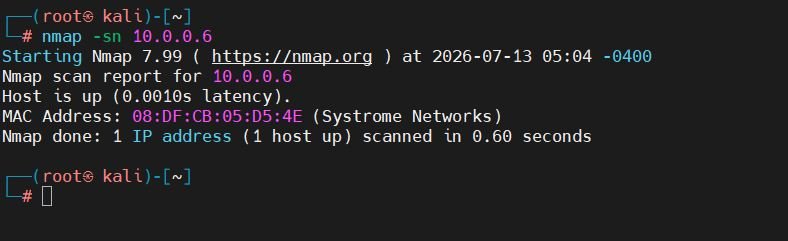
If the IP address is already known:
nmap -sn 10.0.0.6here, `-sn` performs a host discovery (ping scan).
Step 2: Discover Live Hosts on the Network
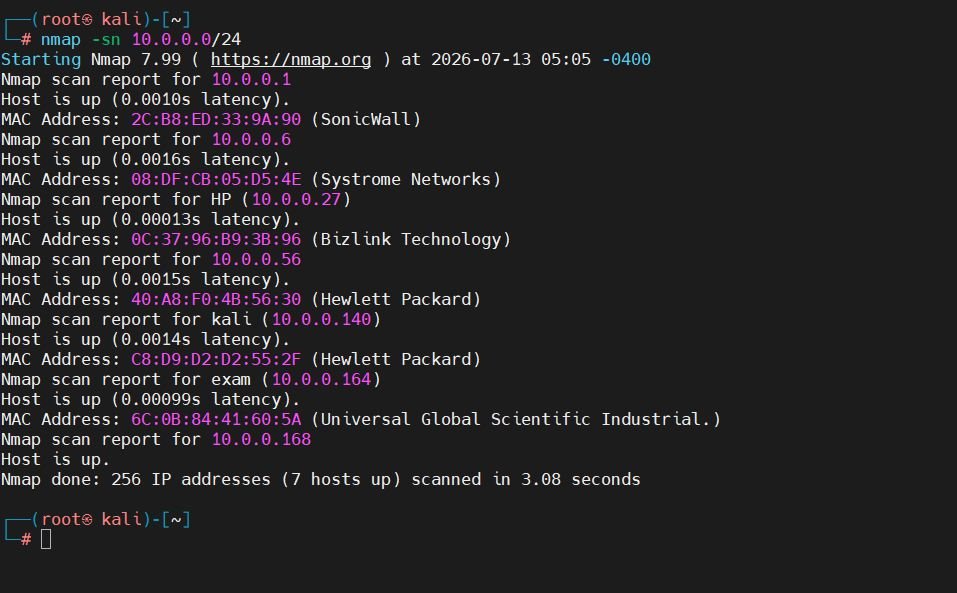
To scan an entire subnet:
nmap -sn 10.0.0.0/24This command identifies all active systems on the network. Once the TFTP server is identified, continue with service enumeration.
Step 3: Scan UDP Port 69
TFTP communicates over UDP port 69.
nmap -v -sU -p 69 10.0.0.6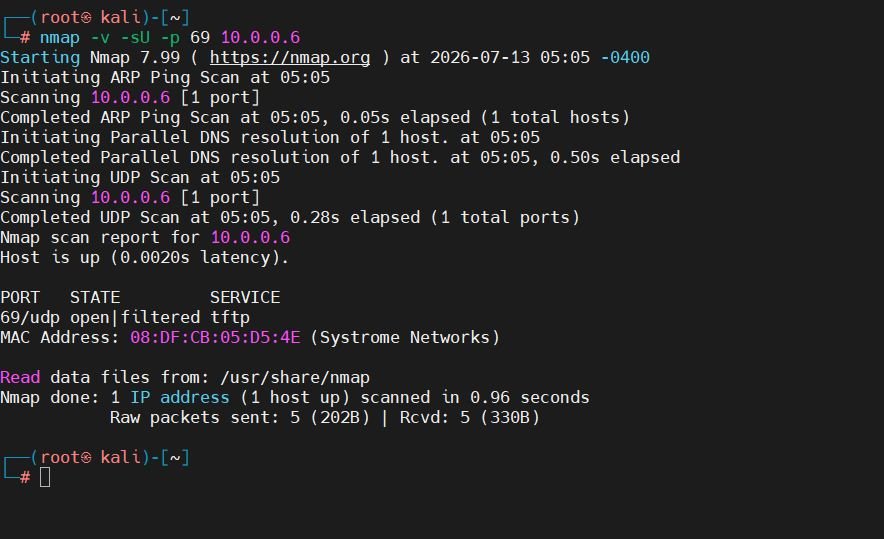
Step 4: Enumerate TFTP Files Using Nmap NSE
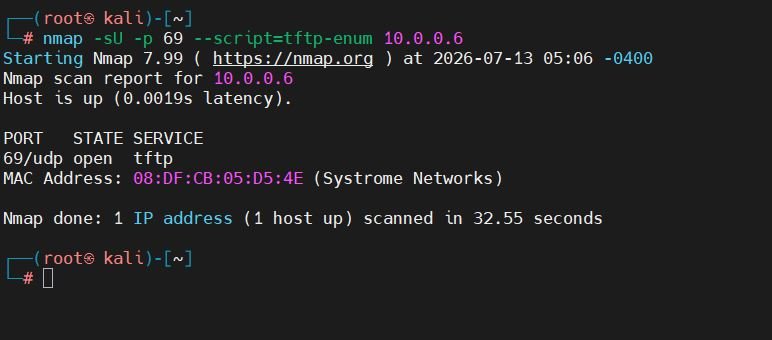
Nmap includes an NSE script specifically designed for TFTP enumeration.
nmap -sU -p 69 --script=tftp-enum 10.0.0.6The script attempts to retrieve commonly used filenames such as:
- startup-config
- running-config
- backup.cfg
- pxelinux.0
- undionly.kpxe
- bootx64.efi
- network-config
If accessible, Nmap reports the discovered files.
Step 5: Connect to the TFTP Server
Use the built-in TFTP client.
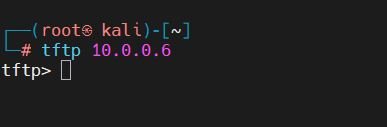
tftp 10.0.0.6Once connected, files can be requested directly.
Step 6: Download PXE Boot Files
A common target during PXE assessments is:
get undionly.kpxeThis file is part of iPXE and is commonly used in PXE boot environments. Security analysts may examine it to understand the boot process and identify additional boot resources.
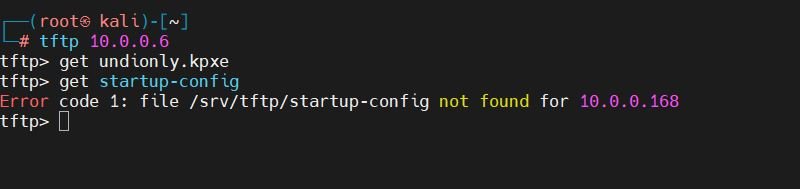
Many network devices expose configuration backups. If successful, configuration files may reveal:
- Device hostname
- VLAN configuration
- Routing information
- Interface settings
- SNMP configuration
- Network topology
Finding such files during an assessment indicates that sensitive configuration data is being served without adequate protection.
Step 7: Test Whether Uploads Are Allowed
Some TFTP servers permit uploads.
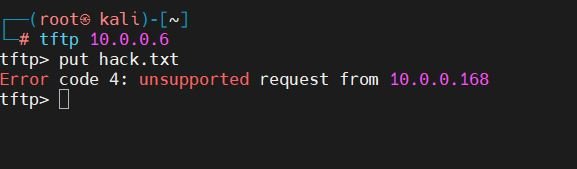
put hack.txtIf the upload succeeds, it indicates that write access is enabled, which should generally be disabled unless operationally required. Security teams should verify that only intended clients can upload files and that uploaded content is appropriately controlled.
Step 8: Detect the TFTP Implementation
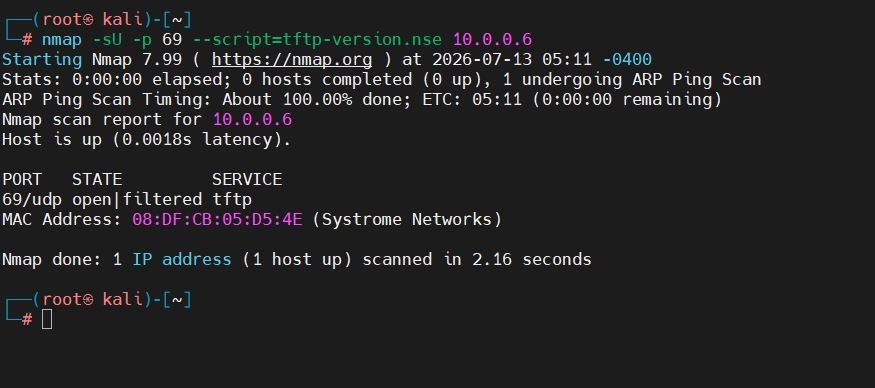
Nmap provides another NSE script to help identify the TFTP service implementation.
nmap -sU -p 69 --script=tftp-version.nse 10.0.0.6Depending on the server, the script may identify:
- tftpd-hpa
- atftpd
- SolarWinds TFTP
- Cisco TFTP
- Windows TFTP Server
Version identification assists in vulnerability assessment and patch verification.
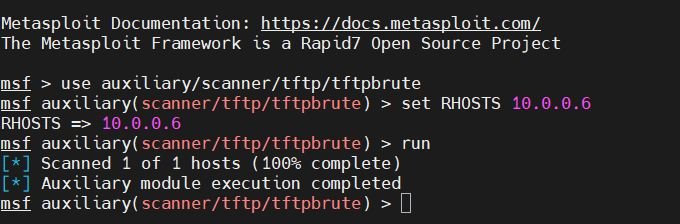
Step 9: Brute Force Common Filenames Using Metasploit
Metasploit contains a TFTP enumeration module that attempts to retrieve files from a built-in list of common filenames.
msfconsole
use auxiliary/scanner/tftp/tftpbrute
set RHOSTS 10.0.0.6
run
The module tests a wordlist of frequently used TFTP filenames and reports those that are readable.
Common Files Found During TFTP Enumeration
- startup-config – Network device startup configuration
- running-config – Current device configuration (if exposed)
- backup.cfg – Configuration backup
- pxelinux.0 – PXE boot loader
- undionly.kpxe – iPXE boot image
- bootx64.efi – UEFI PXE boot loader
- pxeboot.n12 – Windows PXE boot file
- menu.ipxe – iPXE boot menu
- default.ipxe – Default iPXE script
- network.cfg – Network configuration
Best Practices for Securing TFTP
- Disable TFTP if it is no longer required.
- Restrict access to trusted management networks using firewalls or ACLs.
- Avoid storing sensitive configuration files in publicly accessible TFTP directories.
- Disable write permissions unless there is a clear operational need.
- Monitor TFTP logs for unusual file access or upload attempts.
- Keep TFTP server software up to date with security patches.
- Prefer secure alternatives such as SFTP or SCP when possible.
Conclusion
TFTP remains common in enterprise environments because of its simplicity and compatibility with legacy network devices and PXE deployments. However, the lack of authentication and encryption makes it important to verify that TFTP services are securely configured.
By regularly assessing TFTP deployments and applying appropriate safeguards, organizations can reduce the risk of unintended exposure of sensitive network resources.