

PowerShell is a powerful command-line shell and scripting language developed by Microsoft for system administration and automation. It allows administrators, developers, and security professionals to efficiently manage files, processes, services, networking, and system configurations from a single interface.
In this guide, we explore essential PowerShell cmdlets that are frequently used in real-world scenarios. Each command is explained with simple descriptions and practical examples, making it easy for beginners to learn and for experienced users to refresh their knowledge.
- Get-Location
- New-Item -ItemType Directory -Name [directoryName]
- Set-Location [path]
- Set-Location ..
- Set-Location ~
- Get-ChildItem
- Get-ChildItem -Recurse
- New-Item [file]
- Add-Content [file] [content]
- Get-Content [file]
- Copy-Item [source] [destination]
- Move-Item [source] [destination]
- Rename-Item -Path [oldName] -NewName [newName]
- Clear-Content [file]
- Remove-Item [file]
- Remove-Item [path] -Recurse
- Get-Acl [file/directory]
- Set-Acl -Path [file/directory] -AclObject [acl]
- Get-Process
- Start-Process [processName]
- Stop-Process -Name [processName]
- Test-Connection [hostname]
- Get-NetIPAddress
- Get-NetRoute
- Get-ComputerInfo
- Get-Disk
- Get-Service
- Compress-Archive
- Expand-Archive
- Select-String
- Get-ExecutionPolicy
- Set-ExecutionPolicy
- Get-Help [cmdlet]
- Get-Help [cmdlet] -Examples
- Get-Help [cmdlet] -Full
1. Get-Location
It displays the current working directory in PowerShell. This helps you confirm where you are before running file or folder operations.

2. New-Item -ItemType Directory -Name [directoryName]
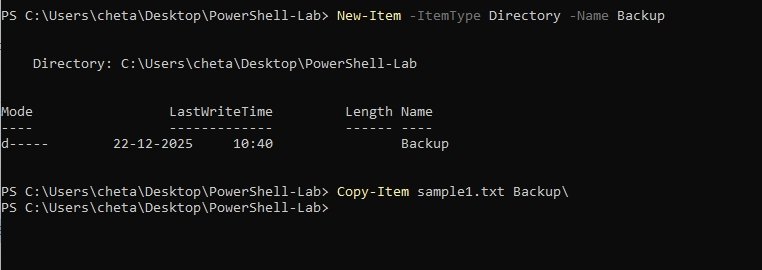
This command creates a new directory with the specified name at the current location.

3. Set-Location [path]
It changes the current directory to the specified path. Similar to the cd command in Linux or Command Prompt.

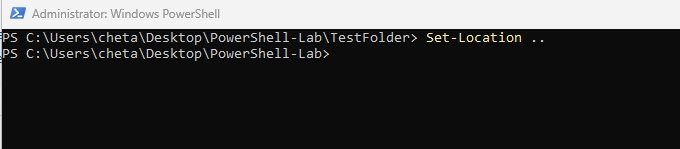
4. Set-Location ..
It moves one level up to the parent directory and is very useful when you want to quickly go back without typing the full path.
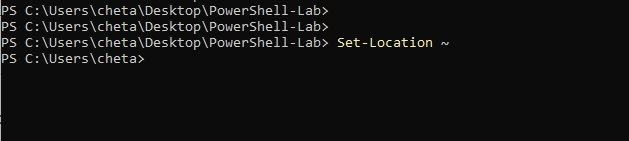
5. Set-Location ~
It navigates directly to the current user’s home directory. This is a shortcut to avoid typing long paths.
6. Get-ChildItem
This command lists all files and folders in the current directory. Equivalent to `ls` in Linux or `dir` in Command Prompt.

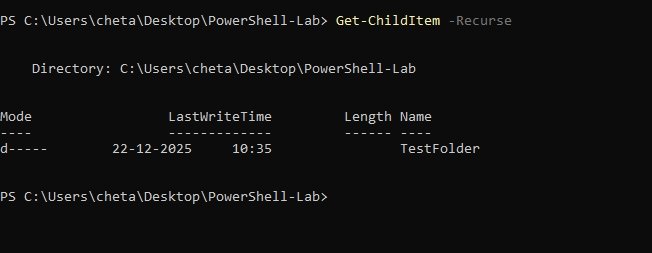
7. Get-ChildItem -Recurse
It displays all files and folders recursively, including those inside subdirectories which is very helpful for auditing directory contents.
8. New-Item [file]
It creates a new empty file named Sample1.txt in the current directory. If the file already exists, PowerShell will return an error unless you use additional parameters like `-Force`.

9. Add-Content [file] [content]
It appends new text to the end of an existing file. If the file does not exist, it will be created automatically.

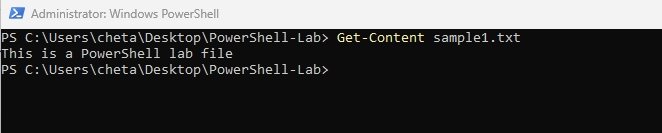
10. Get-Content [file]
This command displays the contents of a file directly in the PowerShell console and is commonly used for reading log or text files.
11. Copy-Item [source] [destination]
This command copies a file or directory from one location to another while keeping the original intact.
12. Move-Item [source] [destination]
This command moves a file or folder to a new location or renames it if the destination is in the same directory.

13. Rename-Item -Path [oldName] -NewName [newName]
It changes the name of a file or directory without modifying its contents.

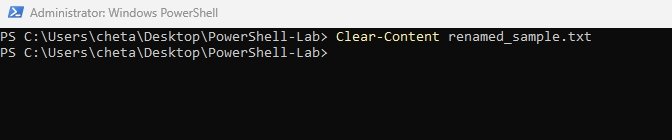
14. Clear-Content [file]
It removes all data from a file while keeping the file itself intact and is useful when resetting logs.
15. Remove-Item [file]
It deletes the file named renamed_sample.txt from the current directory. This command permanently removes the file. The file does not go to the Recycle Bin when deleted via PowerShell.

16. Remove-Item [path] -Recurse
This command deletes a file or directory. The `-Recurse` flag ensures that all subfolders and files are also removed.

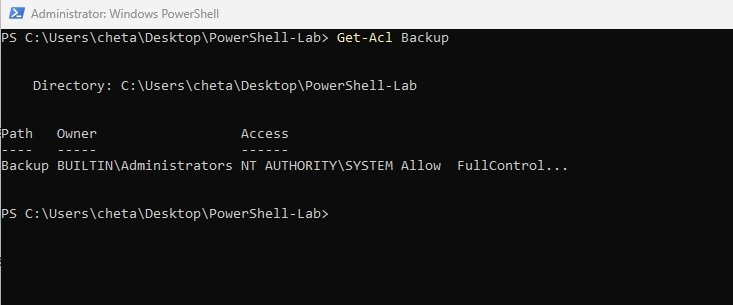
17. Get-Acl [file/directory]
This command retrieves the Access Control List (ACL) of a file or directory, showing which users or groups have permissions.
18. Set-Acl -Path [file/directory] -AclObject [acl]
It applies permission settings to a file or directory and is used for managing access rights.

19. Get-Process
It lists all running processes on the system, including their CPU and memory usage.

20. Start-Process [processName]
This command launches a new application or process and is commonly used to start programs from PowerShell.

21. Stop-Process -Name [processName]
It terminates a running process by name which is very useful for stopping unresponsive applications.

22. Test-Connection [hostname]
It sends ICMP echo requests (ping) to check network connectivity and response time.

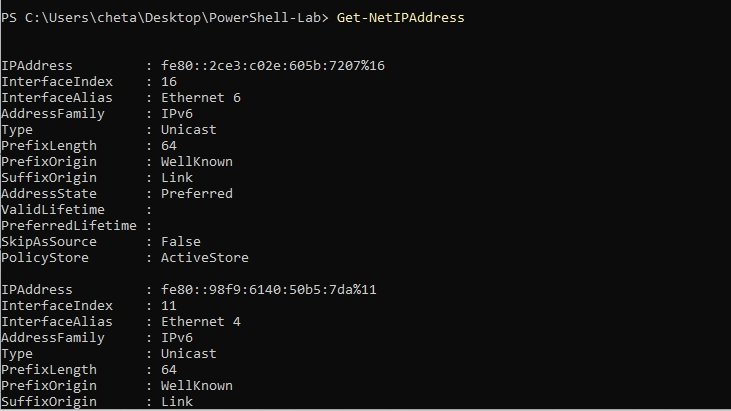
23. Get-NetIPAddress
It displays IP address details for all network interfaces on the system.
24. Get-NetRoute
This command shows the system’s routing table, which determines how network traffic is directed.

25. Get-ComputerInfo
It retrieves detailed system information including OS version, hardware, BIOS, and installed updates.

26. Get-Disk
It displays information about physical disks, including size, health status, and partition style.

27. Get-Service
This command lists all Windows services along with their current status (Running, Stopped, Disabled).

28. Compress-Archive
It creates a ZIP archive from specified files or directories and is very useful for backups and file sharing.

29. Expand-Archive
This command extracts files from a ZIP archive into a specified destination folder.

30. Select-String
This command searches for a specific word or pattern inside files, similar to `grep` in Linux.

31. Get-ExecutionPolicy
It displays the current PowerShell script execution policy, which controls script security.

32. Set-ExecutionPolicy
This command changes the execution policy to allow or restrict script execution.`RemoteSigned` allows locally created scripts while blocking unsigned remote scripts.

33. Get-Help [cmdlet]
This command shows basic help information about a cmdlet, including syntax and description.

34. Get-Help [cmdlet] -Examples
It displays real-world usage examples, making it easier to understand how a cmdlet works.

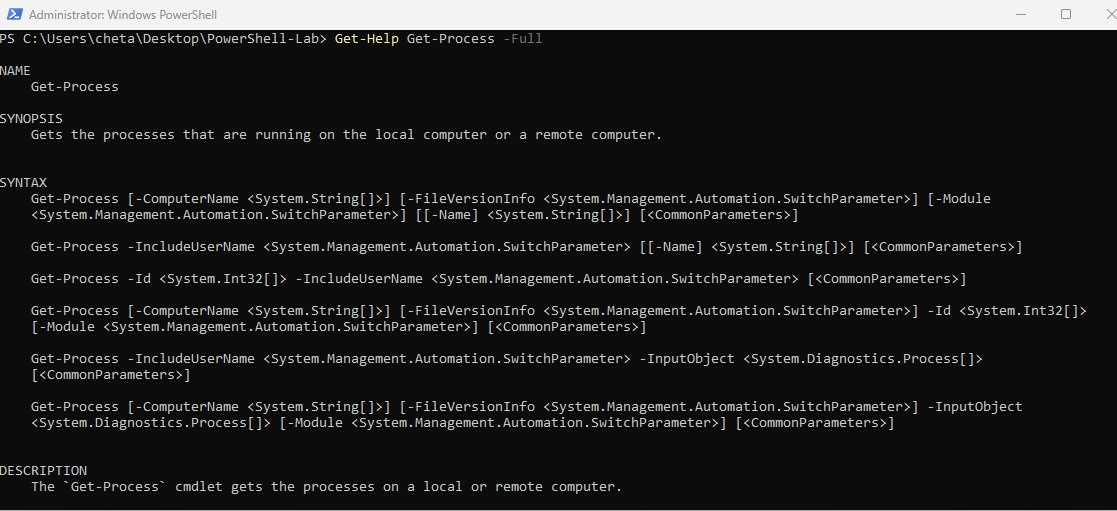
35. Get-Help [cmdlet] -Full
It provides complete documentation including parameters, examples, and detailed explanations.
Conclusion
PowerShell plays a critical role in modern Windows administration and automation. Understanding these commonly used commands helps you navigate the file system, manage processes and services, troubleshoot network issues, and work more efficiently with system resources.
By practicing these 35 essential PowerShell commands, you build the confidence to perform daily administrative tasks, write automation scripts, and troubleshoot problems faster. As you become more comfortable with these basics, you can gradually move on to advanced scripting, module usage, and automation workflows.


