
Windows commands are powerful tools that every cybersecurity analyst should know, as they provide direct access to the core of the operating system. With over 50 essential commands at your fingertips, you can gather information about users, monitor running processes, check network activity and verify security settings.
For example, commands like netstat -ano reveals open network connections, and tasklist shows active processes that might be suspicious.
Most importantly, these commands do not require additional software, making them invaluable for real-time incident response, forensics, troubleshooting, and system hardening. Below, you’ll find a curated list of 50+ must-know Windows CMD and PowerShell commands along with their primary uses.
- ipconfig
- systeminfo
- netstat
- whoami
- getmac
- hostname
- ver
- winver
- ping
- tracert
- nslookup
- tasklist
- taskkill
- sfc
- chkdsk
- diskpart
- dir
- cd
- md
- rd
- type
- find
- findstr
- sort
- comp
- fc
- tree
- attrib
- cipher
- compact
- powercfg
- shutdown
- gpupdate
- gpresult
- net localgroup
- net start
- net stop
- netsh
- sc
- reg
- runas
- wmic
- assoc
- driverquery
- msinfo32
- mmc
- eventvwr
- services.msc
- devmgmt.msc
- diskmgmt.msc
- taskmgr
- perfmon
- resmon
- msconfig
- control
- mstsc
- cleanmgr
- defrag
- fsutil
- path
- set
- echo
- cls
- query
- winget
- pathping
1. ipconfig
This command shows details about your computer’s network connections, such as IP address, subnet mask, and default gateway.
Syntax: ipconfig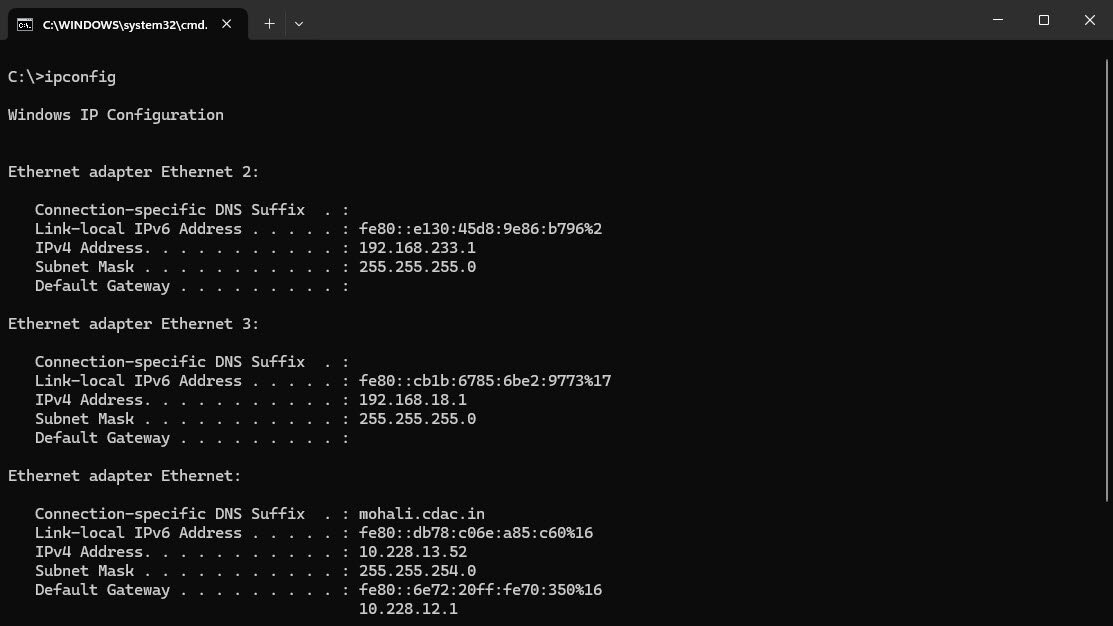
2. systeminfo
This command displays basic information about your computer’s OS, hardware, and network configuration.
Syntax: systeminfo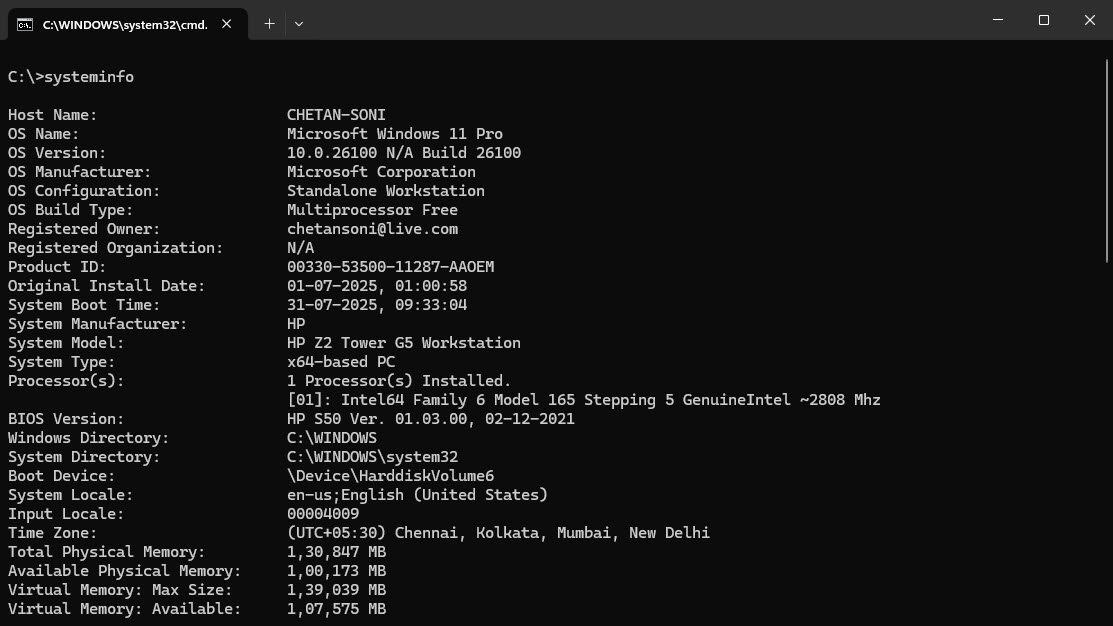
3. netstat
This command lists all active network connections with details like port numbers, protocols, State, Foreign Address and process IDs.
Syntax: netstat -ano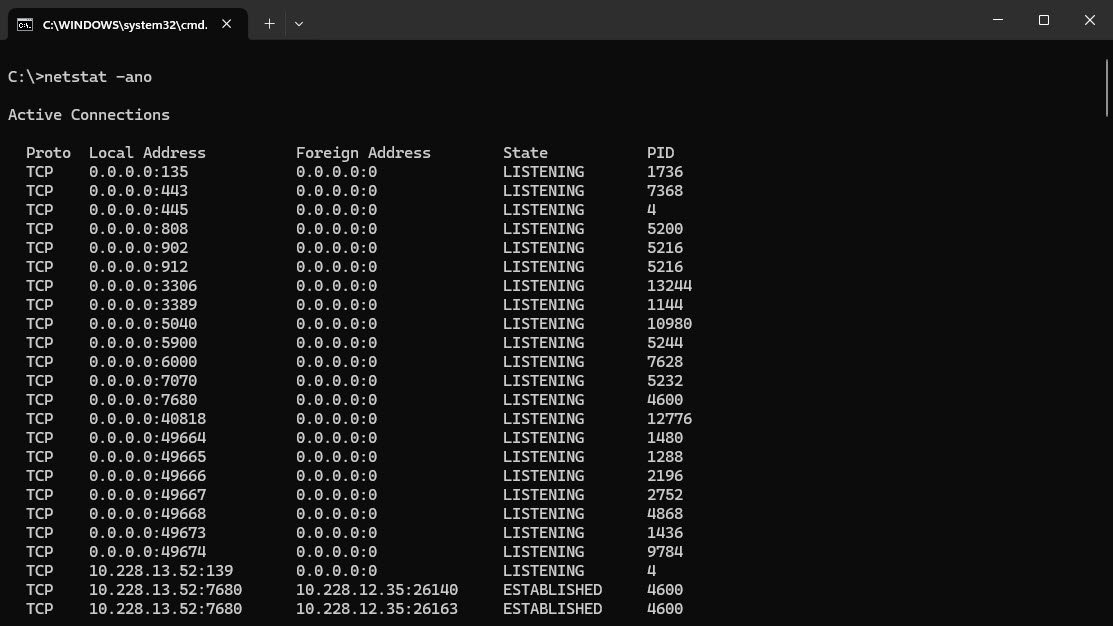
4. whoami
This command shows the current username logged into the system.
Syntax: whoami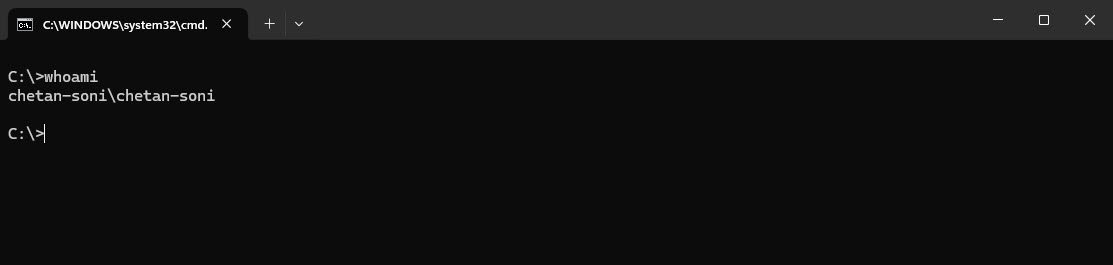
5. getmac
This command displays the MAC address of the computer’s network adapters along with more connection details such as Connection Name, Network Adapter etc.
Syntax: getmac /v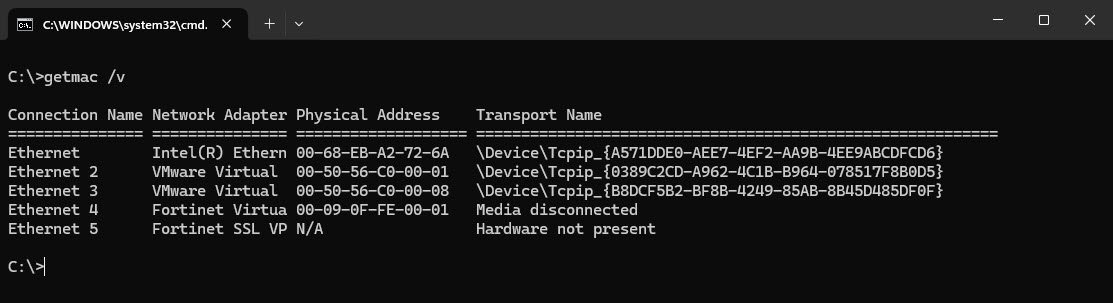
6. hostname
This command shows the name assigned to your computer on the network.
Syntax: hostname
7. ver
This command displays the Windows version that your system is running.
Syntax: ver
8. winver
This command opens a small window showing detailed Windows version and build information.
Syntax: winver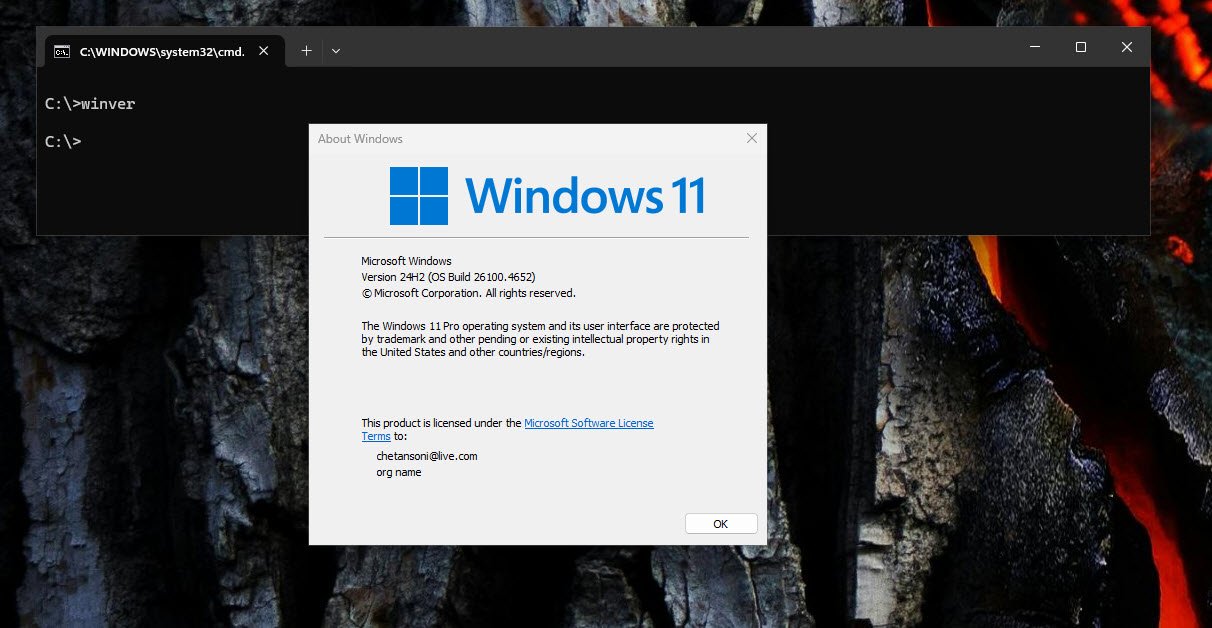
9. ping
This command sends packets to another computer or website to check if it is reachable and measure response time.
Syntax: ping ip/domain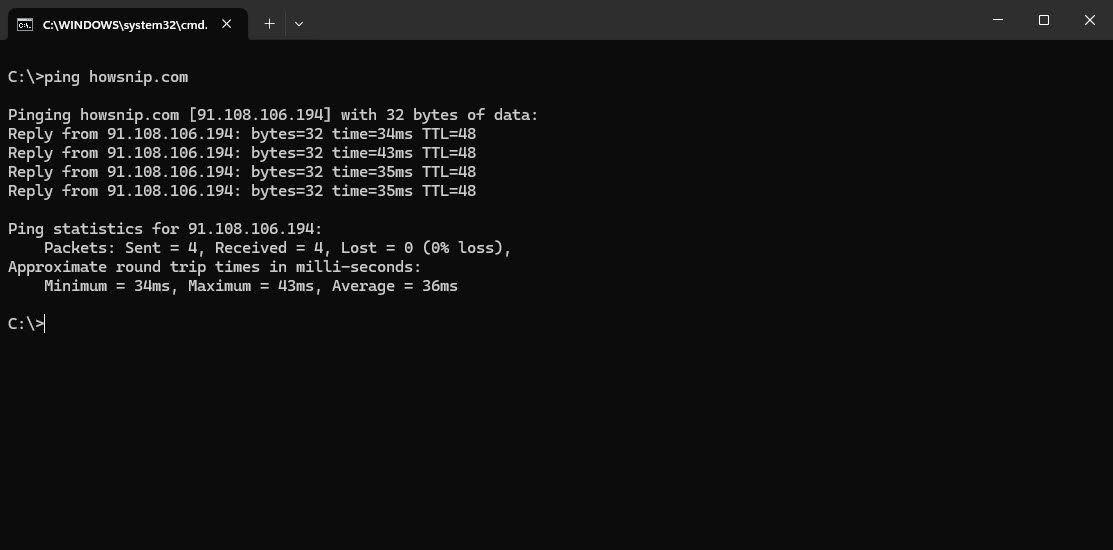
10. tracert
This command shows the route your data takes to reach a destination, listing each stop (server) along the way.
Syntax: tracert ip/domain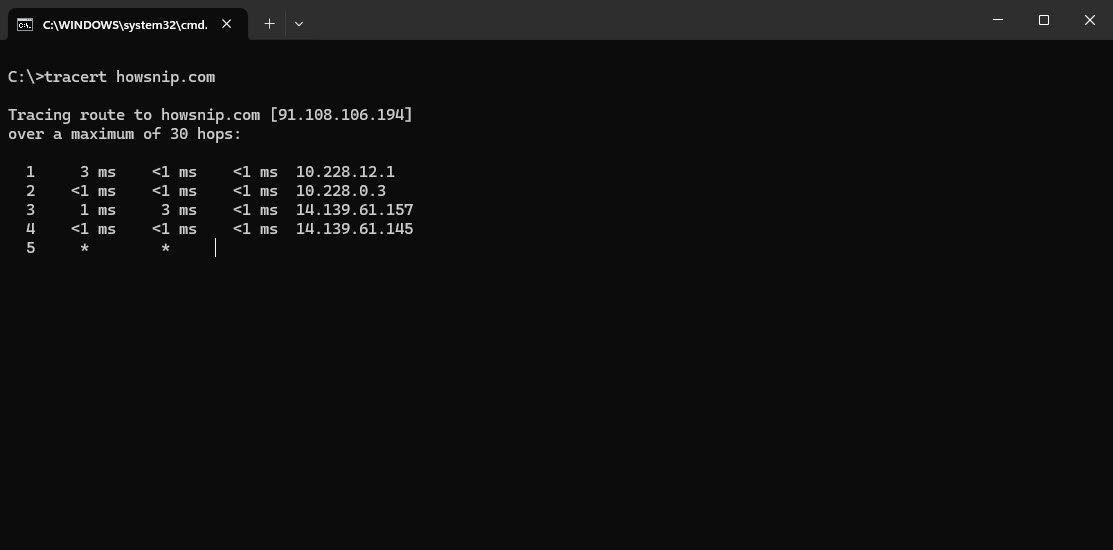
11. nslookup
This command helps you find information about domain names and IP addresses by asking DNS servers. It’s useful for troubleshooting internet and network name resolution problems.
Syntax: nslookup ip/domain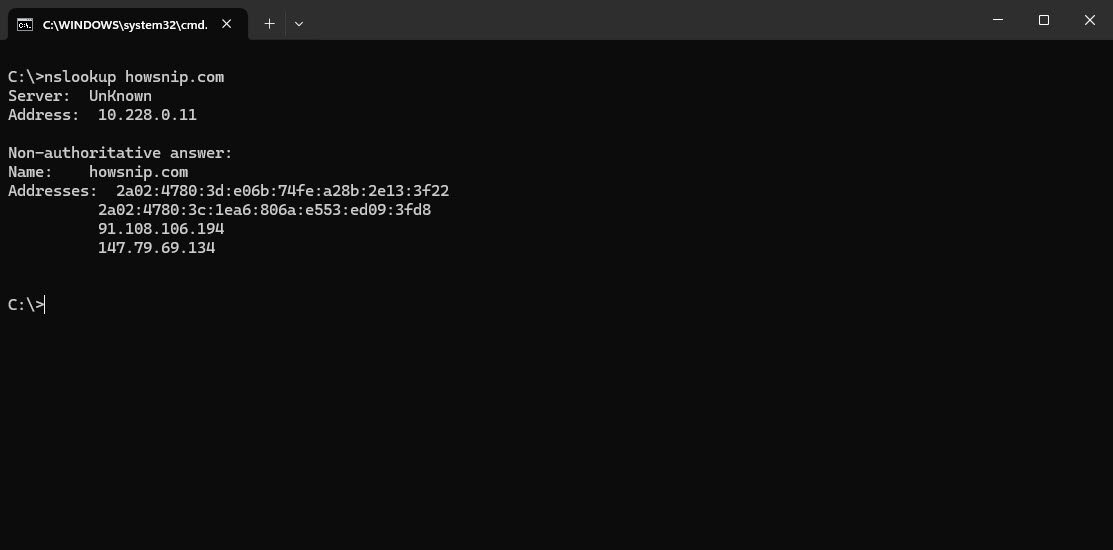
12. tasklist
This command shows a list of all the programs and processes currently running on your machine. It helps you see what is active in your system.
Syntax: tasklist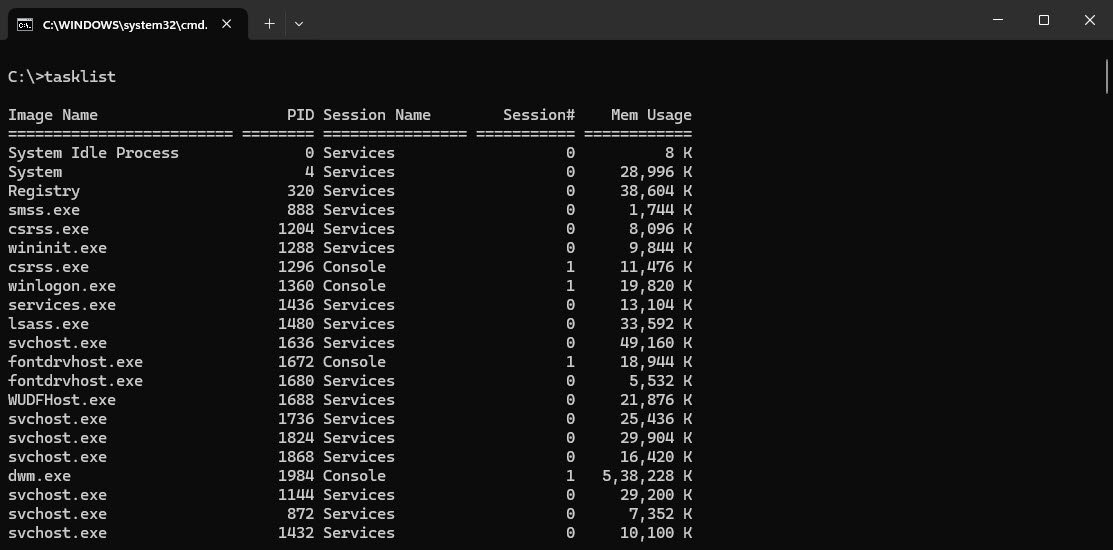
13. taskkill
This command forcefully ends a program or process by its name or process ID. It’s helpful when a program is frozen or not responding.
Syntax: taskkill /IM Notepad.exe /F
14. sfc
This command scans your Windows system files to check for corruption or damage and repairs them automatically to keep your system stable.
Syntax: sfc /scannow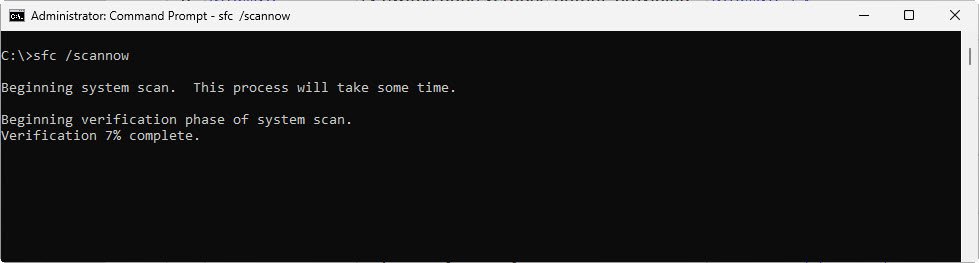
15. chkdsk
This command checks your hard drive for errors and fixes them if possible. It helps maintain disk health by finding and repairing file system issues.
Syntax: chkdsk c: /f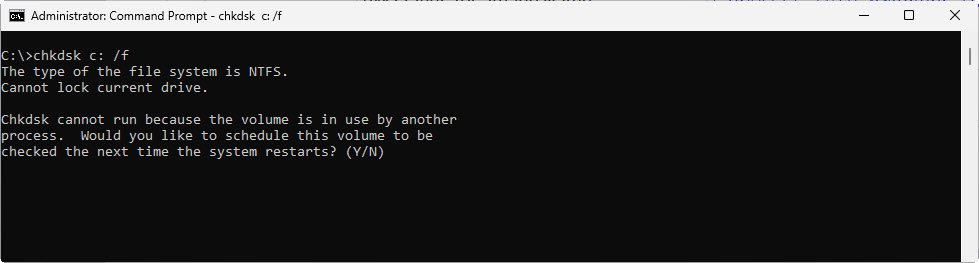
16. diskpart
This command opens an interactive tool for managing disks, partitions, and volumes. You can list drives, create or delete partitions, and assign drive letters.
Syntax: diskpart
Syntax: list disk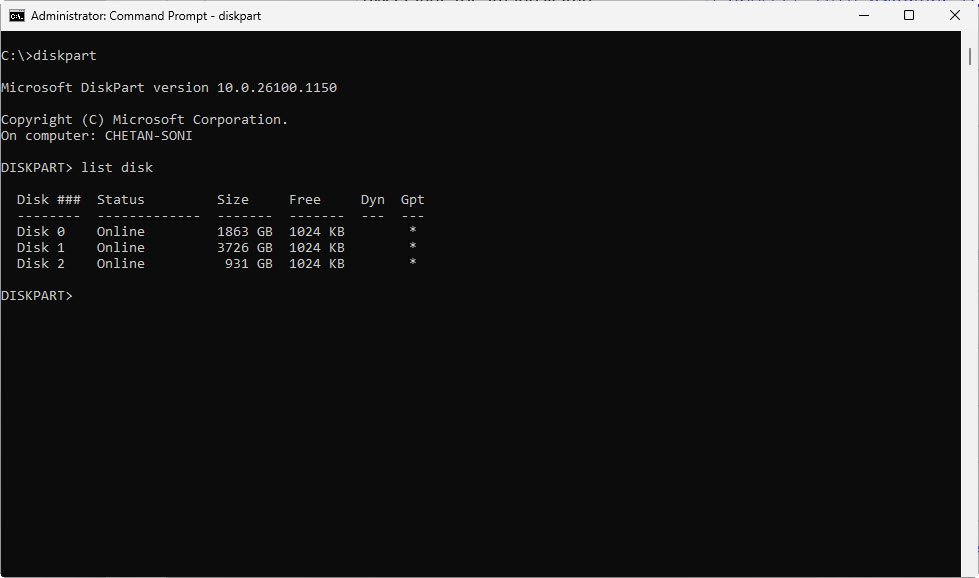
17. dir
This command lists all files and folders in the specified directory, along with details like size and modification date.
Syntax: dir c:\directory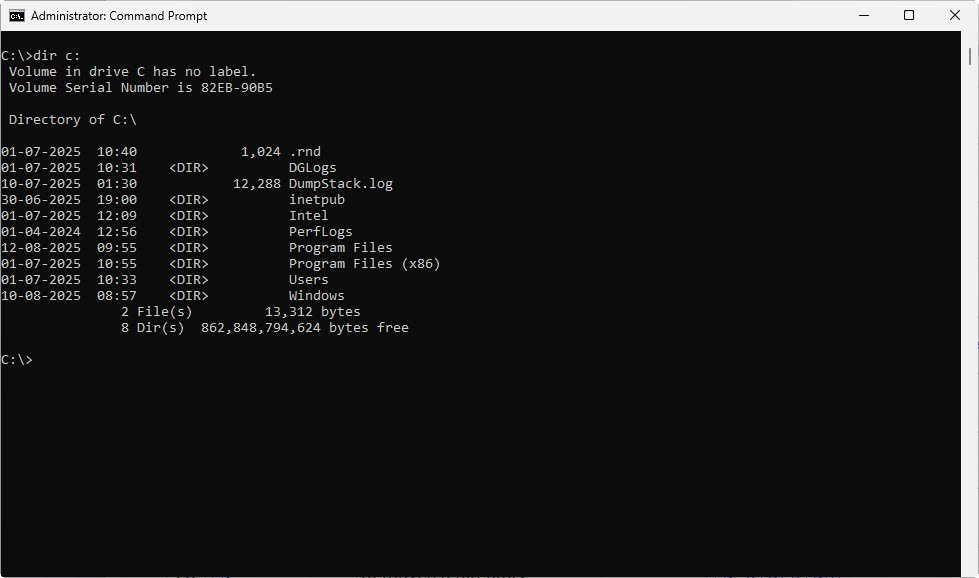
18. cd
This command changes your current folder to the one you specify, helping you navigate the file system.
Syntax: cd c:\directory
19. md
This command creates a new folder with the specified name in the current or given location.
Syntax: md directory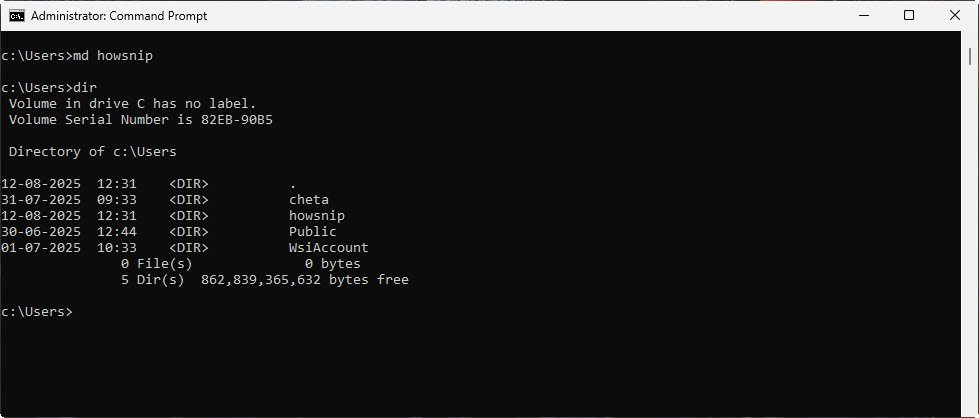
20. rd
This command deletes an empty folder from the specified location.
Syntax: rd directory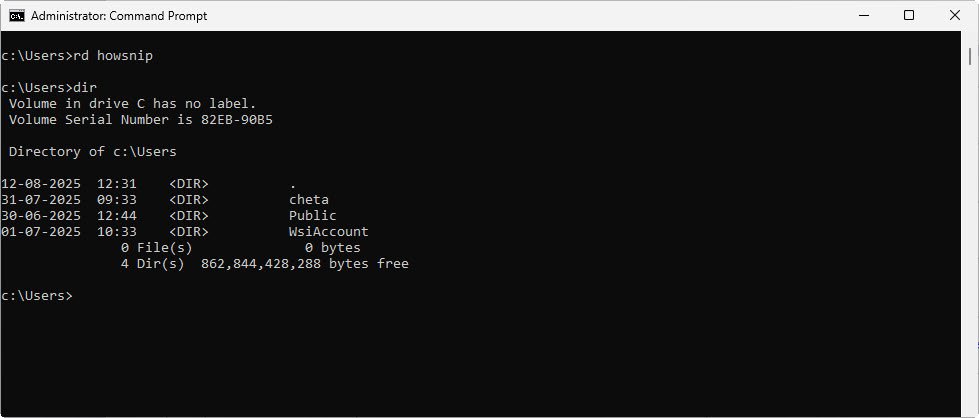
21. type
This command displays the contents of a text file directly in the Command Prompt window without opening any text editor.
Syntax: type file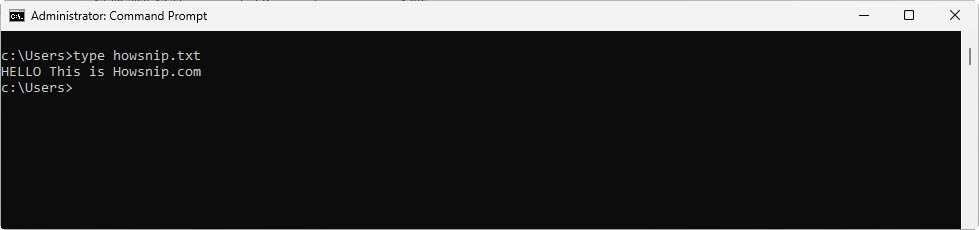
22. find
This command searches for a specific word or phrase inside a file and shows the lines where it appears.
Syntax: find "HELLO" file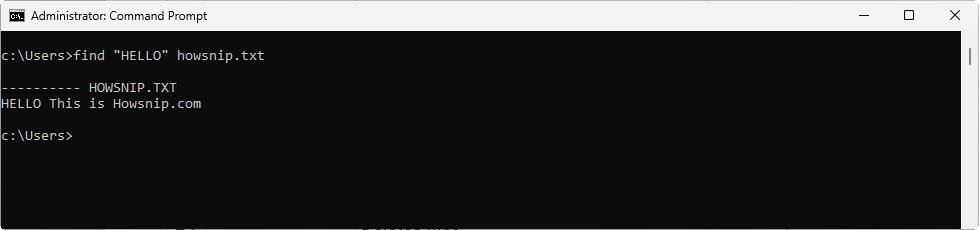
23. findstr
This command searches for a specific string of text, but is more advanced than find, allowing it to use patterns and multiple search terms.
Syntax: ipconfig /all | findstr DNS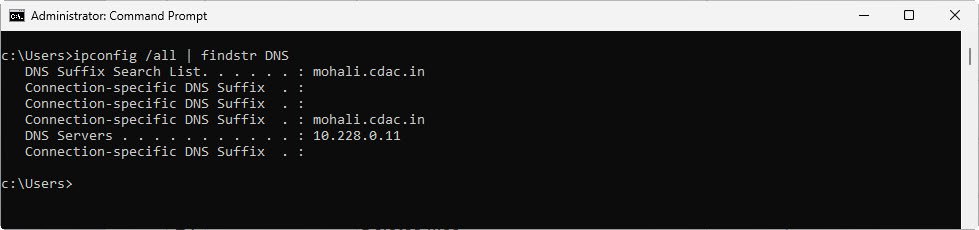
24. sort
This command sorts the lines of a file or text input in alphabetical order.
Syntax: sort < file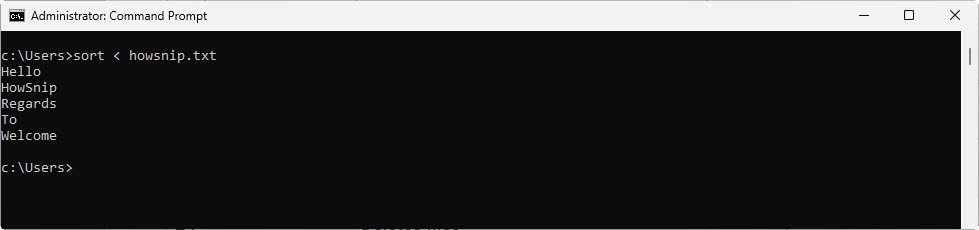
25. comp
This command compares the contents of two files and shows any differences between them.
Syntax: comp file1 file2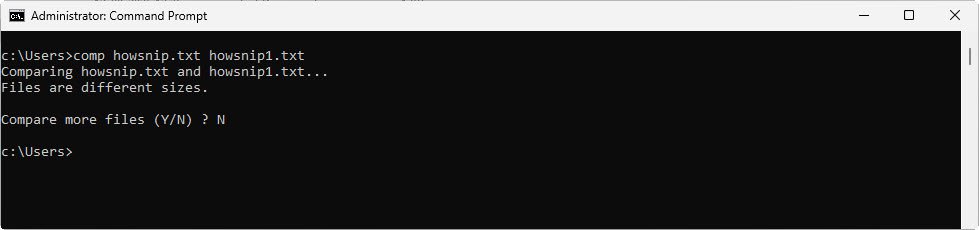
26. fc
This command compares two files line by line (for text files) or byte by byte (for binary files) and shows detailed differences.
Syntax: fc file1 file2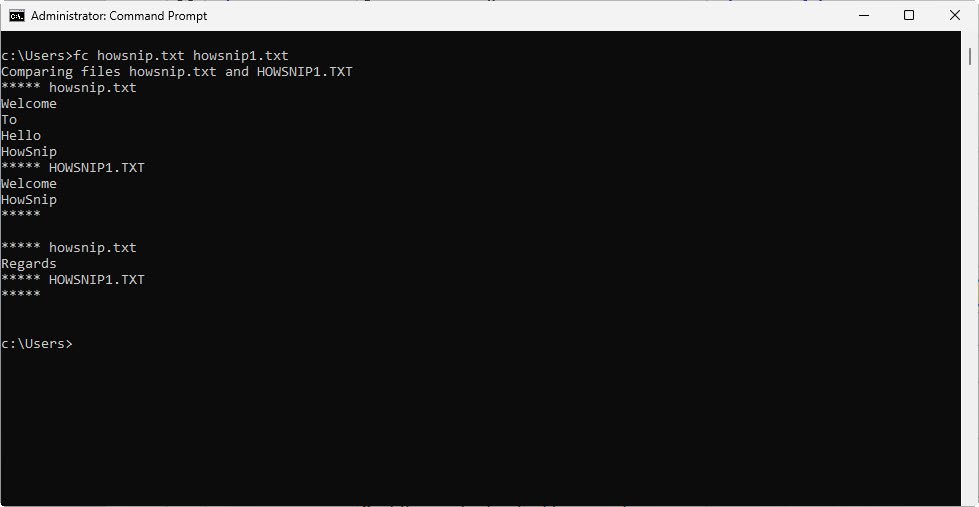
27. tree
This command displays the folder structure of a drive or directory in a tree-like view.
Syntax: tree c:\directory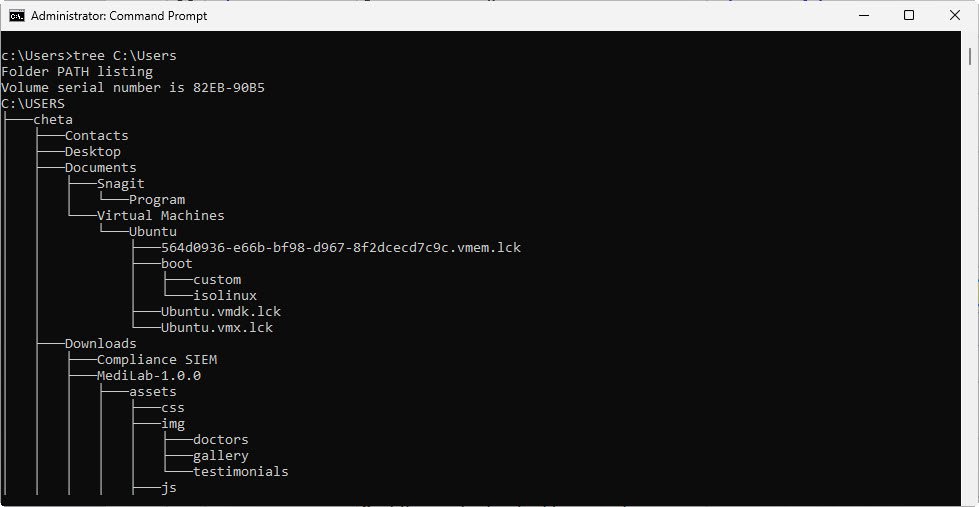
28. attrib
This command changes a file’s attributes, such as making it read-only or hidden.
Syntax: attrib +r c:\file
29. cipher
This command encrypts files or folders on NTFS drives, making their contents readable only by authorized users.
Syntax: cipher /e c:\file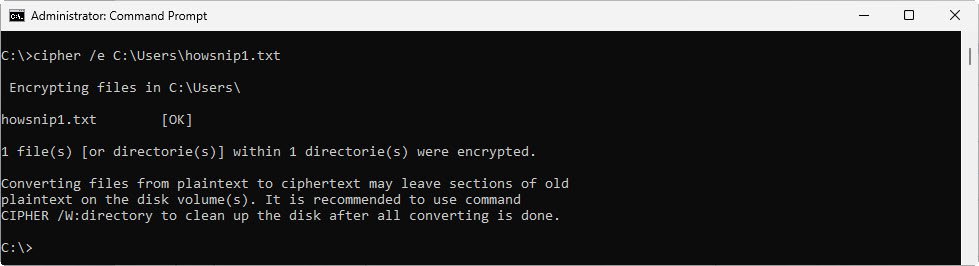
30. compact
This command compresses files and folders on an NTFS drive to save disk space.
Syntax: compact /c C:\directory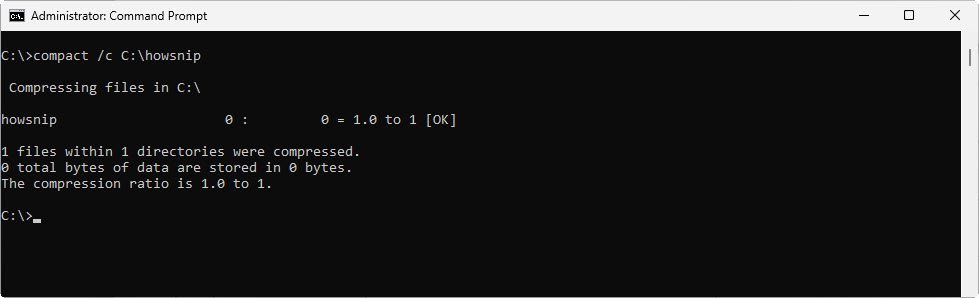
31. powercfg
This command analyzes your computer’s power settings and creates a detailed report, showing ways to improve battery life and energy efficiency.
Syntax: powercfg /energy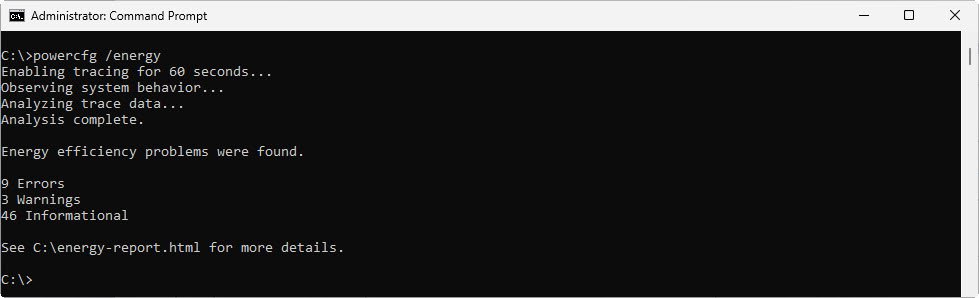
32. shutdown
This command shuts down or restarts your computer. In below example, it restarts the PC immediately (/r) with a timer of zero seconds.
Syntax: shutdown /r /t 0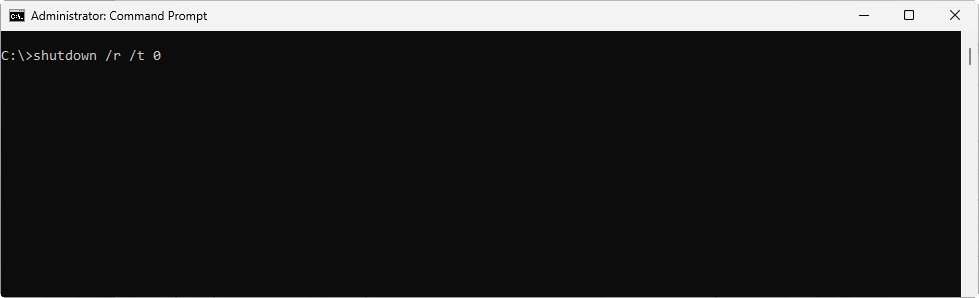
33. gpupdate
This command refreshes your system’s Group Policy settings without needing to restart, applying any changes made to policies instantly.
Syntax: gpupdate /force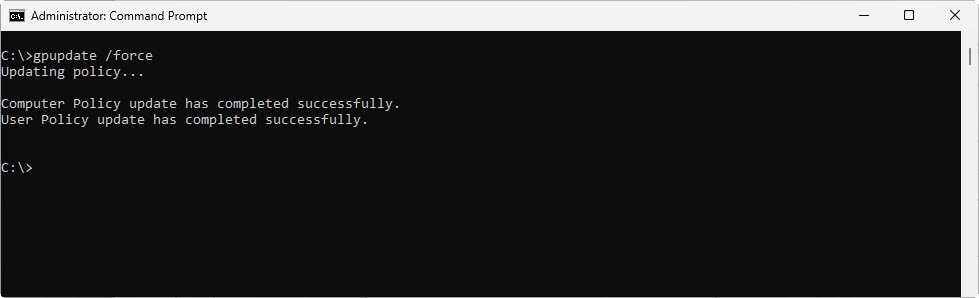
34. gpresult
This command displays the Group Policy settings that are currently applied to your system and user account.
Syntax: gpresult /r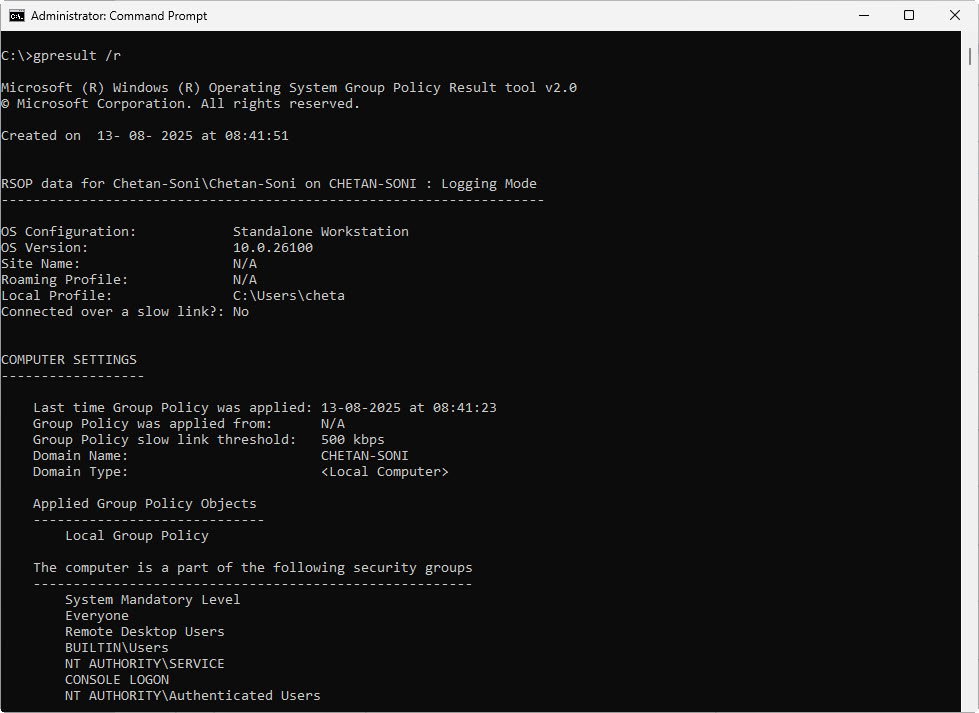
35. net localgroup
This command shows all members of a specific local group (in this case, the Administrators group) on your computer.
Syntax: net localgroup Administrators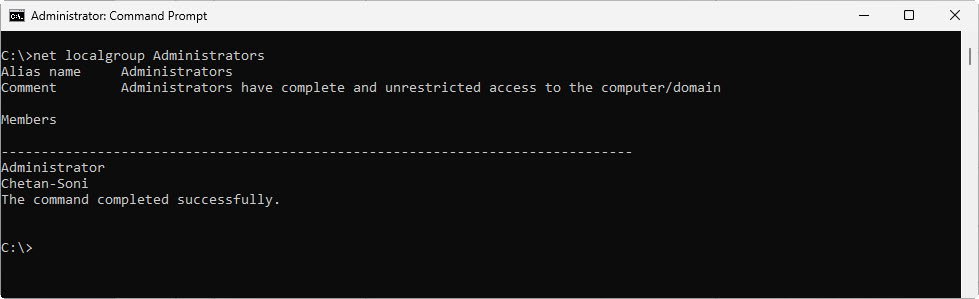
36. net start
This command starts a Windows service by name. For example, starting the “Print Spooler” service so printers work.
Syntax: net start "Print Spooler"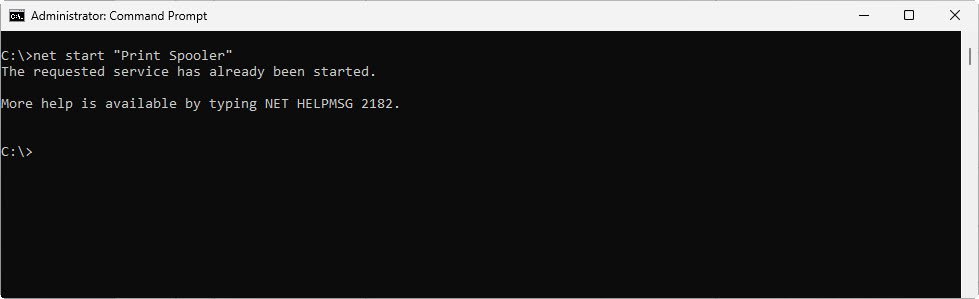
37. net stop
This command stops a Windows service by name. For example, stopping the “Print Spooler” service will disable printing.
Syntax: net stop "Print Spooler"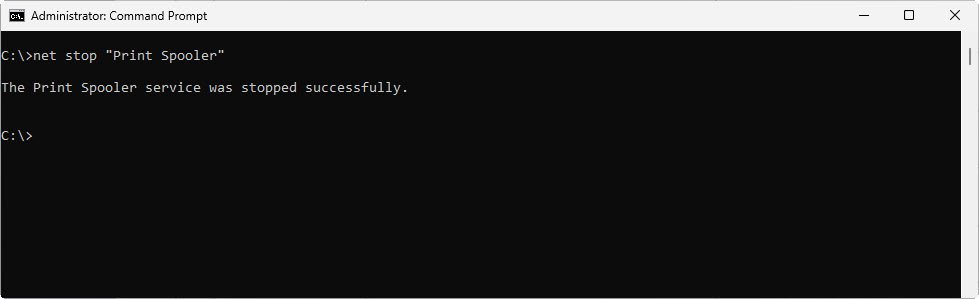
38. netsh
This command manages and displays network settings. In this example, it lists all saved Wi-Fi network profiles on your PC.
Syntax: netsh wlan show profiles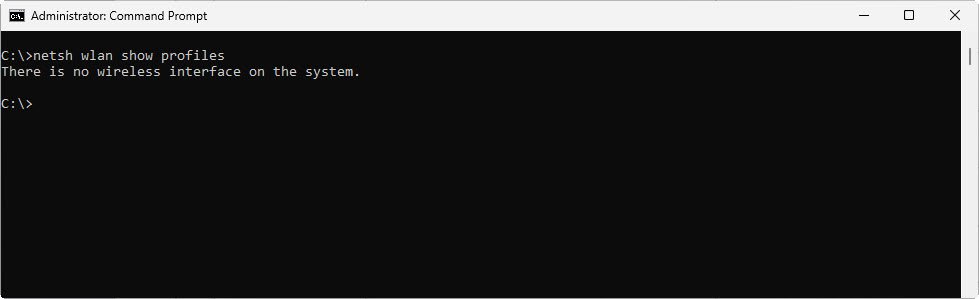
39. sc
This command shows the status of Windows services. It can be used to check whether a service is running or stopped.
Syntax: sc query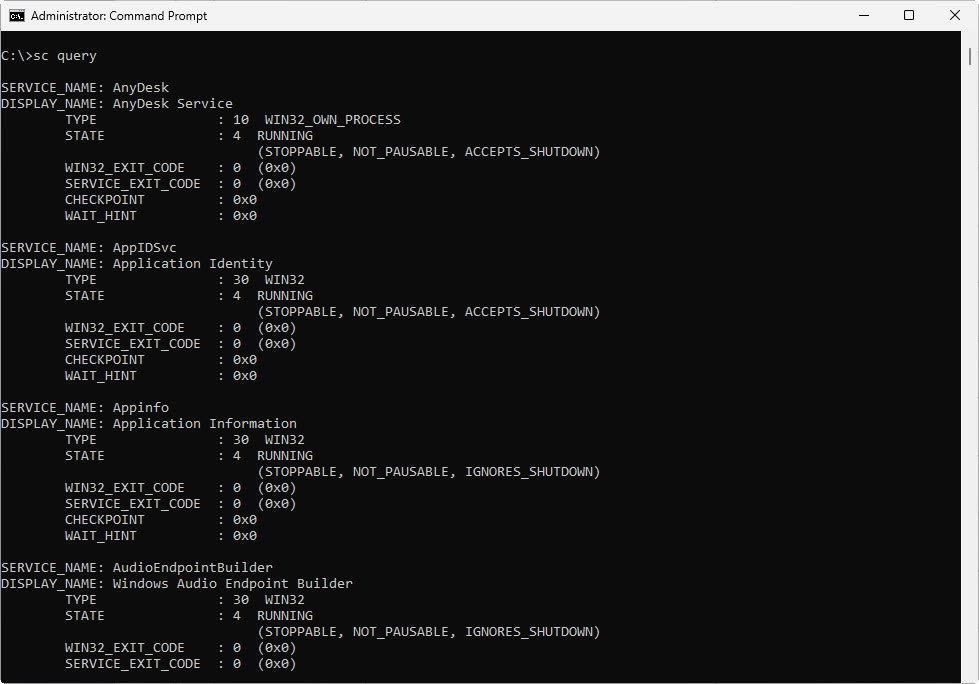
40. reg
This command looks inside the Windows Registry to view specific keys and their values. It’s useful for system configuration and troubleshooting.
Syntax: reg query HKLM/Software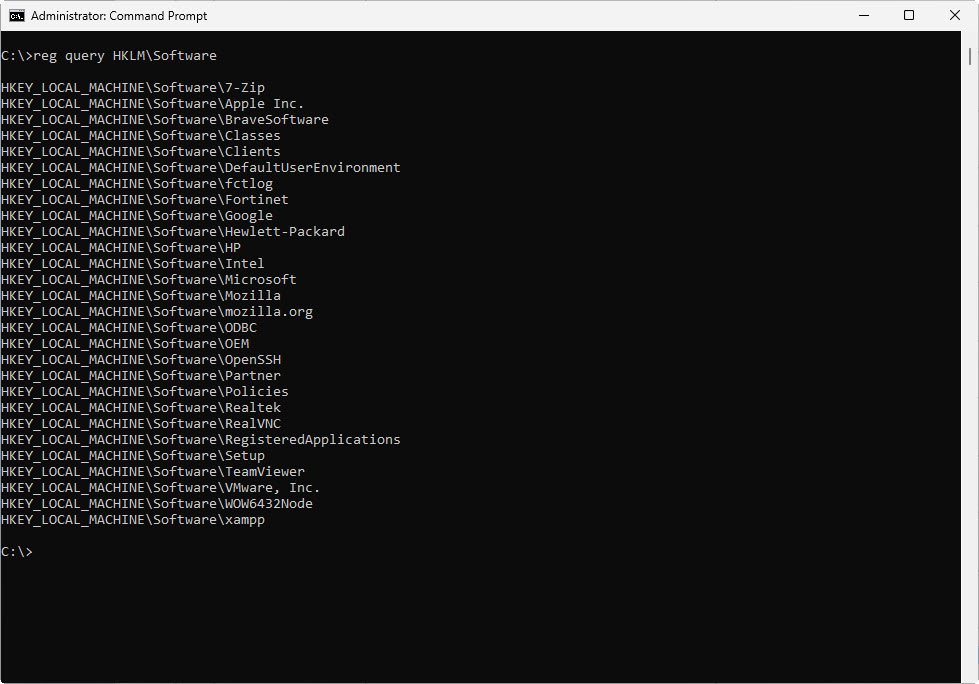
41. runas
This command lets you run a program as another user. It’s useful for opening apps with administrator privileges without logging out.
Syntax: ipconfig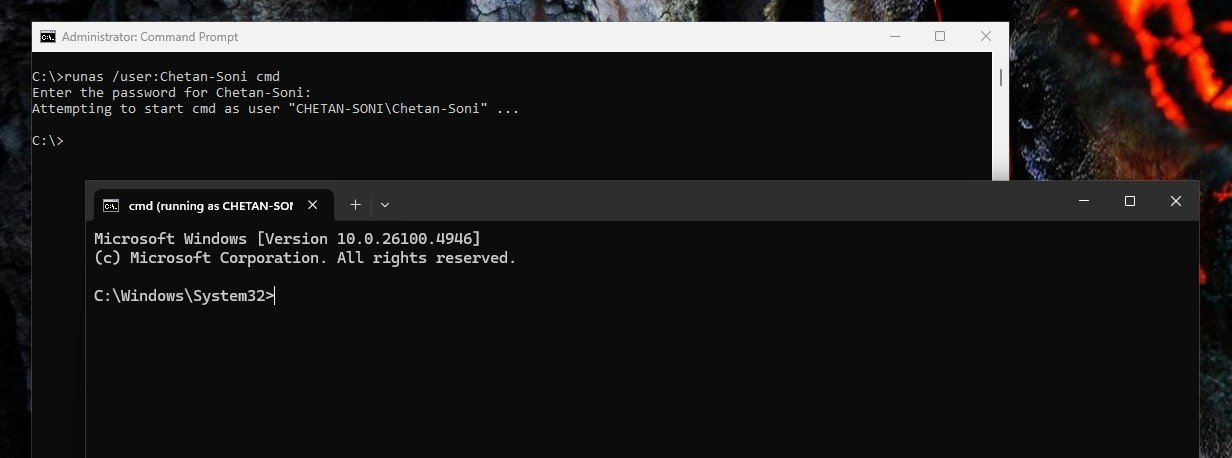
42. wmic
This command retrieves detailed information from Windows Management Instrumentation (WMI). In this example, it shows the OS name, version and build number.
Syntax: wmic os get name, version, buildnumber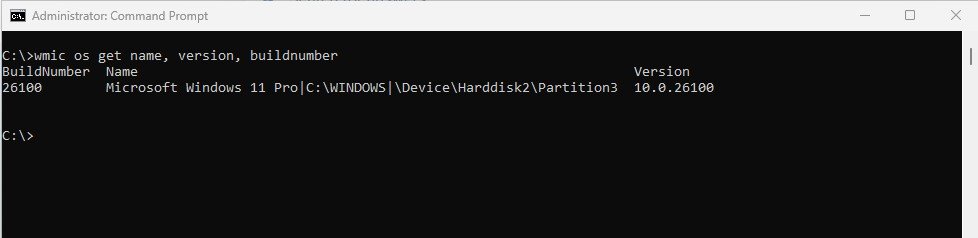
43. assoc
This command displays or changes the file type association for a given extension. For example, .txt files might be linked to Notepad.
Syntax: assoc .txt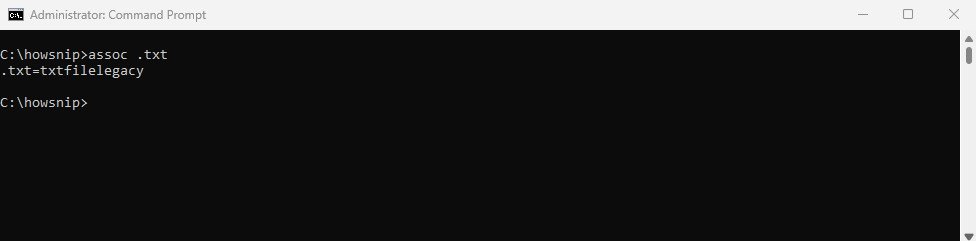
44. driverquery
This command lists all drivers installed on your system along with their status and file location.
Syntax: driverquery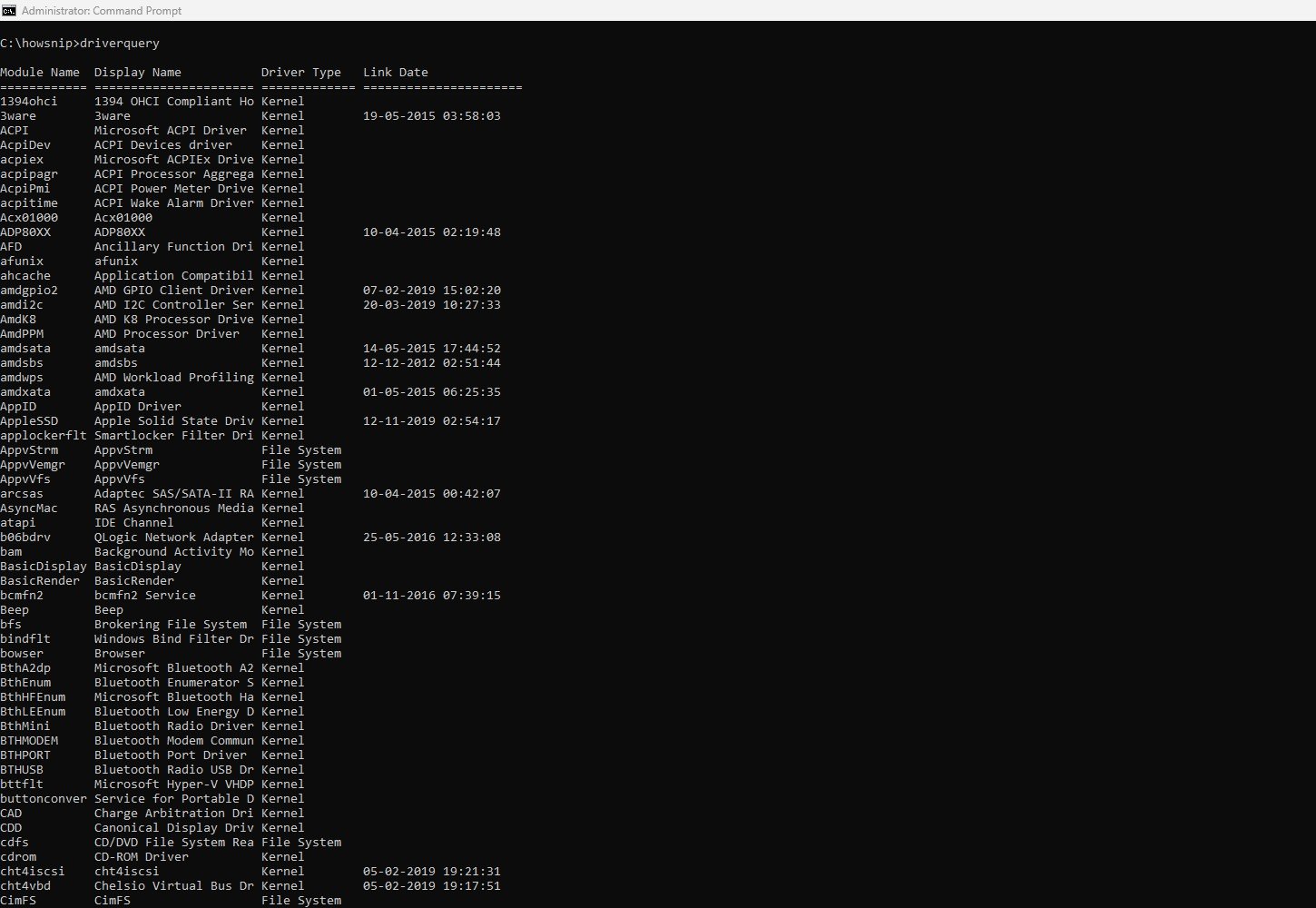
45. msinfo32
This command opens the System Information tool, showing detailed hardware resources, components, and software environment.
Syntax: msinfo32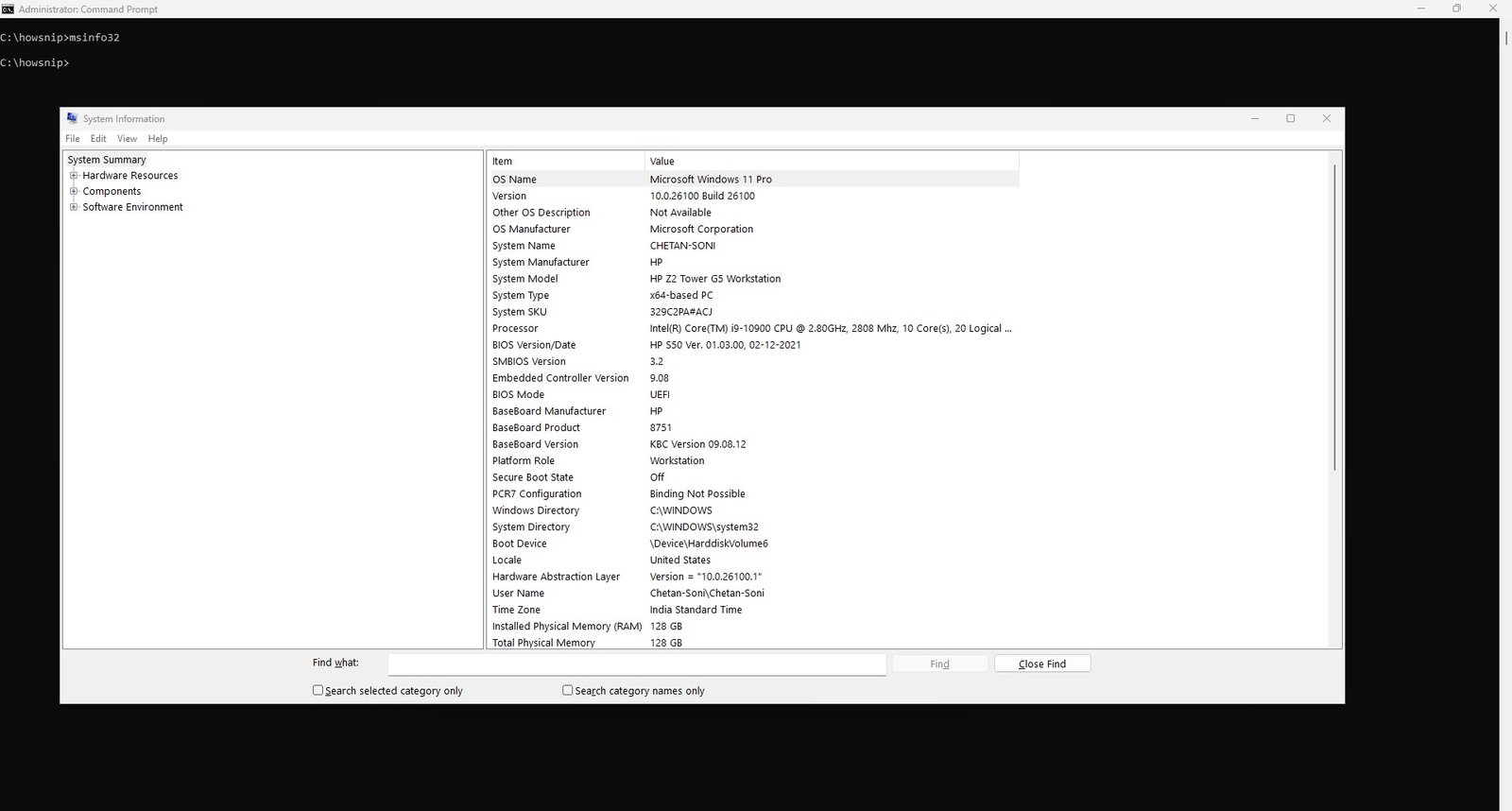
46. mmc
This command opens the Microsoft Management Console, which is used to manage administrative snap-ins such as Device Manager or Event Viewer.
Syntax: mmc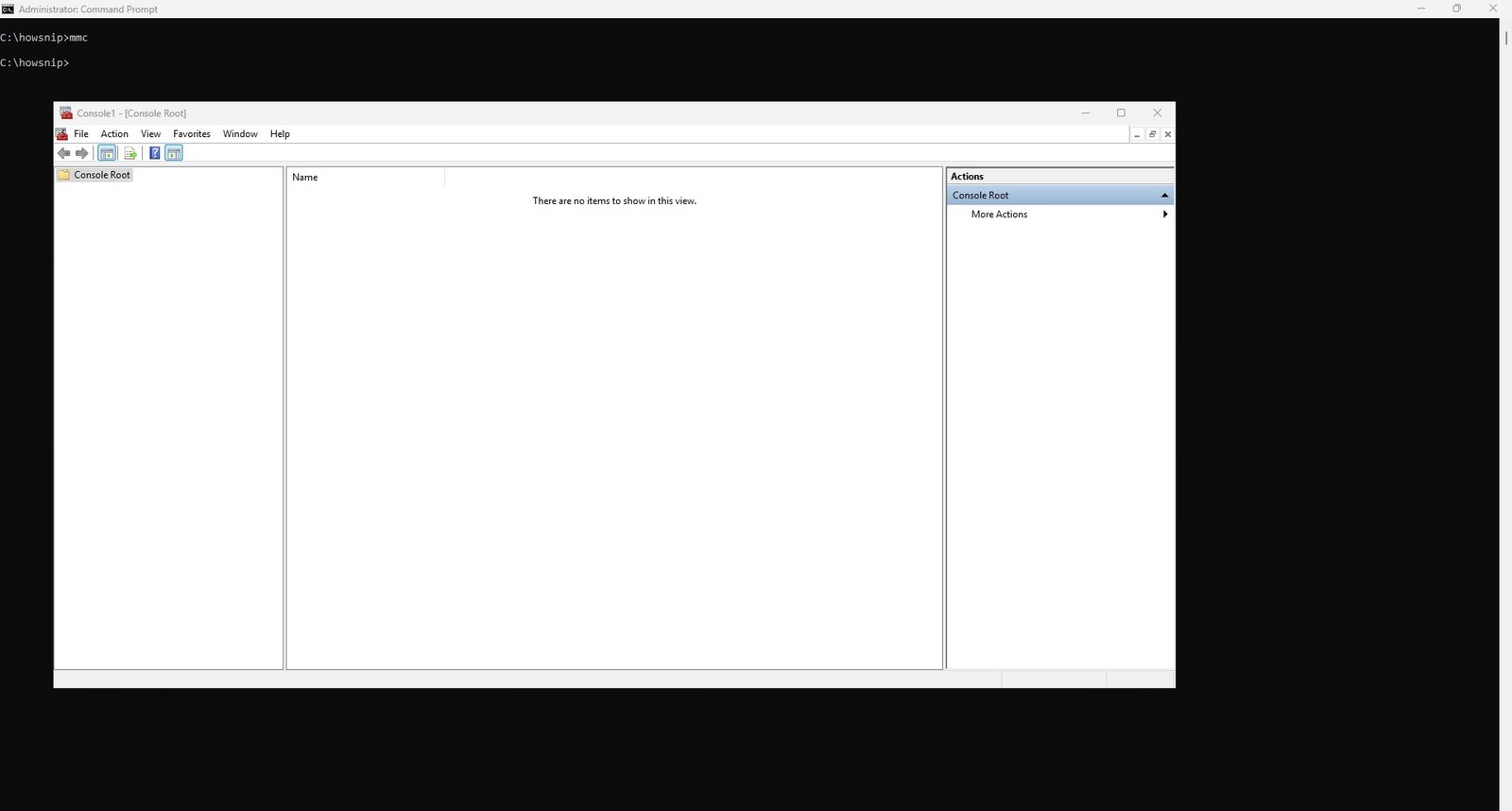
47. eventvwr
This command opens the Event Viewer, where you can check system, security, and application logs for errors and warnings.
Syntax: eventvwr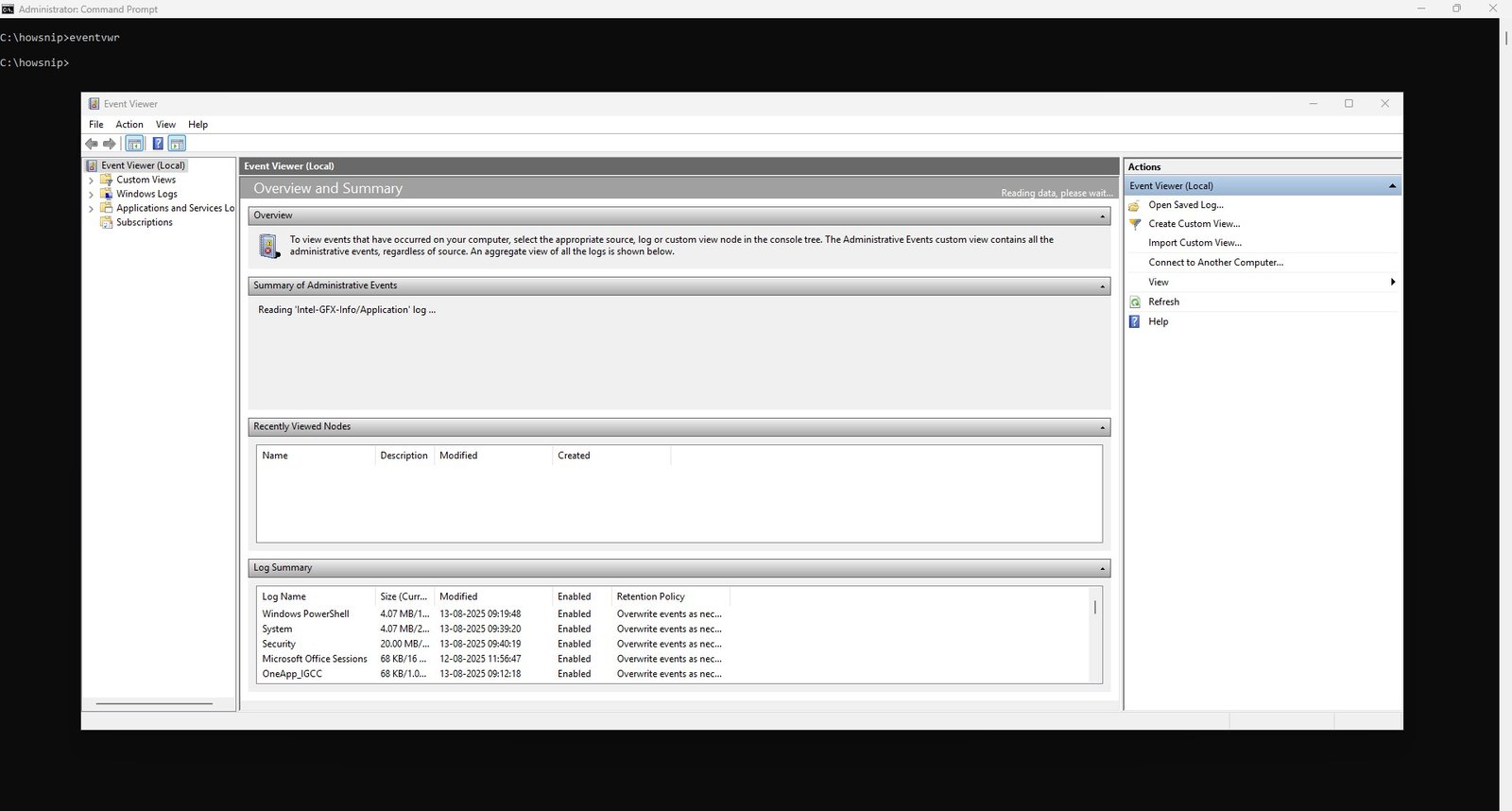
48. services.msc
This command opens the Services management panel, where you can start, stop, and configure Windows services.
Syntax: services.msc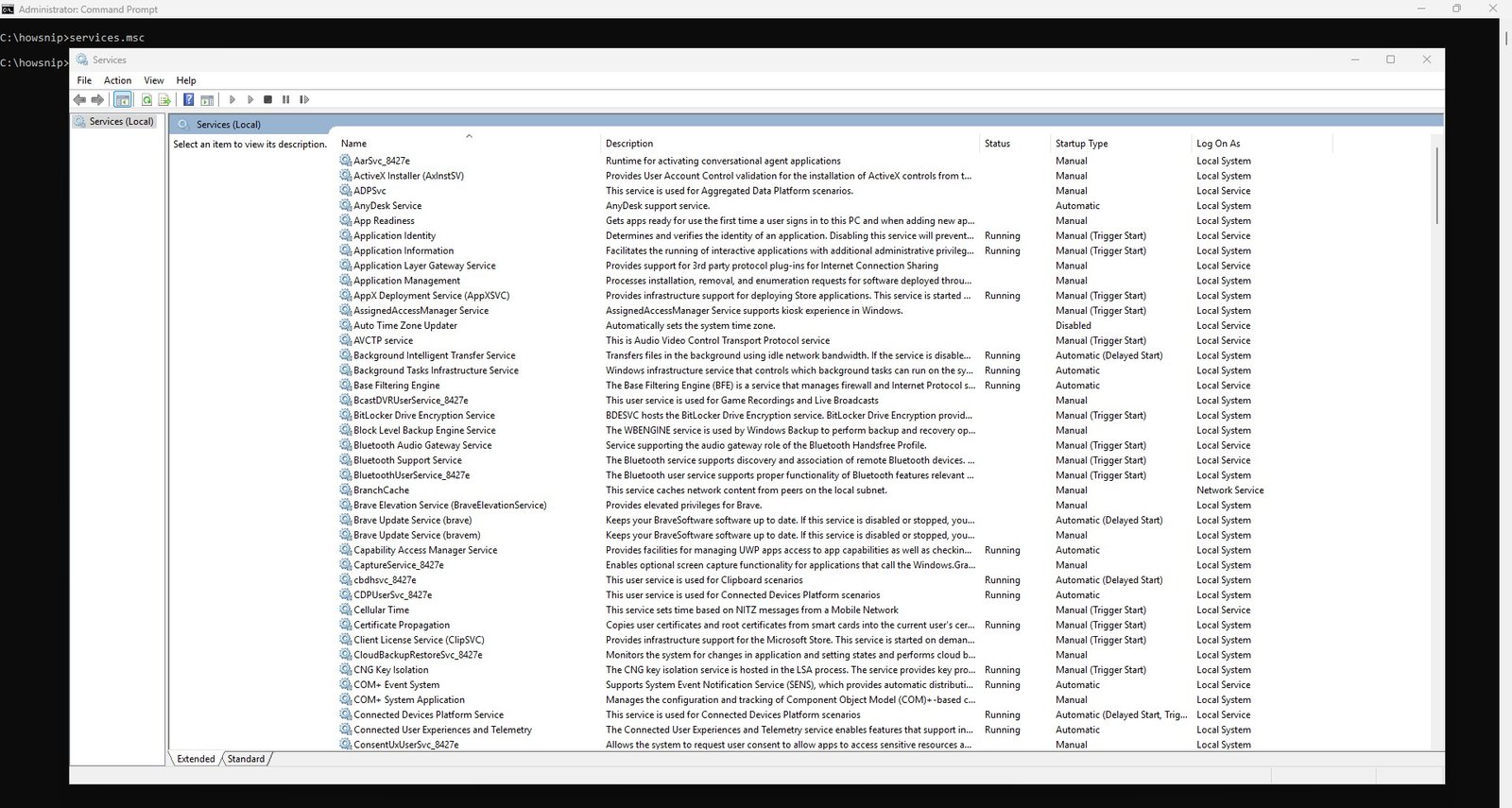
49. devmgmt.msc
This command opens Device Manager, allowing you to view and manage connected hardware devices.
Syntax: devmgmt.msc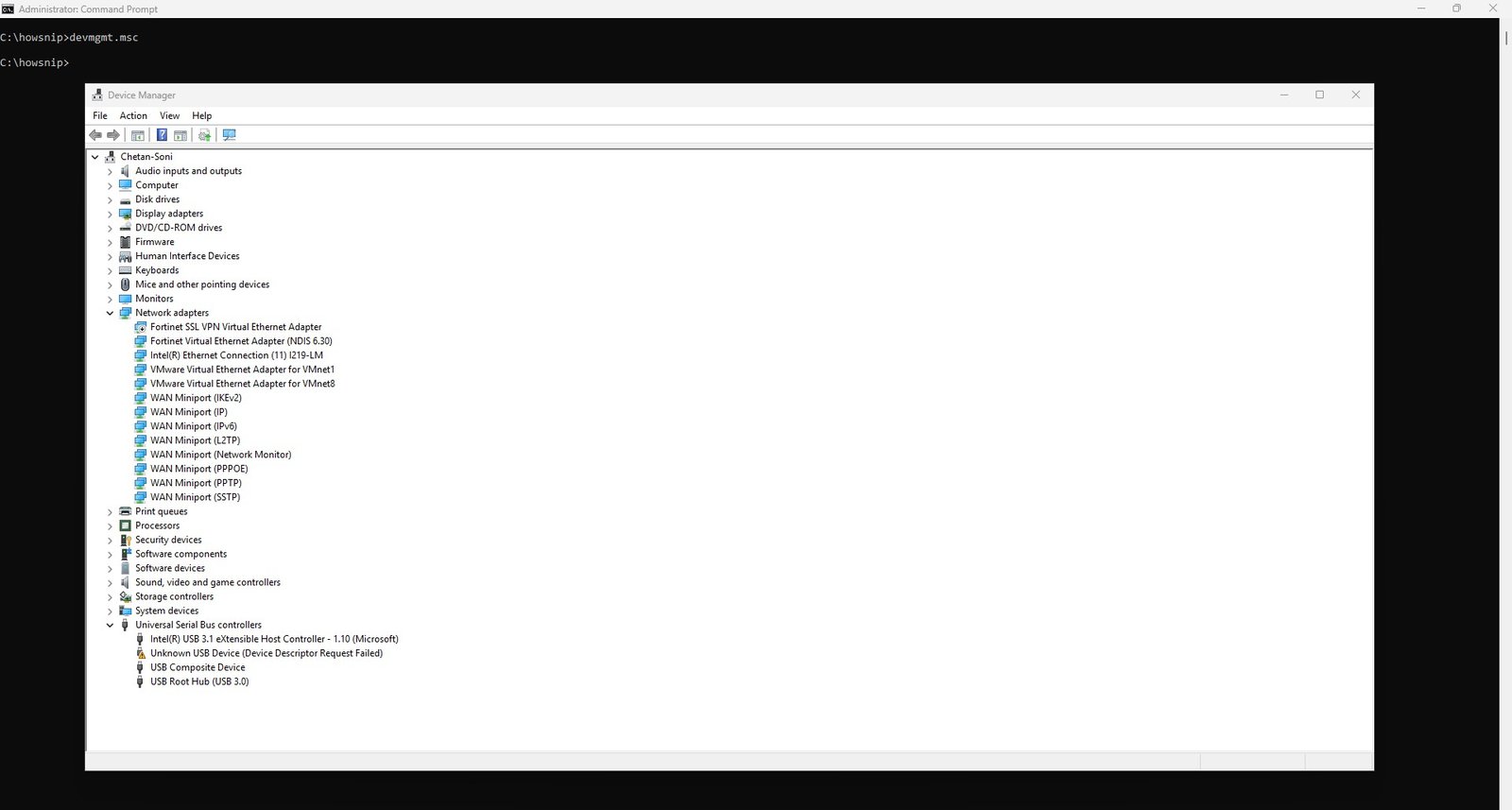
50. diskmgmt.msc
This command opens the Disk Management tool, used for creating, deleting, formatting, and resizing disk partitions.
Syntax: diskmgmt.msc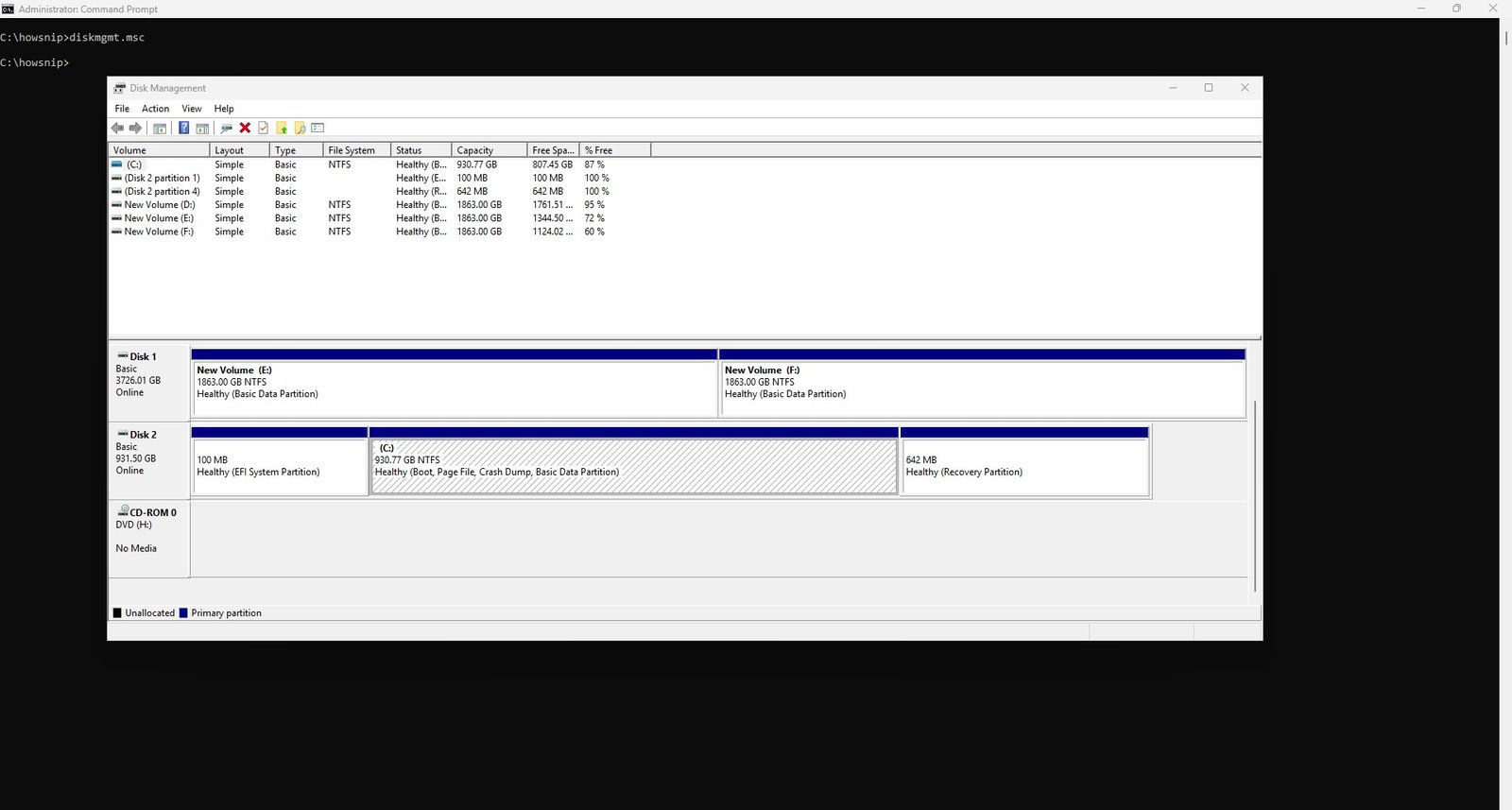
51. taskmgr
This command opens Task Manager, where you can view running programs, end tasks, monitor CPU and memory usage, and manage startup apps.
Syntax: taskmgr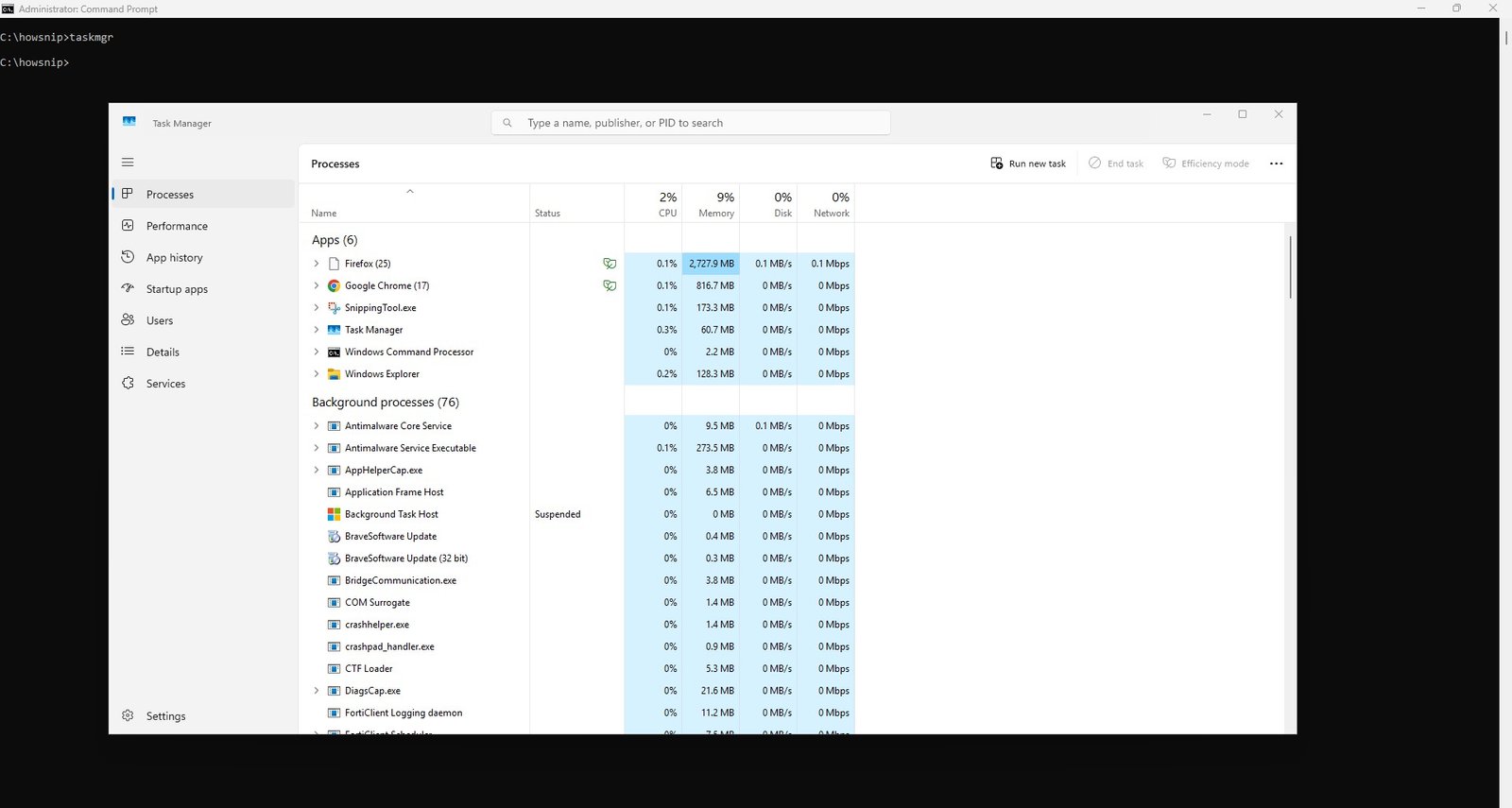
52. perfmon
This command opens Performance Monitor, a tool that tracks detailed performance data such as CPU usage, memory load, and disk activity.
Syntax: perfmon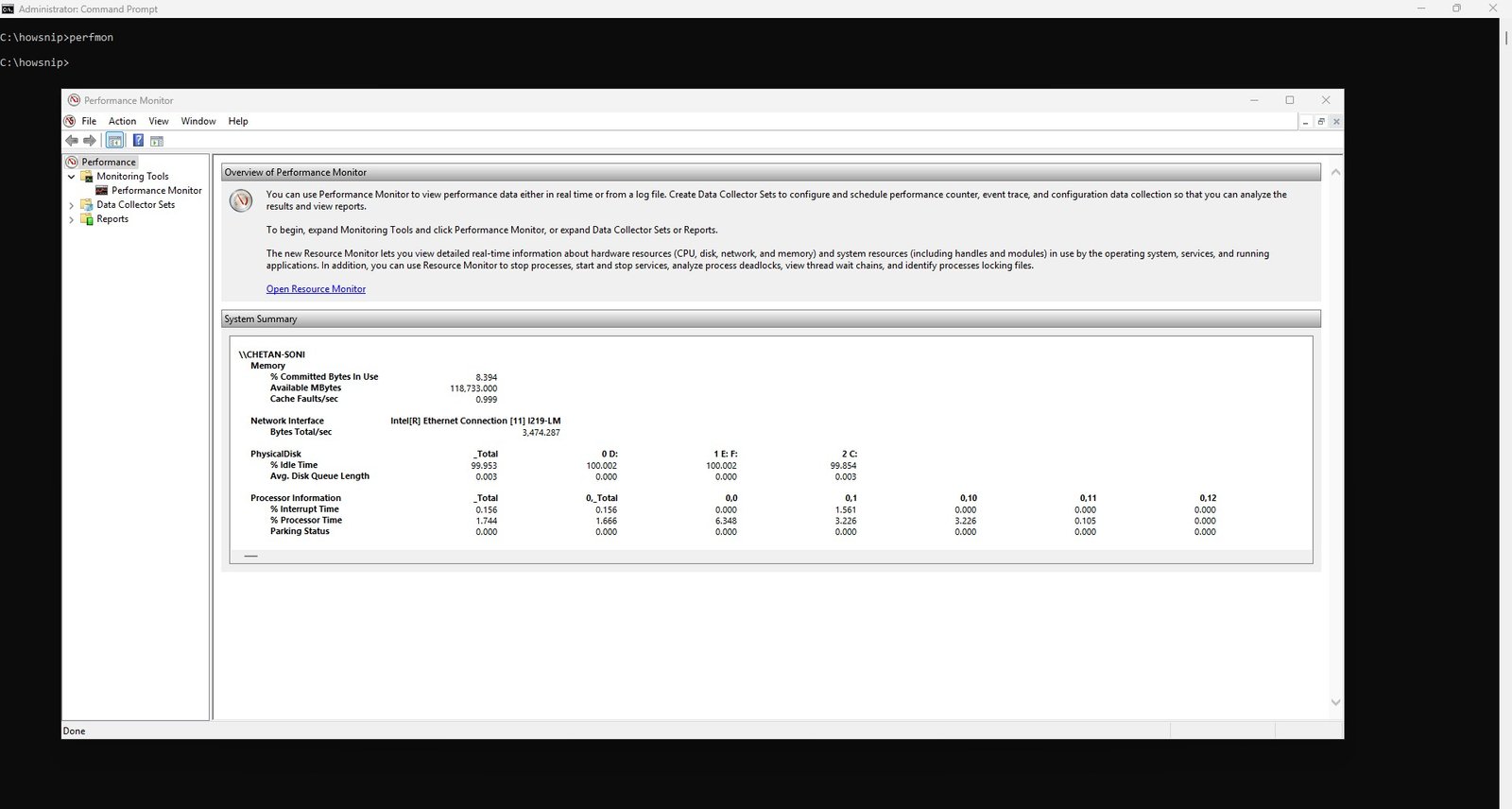
53. resmon
This command opens Resource Monitor, showing real-time information on CPU, disk, network, and memory usage by each process.
Syntax: resmon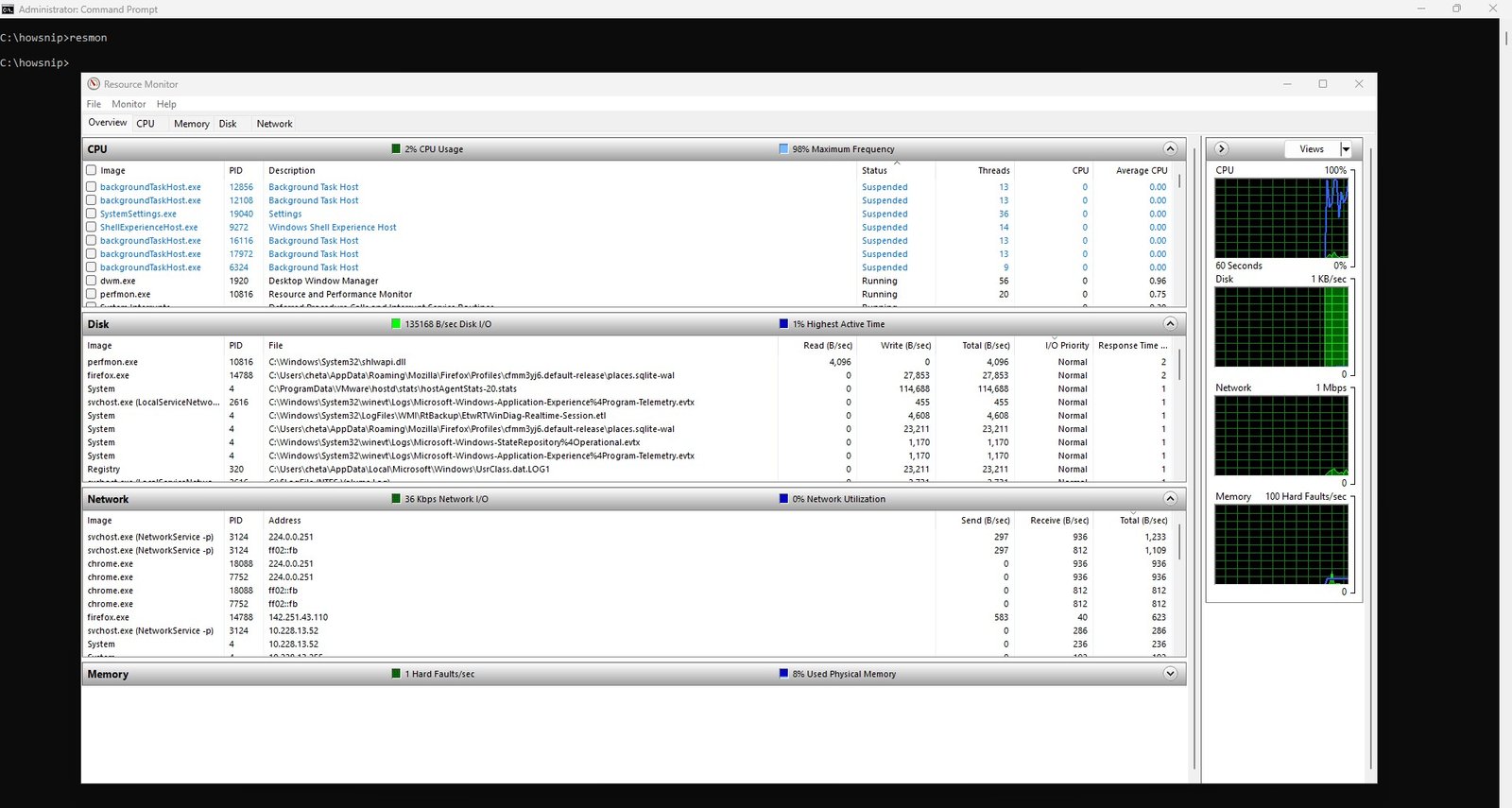
54. msconfig
This command opens System Configuration, allowing you to change boot options, manage startup items, and enable or disable services.
Syntax: msconfig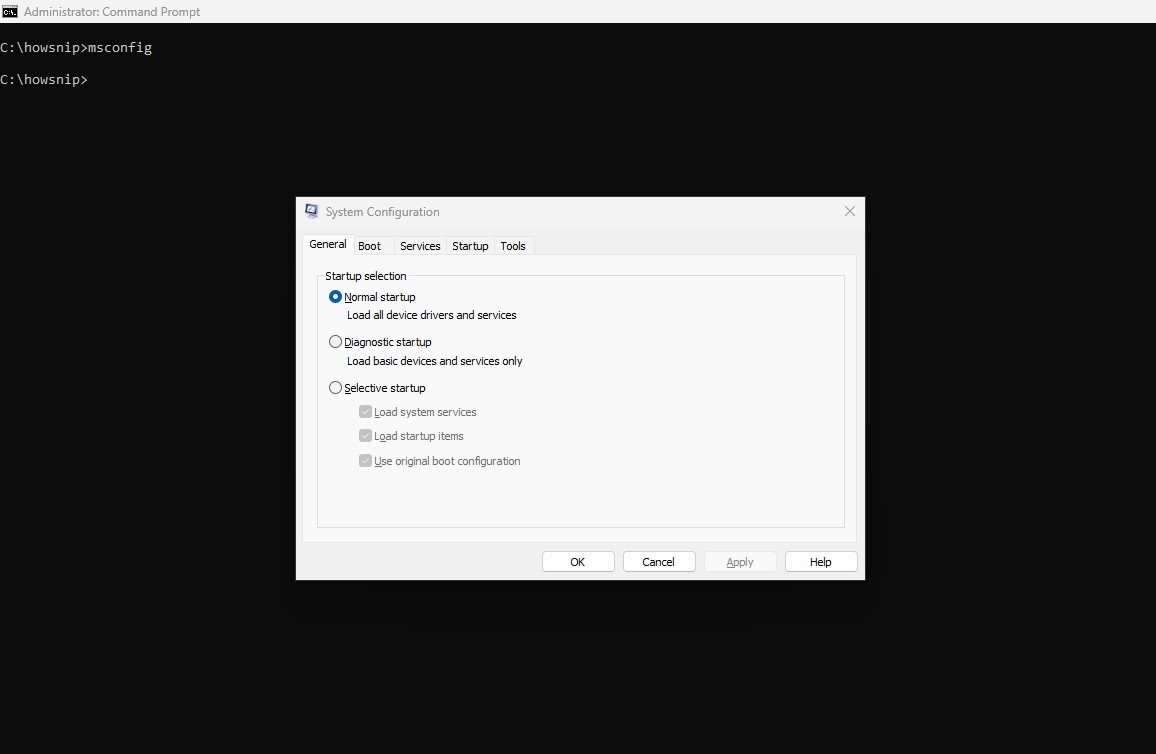
55. control
This command opens the Windows Control Panel, giving access to system settings and configuration tools.
Syntax: control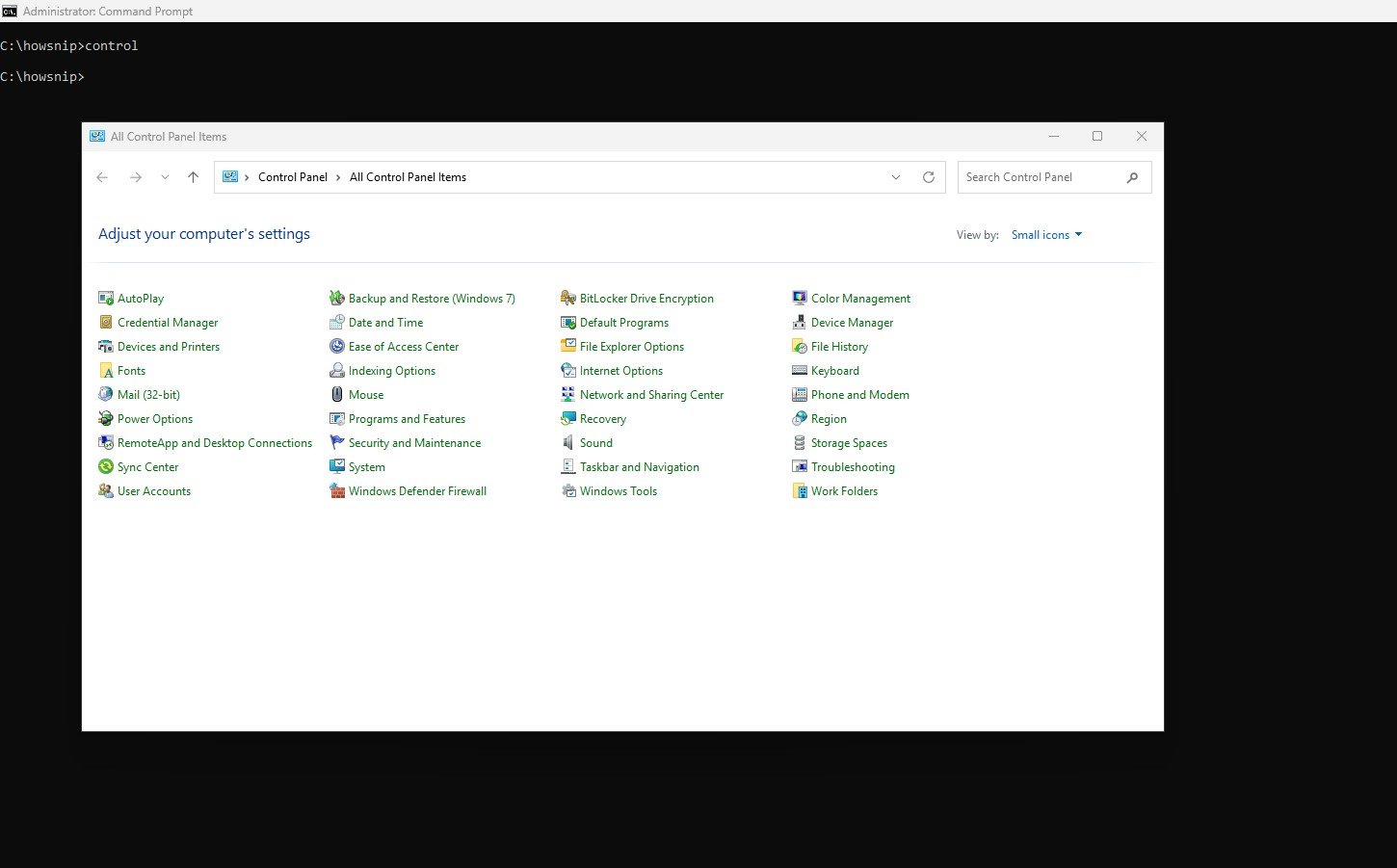
56. mstsc
This command launches the Remote Desktop Connection tool, allowing you to connect to another computer over the network.
Syntax: mstsc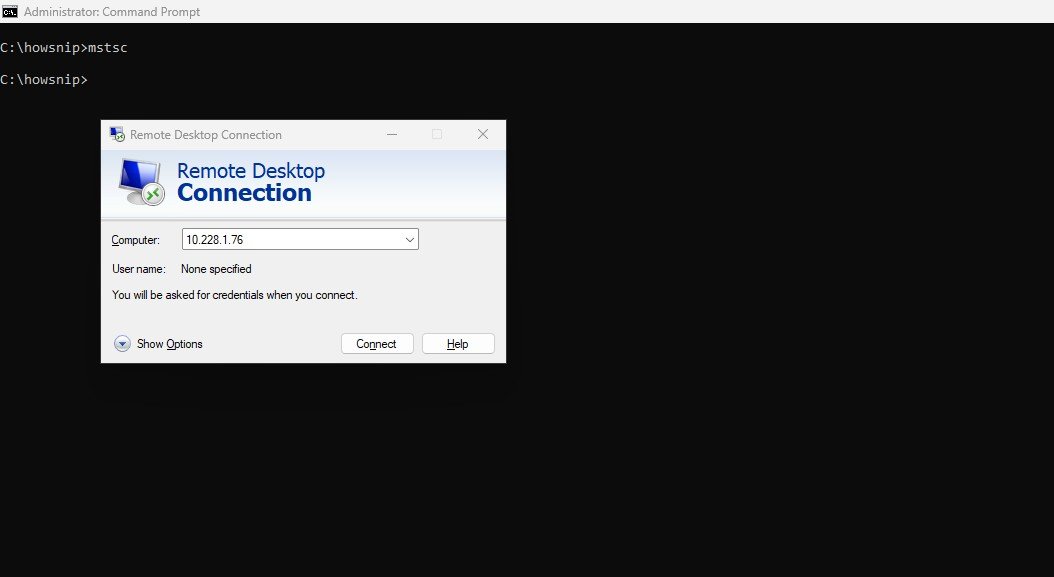
57. cleanmgr
This command opens Disk Cleanup, a utility for removing unnecessary files like temporary files and recycle bin items to free up space.
Syntax: cleanmgr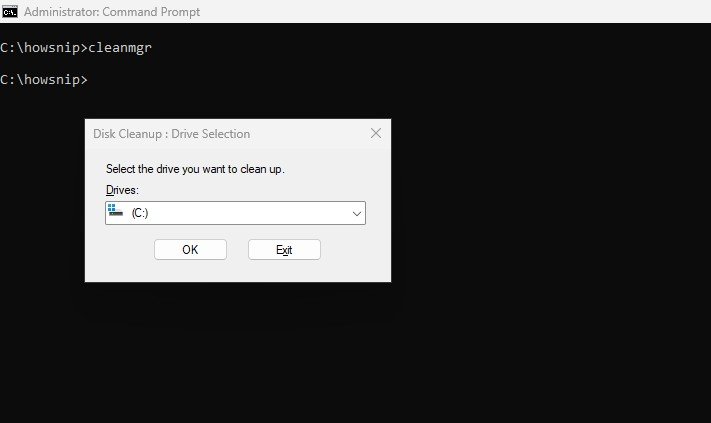
58. defrag
This command defragments the specified disk, rearranging stored data for faster file access and better performance.
Syntax: defrag c: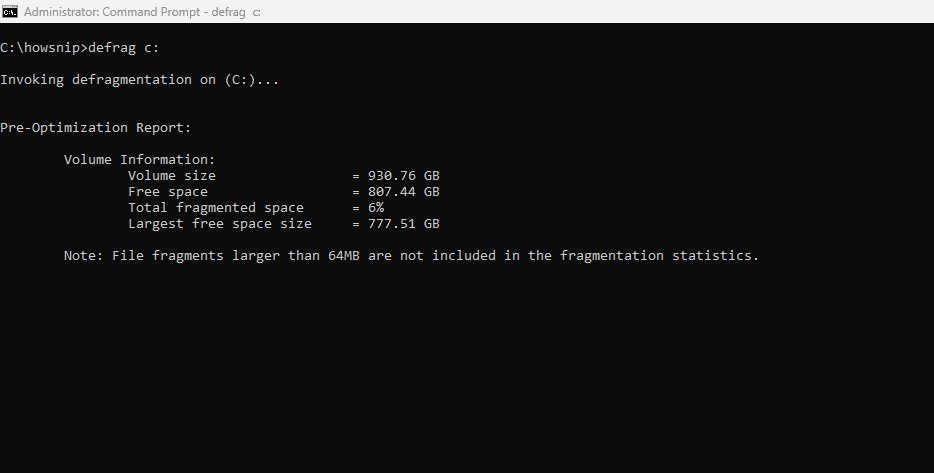
59. fsutil
This command provides information about drives and file system features. It’s often used for advanced disk management tasks.
Syntax: fsutil fsinfo drives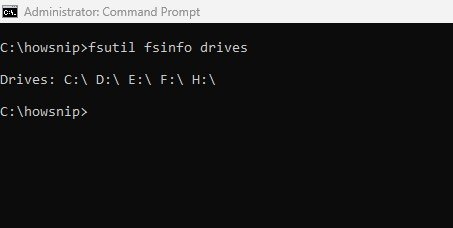
60. path
This command displays or sets the directories Windows searches for executable files. It’s important for running programs from the command line.
Syntax: path
61. set
This command displays all environment variables currently set in Windows, or lets you create/change them for the current session.
Syntax: set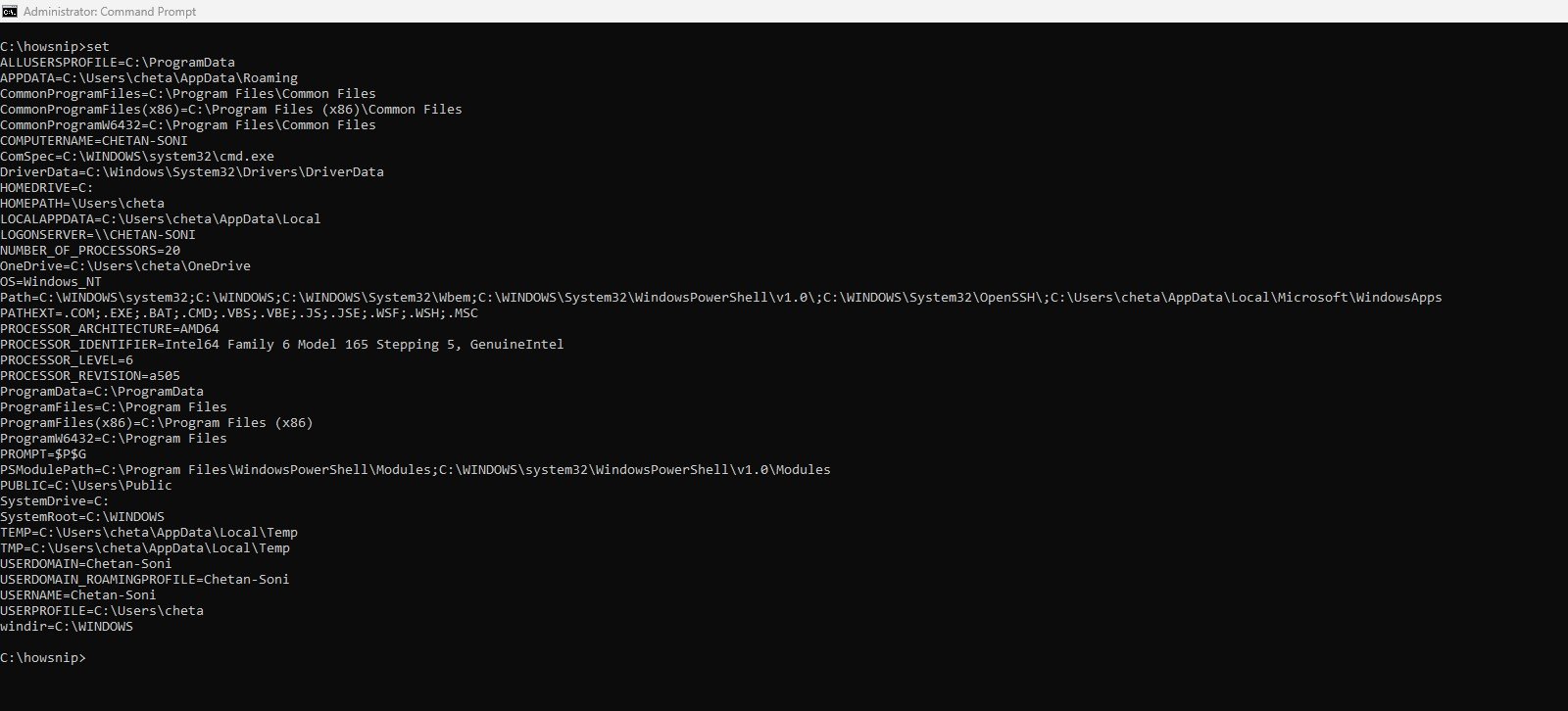
62. echo
This command displays the specified text in the Command Prompt. It’s often used in scripts to show messages.
Syntax: echo Hello World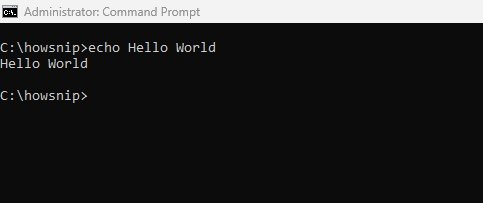
63. cls
This command clears all text from the Command Prompt screen, giving you a clean workspace.
Syntax: cls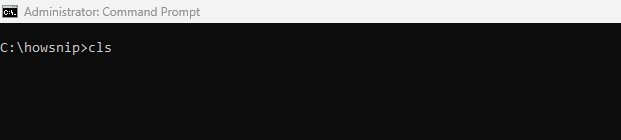
64. query
This command shows information about currently running processes or sessions on the system, especially useful on remote or terminal servers.
Syntax: query process *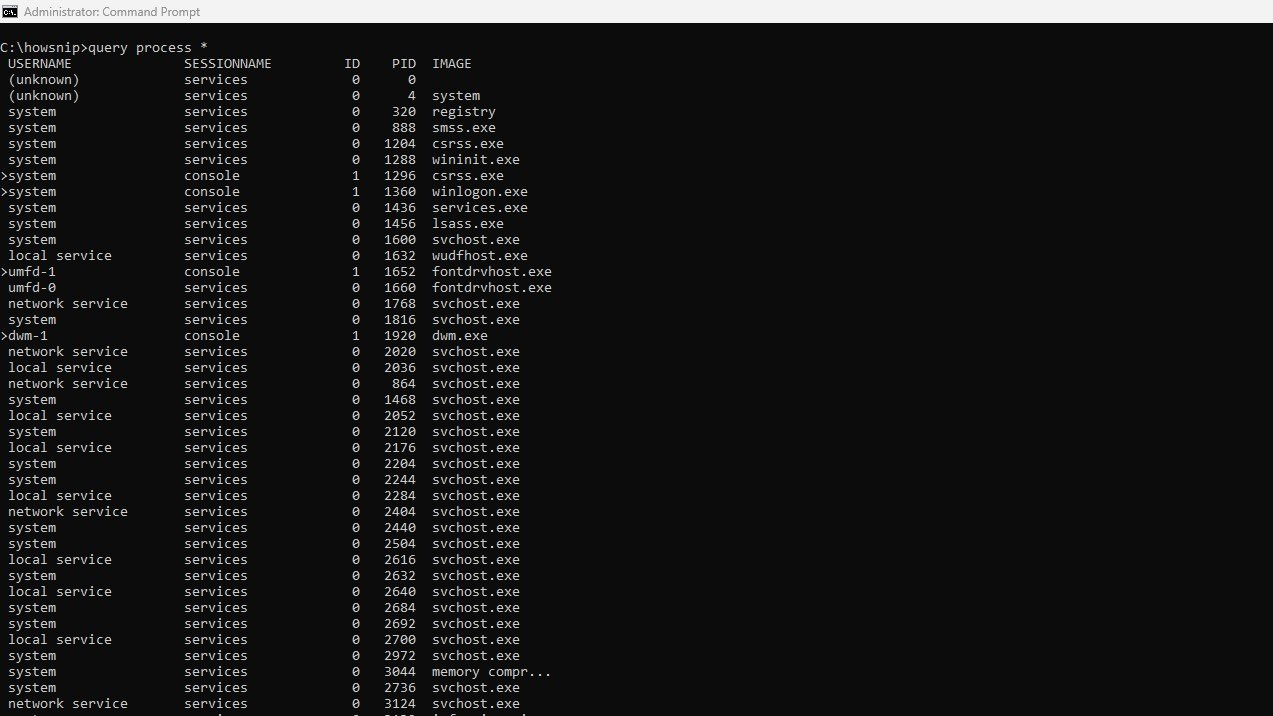
65. winget
This command uses the Windows Package Manager to list installed applications and their versions.
Syntax: winget list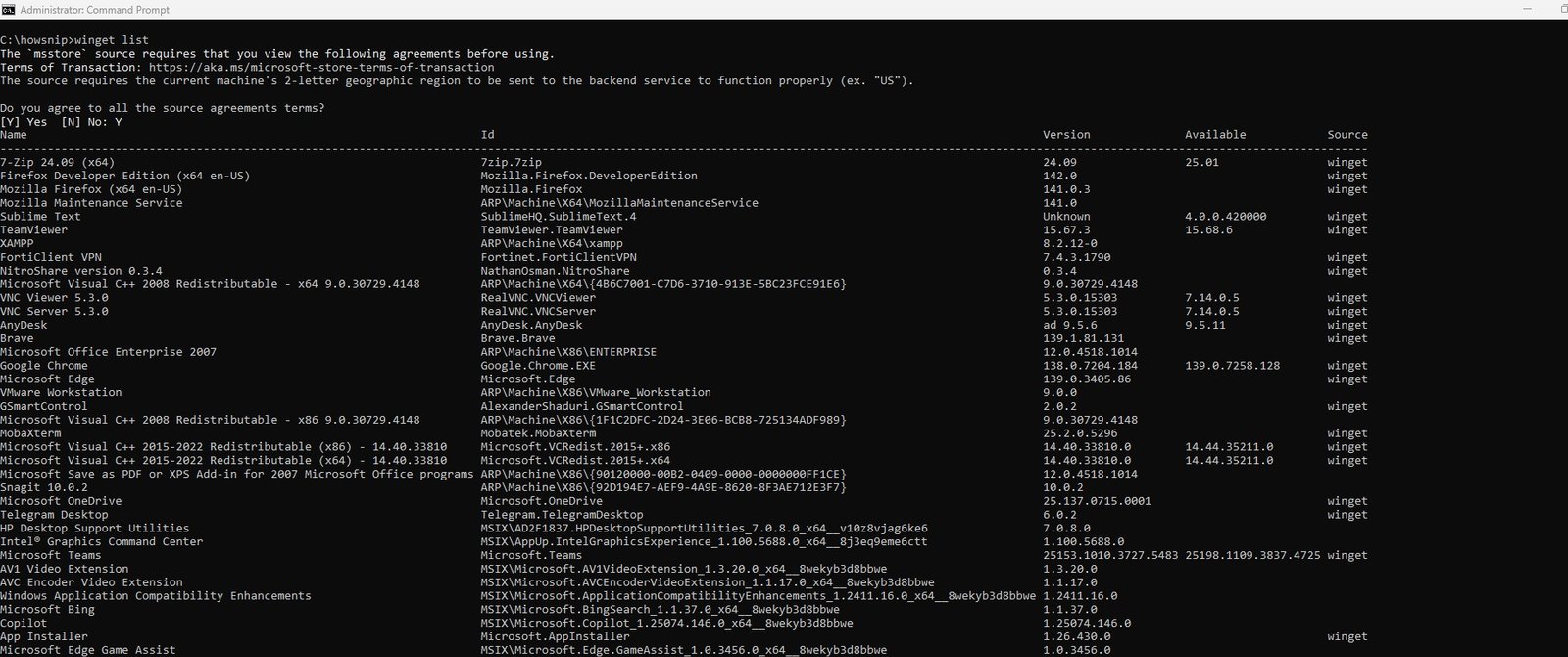
66. pathping
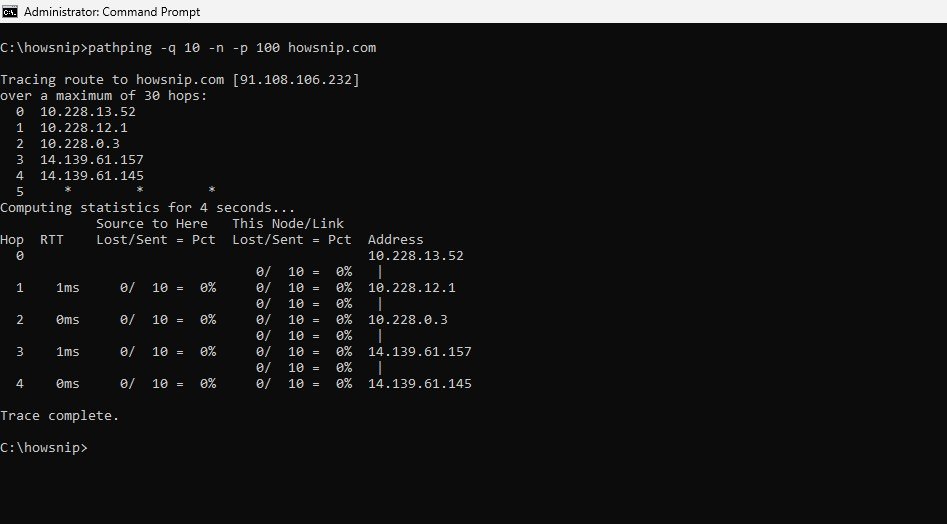
This command combines the functions of ping and tracert, checking both the route to a destination and packet loss statistics for each step.
Syntax: pathping -q 10 -n -p 100 example.com